> ## Documentation Index
> Fetch the complete documentation index at: https://clickflare.com/docs/llms.txt
> Use this file to discover all available pages before exploring further.
# Sending Delayed Revenue to Traffic Sources: A Step-by-Step Guide
> Learn how to accurately pass confirmed revenue from feed providers like RSOC to your traffic sources using ClickFlare’s Delayed Revenue Conversion feature.
## What’s New?
With the latest update, you can now send revenue to your traffic source *after* the initial conversion is fired.
Passing accurate revenue from feed providers (like RSOC) to traffic sources (e.g., Facebook) ensures reliable reporting and optimization, especially when the actual revenue isn't known at the moment of the click.
### Who Is This Feature For?
This feature is built for users running search arbitrage campaigns, particularly:
* AFD campaigns
* RSOC (Related Search for Content) campaigns
### Why Do I Need This Feature?
#### The Problem
Feed providers often delay revenue reporting, sometimes by a few hours or days. When a conversion is first tracked, the feed usually returns a placeholder revenue of \$0 or a very rough estimate.
If you forward that conversion to your traffic source immediately (as is standard practice), platforms like Facebook will record that inaccurate revenue. Since many traffic sources optimize based on ROAS, this can cause major inefficiencies in campaign performance.
### The Solution: Delayed Revenue Postbacks
Delayed revenue postbacks allow you to send a *second* conversion event once the final revenue is confirmed by your feed provider.
This is especially useful when:
* Final revenue is confirmed hours later (e.g., following an ad view or user engagement).
* You need to send the accurate revenue amount to your traffic source.
* You want to ensure reporting reflects true performance.
* You're aiming to optimize campaigns based on reliable revenue data.
Instead of trying to overwrite the original event (which most platforms don’t support), you send a **separate custom conversion** specifically for the delayed revenue. This event is treated independently and ensures that your traffic source receives accurate performance data.
### Why Not Just Send Revenue Updates Later?
While ClickFlare can receive updated revenue data from feed integrations, many traffic sources, like Meta, TikTok, and others, do not accept revenue updates after the original conversion has been received. These platforms will log the revenue from the first event and ignore any subsequent updates. Simply re-firing the same conversion with corrected revenue won’t work.
## Step-by-Step Setup
### 1. Create a Custom Conversion
*A custom conversion lets you define a new event type that can be tracked independently from your standard conversion events.*
Go to **Settings > Custom Conversions** in ClickFlare:
* Click **Add New**
* Set:
* **Name**: Delayed Click (or any preferred name)
* **Parameters**: `delayed_conv`
* Save your custom conversion
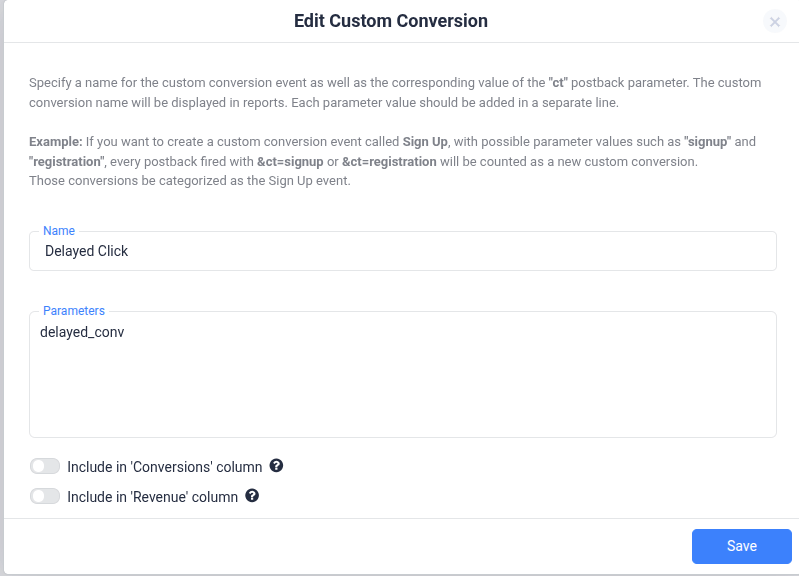 This parameter will be used to save the delayed revenue value
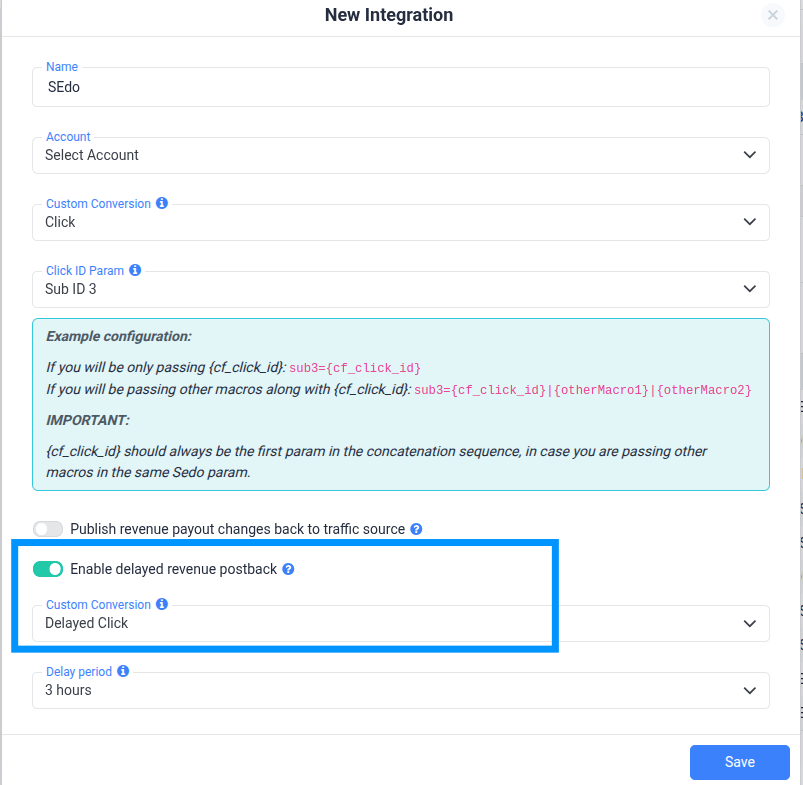
### 2. Enable Delayed Revenue Postback in RSOC or Revenue Stream Integration
Navigate to **Integrations > Revenue Stream Integration/ Rsoc Integration** and:
* Click **Edit** on the integration
* Toggle **Enable delayed revenue postback**
* Select the custom conversion you just created
This parameter will be used to save the delayed revenue value
### 2. Enable Delayed Revenue Postback in RSOC or Revenue Stream Integration
Navigate to **Integrations > Revenue Stream Integration/ Rsoc Integration** and:
* Click **Edit** on the integration
* Toggle **Enable delayed revenue postback**
* Select the custom conversion you just created
 ### 3. Map the custom conversion to a Traffic Source event
* Go to **Integrations > Conversion API** in ClickFlare.
* Edit the integration for your traffic source (e.g., **Facebook**).
* Under **Event Type Mapping**:
* Map the delayed\_conv event to **Purchase**
* Save the integration.
### 3. Map the custom conversion to a Traffic Source event
* Go to **Integrations > Conversion API** in ClickFlare.
* Edit the integration for your traffic source (e.g., **Facebook**).
* Under **Event Type Mapping**:
* Map the delayed\_conv event to **Purchase**
* Save the integration.
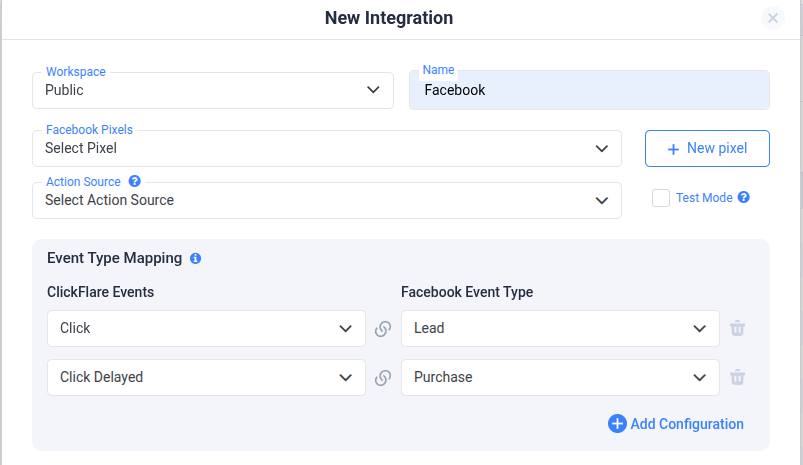 We map the delayed revenue event to "Purchase" because it's the monetization event Facebook recognizes and requires a value field. This ensures the delayed revenue is treated as a valid conversion
### Important: Avoid Double Counting
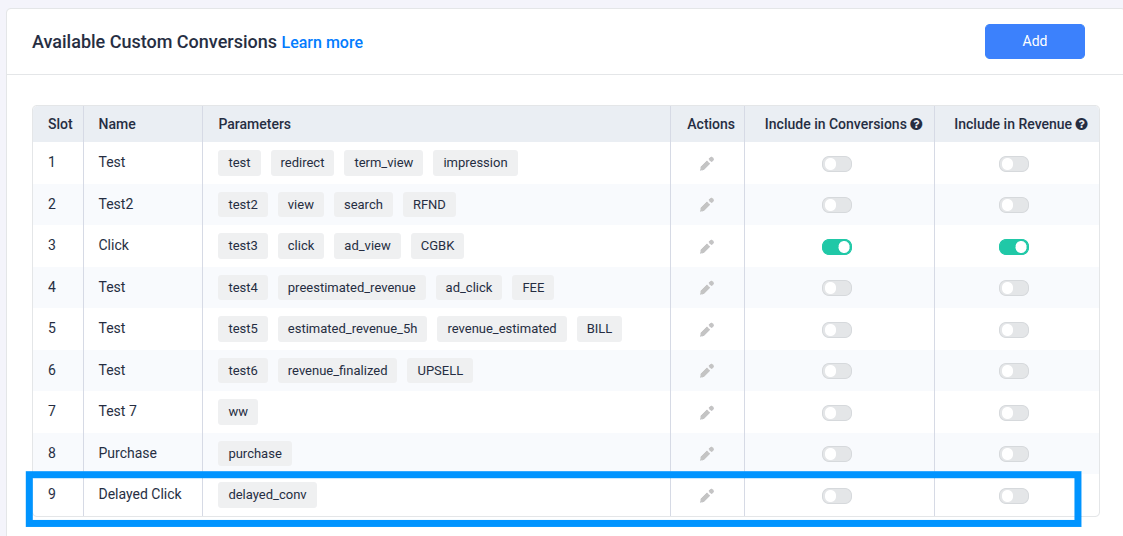
**Do NOT include your delayed custom conversion (e.g., delayed\_conv) in the main Revenue or Conversions columns in ClickFlare.**
Doing so will cause your reports to **double-count revenue and conversions**, since both the initial and delayed events will be counted.
To prevent Revenue and Conversion Duplication:
* **Leave "Include in Revenue" and "Include in Conversions" toggled OFF** for the delayed conversion (as shown in the screenshot).
We map the delayed revenue event to "Purchase" because it's the monetization event Facebook recognizes and requires a value field. This ensures the delayed revenue is treated as a valid conversion
### Important: Avoid Double Counting
**Do NOT include your delayed custom conversion (e.g., delayed\_conv) in the main Revenue or Conversions columns in ClickFlare.**
Doing so will cause your reports to **double-count revenue and conversions**, since both the initial and delayed events will be counted.
To prevent Revenue and Conversion Duplication:
* **Leave "Include in Revenue" and "Include in Conversions" toggled OFF** for the delayed conversion (as shown in the screenshot).
 ***
**FREQUENTLY ASKED QUESTIONS**
> **Q1:** Why do I need to use a delayed revenue postback?
**A1:** Most feed providers confirm revenue after the initial click. If you send the conversion too early, it may report \$0 revenue. Delayed postbacks allow you to report accurate values once the feed confirms them.
> **Q2:** What happens if I don’t use a custom conversion for delayed revenue?
**A2:** The traffic source may associate the delayed revenue with the original (zero-payout) event and ignore it. Using a separate custom conversion ensures the event is processed independently.
> **Q3:** Can I use this setup for traffic sources other than Facebook?
**A3:** Yes. This method works for any traffic source that supports Conversion API or postback URL, such as TikTok, Google Ads (via offline conversions), and others. Just make sure the event mapping and format match the platform’s requirements.
> **Q4:** Is the setup the same for AFD and RSOC?
**A4:** Yes, the setup process is the same for both.
***
## 📚 Related Resources
[Custom Conversions](/docs/en/settings/custom-conversions)
[Adding an Integration](/docs/en/integrations/adding-an-integration)
[Adding Facebook Integration](/docs/en/integrations/facebook)
***
**FREQUENTLY ASKED QUESTIONS**
> **Q1:** Why do I need to use a delayed revenue postback?
**A1:** Most feed providers confirm revenue after the initial click. If you send the conversion too early, it may report \$0 revenue. Delayed postbacks allow you to report accurate values once the feed confirms them.
> **Q2:** What happens if I don’t use a custom conversion for delayed revenue?
**A2:** The traffic source may associate the delayed revenue with the original (zero-payout) event and ignore it. Using a separate custom conversion ensures the event is processed independently.
> **Q3:** Can I use this setup for traffic sources other than Facebook?
**A3:** Yes. This method works for any traffic source that supports Conversion API or postback URL, such as TikTok, Google Ads (via offline conversions), and others. Just make sure the event mapping and format match the platform’s requirements.
> **Q4:** Is the setup the same for AFD and RSOC?
**A4:** Yes, the setup process is the same for both.
***
## 📚 Related Resources
[Custom Conversions](/docs/en/settings/custom-conversions)
[Adding an Integration](/docs/en/integrations/adding-an-integration)
[Adding Facebook Integration](/docs/en/integrations/facebook)