> ## Documentation Index
> Fetch the complete documentation index at: https://clickflare.com/docs/llms.txt
> Use this file to discover all available pages before exploring further.
# How to Send One Event to Specific Campaigns in ClickFlare
> Use case: Sending conversion and event data to traffic sources using a webhook and traffic source template.
If you need all events to be sent to all campaigns except one specific event, which should only be sent for selected campaigns, you can use the Webhook CAPI integration as a workaround.
This gives you control over which campaigns fire that specific event, while all other events continue to be reported as usual.
## Step 1: Create a CAPI Integration with Webhook
Reference: [Custom Webhook Integration](/docs/en/integrations/custom-webhook-integration)
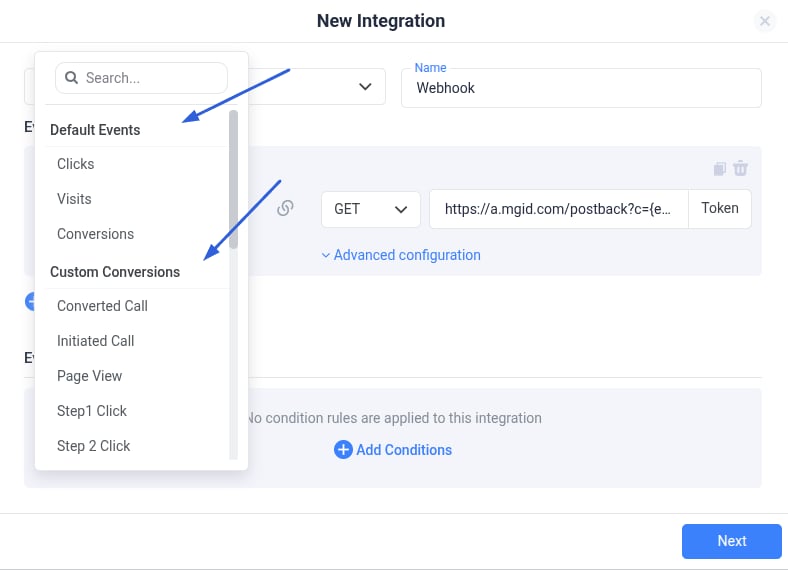
1. * Go to **Integrations > CAPI Integrations > Webhook**.
* Specify **Clicks** (or the event you want to send selectively) as the event to be reported.
* Configure the **postback URL** for your traffic source (e.g., MGID), using the proper data replacements.
Only configure the event(s) you want to send selectively here.
 ## Step 2: Assign the Integration to Specific Campaigns
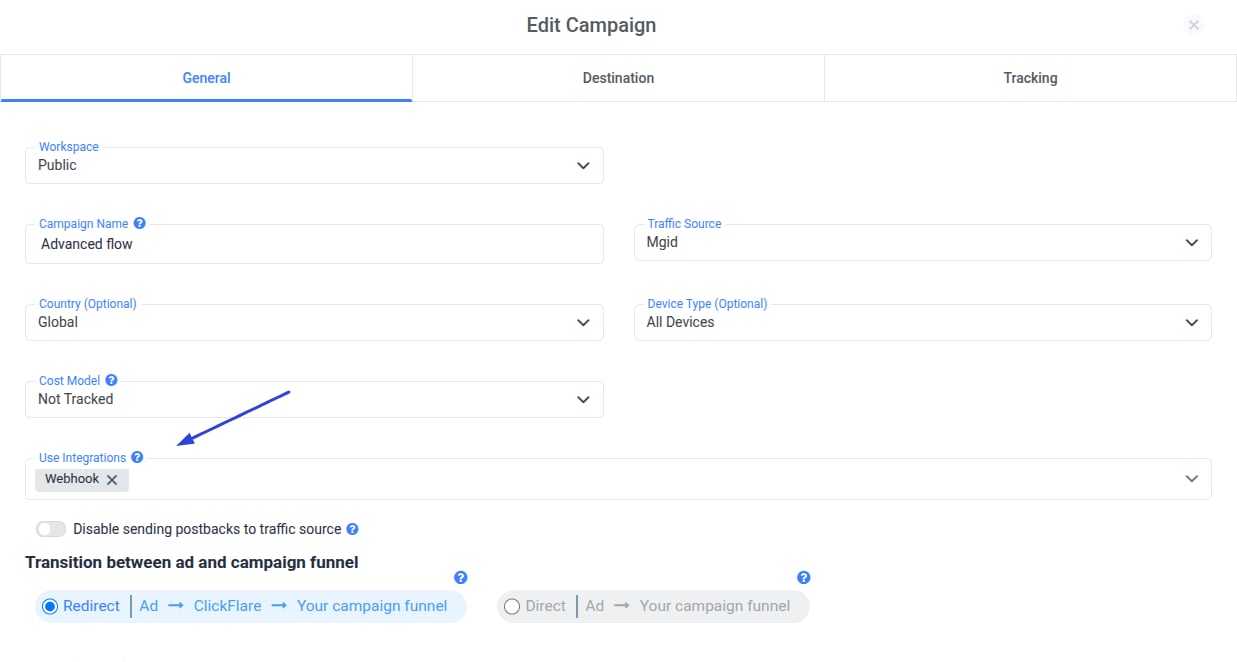
* Once the Webhook CAPI integration is created, go to the **campaign settings**.
* Select the CAPI integration **only for the campaigns** where you want the specific event (e.g., clicks) reported.
## Step 2: Assign the Integration to Specific Campaigns
* Once the Webhook CAPI integration is created, go to the **campaign settings**.
* Select the CAPI integration **only for the campaigns** where you want the specific event (e.g., clicks) reported.
 ## Step 3: Configure Traffic Source Events Normally
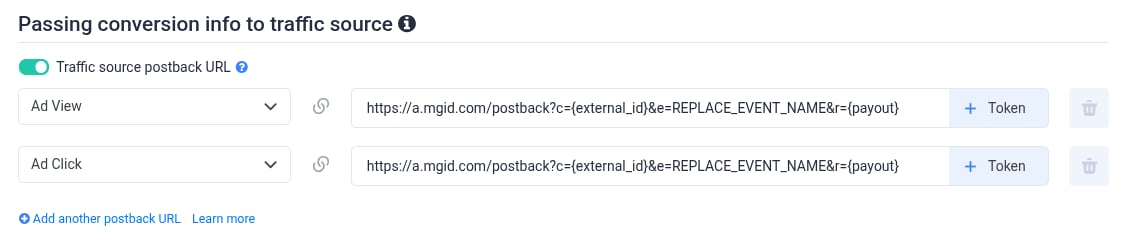
* At the **traffic source level**, configure the events you want to report to your traffic source, **excluding the selectively reported event** (e.g., clicks).
* This way, all other events will continue to be sent via the standard postback for all campaigns that use the same Traffic Source Template.
## Step 3: Configure Traffic Source Events Normally
* At the **traffic source level**, configure the events you want to report to your traffic source, **excluding the selectively reported event** (e.g., clicks).
* This way, all other events will continue to be sent via the standard postback for all campaigns that use the same Traffic Source Template.
 ### Result
* The specific event (clicks in this example) is sent **only for the selected campaigns** through the Webhook CAPI integration.
* All other events are reported **normally** to all campaigns through the standard setup.
### Result
* The specific event (clicks in this example) is sent **only for the selected campaigns** through the Webhook CAPI integration.
* All other events are reported **normally** to all campaigns through the standard setup.