> ## Documentation Index
> Fetch the complete documentation index at: https://clickflare.com/docs/llms.txt
> Use this file to discover all available pages before exploring further.
# Keyword Manager
> A step-by-step guide on how to use the new keyword manager and Rotator
The new **Keyword Manager** is a powerful tool designed for search arbitrage marketers to easily split-test, optimize, and scale keyword variations within campaigns. It gives you full control over which keywords are appended to your offer URLs and how frequently they are used, all from one centralized interface.
## What Is the Keyword Manager?
The **Keyword Manager** lets you define **key-value pairs** (like kw1, kw2, kw3) to be dynamically inserted into your URL query strings, and the builder lets you control their distribution through **weighting**. This helps you:
* Target users with more relevant ads
* Run accurate split-tests with weighted variations
* Dynamically append multiple keyword combinations to offer URLs
* Adjust how often each variation is used by assigning different weights
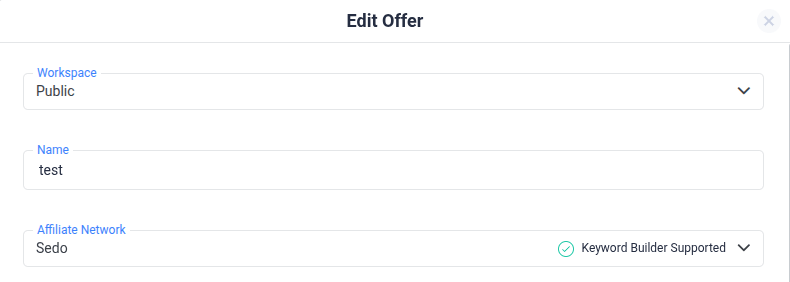
To get started, go to **Offers** and select an existing offer or create a new one. Then, select the affiliate network you're using (e.g., Sedo). The Keyword Manager will automatically add the corresponding keyword parameters based on the feed provider or affiliate network.
 ## How It Works: The Anatomy of the Keyword Manager
*Structure of the New Keyword Manager & Rotator: Keys, Values, Variations, and Query Strings*
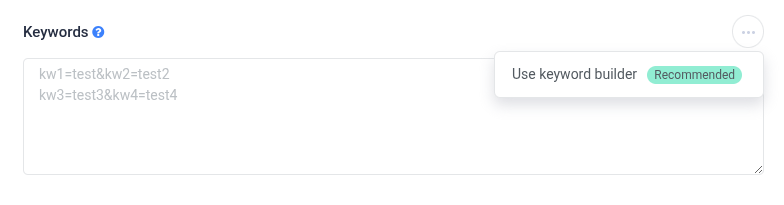
By clicking the three-dot menu in the **Keywords** section, you'll see the **"Use keyword manager"** option appear, recommended for faster setup and easier management of keyword variations.
## How It Works: The Anatomy of the Keyword Manager
*Structure of the New Keyword Manager & Rotator: Keys, Values, Variations, and Query Strings*
By clicking the three-dot menu in the **Keywords** section, you'll see the **"Use keyword manager"** option appear, recommended for faster setup and easier management of keyword variations.
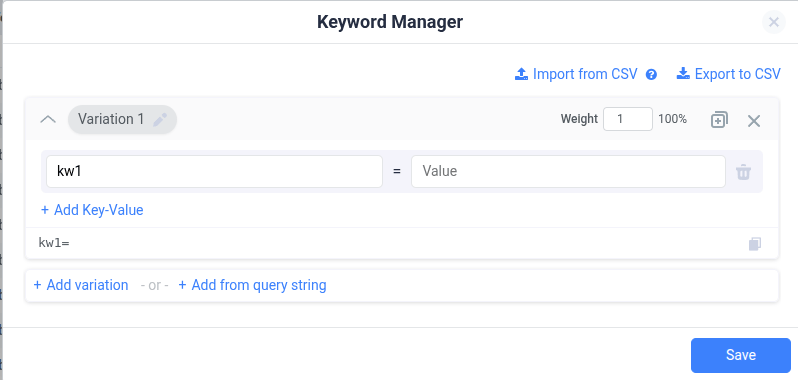
 * **Keys**: These are placeholders like kw1, kw2, etc. (based on the selected Affiliate Network)
* **Values**: The actual keyword phrases, such as *home care assistance provider*
* **Variations:** Different sets of keyword combinations you want to test. Each variation contains a group of key-value pairs.
* **Paste Variations as a Query String:** Simply paste your query string, and the system will parse and display each key-value pair in separate columns for easy editing and URL appending.
* **Keys**: These are placeholders like kw1, kw2, etc. (based on the selected Affiliate Network)
* **Values**: The actual keyword phrases, such as *home care assistance provider*
* **Variations:** Different sets of keyword combinations you want to test. Each variation contains a group of key-value pairs.
* **Paste Variations as a Query String:** Simply paste your query string, and the system will parse and display each key-value pair in separate columns for easy editing and URL appending.
 ### You have two easy ways to add keyword variations in the Keyword Manager:
➕ **Add Variation -** Create a new keyword set from scratch.
➕ **Add from Query String** - Import an existing URL query string, and the system will automatically parse and fill in the key-value fields.
### You have two easy ways to add keyword variations in the Keyword Manager:
➕ **Add Variation -** Create a new keyword set from scratch.
➕ **Add from Query String** - Import an existing URL query string, and the system will automatically parse and fill in the key-value fields.
 ## Weighting System
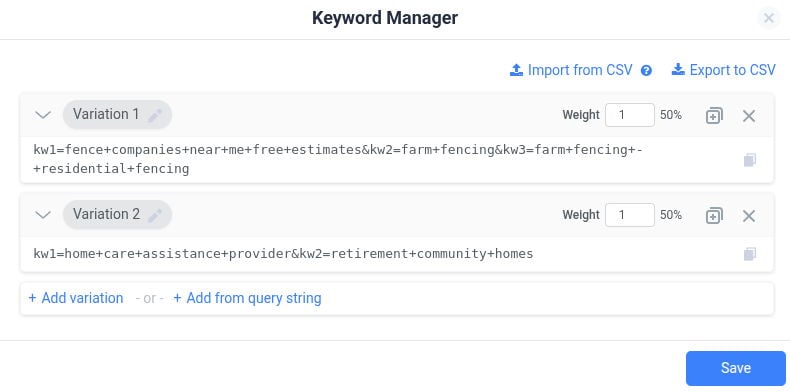
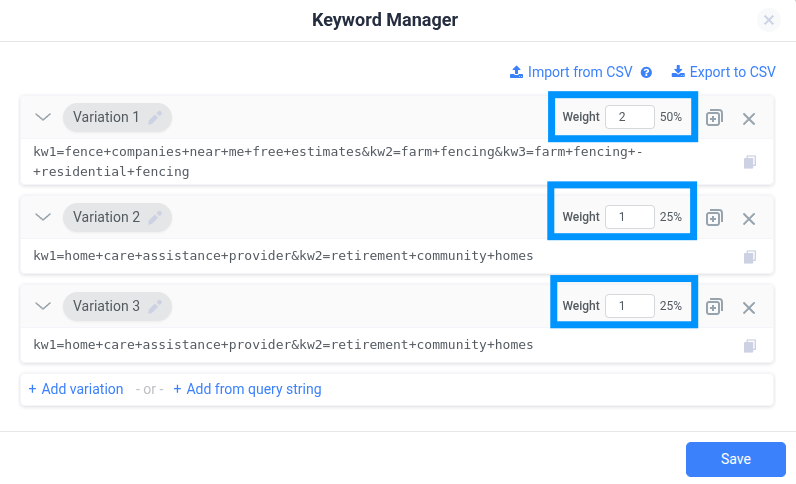
**Assign Weights to Variations:** Use weights to control how often each keyword variation is used. This helps you test new ideas gradually by giving more or less importance to certain variations without fully committing to them.
* Test new keyword ideas slowly without disrupting your current performance.
* Prioritize high-performing variations by increasing their weight
* Randomly distribute keyword sets according to their defined importance.
## Weighting System
**Assign Weights to Variations:** Use weights to control how often each keyword variation is used. This helps you test new ideas gradually by giving more or less importance to certain variations without fully committing to them.
* Test new keyword ideas slowly without disrupting your current performance.
* Prioritize high-performing variations by increasing their weight
* Randomly distribute keyword sets according to their defined importance.
 ## Optimization Workflow
Once your campaign is live, the new Keyword Manager enables quick identification of top-performing keyword sets. You can:
* Identify **high-converting keyword** variations quickly
* Remove the underperforming ones **without altering the campaign structure**
* **Save time** with automated formatting and encoding
## Tracking Performance by Keyword
ClickFlare allows you to **group conversions by keyword parameters**, making it easy to see which variations are driving results.
When your affiliate network sends back the **converted keyword** via postback to a parameter supported by ClickFlare (e.g., param1), you’ll be able to:
* **Group by keyword** inside ClickFlare reports
* Identify which variation was responsible for the conversion
* Match the keyword data to the corresponding variation in the Keyword Manager
For example, if a conversion comes through with param1=home+insurance, and that value exists in one of your variations, you'll see exactly which keyword group led to the conversion. This enables more accurate performance tracking and easier optimization.
## CSV Import / Export
### Bulk manage your keyword sets using CSV Import/Export:
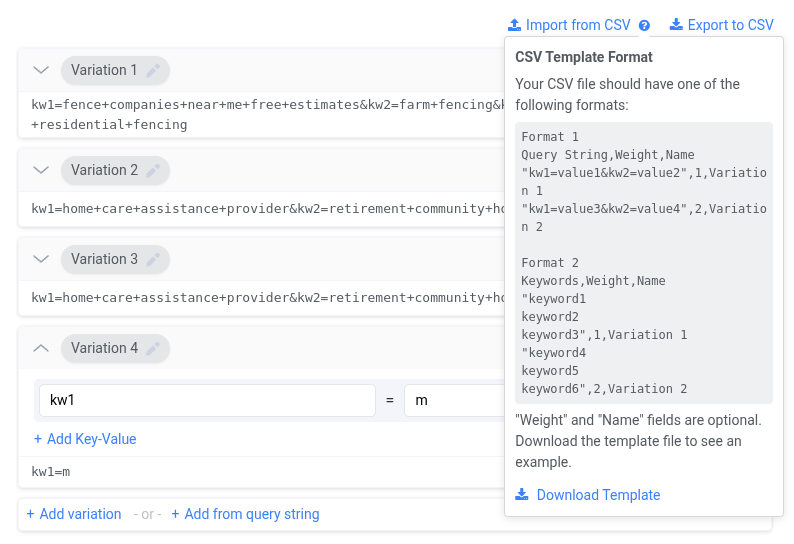
Manage your keyword sets in bulk with **CSV Import/Export**. Easily edit your keywords in Excel or Google Sheets and sync them back to ClickFlare.
## Optimization Workflow
Once your campaign is live, the new Keyword Manager enables quick identification of top-performing keyword sets. You can:
* Identify **high-converting keyword** variations quickly
* Remove the underperforming ones **without altering the campaign structure**
* **Save time** with automated formatting and encoding
## Tracking Performance by Keyword
ClickFlare allows you to **group conversions by keyword parameters**, making it easy to see which variations are driving results.
When your affiliate network sends back the **converted keyword** via postback to a parameter supported by ClickFlare (e.g., param1), you’ll be able to:
* **Group by keyword** inside ClickFlare reports
* Identify which variation was responsible for the conversion
* Match the keyword data to the corresponding variation in the Keyword Manager
For example, if a conversion comes through with param1=home+insurance, and that value exists in one of your variations, you'll see exactly which keyword group led to the conversion. This enables more accurate performance tracking and easier optimization.
## CSV Import / Export
### Bulk manage your keyword sets using CSV Import/Export:
Manage your keyword sets in bulk with **CSV Import/Export**. Easily edit your keywords in Excel or Google Sheets and sync them back to ClickFlare.
 Import Options:
* As a raw query string (parsed automatically)
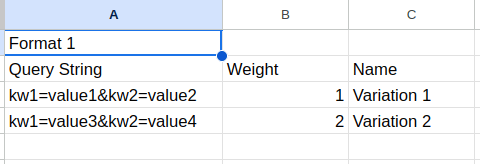
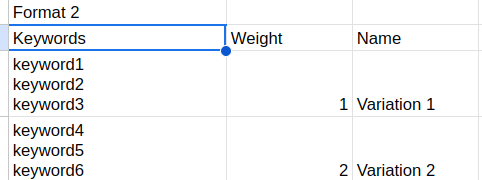
* As structured rows (each row representing a variation, including keys, values, and optional weights)
Export Option:
* Export your existing variations to Excel or Google Sheets for easy offline editing
Import Options:
* As a raw query string (parsed automatically)
* As structured rows (each row representing a variation, including keys, values, and optional weights)
Export Option:
* Export your existing variations to Excel or Google Sheets for easy offline editing
 ***
## 📚 Related Resources
* [URL Keyword Rotator](/docs/en/tracking/keywords-rotation)
* [How to Dynamically Pass User Info to the Offer](/docs/en/tracking/how-to-dynamically-pass-user-info-to-the-offer)
* [Creating an Offer](/docs/en/tracking/creating-an-offer-1)
***
## 📚 Related Resources
* [URL Keyword Rotator](/docs/en/tracking/keywords-rotation)
* [How to Dynamically Pass User Info to the Offer](/docs/en/tracking/how-to-dynamically-pass-user-info-to-the-offer)
* [Creating an Offer](/docs/en/tracking/creating-an-offer-1)