> ## Documentation Index
> Fetch the complete documentation index at: https://clickflare.com/docs/llms.txt
> Use this file to discover all available pages before exploring further.
# Campaign's Path Destination to Offers Only
> Creating a campaign whose path destination goes through offers only
A campaign can direct visitors to different paths and options to maximize profits. When creating a new campaign, you can choose from five options for where to direct your traffic. In this guide, we’ll focus on setting up a campaign that redirects traffic through **Offers Only**.
1. **Create a New Campaign**
* From anywhere in ClickFlare, click the **Campaigns** tab on the left, then select **+ New** at the top left.
2. Name and Configure
* Give your campaign a memorable name. Choose the **Traffic Source** and its **Cost Model**.
3. **Select Path Transition**
**Redirect Tracking** Visitors are redirected through ClickFlare’s servers, allowing rule-based paths, weights, A/B testing, or AI-driven flows.
**Direct Tracking** Visitors land directly on the designated site without redirection.
Note: You can also add a note to your campaign describing its purpose.
4. **Set Destination**
Go to the **Destination** tab, choose **New Flow**, and select one of the four **Redirect Modes**. Click **Add Path;** the same process applies for **Conditional Paths**.
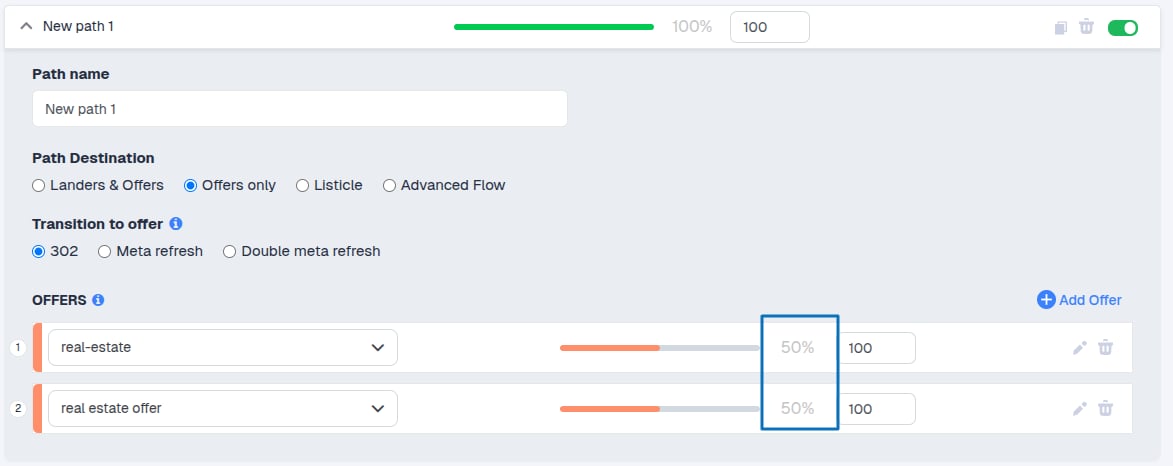
For this setup, select **Offers Only**. This ensures visitors go directly to one or multiple offers, which you can add easily.
 This means that a visitor will go directly to an offer when clicking on an ad, or multiple offers, which you can easily add.
Note: Traffic distribution is controlled by **weight values**, which determine the percentage of traffic each offer receives. The total always sums to 100%.
This means that a visitor will go directly to an offer when clicking on an ad, or multiple offers, which you can easily add.
Note: Traffic distribution is controlled by **weight values**, which determine the percentage of traffic each offer receives. The total always sums to 100%.
 5. Select Transition and Save
6. Once you are done, click on **Save**.
You’ll be redirected to the **Campaigns** window, where your new campaign will appear in the list. You can **Preview, Edit, Clone, or Archive** your campaign at any time.
5. Select Transition and Save
6. Once you are done, click on **Save**.
You’ll be redirected to the **Campaigns** window, where your new campaign will appear in the list. You can **Preview, Edit, Clone, or Archive** your campaign at any time.