> ## Documentation Index
> Fetch the complete documentation index at: https://clickflare.com/docs/llms.txt
> Use this file to discover all available pages before exploring further.
# Handling Multiple Paths Inside One CF Campaign
> Redirect visitors to different paths within one ClickFlare campaign using the tracking URL parameters.
Use a single ClickFlare campaign to redirect visitors to different paths based on a tracking parameter. This allows you to manage multiple paths in one campaign without creating separate campaigns.
## **Step 1: Plan Your Paths**
Decide which variations or landing pages/paths you want to use in your campaign. Examples:
* imagepath → Leads to Landing Page A/path A
* videoPath → Leads to a video landing page/path B
These will be your **conditional paths** within the CF campaign.
## **Step 2: Add a Parameter in Your Traffic Source Template**
Add a new parameter in your tracking template to define the visitor’s path.
* This value will be **set before placing the URL in your ads**.
* In this example, we use **trackingField9** to store the path value.
* Example values: **imagePath**, **videoPath**, etc.
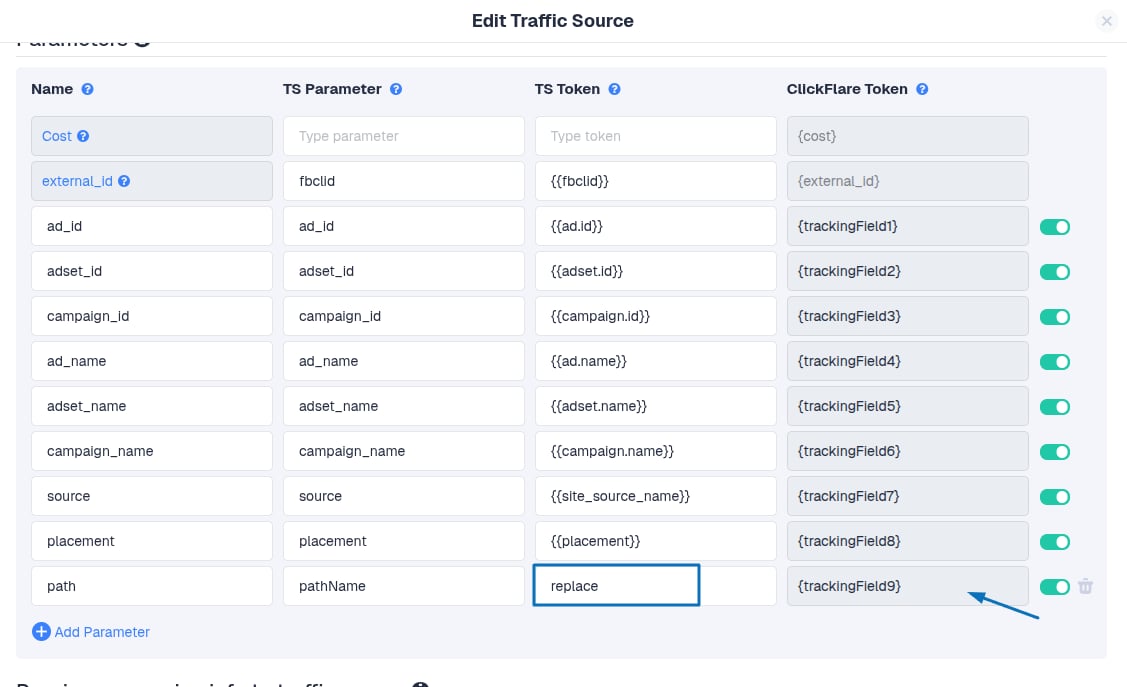 This allows ClickFlare to know where to redirect each visitor based on the parameter value.
### **Step 3: Create Conditional Paths in the CF Campaign**
* Go to **ClickFlare dashboard → Campaigns → Your Campaign**.
* Click **Add Path** (**Conditional Path**) to create a new path.
* Name the path according to the destination for easier management (e.g., imagePath, videoPath)
* Set up **conditional rules** for each path based on the tracking parameter you are using (trackingField9)
**Important:** The parameter value in your ad URL must **exactly match** the one you use in the condition in CF.
This allows ClickFlare to know where to redirect each visitor based on the parameter value.
### **Step 3: Create Conditional Paths in the CF Campaign**
* Go to **ClickFlare dashboard → Campaigns → Your Campaign**.
* Click **Add Path** (**Conditional Path**) to create a new path.
* Name the path according to the destination for easier management (e.g., imagePath, videoPath)
* Set up **conditional rules** for each path based on the tracking parameter you are using (trackingField9)
**Important:** The parameter value in your ad URL must **exactly match** the one you use in the condition in CF.
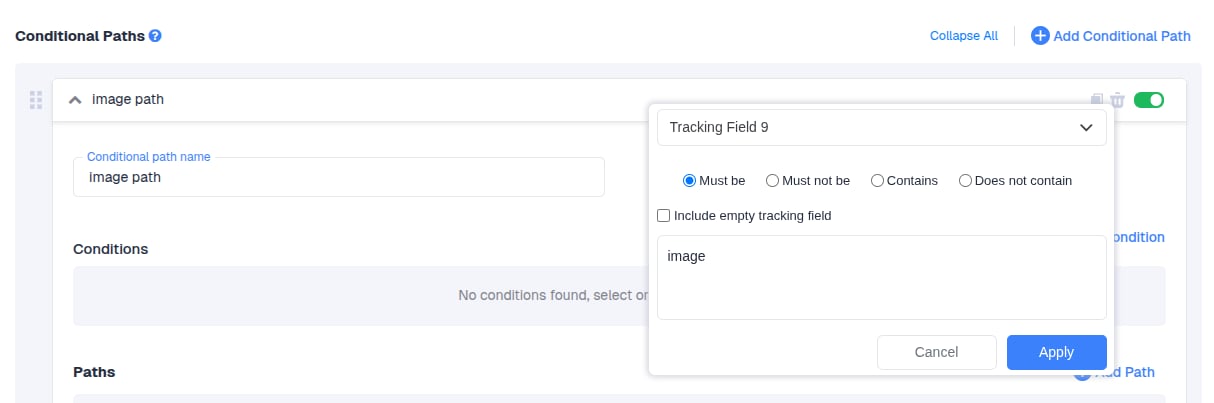
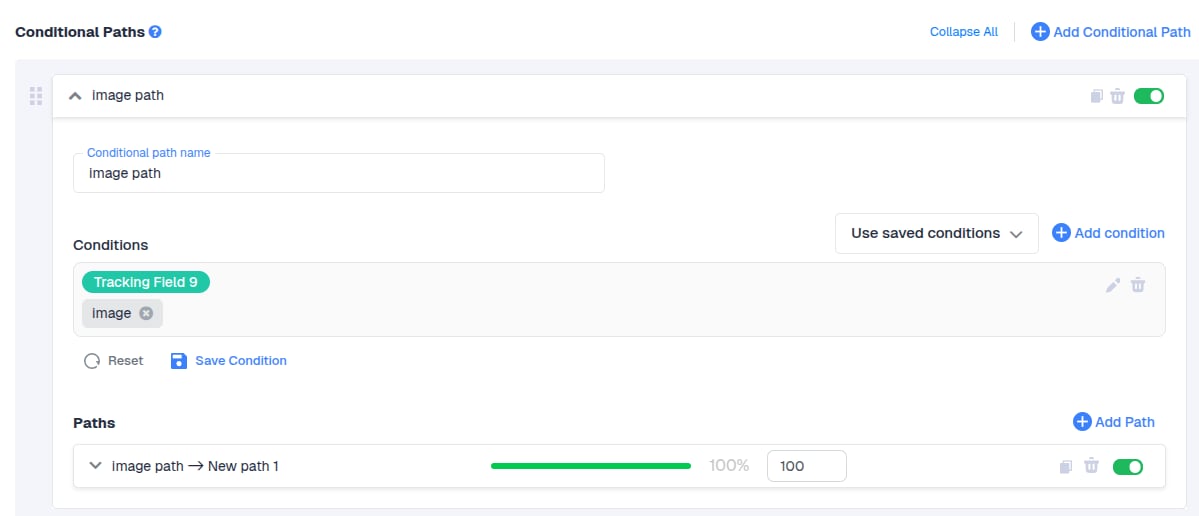 If the visitor is from an ad with a tracking URL pathname=image, all visitors from that ad will be redirected to this path named *imagePath → New Path*
**Tip:** Alternatively, instead of manually adding values to the campaign tracking URL, you can use **Ad or Ad Set IDs** for your conditions. This automatically redirects visitors based on the ID without modifying the URL; only the conditional rules from Step 3 need to be configured.
## **Step 4: Test Each Path**
Before launching the campaign:
* Copy the tracking URL for each path, replacing the parameter value with the intended path.
* Open the URL in a **guest/incognito browser**.
* Confirm that the visitor is redirected to the correct landing page.
**Example URL:**
```
https://yourdomain.com/cf/r/12345?ad_id={ad.id}&adset_id={{adset.id}}&campaign_id={{campaign.id}}&ad_name={{ad.name}}&adset_name={{adset.name}}&campaign_name={{campaign.name}}&source={{source_name}}&placement={{placement}}&pathname=image
```
## **Step 5: Use the Same Campaign for Multiple Ads**
* You can use a **single CF campaign** for multiple ad sets or creatives.
* Simply **change the value of the tracking parameter** in the URL for each ad to redirect visitors to the correct path.
**Key Takeaways**
* One CF campaign can manage multiple path variations using **conditional paths**.
* Use a **tracking parameter** in the ad URL to define which path each visitor should follow.
* Set **conditional rules** in CF to handle redirection based on that parameter.
**Test all paths** before launching to ensure proper redirection.
**FREQUENTLY ASKED QUESTIONS**
Got questions? Find the answers below:
* **Q1**: What are the reasons against creating several CF campaigns for every path I intend to utilize?
**A1**: If you’re working with traffic sources where cost data is pulled automatically via API, creating multiple CF campaigns for the same traffic source campaign can cause cost discrepancies. This happens because a single traffic source campaign would be split across multiple CF campaigns, which leads to inaccurate cost tracking.
* **Q2:** What happens if the tracking parameter doesn’t match any path?
**A2:** Visitors will either be redirected to the default path. Always test each URL to ensure proper redirection.
* **Q3**: Can I change a path’s destination after the campaign is live?
**A3:** Yes. You can update the destination URL in CF, but ensure all conditional rules and tracking parameters remain consistent to avoid misdirecting traffic.
* **Q4**: Can I use multiple paths with direct tracking campaigns?
**A4**: No. Direct tracking campaigns always follow the specific URL or element placed on the ad. They cannot use conditional paths; traffic will only go to the link you set on the ad.
If the visitor is from an ad with a tracking URL pathname=image, all visitors from that ad will be redirected to this path named *imagePath → New Path*
**Tip:** Alternatively, instead of manually adding values to the campaign tracking URL, you can use **Ad or Ad Set IDs** for your conditions. This automatically redirects visitors based on the ID without modifying the URL; only the conditional rules from Step 3 need to be configured.
## **Step 4: Test Each Path**
Before launching the campaign:
* Copy the tracking URL for each path, replacing the parameter value with the intended path.
* Open the URL in a **guest/incognito browser**.
* Confirm that the visitor is redirected to the correct landing page.
**Example URL:**
```
https://yourdomain.com/cf/r/12345?ad_id={ad.id}&adset_id={{adset.id}}&campaign_id={{campaign.id}}&ad_name={{ad.name}}&adset_name={{adset.name}}&campaign_name={{campaign.name}}&source={{source_name}}&placement={{placement}}&pathname=image
```
## **Step 5: Use the Same Campaign for Multiple Ads**
* You can use a **single CF campaign** for multiple ad sets or creatives.
* Simply **change the value of the tracking parameter** in the URL for each ad to redirect visitors to the correct path.
**Key Takeaways**
* One CF campaign can manage multiple path variations using **conditional paths**.
* Use a **tracking parameter** in the ad URL to define which path each visitor should follow.
* Set **conditional rules** in CF to handle redirection based on that parameter.
**Test all paths** before launching to ensure proper redirection.
**FREQUENTLY ASKED QUESTIONS**
Got questions? Find the answers below:
* **Q1**: What are the reasons against creating several CF campaigns for every path I intend to utilize?
**A1**: If you’re working with traffic sources where cost data is pulled automatically via API, creating multiple CF campaigns for the same traffic source campaign can cause cost discrepancies. This happens because a single traffic source campaign would be split across multiple CF campaigns, which leads to inaccurate cost tracking.
* **Q2:** What happens if the tracking parameter doesn’t match any path?
**A2:** Visitors will either be redirected to the default path. Always test each URL to ensure proper redirection.
* **Q3**: Can I change a path’s destination after the campaign is live?
**A3:** Yes. You can update the destination URL in CF, but ensure all conditional rules and tracking parameters remain consistent to avoid misdirecting traffic.
* **Q4**: Can I use multiple paths with direct tracking campaigns?
**A4**: No. Direct tracking campaigns always follow the specific URL or element placed on the ad. They cannot use conditional paths; traffic will only go to the link you set on the ad.