> ## Documentation Index
> Fetch the complete documentation index at: https://clickflare.com/docs/llms.txt
> Use this file to discover all available pages before exploring further.
# Ads.com RSOC Integration Guide
> A step-by-step guide on how to integrate Ads.com RSOC with ClickFlare
Thanks to ClickFlare's API integration with Ads.com RSOC, you can automatically pull conversions and revenue into ClickFlare with accuracy.
The revenue and conversions are retrieved every hour for up to 3 days from the moment the conversion happens, ensuring you always have the most up-to-date revenue data. Additionally, a pull is performed after 10 days to account for any revenue changes from Google.
In this article, we'll walk through the step-by-step process of setting up the API integration with Ads.com RSOC.
## What You’ll Need for the Integration:
* An active Ads.com RSOC Account.
* An active ClickFlare Account.
* Your Ads.com RSOC Email and Password.
## Adding the Ads.com RSOC Integration to ClickFlare
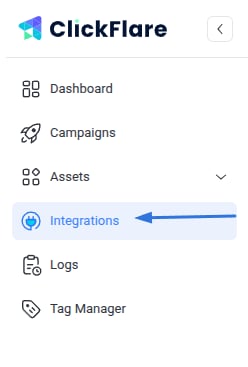
1. **Access the Integrations Menu**:
* Click on the **left sidebar.**
* Under **RSOC**, click **Add Integration**.
 2. **Configure the Integration**:
* Choose the **Ads.com RSOC** template.
* Assign a **Name** to your integration.
* Click **+ Connect Account** under **Accounts**.
* Enter your **account name** and **Secret Key,** then click **Save**.
(You can find the **Secret Key** on Ads.com under Profile>API Token>Your Secret Key)
3. **Select a Custom Conversion**
* Choose the custom conversion event you want to attribute the conversion data to.
* If you haven’t created a custom conversion yet, follow our [custom conversion guide](/docs/en/settings/custom-conversions) to set one up.
4. Save the Integration\*\*:\*\*
* Click on **Save**, and the new integration will appear under the **Revenue Stream Integrations** section.
## Offer URL Template for Ads.com RSOC
When setting up offers in ClickFlare, ensure the correct tracking parameters are used. Below is an example offer URL:
```
https://your_website.com/article/article_topic/?campaign_id=REPLACE_CAMPAIGN_ID&subid4={cf_click_id}
```
**Important Note:** To ensure accurate tracking, pass \{cf\_click\_id} to the **click\_id** parameter and the Ads.com RSOC campaign ID to the **camp\_id** parameter in the offer URL.
### Offer URL based on the required macros that Ads.com needs.
Facebook offer URL:
```
https://your_website.com/article/article_topic/?campaign_id=REPLACE_CAMPAIGN_ID&ra=meta&rp={trackingField8}&rk=replace&t=replace&rci={trackingField3}&rai={trackingField1}&subid4={cf_click_id}
```
Taboola offer URL:
```
https://your_website.com/article/article_topic/?campaign_id=REPLACE_CAMPAIGN_ID&ra=taboola&rp={trackingField1}&rk=replace&t=replace&rci={trackingField5}&rai={trackingField6}&subid4={cf_click_id}
```
## Postback Template for Ads.com RSOC
```
https://your_tracking_domain.com/cf/cv?click_id={subid4}¶m10={campaign_id}¶m1={click_term}&ct=click
```
**Important Note:** This postback is **required**; without it, conversions and revenue will not be recorded in ClickFlare. Make sure it is properly configured in your Ads.com RSOC account to ensure accurate tracking
## Additional Considerations
### Time Zone Alignment:
Ads.com RSOC revenue reporting operates on **UTC**. Ensure your ClickFlare settings are set to UTC when reviewing reports.
### Currency Settings:
Ads.com RSOC earnings are reported in **USD**. When setting up your offers in ClickFlare, ensure that USD is selected at the offer level. ClickFlare will automatically convert the currency to your default reporting currency based on your settings.
**FREQUENTLY ASKED QUESTIONS**
Got questions? Find the answers below:
> **Q1**: How often is revenue and conversion data updated?
**A1**: Revenue and conversions are pulled **every hour** for up to **3 days** from the moment the conversion happens.
> **Q2**: What happens if I don't set up the postback in Ads.com RSOC?
**A2**: If the postback is not configured, **no conversions or revenue will be recorded in ClickFlare**. Ensure the postback is correctly set up to track performance accurately.
> **Q3**: Can I track multiple Ads.com RSOC accounts in ClickFlare?
**A3**: Yes, you can add multiple Ads.com RSOC accounts by repeating the integration process for each account.
> **Q4**: What currency does Ads.com RSOC report revenue in?
**A4**: Ads.com RSOC reports revenue in **USD**. ClickFlare will convert it into your default reporting currency based on your settings.
> **Q5**: What time zone should I use in ClickFlare for Ads.com RSOC tracking?
**A5**: Ads.com RSOC operates on **UTC**. Ensure your ClickFlare account is set to **UTC** to match reporting data correctly.
2. **Configure the Integration**:
* Choose the **Ads.com RSOC** template.
* Assign a **Name** to your integration.
* Click **+ Connect Account** under **Accounts**.
* Enter your **account name** and **Secret Key,** then click **Save**.
(You can find the **Secret Key** on Ads.com under Profile>API Token>Your Secret Key)
3. **Select a Custom Conversion**
* Choose the custom conversion event you want to attribute the conversion data to.
* If you haven’t created a custom conversion yet, follow our [custom conversion guide](/docs/en/settings/custom-conversions) to set one up.
4. Save the Integration\*\*:\*\*
* Click on **Save**, and the new integration will appear under the **Revenue Stream Integrations** section.
## Offer URL Template for Ads.com RSOC
When setting up offers in ClickFlare, ensure the correct tracking parameters are used. Below is an example offer URL:
```
https://your_website.com/article/article_topic/?campaign_id=REPLACE_CAMPAIGN_ID&subid4={cf_click_id}
```
**Important Note:** To ensure accurate tracking, pass \{cf\_click\_id} to the **click\_id** parameter and the Ads.com RSOC campaign ID to the **camp\_id** parameter in the offer URL.
### Offer URL based on the required macros that Ads.com needs.
Facebook offer URL:
```
https://your_website.com/article/article_topic/?campaign_id=REPLACE_CAMPAIGN_ID&ra=meta&rp={trackingField8}&rk=replace&t=replace&rci={trackingField3}&rai={trackingField1}&subid4={cf_click_id}
```
Taboola offer URL:
```
https://your_website.com/article/article_topic/?campaign_id=REPLACE_CAMPAIGN_ID&ra=taboola&rp={trackingField1}&rk=replace&t=replace&rci={trackingField5}&rai={trackingField6}&subid4={cf_click_id}
```
## Postback Template for Ads.com RSOC
```
https://your_tracking_domain.com/cf/cv?click_id={subid4}¶m10={campaign_id}¶m1={click_term}&ct=click
```
**Important Note:** This postback is **required**; without it, conversions and revenue will not be recorded in ClickFlare. Make sure it is properly configured in your Ads.com RSOC account to ensure accurate tracking
## Additional Considerations
### Time Zone Alignment:
Ads.com RSOC revenue reporting operates on **UTC**. Ensure your ClickFlare settings are set to UTC when reviewing reports.
### Currency Settings:
Ads.com RSOC earnings are reported in **USD**. When setting up your offers in ClickFlare, ensure that USD is selected at the offer level. ClickFlare will automatically convert the currency to your default reporting currency based on your settings.
**FREQUENTLY ASKED QUESTIONS**
Got questions? Find the answers below:
> **Q1**: How often is revenue and conversion data updated?
**A1**: Revenue and conversions are pulled **every hour** for up to **3 days** from the moment the conversion happens.
> **Q2**: What happens if I don't set up the postback in Ads.com RSOC?
**A2**: If the postback is not configured, **no conversions or revenue will be recorded in ClickFlare**. Ensure the postback is correctly set up to track performance accurately.
> **Q3**: Can I track multiple Ads.com RSOC accounts in ClickFlare?
**A3**: Yes, you can add multiple Ads.com RSOC accounts by repeating the integration process for each account.
> **Q4**: What currency does Ads.com RSOC report revenue in?
**A4**: Ads.com RSOC reports revenue in **USD**. ClickFlare will convert it into your default reporting currency based on your settings.
> **Q5**: What time zone should I use in ClickFlare for Ads.com RSOC tracking?
**A5**: Ads.com RSOC operates on **UTC**. Ensure your ClickFlare account is set to **UTC** to match reporting data correctly.