> ## Documentation Index
> Fetch the complete documentation index at: https://clickflare.com/docs/llms.txt
> Use this file to discover all available pages before exploring further.
# Compado (RSOC) Integration Guide
> A step-by-step guide on how to integrate Compado RSOC feed with ClickFlare for accurate conversion and revenue tracking.
Thanks to ClickFlare's API integration with **Compado RSOC**, you can automatically import revenue into ClickFlare with high accuracy.
ClickFlare pulls revenue and conversion data every hour for up to **3 days** from when a conversion occurs. A final sync is performed after **10 days** to capture any late updates or adjustments from Compado RSOC.
This guide will walk you through the complete process of integrating **Compado RSOC** with ClickFlare.
***
## 1. Add the Compado API Integration in ClickFlare
* Log in to your ClickFlare account and navigate to:
**Integrations → RSOC Integrations**
 * From the list of templates, select **Compado**.
* Fill in your **account credentials** (username + password) provided by Compado.
* Click **Save**.
Once saved, your integration should appear under the RSOC Integrations section.
## 2. Create Custom Conversions in ClickFlare
* Navigate to **Settings → Custom Conversions → Add Custom Conversion**
* Create a custom conversion event for ad clicks:
**
* From the list of templates, select **Compado**.
* Fill in your **account credentials** (username + password) provided by Compado.
* Click **Save**.
Once saved, your integration should appear under the RSOC Integrations section.
## 2. Create Custom Conversions in ClickFlare
* Navigate to **Settings → Custom Conversions → Add Custom Conversion**
* Create a custom conversion event for ad clicks:
**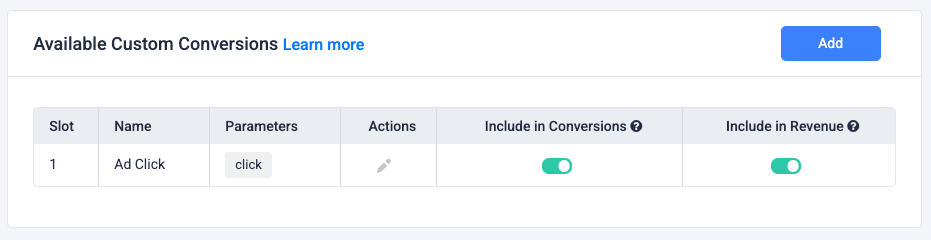 **
## 3. Add the Compado Affiliate Network (Optional)
1. Go to **Affiliate Networks → Add Affiliate Network**
2. Create the **Compado template**
3. Assign a name and click **Save**
> Adding the affiliate network allows you to reuse offer templates for each traffic source without manually adding parameters for every offer.
## 4. Add a Compado Offer
* Go to **Offers → Add Offer**
* Paste the **Compado offer URL**
* Append the ClickFlare click ID to the URL using:
`srcclkid=cf_click_id`
**Example Offer URL (Facebook):**
```
http://domain.com/dsr/article/?adx_title=REPLACE_AD_TITLE&adx_publisher_id=REPLACE&srcclkid={cf_click_id}&adid={trackingField1}&utm_source=facebook
```
### Required Parameters (Compado)
* **adx\_title** → Ad creative title
* **adx\_publisher\_id** → Custom publisher ID
### Required Parameters (ClickFlare)
* **srcclkid** → ClickFlare click ID (\{cf\_click\_id})
### Common Optional Parameters
* **adid** → Traffic source ad ID
* **utm\_source** → Traffic source name (e.g., Facebook)
## 5. Add the Compado Postback
Ask your Compado representative to implement the following postback in your account:
```
https://your_tracking_domain.com/cf/cv?click_id={srcclkid}&txid={unique_id}&payout={estimated_payout}¶m1={query}&ct=click
```
Make sure to replace `your_tracking_domain.com` with your **own tracking domain**.
## 6. Compado Integration Notes
* Ensure your **adx\_publisher\_id** matches the value issued by Compado; otherwise, revenue cannot be tracked at the channel level.
* Keep parameter usage consistent with Compado documentation. Do **not** repurpose parameters for unrelated payloads.
* Include **adid** when required for ad-level attribution by Compado programs.
**
## 3. Add the Compado Affiliate Network (Optional)
1. Go to **Affiliate Networks → Add Affiliate Network**
2. Create the **Compado template**
3. Assign a name and click **Save**
> Adding the affiliate network allows you to reuse offer templates for each traffic source without manually adding parameters for every offer.
## 4. Add a Compado Offer
* Go to **Offers → Add Offer**
* Paste the **Compado offer URL**
* Append the ClickFlare click ID to the URL using:
`srcclkid=cf_click_id`
**Example Offer URL (Facebook):**
```
http://domain.com/dsr/article/?adx_title=REPLACE_AD_TITLE&adx_publisher_id=REPLACE&srcclkid={cf_click_id}&adid={trackingField1}&utm_source=facebook
```
### Required Parameters (Compado)
* **adx\_title** → Ad creative title
* **adx\_publisher\_id** → Custom publisher ID
### Required Parameters (ClickFlare)
* **srcclkid** → ClickFlare click ID (\{cf\_click\_id})
### Common Optional Parameters
* **adid** → Traffic source ad ID
* **utm\_source** → Traffic source name (e.g., Facebook)
## 5. Add the Compado Postback
Ask your Compado representative to implement the following postback in your account:
```
https://your_tracking_domain.com/cf/cv?click_id={srcclkid}&txid={unique_id}&payout={estimated_payout}¶m1={query}&ct=click
```
Make sure to replace `your_tracking_domain.com` with your **own tracking domain**.
## 6. Compado Integration Notes
* Ensure your **adx\_publisher\_id** matches the value issued by Compado; otherwise, revenue cannot be tracked at the channel level.
* Keep parameter usage consistent with Compado documentation. Do **not** repurpose parameters for unrelated payloads.
* Include **adid** when required for ad-level attribution by Compado programs.