> ## Documentation Index
> Fetch the complete documentation index at: https://clickflare.com/docs/llms.txt
> Use this file to discover all available pages before exploring further.
# ExplorAds Integration Guide (DEPRECATED)
> A step-by-step guide on how to integrate ExplorAds to ClickFlare
 Thanks to ClickFlare's API integration with ExplorAds, you'll be able to have conversions and revenue accurately pulled automatically into ClickFlare.
The revenue and conversions are pulled with a frequency of every hour for 3 days, from the moment that the conversion happens. So you're assured to have always the most up-to-date revenue
In this article, we'll go over the step-by-step process of setting up the API Integration with ExplorAds.
**What you'll need for the integration:**
* An active ExplorAds Account.
* An active ClickFlare Account.
* Your ExplorAds *Email and Password.*
**Adding the ExplorAds integration to ClickFlare**.
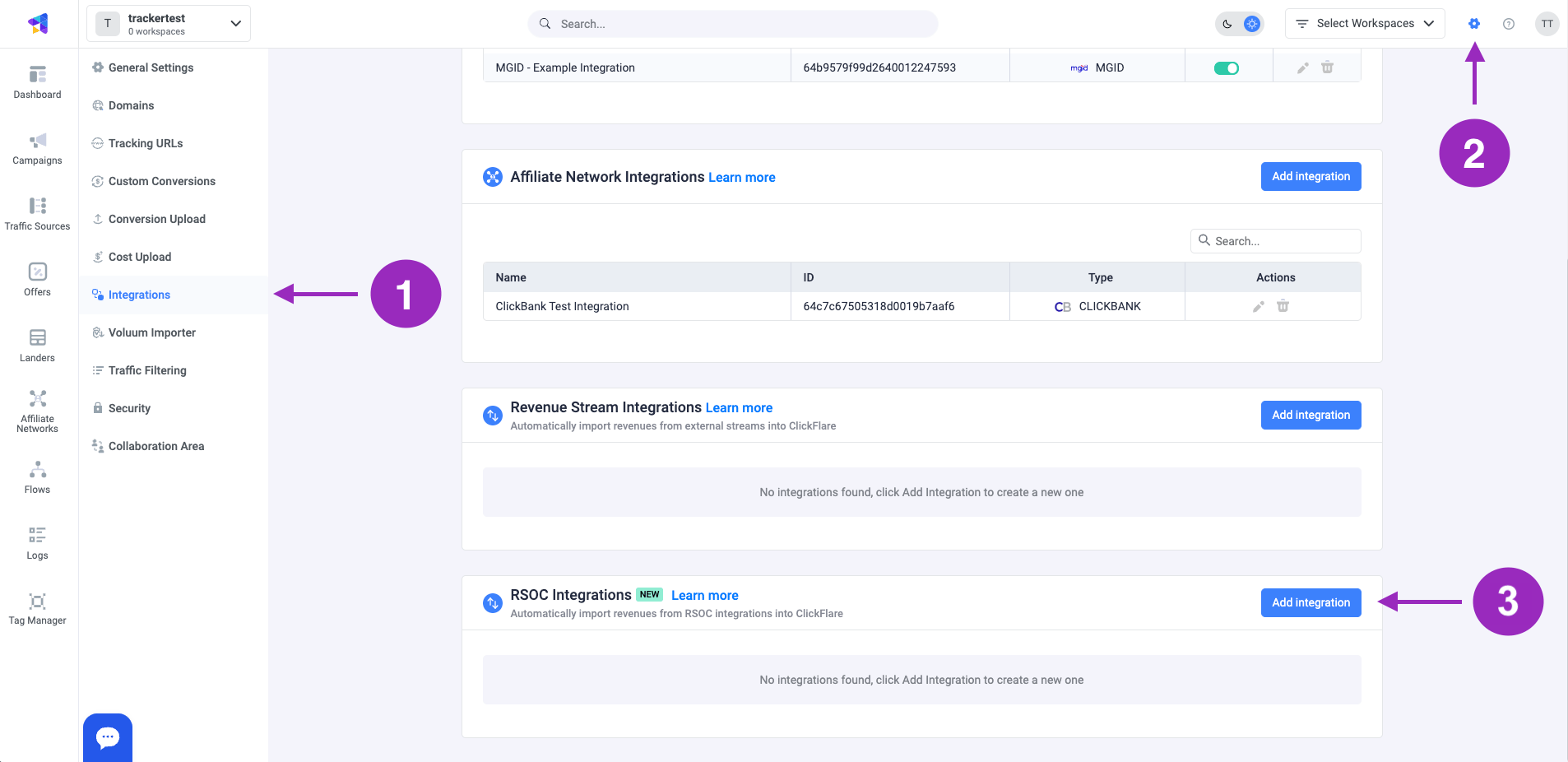
To add ExplorAds integration to your ClickFlare account, begin by accessing the **Integrations Menu,** found in the *Settings Menu* (*gear icon*).
* Under *RSOC Integrations*, click **Add Integration.**
Thanks to ClickFlare's API integration with ExplorAds, you'll be able to have conversions and revenue accurately pulled automatically into ClickFlare.
The revenue and conversions are pulled with a frequency of every hour for 3 days, from the moment that the conversion happens. So you're assured to have always the most up-to-date revenue
In this article, we'll go over the step-by-step process of setting up the API Integration with ExplorAds.
**What you'll need for the integration:**
* An active ExplorAds Account.
* An active ClickFlare Account.
* Your ExplorAds *Email and Password.*
**Adding the ExplorAds integration to ClickFlare**.
To add ExplorAds integration to your ClickFlare account, begin by accessing the **Integrations Menu,** found in the *Settings Menu* (*gear icon*).
* Under *RSOC Integrations*, click **Add Integration.**
 * Choose the ExplorAds template
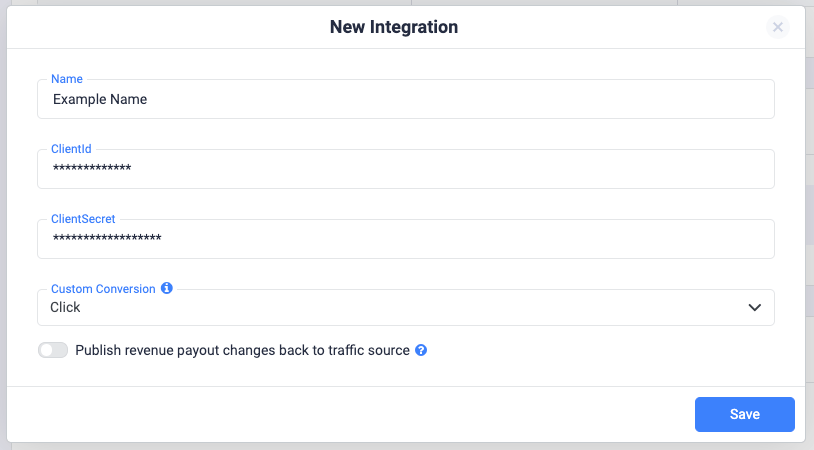
* Give your new integration a **Name**.
Note: Have your integrations' connection info ready before proceeding to connect it with ClickFlare.
* Under Accounts, click on **+ Connect Account.**
* Enter the account name, email, password and click on **Save.**
* Move on to choosing the **custom conversion,** you want to attribute the conversion event to.
To learn how to add a custom conversion in ClickFlare, follow our article [here](/docs/en/settings/custom-conversions).
* Choose the ExplorAds template
* Give your new integration a **Name**.
Note: Have your integrations' connection info ready before proceeding to connect it with ClickFlare.
* Under Accounts, click on **+ Connect Account.**
* Enter the account name, email, password and click on **Save.**
* Move on to choosing the **custom conversion,** you want to attribute the conversion event to.
To learn how to add a custom conversion in ClickFlare, follow our article [here](/docs/en/settings/custom-conversions).
 Note: In order for the integration to work, you have to send the **\{cf\_click\_id}** to the "**clid**" parameter (check offer URL example below). That's why you're not giving the option to choose a subid, like for other Feeds.
* Lastly, click on **Save.**
You’ll see the new integration appear under the Revenue Stream Integrations section.
**Offer URL template for ExplorAds:**
`https://domain.com/dsr?q=SEARCH_QUERY&asid=REPLACE_CHANNEL_NAME&de=m&sclid=REPLACE_SCLID&clid=cf_click_id&pub=traffic_source_name&rac=TITLE&tv=ea&locale=en_US&terms=ENTER_KEYWORDS`
**Postback template for ExplorAds**
Remember to include a postback in ExplorAds to ensure real-time conversion tracking. Below is a template for the postback:
`https://your_tracking_domain.com/cf/cv?click_id=clid&ct=click`
**Note**: ExplorAds revenue reporting operates on PST time. Please ensure to set your ClickFlare settings to PST when checking reporting for ExplorAds.
**Note**: ExplorAds earnings are consistently reported in EUR. When setting up your ExplorAds offers in ClickFlare, ensure that you choose EUR at the offer level. The system will then automatically convert the currency to your default reporting currency. You can adjust your default currency in the [general settings](/docs/en/settings/general-settings).
### Related Resources:
* [About RSOC](/docs/en/integrations/about-rsoc)
Note: In order for the integration to work, you have to send the **\{cf\_click\_id}** to the "**clid**" parameter (check offer URL example below). That's why you're not giving the option to choose a subid, like for other Feeds.
* Lastly, click on **Save.**
You’ll see the new integration appear under the Revenue Stream Integrations section.
**Offer URL template for ExplorAds:**
`https://domain.com/dsr?q=SEARCH_QUERY&asid=REPLACE_CHANNEL_NAME&de=m&sclid=REPLACE_SCLID&clid=cf_click_id&pub=traffic_source_name&rac=TITLE&tv=ea&locale=en_US&terms=ENTER_KEYWORDS`
**Postback template for ExplorAds**
Remember to include a postback in ExplorAds to ensure real-time conversion tracking. Below is a template for the postback:
`https://your_tracking_domain.com/cf/cv?click_id=clid&ct=click`
**Note**: ExplorAds revenue reporting operates on PST time. Please ensure to set your ClickFlare settings to PST when checking reporting for ExplorAds.
**Note**: ExplorAds earnings are consistently reported in EUR. When setting up your ExplorAds offers in ClickFlare, ensure that you choose EUR at the offer level. The system will then automatically convert the currency to your default reporting currency. You can adjust your default currency in the [general settings](/docs/en/settings/general-settings).
### Related Resources:
* [About RSOC](/docs/en/integrations/about-rsoc)