> ## Documentation Index
> Fetch the complete documentation index at: https://clickflare.com/docs/llms.txt
> Use this file to discover all available pages before exploring further.
# Inuvo PRISM Integration Guide
> A step-by-step guide on how to integrate Inuvo PRISM RSOC feed with ClickFlare for accurate conversion and revenue tracking.
 Thanks to ClickFlare's API integration with **Inuvo PRISM RSOC**, you can automatically import **conversions and revenue** into ClickFlare with high precision.
ClickFlare retrieves revenue and conversion data **every hour for up to 3 days** from the time a conversion occurs. A **final sync is performed after 10 days** to ensure that any late adjustments or updates from Inuvo PRISM are captured.
This guide walks you through the full process of integrating Inuvo PRISM RSOC with ClickFlare.
***
## What You’ll Need for the Integration:
* An active **Inuvo PRISM RSOC** account
* An active **ClickFlare** account
* Your **Inuvo PRISM credentials** (Email and Password)
***
## Adding the Inuvo PRISM Integration to ClickFlare
### 1. Access the Integrations Menu:
* Click on the **Left sidebar**
Thanks to ClickFlare's API integration with **Inuvo PRISM RSOC**, you can automatically import **conversions and revenue** into ClickFlare with high precision.
ClickFlare retrieves revenue and conversion data **every hour for up to 3 days** from the time a conversion occurs. A **final sync is performed after 10 days** to ensure that any late adjustments or updates from Inuvo PRISM are captured.
This guide walks you through the full process of integrating Inuvo PRISM RSOC with ClickFlare.
***
## What You’ll Need for the Integration:
* An active **Inuvo PRISM RSOC** account
* An active **ClickFlare** account
* Your **Inuvo PRISM credentials** (Email and Password)
***
## Adding the Inuvo PRISM Integration to ClickFlare
### 1. Access the Integrations Menu:
* Click on the **Left sidebar**
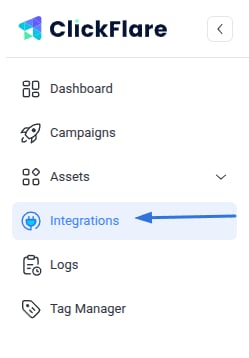 * Under **RSOC**, click **Add Integration**
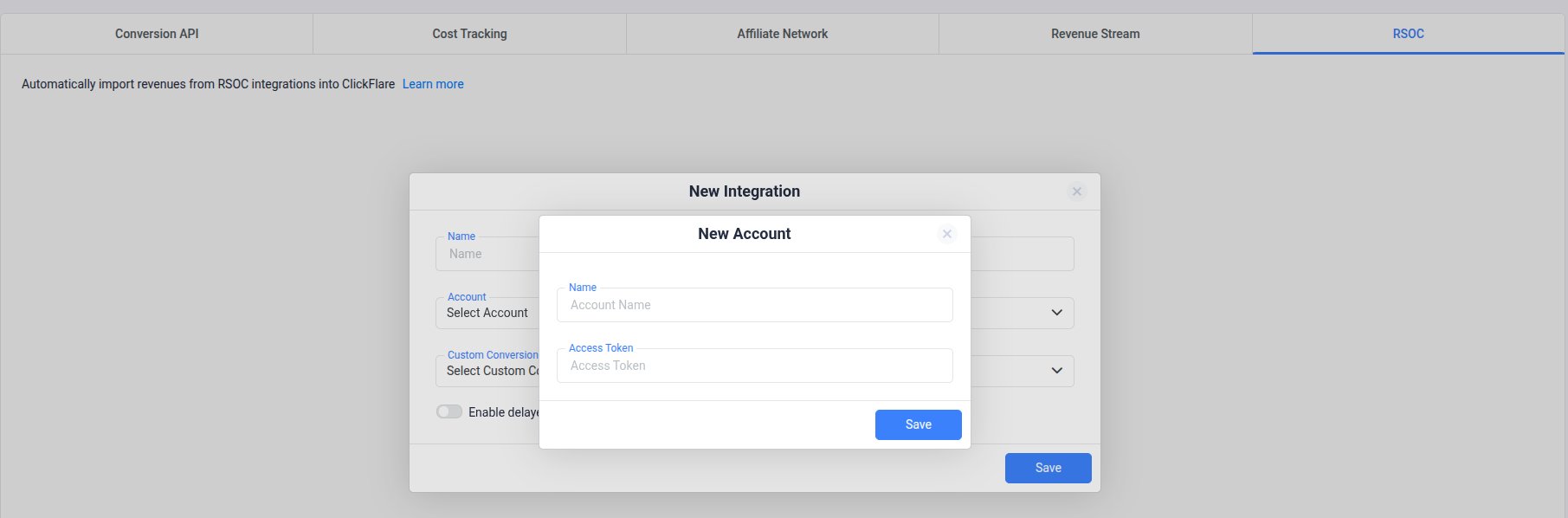
 ### 2. Configure the Integration:
* Select the **Inuvo PRISM** template
* Assign a name to your integration (e.g., *Inuvo* *PRISM*)
* Click **+ Connect Account** under Accounts
* Enter your **Inuvo** **PRISM account name** and **Access Token**, then click \*\*Save
### 2. Configure the Integration:
* Select the **Inuvo PRISM** template
* Assign a name to your integration (e.g., *Inuvo* *PRISM*)
* Click **+ Connect Account** under Accounts
* Enter your **Inuvo** **PRISM account name** and **Access Token**, then click \*\*Save
 \*\*
### 3. Select a Custom Conversion:
\*\*
### 3. Select a Custom Conversion:
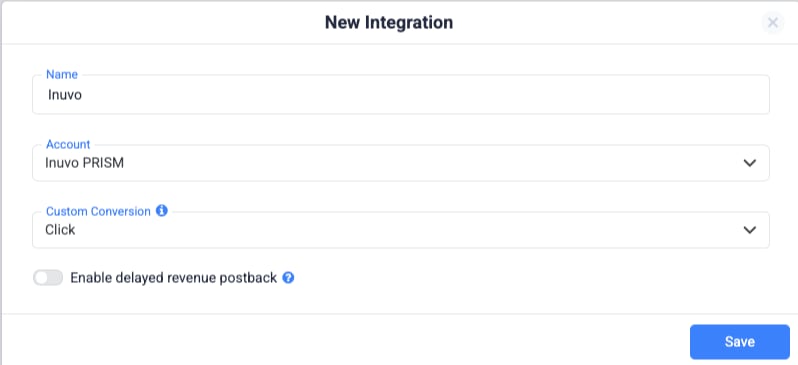 * Choose the **custom conversion event** you want to attribute the conversion data to
* If you haven’t created a custom conversion yet, follow our [custom conversion guide](/docs/en/settings/custom-conversions)to set one up
### 4. Save the Integration:
* Click on **Save**
* The new integration will appear under **RSOC Integrations**
***
## Offer URL Template for Inuvo PRISM RSOC
When setting up offers in ClickFlare, make sure to include the necessary tracking parameters to ensure proper tracking.
```
https://your_website.com/article/article_topic?tkid=REPLACE&agid=REPLACE&click_id={cf_click_id}&fbclid={external_id}
```
**Important**
Make sure to include the required parameters for both Predicto and ClickFlare in your offer URL:
* **PRISM required parameters**:
`tkid=REPLACE&agid=REPLACE`
* **ClickFlare required parameter**:
`click_id=cf_click_id`
***
## Postback Template for Inuvo PRISM RSOC (Required)
To enable revenue and conversion tracking from Inuvo PRISM in ClickFlare, you must configure the following postback in your PRISM account:
```
https://your_tracking_domain.com/cf/cv?click_id={click_id}¶m10={tkid}¶m11={agid}¶m1={query}&txid={datetimepst}&ct=click
```
This postback is **required** for tracking to work properly. It ensures that ClickFlare receives the correct identifiers needed to fetch revenue data from PRISM.
### ⚠️ Important
The following parameters are **mandatory** in the postback:
* click\_id=\{click\_id}
* param10=\{tkid}
* param11=\{agid}
If any of these parameters are missing, **ClickFlare will not be able to pull revenue data** from Inuvo PRISM RSOC.
***
## Additional Considerations
### Time Zone Alignment
* Use **PST** in ClickFlare to match PRISM's reporting time zone and avoid discrepancies.
### Currency Settings
* Inuvo PRISM RSOC reports revenue in **USD**.
* ClickFlare will handle currency conversion automatically if your account uses a different currency.
***
**FREQUENTLY ASKED QUESTIONS**
> **Q1:** How often is revenue and conversion data updated?
**A1**: Data is synced **hourly for 3 days**, with one **final sync after 10 days** to catch late updates.
> **Q2:** Is the postback setup required?
**A2**: Yes. The **Click postback is required** for ClickFlare to track conversions and revenue. All other event postbacks are optional.
> **Q3:** Can I integrate more than one Inuvo PRISM RSOC account?
**A3**: Absolutely. Just repeat the integration steps for each account you want to connect.
> **Q4:** What currency does PRISM use for reporting?
A4: All revenue data is reported in **USD**.
> **Q5:** What time zone should I use for proper reporting?
A5: Use **PST** time in ClickFlare to align with PRISM's reporting system.
* Choose the **custom conversion event** you want to attribute the conversion data to
* If you haven’t created a custom conversion yet, follow our [custom conversion guide](/docs/en/settings/custom-conversions)to set one up
### 4. Save the Integration:
* Click on **Save**
* The new integration will appear under **RSOC Integrations**
***
## Offer URL Template for Inuvo PRISM RSOC
When setting up offers in ClickFlare, make sure to include the necessary tracking parameters to ensure proper tracking.
```
https://your_website.com/article/article_topic?tkid=REPLACE&agid=REPLACE&click_id={cf_click_id}&fbclid={external_id}
```
**Important**
Make sure to include the required parameters for both Predicto and ClickFlare in your offer URL:
* **PRISM required parameters**:
`tkid=REPLACE&agid=REPLACE`
* **ClickFlare required parameter**:
`click_id=cf_click_id`
***
## Postback Template for Inuvo PRISM RSOC (Required)
To enable revenue and conversion tracking from Inuvo PRISM in ClickFlare, you must configure the following postback in your PRISM account:
```
https://your_tracking_domain.com/cf/cv?click_id={click_id}¶m10={tkid}¶m11={agid}¶m1={query}&txid={datetimepst}&ct=click
```
This postback is **required** for tracking to work properly. It ensures that ClickFlare receives the correct identifiers needed to fetch revenue data from PRISM.
### ⚠️ Important
The following parameters are **mandatory** in the postback:
* click\_id=\{click\_id}
* param10=\{tkid}
* param11=\{agid}
If any of these parameters are missing, **ClickFlare will not be able to pull revenue data** from Inuvo PRISM RSOC.
***
## Additional Considerations
### Time Zone Alignment
* Use **PST** in ClickFlare to match PRISM's reporting time zone and avoid discrepancies.
### Currency Settings
* Inuvo PRISM RSOC reports revenue in **USD**.
* ClickFlare will handle currency conversion automatically if your account uses a different currency.
***
**FREQUENTLY ASKED QUESTIONS**
> **Q1:** How often is revenue and conversion data updated?
**A1**: Data is synced **hourly for 3 days**, with one **final sync after 10 days** to catch late updates.
> **Q2:** Is the postback setup required?
**A2**: Yes. The **Click postback is required** for ClickFlare to track conversions and revenue. All other event postbacks are optional.
> **Q3:** Can I integrate more than one Inuvo PRISM RSOC account?
**A3**: Absolutely. Just repeat the integration steps for each account you want to connect.
> **Q4:** What currency does PRISM use for reporting?
A4: All revenue data is reported in **USD**.
> **Q5:** What time zone should I use for proper reporting?
A5: Use **PST** time in ClickFlare to align with PRISM's reporting system.