> ## Documentation Index
> Fetch the complete documentation index at: https://clickflare.com/docs/llms.txt
> Use this file to discover all available pages before exploring further.
# Predicto Integration Guide
> A step-by-step guide on how to integrate Predicto RSOC feed with ClickFlare for accurate conversion and revenue tracking.
** **
Thanks to ClickFlare's API integration with **Predicto RSOC**, you can automatically pull **conversions and revenue** into ClickFlare with high accuracy.
Conversion and revenue data are retrieved **every hour for up to 3 days** after the conversion occurs. Additionally, **a final sync is performed after 10 days** to ensure any late updates or revenue adjustments from Predicto RSOC are captured.
In this article, you’ll learn how to set up the API integration between ClickFlare and Predicto RSOC.
***
## What You’ll Need for the Integration:
* An active **Predicto RSOC account**
* An active **ClickFlare account**
* *Your **Predicto RSOC API credentials** (API token*
***
## Adding the Predicto RSOC Integration to ClickFlare
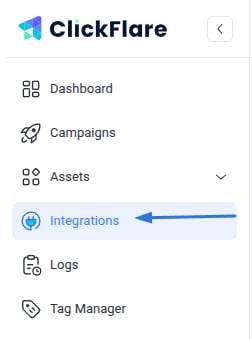
### 1. Access the Integrations Menu:
* Click on the **Left sidebar Menu
**
Thanks to ClickFlare's API integration with **Predicto RSOC**, you can automatically pull **conversions and revenue** into ClickFlare with high accuracy.
Conversion and revenue data are retrieved **every hour for up to 3 days** after the conversion occurs. Additionally, **a final sync is performed after 10 days** to ensure any late updates or revenue adjustments from Predicto RSOC are captured.
In this article, you’ll learn how to set up the API integration between ClickFlare and Predicto RSOC.
***
## What You’ll Need for the Integration:
* An active **Predicto RSOC account**
* An active **ClickFlare account**
* *Your **Predicto RSOC API credentials** (API token*
***
## Adding the Predicto RSOC Integration to ClickFlare
### 1. Access the Integrations Menu:
* Click on the **Left sidebar Menu
 **
* Under **RSOC**, click **Add Integration
**
* Under **RSOC**, click **Add Integration
 **
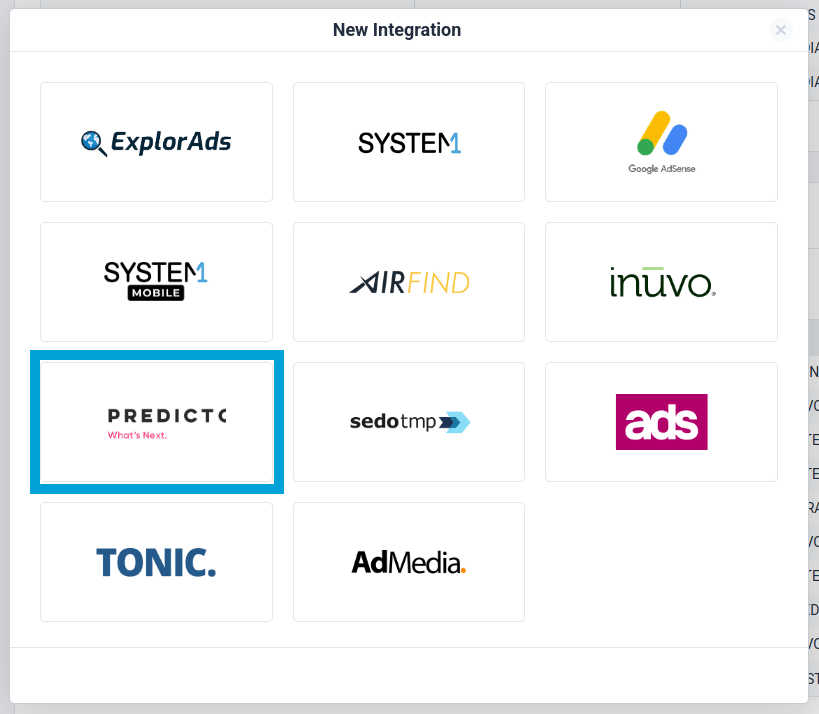
### 2. Configure the Integration:
* Select the **Predicto RSOC** template
**
### 2. Configure the Integration:
* Select the **Predicto RSOC** template
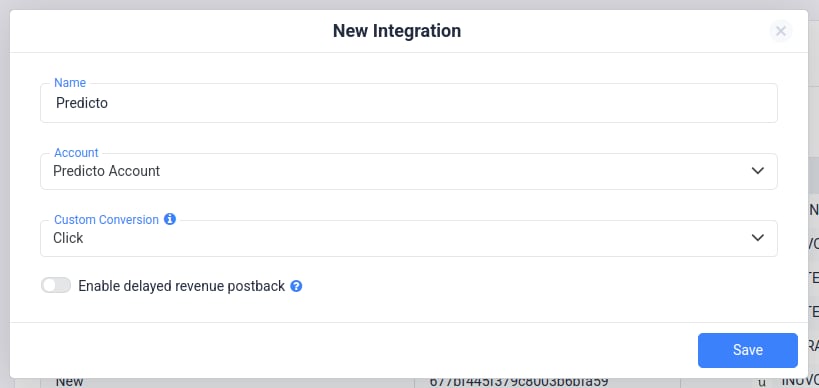
 * Assign a name to your integration (e.g., *Predicto Main Feed*)
* Click **+ Connect Account** under Accounts
* Enter your **Predicto account name** and **API credentials**, then click \*\*Save
* Assign a name to your integration (e.g., *Predicto Main Feed*)
* Click **+ Connect Account** under Accounts
* Enter your **Predicto account name** and **API credentials**, then click \*\*Save
 \*\*
### 3. Select a Custom Conversion:
* Choose the **custom conversion event** you want to attribute the conversion data to
* If you haven’t created a custom conversion yet, follow our [custom conversion guide](/docs/en/settings/custom-conversions)to set one up
### 4. Save the Integration:
* Click on **Save**, and the new integration will appear under the **RSOC Integrations** section
***
## Offer URL Template for Predicto RSOC
When setting up offers in ClickFlare, ensure the correct tracking parameters are used. Here’s an example offer URL format:
```
domain.com/skug?cid=company_channel_id+channel_id&utm_source={fb/googleads}&adtext=REPLACE CREATIVE HEADLINE&terms=OPTIONALTERMS seperated by comma&lang=ReplaceRsocLang&pixel_id=REPLACEFACEBOOKPIXEL ID&utm_term={cf_click_id}&click_id={external_id}&campaign_id={trackingFieldx}&adset_id={trackingFieldx}&ad_id={trackingFieldx}
```
Template For Facebook:
```
domain.com/skug?cid=company_channel_id+channel_id&utm_source=facebook&adtext=REPLACE CREATIVE HEADLINE&terms=OPTIONALTERMS seperated by comma&lang=ReplaceRsocLang&pixel_id=REPLACEFACEBOOKPIXEL ID&campaign_id={trackingField3}&adset_id={trackingField2}&ad_id={trackingField1}
```
**Important**
Make sure to include the required parameters for both Predicto and ClickFlare in your offer URL:
* **Predicto required parameters**:
`cid=company_channel_id+channel_id`
example `cid=ch123+ch345`
* **ClickFlare required parameter**:
`utm_term=cf_click_id`
* **Optional**:
You may include other UTM parameters (e.g., utm\_source, utm\_medium, etc.), but they are not required for tracking to function.
***
## Postback Template for Predicto RSOC
Predicto allows you to track multiple event types, including:
* Page View
* RSOC Request
* RSOC Impression
* RSOC Click
* Ad Page View
* Ad Request
* Ad Impression
* **Ad Click**
For this integration guide, we’ll provide postback examples for **RSOC Click** and **Ad Click**.
While you can set up postbacks for all supported events, **only the Ad Click postback is required** for conversion tracking in ClickFlare. All other events are optional and can be configured at your discretion.
### RSOC Click Postback
```
https://your_tracking_domain.com/cf/cv?click_id={utm_term}¶m1={query}&ct=rsoc_click
```
### Ad Click Postback (Required)
The event Type should be Ad Click
\*\*
### 3. Select a Custom Conversion:
* Choose the **custom conversion event** you want to attribute the conversion data to
* If you haven’t created a custom conversion yet, follow our [custom conversion guide](/docs/en/settings/custom-conversions)to set one up
### 4. Save the Integration:
* Click on **Save**, and the new integration will appear under the **RSOC Integrations** section
***
## Offer URL Template for Predicto RSOC
When setting up offers in ClickFlare, ensure the correct tracking parameters are used. Here’s an example offer URL format:
```
domain.com/skug?cid=company_channel_id+channel_id&utm_source={fb/googleads}&adtext=REPLACE CREATIVE HEADLINE&terms=OPTIONALTERMS seperated by comma&lang=ReplaceRsocLang&pixel_id=REPLACEFACEBOOKPIXEL ID&utm_term={cf_click_id}&click_id={external_id}&campaign_id={trackingFieldx}&adset_id={trackingFieldx}&ad_id={trackingFieldx}
```
Template For Facebook:
```
domain.com/skug?cid=company_channel_id+channel_id&utm_source=facebook&adtext=REPLACE CREATIVE HEADLINE&terms=OPTIONALTERMS seperated by comma&lang=ReplaceRsocLang&pixel_id=REPLACEFACEBOOKPIXEL ID&campaign_id={trackingField3}&adset_id={trackingField2}&ad_id={trackingField1}
```
**Important**
Make sure to include the required parameters for both Predicto and ClickFlare in your offer URL:
* **Predicto required parameters**:
`cid=company_channel_id+channel_id`
example `cid=ch123+ch345`
* **ClickFlare required parameter**:
`utm_term=cf_click_id`
* **Optional**:
You may include other UTM parameters (e.g., utm\_source, utm\_medium, etc.), but they are not required for tracking to function.
***
## Postback Template for Predicto RSOC
Predicto allows you to track multiple event types, including:
* Page View
* RSOC Request
* RSOC Impression
* RSOC Click
* Ad Page View
* Ad Request
* Ad Impression
* **Ad Click**
For this integration guide, we’ll provide postback examples for **RSOC Click** and **Ad Click**.
While you can set up postbacks for all supported events, **only the Ad Click postback is required** for conversion tracking in ClickFlare. All other events are optional and can be configured at your discretion.
### RSOC Click Postback
```
https://your_tracking_domain.com/cf/cv?click_id={utm_term}¶m1={query}&ct=rsoc_click
```
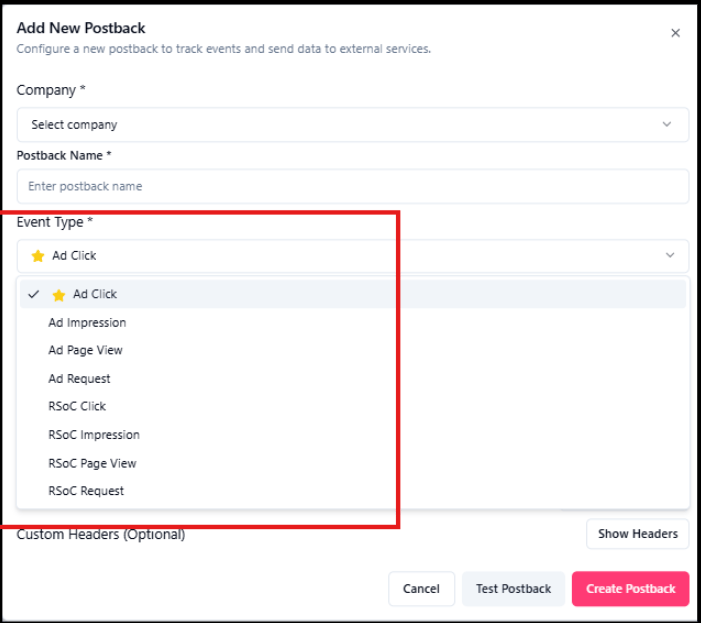
### Ad Click Postback (Required)
The event Type should be Ad Click
 **Required Configuration:**
This postback must be added to your **Predicto RSOC** account\*\*.\*\*
```
https://your_tracking_domain.com/cf/cv?click_id={utm_term}¶m1={query}¶m10={channel_id}&ct=click
```
### ⚠️ Important
For the **Ad Click postback**, the following parameters are required for tracking to work:
* click\_id=\{utm\_term}
* param10=\{channel\_id}
Make sure these parameters are included when setting up the postback in your **Predicto RSOC** account.
***
## Additional Considerations
### Time Zone Alignment
* Use **EDT** (New York) time in ClickFlare to match Predicto RSOC’s reporting timezone and avoid discrepancies.
### Currency Settings
* Predicto RSOC reports revenue in **USD**.
* ClickFlare will automatically handle currency conversion based on your account settings.
***
**FREQUENTLY ASKED QUESTIONS**
Got questions? Find the answers below:
> **Q1**: How often is revenue and conversion data updated?
**A1**: Data is pulled **every hour** for up to **3 days** from the time of conversion, plus one final pull after 10 **days** to capture any late updates.
> **Q2**: What happens if I don’t set up the postback in Predicto RSOC?
**A2**: ClickFlare won’t be able to track conversions or revenue. The postback must be added to your Predicto RSOC account at least for the Ad Click event.
> **Q3**: Can I track multiple Predicto RSOC accounts in ClickFlare?
**A3**: Yes, you can connect **multiple accounts** by repeating the integration steps for each one.
> **Q4**: What currency does Predicto RSOC report revenue in?
**A4**: Revenue is reported in **USD**. ClickFlare will convert it if your account is in a different currency.
> **Q5**: What time zone should I use in ClickFlare for Predicto RSOC tracking?
**A5**: Use **EDT** (New York) to align with Predicto RSOC’s reporting.
**Required Configuration:**
This postback must be added to your **Predicto RSOC** account\*\*.\*\*
```
https://your_tracking_domain.com/cf/cv?click_id={utm_term}¶m1={query}¶m10={channel_id}&ct=click
```
### ⚠️ Important
For the **Ad Click postback**, the following parameters are required for tracking to work:
* click\_id=\{utm\_term}
* param10=\{channel\_id}
Make sure these parameters are included when setting up the postback in your **Predicto RSOC** account.
***
## Additional Considerations
### Time Zone Alignment
* Use **EDT** (New York) time in ClickFlare to match Predicto RSOC’s reporting timezone and avoid discrepancies.
### Currency Settings
* Predicto RSOC reports revenue in **USD**.
* ClickFlare will automatically handle currency conversion based on your account settings.
***
**FREQUENTLY ASKED QUESTIONS**
Got questions? Find the answers below:
> **Q1**: How often is revenue and conversion data updated?
**A1**: Data is pulled **every hour** for up to **3 days** from the time of conversion, plus one final pull after 10 **days** to capture any late updates.
> **Q2**: What happens if I don’t set up the postback in Predicto RSOC?
**A2**: ClickFlare won’t be able to track conversions or revenue. The postback must be added to your Predicto RSOC account at least for the Ad Click event.
> **Q3**: Can I track multiple Predicto RSOC accounts in ClickFlare?
**A3**: Yes, you can connect **multiple accounts** by repeating the integration steps for each one.
> **Q4**: What currency does Predicto RSOC report revenue in?
**A4**: Revenue is reported in **USD**. ClickFlare will convert it if your account is in a different currency.
> **Q5**: What time zone should I use in ClickFlare for Predicto RSOC tracking?
**A5**: Use **EDT** (New York) to align with Predicto RSOC’s reporting.