> ## Documentation Index
> Fetch the complete documentation index at: https://clickflare.com/docs/llms.txt
> Use this file to discover all available pages before exploring further.
# Rumble Cost Integration
> How to Connect Rumble Cost Integration in ClickFlare for Automated Campaign Cost Tracking
 ## Overview
With ClickFlare’s API integration with **Rumble**, you can automatically track your campaign costs directly inside ClickFlare. This integration helps you monitor campaign performance with precision and removes the need for manual cost updates.
In this guide, we’ll walk you through the step-by-step process of setting up the Rumble cost integration.
***
## Requirements
To set up the integration, you will need:
* An active **Rumble** ad account
* An active **ClickFlare** account
* Your **Rumble Auth Key**
**Note**: Contact your Rumble account manager or support team to obtain your API credentials if you do not already have them.
***
## Steps to Set Up Rumble Cost Integration
### 1. Access ClickFlare Settings
* Log in to your **ClickFlare** account.
* Click on the **Settings** menu (gear icon in the upper-right corner).
* Navigate to the **Integrations** tab.
## Overview
With ClickFlare’s API integration with **Rumble**, you can automatically track your campaign costs directly inside ClickFlare. This integration helps you monitor campaign performance with precision and removes the need for manual cost updates.
In this guide, we’ll walk you through the step-by-step process of setting up the Rumble cost integration.
***
## Requirements
To set up the integration, you will need:
* An active **Rumble** ad account
* An active **ClickFlare** account
* Your **Rumble Auth Key**
**Note**: Contact your Rumble account manager or support team to obtain your API credentials if you do not already have them.
***
## Steps to Set Up Rumble Cost Integration
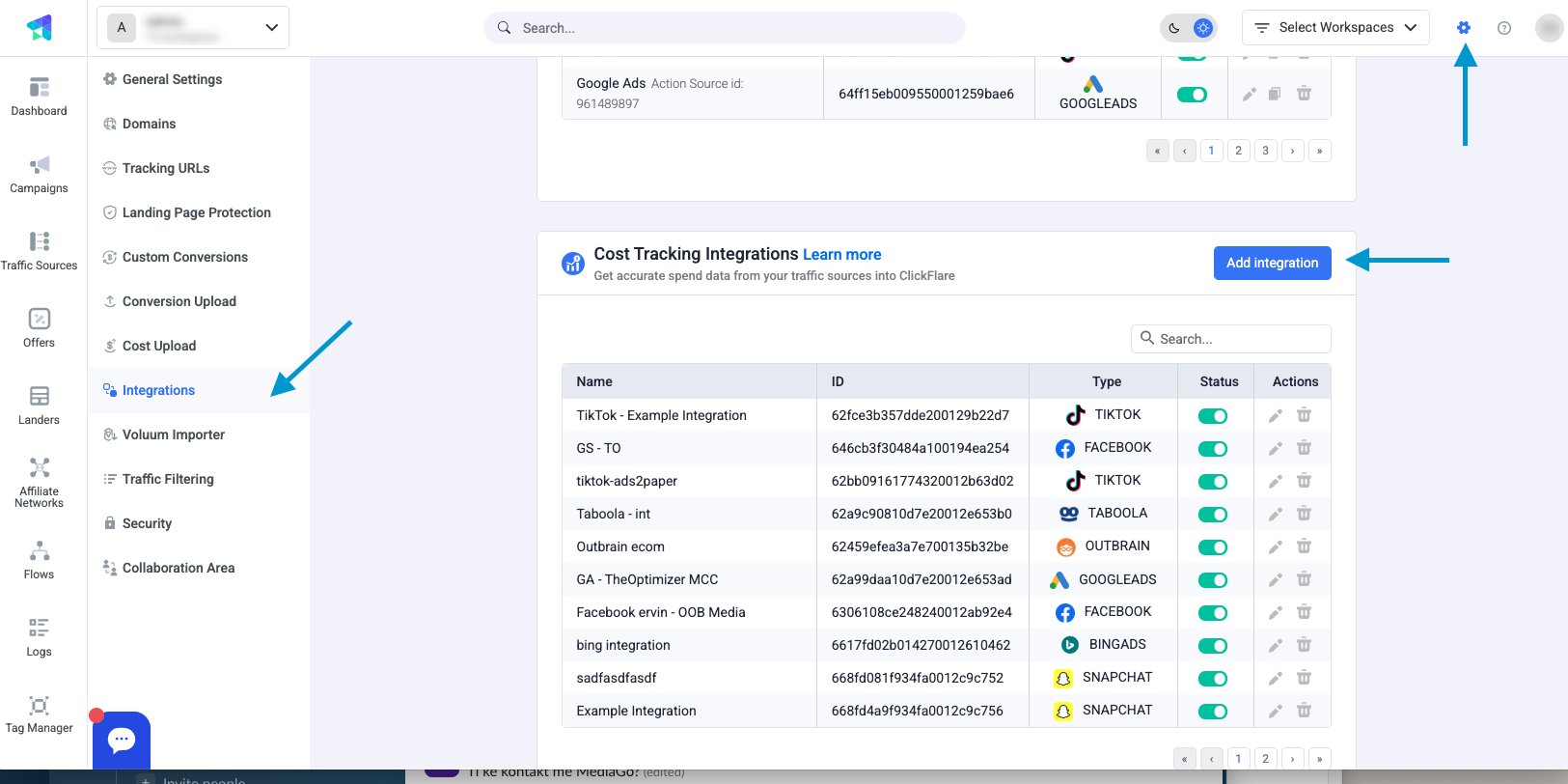
### 1. Access ClickFlare Settings
* Log in to your **ClickFlare** account.
* Click on the **Settings** menu (gear icon in the upper-right corner).
* Navigate to the **Integrations** tab.
 ***
### 2. Add a New Integration
* In the **Cost Tracking Integrations** section, click **Add Integration**.
* In the integration list, click the **Rumble** icon.
* This will open the **Rumble Setup Window**.
***
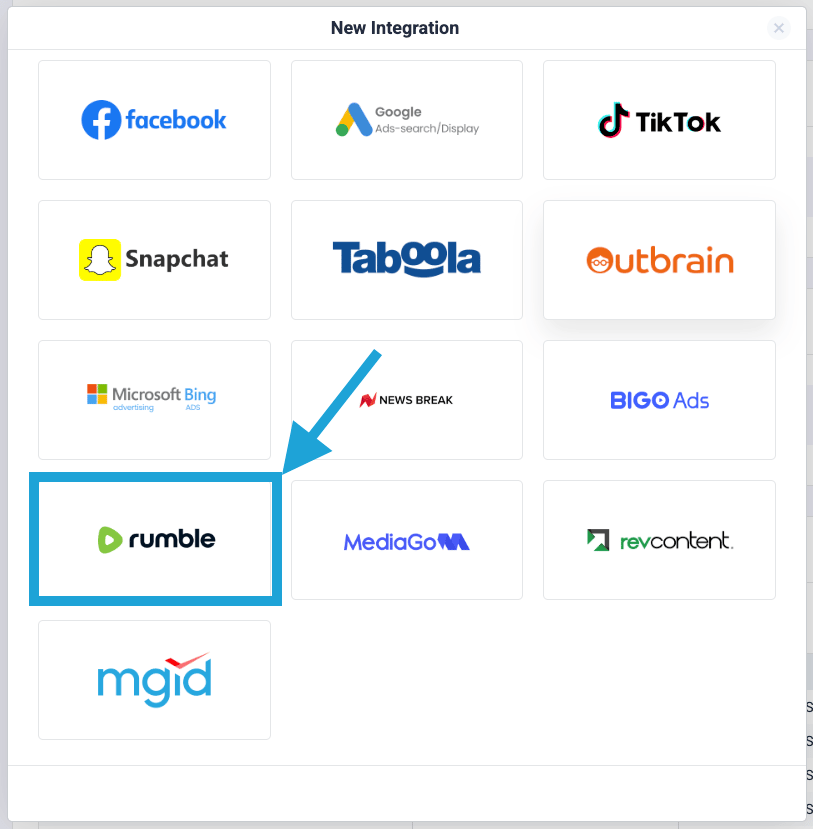
### 2. Add a New Integration
* In the **Cost Tracking Integrations** section, click **Add Integration**.
* In the integration list, click the **Rumble** icon.
* This will open the **Rumble Setup Window**.
 ***
### 3. Fill in the Required Integration Details
In the **Rumble Setup Window**, enter the following information:
* **Workspace**
* **Name** (a label for the integration)
* **Auth Key** (from your Rumble account)
* **Select Timezone** (should match your Rumble account settings)
Click **Save** to complete this step.
***
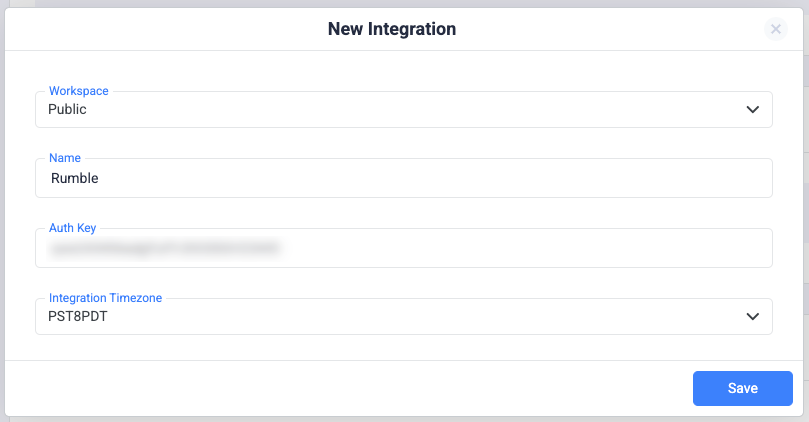
### 3. Fill in the Required Integration Details
In the **Rumble Setup Window**, enter the following information:
* **Workspace**
* **Name** (a label for the integration)
* **Auth Key** (from your Rumble account)
* **Select Timezone** (should match your Rumble account settings)
Click **Save** to complete this step.
 ***
### 4. Assign Traffic Source Configurations (Optional)
You can optionally specify which traffic source should use this Rumble cost integration.
* If you skip this step, you can assign the cost integration later through the traffic source settings (see next step).
* Make sure the selected traffic source is associated with Rumble.
***
### 5. Finalize Cost Integration in Traffic Source Settings *(Required if Step 4 was skipped)*
* Go to **Traffic Source Configuration** in ClickFlare.
* Under the **Cost Integration** section, select the newly created **Rumble** integration.
* Click **Save** to apply the cost tracking.
***
## Finalizing the Setup
Once the integration is set up, ClickFlare will automatically sync campaign cost data from your Rumble account. This means:
* No need for manual cost updates
* Real-time cost data will show directly in your reports
* You can analyze true ROI and optimize more efficiently
**Reminder**: Make sure to use ClickFlare’s tracking parameters in your Rumble campaign URLs to ensure proper attribution.
**FREQUENTLY ASKED QUESTIONS**
Got questions? Find the answers below:
> **Q1**: How often does ClickFlare update the cost data from Rumble?
**A1**: ClickFlare pulls cost data from Rumble **every hour**.
> **Q2**: Do I need to manually update campaign costs after setup?
**A2**: No, once connected, costs will be **automatically updated**.
> **Q3**: Can I use the same API Token for multiple integrations?
**A3**: Yes, but it’s not recommended to create multiple integrations with the same token as it might hit API rate limits.
> **Q4**: Why is my cost data not syncing?
* Double-check your **API Token**
* Ensure the **Traffic Source Configuration** is linked to the Rumble integration
* Check for any API issues on Rumble’s side
* Still having trouble? Contact **ClickFlare Support**
***
### 4. Assign Traffic Source Configurations (Optional)
You can optionally specify which traffic source should use this Rumble cost integration.
* If you skip this step, you can assign the cost integration later through the traffic source settings (see next step).
* Make sure the selected traffic source is associated with Rumble.
***
### 5. Finalize Cost Integration in Traffic Source Settings *(Required if Step 4 was skipped)*
* Go to **Traffic Source Configuration** in ClickFlare.
* Under the **Cost Integration** section, select the newly created **Rumble** integration.
* Click **Save** to apply the cost tracking.
***
## Finalizing the Setup
Once the integration is set up, ClickFlare will automatically sync campaign cost data from your Rumble account. This means:
* No need for manual cost updates
* Real-time cost data will show directly in your reports
* You can analyze true ROI and optimize more efficiently
**Reminder**: Make sure to use ClickFlare’s tracking parameters in your Rumble campaign URLs to ensure proper attribution.
**FREQUENTLY ASKED QUESTIONS**
Got questions? Find the answers below:
> **Q1**: How often does ClickFlare update the cost data from Rumble?
**A1**: ClickFlare pulls cost data from Rumble **every hour**.
> **Q2**: Do I need to manually update campaign costs after setup?
**A2**: No, once connected, costs will be **automatically updated**.
> **Q3**: Can I use the same API Token for multiple integrations?
**A3**: Yes, but it’s not recommended to create multiple integrations with the same token as it might hit API rate limits.
> **Q4**: Why is my cost data not syncing?
* Double-check your **API Token**
* Ensure the **Traffic Source Configuration** is linked to the Rumble integration
* Check for any API issues on Rumble’s side
* Still having trouble? Contact **ClickFlare Support**