> ## Documentation Index
> Fetch the complete documentation index at: https://clickflare.com/docs/llms.txt
> Use this file to discover all available pages before exploring further.
# Sedo RSOC Integration Guide
> A step-by-step guide on how to integrate Sedo.com RSOC with ClickFlare
 Thanks to ClickFlare's API integration with **Sedo RSOC**, you can automatically pull **conversions and revenue** into ClickFlare with accuracy.
The revenue and conversions are retrieved **every hour for up to 3 days** from the moment the conversion happens, ensuring you always have the most up-to-date revenue data. Additionally, a **final pull is performed after 7 days** to account for any revenue adjustments or updates made by Sedo RSOC.
In this article, we’ll walk through the step-by-step process of setting up the API integration with Sedo RSOC.
***
## What You’ll Need for the Integration:
* An active **Sedo RSOC account**
* An active **ClickFlare account**
* Your **Sedo RSOC Email and Password**
***
## Adding the Sedo RSOC Integration to ClickFlare
### 1. Access the Integrations Menu:
* Go to the left **sidebar:**
**
Thanks to ClickFlare's API integration with **Sedo RSOC**, you can automatically pull **conversions and revenue** into ClickFlare with accuracy.
The revenue and conversions are retrieved **every hour for up to 3 days** from the moment the conversion happens, ensuring you always have the most up-to-date revenue data. Additionally, a **final pull is performed after 7 days** to account for any revenue adjustments or updates made by Sedo RSOC.
In this article, we’ll walk through the step-by-step process of setting up the API integration with Sedo RSOC.
***
## What You’ll Need for the Integration:
* An active **Sedo RSOC account**
* An active **ClickFlare account**
* Your **Sedo RSOC Email and Password**
***
## Adding the Sedo RSOC Integration to ClickFlare
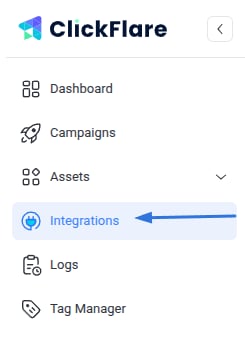
### 1. Access the Integrations Menu:
* Go to the left **sidebar:**
** **
* Under **RSOC**, click **Add Integration:
**
* Under **RSOC**, click **Add Integration:
 **
### 2. Configure the Integration:
* Choose the **Sedo RSOC** template
* Assign a **Name** to your integration
* Click **+ Connect Account** under **Accounts**
* Enter your **account name** and credentials **(username + password)**, then click **Save**
### 3. Select a Custom Conversion:
* Choose the **custom conversion event** you want to attribute the conversion data to
* If you haven’t created a custom conversion yet, follow our [custom conversion guide](/docs/en/settings/custom-conversions)to set one up
### 4. Save the Integration:
* Click on **Save**, and the new integration will appear under the **RSOC Integrations** section
***
## Offer URL Template for Sedo RSOC
When setting up offers in ClickFlare, ensure the correct tracking parameters are used. Here’s an example offer URL format:
```
https://artcle_domain.com/article_path/?campaign=REPLACE_CAMPAIGN_ID&subid3={cf_click_id}&adtitle=REPLACE&terms=REPLACE&tsad={trackingField1}&ts_campaign={trackingField3}&subid3={cf_click_id}&click_id={external_id}&placement={trackingField8}
```
**Important:**
**Pass \{cf\_click\_id} to the subid3** parameter **and the Sedo RSOC campaign ID to the campaign** parameter in your offer URL for conversions and revenue reporting.
### Mandatory Parameters for Sedo Keyword Displays:
* **Ad ID from traffic source:** tsad
* **Campaign ID from traffic source:** ts\_campaign
* **Placement from traffic source:** placement
**Note:** Follow the traffic source template and replace the macros for each Sedo parameter accordingly.
Refer to [this guide](/docs/en/tracking/how-to-dynamically-pass-traffic-source-tracking-info-to-the-offer) to see how traffic source values should be mapped and passed to the offer.
**Example for Facebook traffic source:**
```
&tsad={trackingField1}&ts_campaign={trackingField3}&subid3={cf_click_id}&click_id={external_id}&placement={trackingField8}
```
**Example for Taboola traffic source:**
```
tsad={trackingField6}&placement={trackingField2}&ts_campaign={trackingField5}&click_id={external_id}
```
***
## Postback Template for Sedo RSOC
```
https://your_tracking_domain.com/cf/cv?click_id={subid3}&payout={epayout}¶m10={campaign}&ct=click
```
**Required Configuration:**
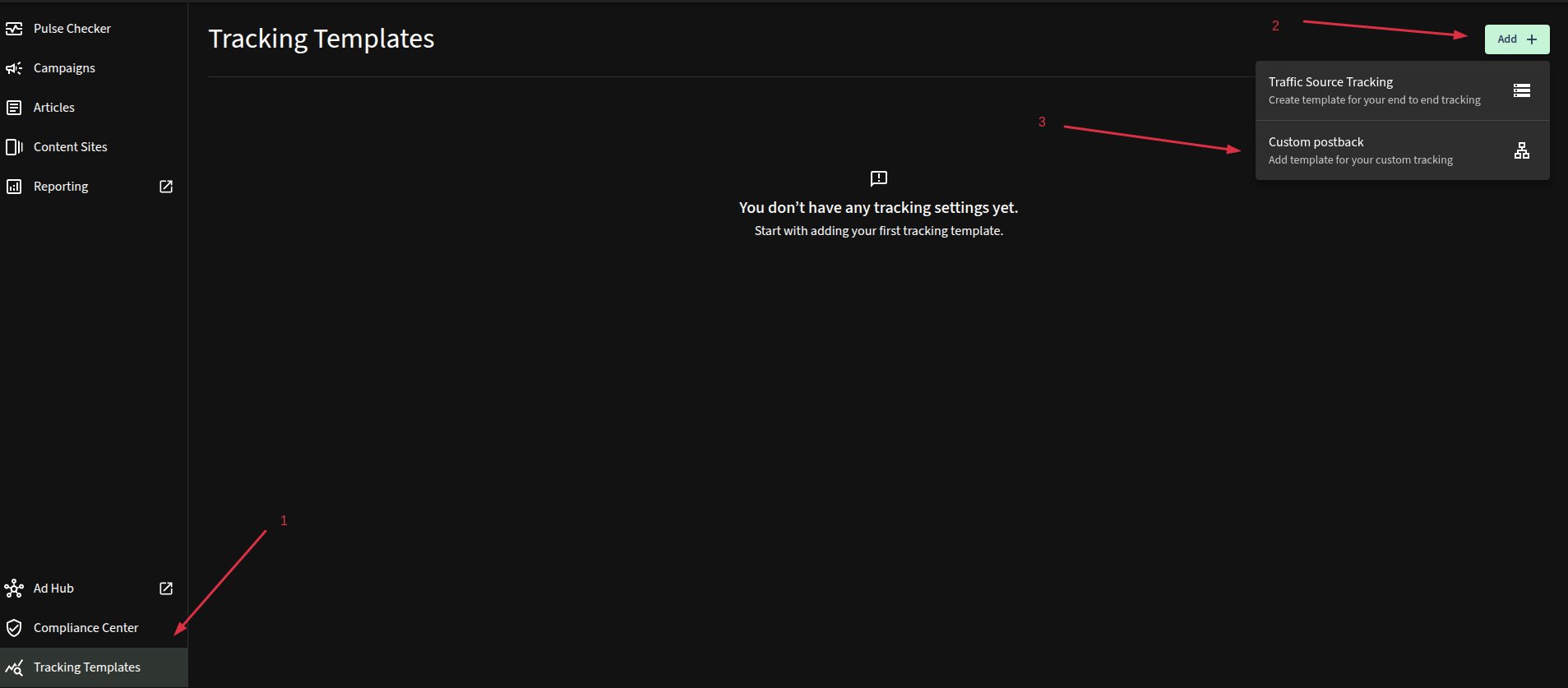
This postback must be added to your **Sedo RSOC** account for each offer, as shown below. Without it, **no conversions or revenue will be recorded** in ClickFlare.
### Setting Up the Postback on Sedo TMP:
Navigate to **Tracking Templates > Add > Custom Postback**
**
### 2. Configure the Integration:
* Choose the **Sedo RSOC** template
* Assign a **Name** to your integration
* Click **+ Connect Account** under **Accounts**
* Enter your **account name** and credentials **(username + password)**, then click **Save**
### 3. Select a Custom Conversion:
* Choose the **custom conversion event** you want to attribute the conversion data to
* If you haven’t created a custom conversion yet, follow our [custom conversion guide](/docs/en/settings/custom-conversions)to set one up
### 4. Save the Integration:
* Click on **Save**, and the new integration will appear under the **RSOC Integrations** section
***
## Offer URL Template for Sedo RSOC
When setting up offers in ClickFlare, ensure the correct tracking parameters are used. Here’s an example offer URL format:
```
https://artcle_domain.com/article_path/?campaign=REPLACE_CAMPAIGN_ID&subid3={cf_click_id}&adtitle=REPLACE&terms=REPLACE&tsad={trackingField1}&ts_campaign={trackingField3}&subid3={cf_click_id}&click_id={external_id}&placement={trackingField8}
```
**Important:**
**Pass \{cf\_click\_id} to the subid3** parameter **and the Sedo RSOC campaign ID to the campaign** parameter in your offer URL for conversions and revenue reporting.
### Mandatory Parameters for Sedo Keyword Displays:
* **Ad ID from traffic source:** tsad
* **Campaign ID from traffic source:** ts\_campaign
* **Placement from traffic source:** placement
**Note:** Follow the traffic source template and replace the macros for each Sedo parameter accordingly.
Refer to [this guide](/docs/en/tracking/how-to-dynamically-pass-traffic-source-tracking-info-to-the-offer) to see how traffic source values should be mapped and passed to the offer.
**Example for Facebook traffic source:**
```
&tsad={trackingField1}&ts_campaign={trackingField3}&subid3={cf_click_id}&click_id={external_id}&placement={trackingField8}
```
**Example for Taboola traffic source:**
```
tsad={trackingField6}&placement={trackingField2}&ts_campaign={trackingField5}&click_id={external_id}
```
***
## Postback Template for Sedo RSOC
```
https://your_tracking_domain.com/cf/cv?click_id={subid3}&payout={epayout}¶m10={campaign}&ct=click
```
**Required Configuration:**
This postback must be added to your **Sedo RSOC** account for each offer, as shown below. Without it, **no conversions or revenue will be recorded** in ClickFlare.
### Setting Up the Postback on Sedo TMP:
Navigate to **Tracking Templates > Add > Custom Postback**
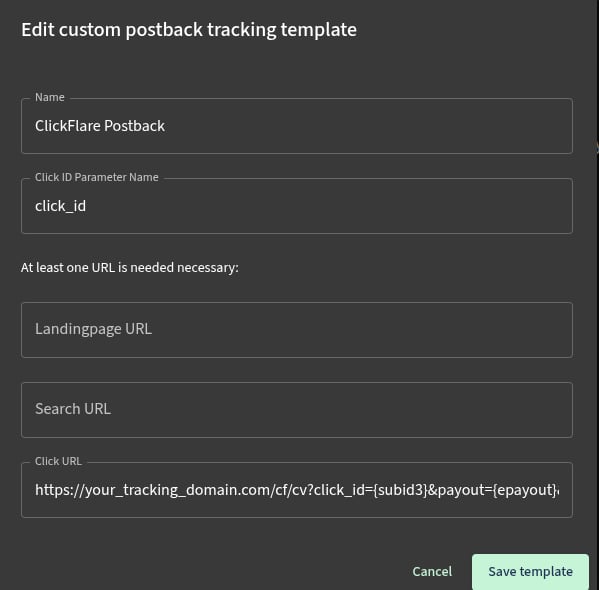 Replace the tracking domain with one of your custom domains.
***
## Additional Considerations
### Time Zone Alignment:
Sedo RSOC revenue reporting operates on **CET time**. Make sure your ClickFlare account settings are also set to **CET** to ensure consistent and accurate reporting.
### Currency Settings:
Sedo RSOC earnings are reported in **USD**. When setting up offers in ClickFlare, select **USD** at the offer level. ClickFlare will **automatically convert** the revenue into your **default reporting currency**.
**FREQUENTLY ASKED QUESTIONS**
Got questions? Find the answers below:
> **Q1**: How often is revenue and conversion data updated?
**A1**: Data is pulled **every hour** for up to **3 days** from the time of conversion, plus one final pull after **7 days** to capture any late updates.
> **Q2**: What happens if I don’t set up the postback in Sedo RSOC?
**A2**: ClickFlare won’t be able to record conversions or revenue. Make sure the postback is properly added in your Sedo RSOC account.
> **Q3**: Can I track multiple Sedo RSOC accounts in ClickFlare?
**A3**: Yes, you can connect **multiple Sedo RSOC accounts** by repeating the integration steps for each one.
> **Q4**: What currency does Sedo RSOC report revenue in?
**A4**: Revenue is reported in **USD**. ClickFlare will handle currency conversion if your account is set to a different currency.
> **Q5**: What time zone should I use in ClickFlare for Sedo RSOC tracking?
**A5**: Use **CET time** to match Sedo RSOC’s reporting and avoid data discrepancies.
Replace the tracking domain with one of your custom domains.
***
## Additional Considerations
### Time Zone Alignment:
Sedo RSOC revenue reporting operates on **CET time**. Make sure your ClickFlare account settings are also set to **CET** to ensure consistent and accurate reporting.
### Currency Settings:
Sedo RSOC earnings are reported in **USD**. When setting up offers in ClickFlare, select **USD** at the offer level. ClickFlare will **automatically convert** the revenue into your **default reporting currency**.
**FREQUENTLY ASKED QUESTIONS**
Got questions? Find the answers below:
> **Q1**: How often is revenue and conversion data updated?
**A1**: Data is pulled **every hour** for up to **3 days** from the time of conversion, plus one final pull after **7 days** to capture any late updates.
> **Q2**: What happens if I don’t set up the postback in Sedo RSOC?
**A2**: ClickFlare won’t be able to record conversions or revenue. Make sure the postback is properly added in your Sedo RSOC account.
> **Q3**: Can I track multiple Sedo RSOC accounts in ClickFlare?
**A3**: Yes, you can connect **multiple Sedo RSOC accounts** by repeating the integration steps for each one.
> **Q4**: What currency does Sedo RSOC report revenue in?
**A4**: Revenue is reported in **USD**. ClickFlare will handle currency conversion if your account is set to a different currency.
> **Q5**: What time zone should I use in ClickFlare for Sedo RSOC tracking?
**A5**: Use **CET time** to match Sedo RSOC’s reporting and avoid data discrepancies.