> ## Documentation Index
> Fetch the complete documentation index at: https://clickflare.com/docs/llms.txt
> Use this file to discover all available pages before exploring further.
# System1 RSOC Mobile Integration Guide
> A step-by-step guide to integrate System1 RSOC Mobile into ClickFlare
Thanks to ClickFlare's enhanced API integration with **System1 RSOC Mobile**, you can accurately track conversions and pull in revenue data directly into your ClickFlare dashboard, even on mobile traffic.
Note: The frequency conversions and revenue are pulled depending on your subscription plan.
In this article, we'll outline the step-by-step process of setting up API Integration with System1 Mobile
**What you'll need for the integration:**
* An active System1 Account.
* An active ClickFlare Account.
* Your System1 *Auth. Key*
**Adding the System1 integration to ClickFlare**.
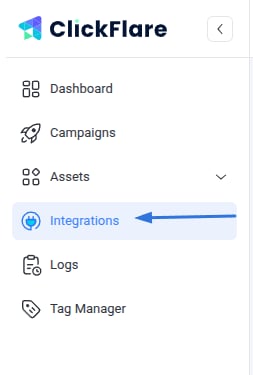
To add System1 integration to your ClickFlare account, begin by accessing the **Integrations Menu,** found on the left sidebar.
* Under *RSOC Integrations*, click **Add Integration.**
 * Choose the System1 Mobile template
* Give your new integration a **Name**.
Note: Have your integrations' connection info ready before proceeding to connect it with ClickFlare.
* Under Accounts, click on **+ Connect Account.**
* Enter the account name, auth key, and click on **Save.**
* Proceed to selecting the **custom conversion** you want to attribute the conversion event to.
To learn how to add a custom conversion in ClickFlare, follow our article [here](/docs/en/settings/custom-conversions).
* Choose the System1 Mobile template
* Give your new integration a **Name**.
Note: Have your integrations' connection info ready before proceeding to connect it with ClickFlare.
* Under Accounts, click on **+ Connect Account.**
* Enter the account name, auth key, and click on **Save.**
* Proceed to selecting the **custom conversion** you want to attribute the conversion event to.
To learn how to add a custom conversion in ClickFlare, follow our article [here](/docs/en/settings/custom-conversions).
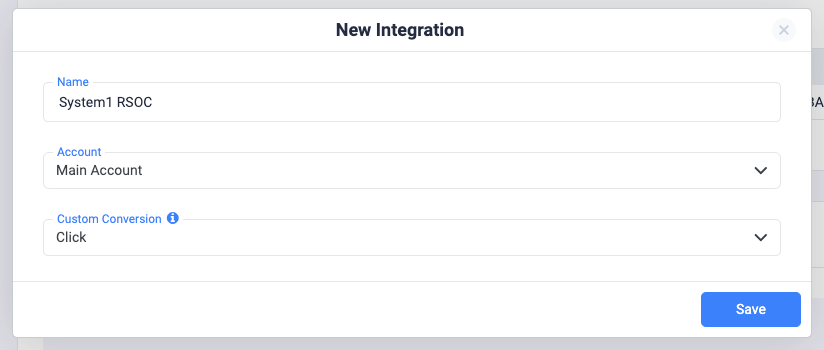 **Note**: For the integration to work, you must send the **\{cf\_click\_id}** to the "**nonrevsubid**" parameter (see the offer URL example below).
* Lastly, click on **Save.**
You’ll see the new integration appear under the Revenue Stream Integrations section
### Offer URL template for System1:
```
https://your_domain.com/article/?s1particle=REPLACE_ARTICLE&headline=REPLACE_HEADLINE&subid=campaign_id&segment=REPLACE_SEGMENT&nonrevsubid={cf_click_id}&s1pcid={trackingField3}&s1pagid={trackingField2}&s1padid={trackingField1}&s1paid={campaign_id}&utm_source=Facebook&s1pplacement=facebook-{trackingField2}&impression_track_url=https%3A%2F%2Fyour_tracking_domain%2Fcf%2Fcv%3Fclick_id%3D%7Bcf_click_id%7D%26ct%3Dimpression&search_track_url=https%3A%2F%2Fyour_tracking_domain%2Fcf%2Fcv%3Fclick_id%3D%7Bcf_click_id%7D%26ct%3Dsearch%26param1%3D%7BOMKEYWORD%7D&click_track_url=https%3A%2F%2Fyour_tracking_domain%2Fcf%2Fcv%3Fclick_id%3D%7Bcf_click_id%7D%26ct%3Dclick%26param1%3D%7BOMKEYWORD%7D%26param10%3DREPLACESEGMENT
```
**\*Important Note**:
It's crucial to append the following parameter to your offer URLs:
* The Clickflare click ID: **\&nonrevsubid=\{cf\_click\_id}**
* The ClickFlare campaign ID: "**s1paid=\{campaign\_id}**"
If you fail to send the \{campaign\_id} in the subid parameter, you'll not have the same-day revenue. The revenue will be reflected starting from the next day
### Postback Setup for System1 RSOC Mobile
\***Note**:
Make sure to append the ClickFlare click ID ("**click\_id=\{cf\_click\_id}**") and send the segment name to Conversion parameter 10 (**param10=*REPLACE\_SEGMENT\_NAME).***
The postback must be encoded correctly. For instance, only the postback after the equal sign should be encoded.
If your postbacks are:
```
&search_track_url=https://your_tracking_domain.com/cf/cv?click_id=cf_click_id&ct=search&click_track_url=https://your_tracking_domain.com/cf/cv?click_id={cf_click_id}¶m10=SEGMENT_NAME&ct=click
```
The encoded postback should look like this:
`&search_track_url=https%3A%2F%2Fyour_tracking_domain.com%2Fcf%2Fcv%3Fclick_id%3D%7Bcf_click_id%7D%26ct%3Dsearch&click_track_url=https%3A%2F%2Fyour_tracking_domain.com%2Fcf%2Fcv%3Fclick_id%3D%7Bcf_click_id%7D%26param10%3DSEGMENT_NAME%26ct%3Dclick`
Failing to encode the postbacks correctly will cause them to break and prevent conversions from being reported correctly.
**Postback templates for System1 Mobile**
The postbacks go directly to the offer URL (check the offer URL above)
These are the postbacks:
`impression_track_url=https://your_tracking_domain/cf/cv?click_id=cf_click_id&ct=impression`
`search_track_url=https://your_tracking_domain/cf/cv?click_id=cf_click_id&ct=search`
`click_track_url=https://your_tracking_domain/cf/cv?click_id=cf_click_id¶m10=SEGMENT_NAME&ct=click`
Note: Always make sure to encode the postbacks before appending them to your offer URL.
**Note**: System1 revenue reporting operates on PST time. Please ensure to set your ClickFlare settings to PST when checking reporting for System1.
**! Important Note**: The revenue we calculate on a click ID level is not accurate but just an estimation, based on the revenue dimensions (segment, campaign ID, geo, device) provided by System1
### Related Resources:
* [About RSOC](/docs/en/integrations/about-rsoc)
**Note**: For the integration to work, you must send the **\{cf\_click\_id}** to the "**nonrevsubid**" parameter (see the offer URL example below).
* Lastly, click on **Save.**
You’ll see the new integration appear under the Revenue Stream Integrations section
### Offer URL template for System1:
```
https://your_domain.com/article/?s1particle=REPLACE_ARTICLE&headline=REPLACE_HEADLINE&subid=campaign_id&segment=REPLACE_SEGMENT&nonrevsubid={cf_click_id}&s1pcid={trackingField3}&s1pagid={trackingField2}&s1padid={trackingField1}&s1paid={campaign_id}&utm_source=Facebook&s1pplacement=facebook-{trackingField2}&impression_track_url=https%3A%2F%2Fyour_tracking_domain%2Fcf%2Fcv%3Fclick_id%3D%7Bcf_click_id%7D%26ct%3Dimpression&search_track_url=https%3A%2F%2Fyour_tracking_domain%2Fcf%2Fcv%3Fclick_id%3D%7Bcf_click_id%7D%26ct%3Dsearch%26param1%3D%7BOMKEYWORD%7D&click_track_url=https%3A%2F%2Fyour_tracking_domain%2Fcf%2Fcv%3Fclick_id%3D%7Bcf_click_id%7D%26ct%3Dclick%26param1%3D%7BOMKEYWORD%7D%26param10%3DREPLACESEGMENT
```
**\*Important Note**:
It's crucial to append the following parameter to your offer URLs:
* The Clickflare click ID: **\&nonrevsubid=\{cf\_click\_id}**
* The ClickFlare campaign ID: "**s1paid=\{campaign\_id}**"
If you fail to send the \{campaign\_id} in the subid parameter, you'll not have the same-day revenue. The revenue will be reflected starting from the next day
### Postback Setup for System1 RSOC Mobile
\***Note**:
Make sure to append the ClickFlare click ID ("**click\_id=\{cf\_click\_id}**") and send the segment name to Conversion parameter 10 (**param10=*REPLACE\_SEGMENT\_NAME).***
The postback must be encoded correctly. For instance, only the postback after the equal sign should be encoded.
If your postbacks are:
```
&search_track_url=https://your_tracking_domain.com/cf/cv?click_id=cf_click_id&ct=search&click_track_url=https://your_tracking_domain.com/cf/cv?click_id={cf_click_id}¶m10=SEGMENT_NAME&ct=click
```
The encoded postback should look like this:
`&search_track_url=https%3A%2F%2Fyour_tracking_domain.com%2Fcf%2Fcv%3Fclick_id%3D%7Bcf_click_id%7D%26ct%3Dsearch&click_track_url=https%3A%2F%2Fyour_tracking_domain.com%2Fcf%2Fcv%3Fclick_id%3D%7Bcf_click_id%7D%26param10%3DSEGMENT_NAME%26ct%3Dclick`
Failing to encode the postbacks correctly will cause them to break and prevent conversions from being reported correctly.
**Postback templates for System1 Mobile**
The postbacks go directly to the offer URL (check the offer URL above)
These are the postbacks:
`impression_track_url=https://your_tracking_domain/cf/cv?click_id=cf_click_id&ct=impression`
`search_track_url=https://your_tracking_domain/cf/cv?click_id=cf_click_id&ct=search`
`click_track_url=https://your_tracking_domain/cf/cv?click_id=cf_click_id¶m10=SEGMENT_NAME&ct=click`
Note: Always make sure to encode the postbacks before appending them to your offer URL.
**Note**: System1 revenue reporting operates on PST time. Please ensure to set your ClickFlare settings to PST when checking reporting for System1.
**! Important Note**: The revenue we calculate on a click ID level is not accurate but just an estimation, based on the revenue dimensions (segment, campaign ID, geo, device) provided by System1
### Related Resources:
* [About RSOC](/docs/en/integrations/about-rsoc)