> ## Documentation Index
> Fetch the complete documentation index at: https://clickflare.com/docs/llms.txt
> Use this file to discover all available pages before exploring further.
# Zeydoo and ClickFlare
> Tracking Zeydoo Offers with ClickFlare: A Step-by-Step Guide
This article outlines how to set up tracking for Zeydoo offers while using ClickFlare as a tracker.
### **What you'll need for the integration:**
Ensure you have the following before proceeding:
* An active ClickFlare account
* An active Zeydoo account
Once you have these set up, you can move forward with the rest of the guide.
### I. Create an Affiliate Network in ClickFlare and Get the Postback URL
The first step is to create an affiliate network element in ClickFlare using a template. Follow these steps:
1. In ClickFlare, navigate to the **Affiliate Networks** tab.
2. Click the **+ New** button.
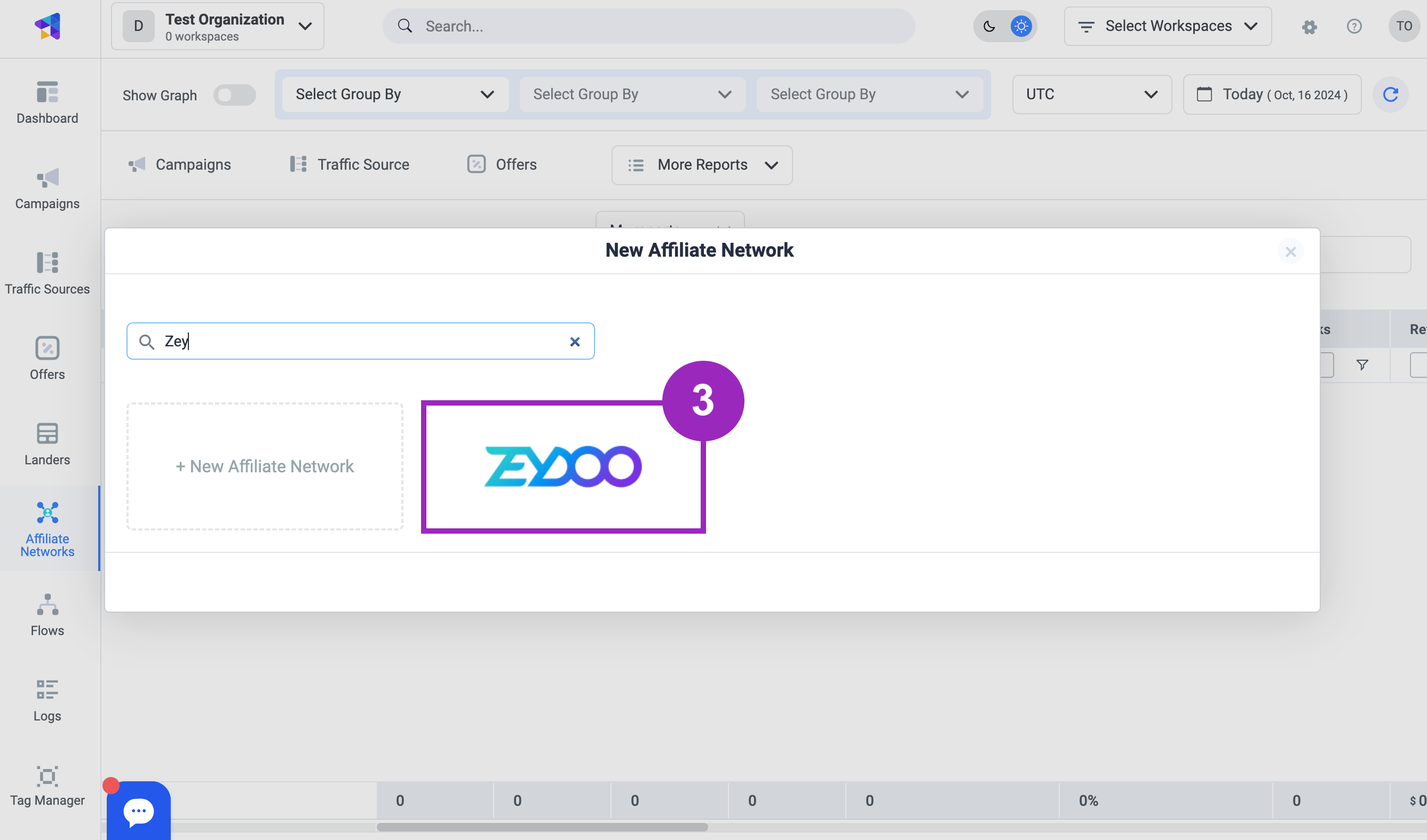
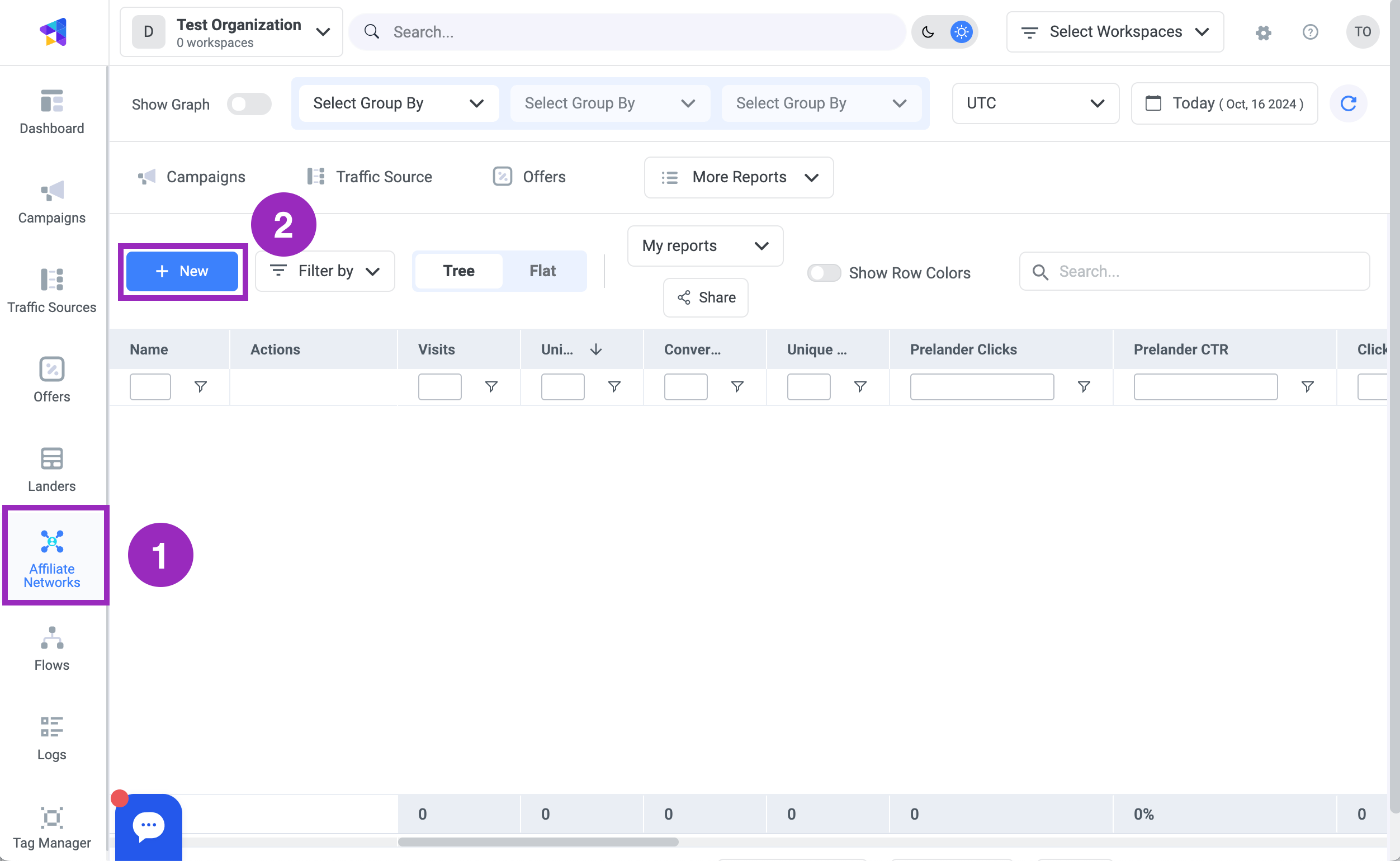 3. Choose the **Zeydoo** affiliate network template.
 4. Click the **Copy** button next to the postback URL to copy it to your clipboard.
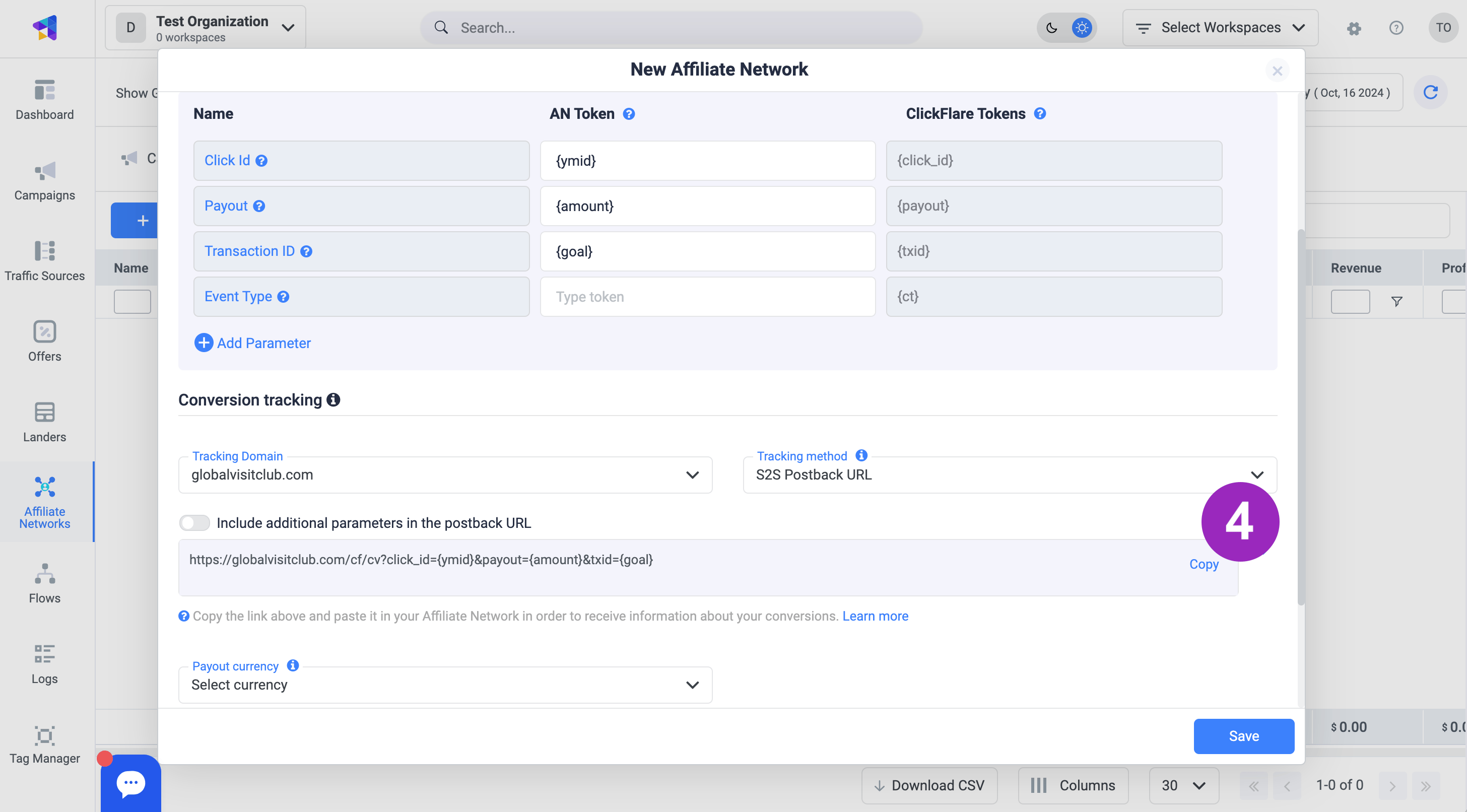 5. Click the **Save** button.
You have now added the Zeydoo affiliate network to ClickFlare and copied the postback URL.
### II. Submit the Postback URL to Zeydoo
Next, set up the postback URL in Zeydoo by following these steps:
1. In Zeydoo, go to the **Postback** tab.
2. Paste the postback URL copied from ClickFlare into the text field.
3. Click the **Add Postback** button.
5. Click the **Save** button.
You have now added the Zeydoo affiliate network to ClickFlare and copied the postback URL.
### II. Submit the Postback URL to Zeydoo
Next, set up the postback URL in Zeydoo by following these steps:
1. In Zeydoo, go to the **Postback** tab.
2. Paste the postback URL copied from ClickFlare into the text field.
3. Click the **Add Postback** button.
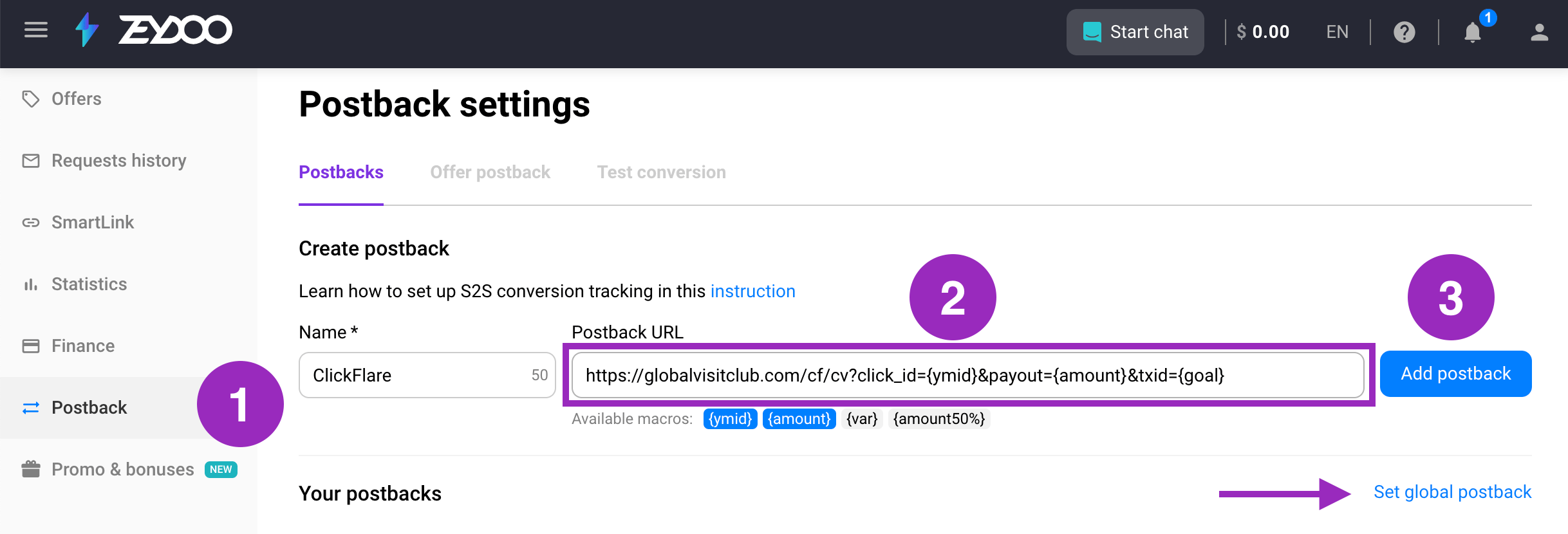 **Optional**: By clicking on "Set global postback", you can make this postback global. Meaning, it will fire on all your current and future offers.
### III. Get an Offer from Zeydoo
Now, find an offer and retrieve the offer URL from Zeydoo. Follow these steps:
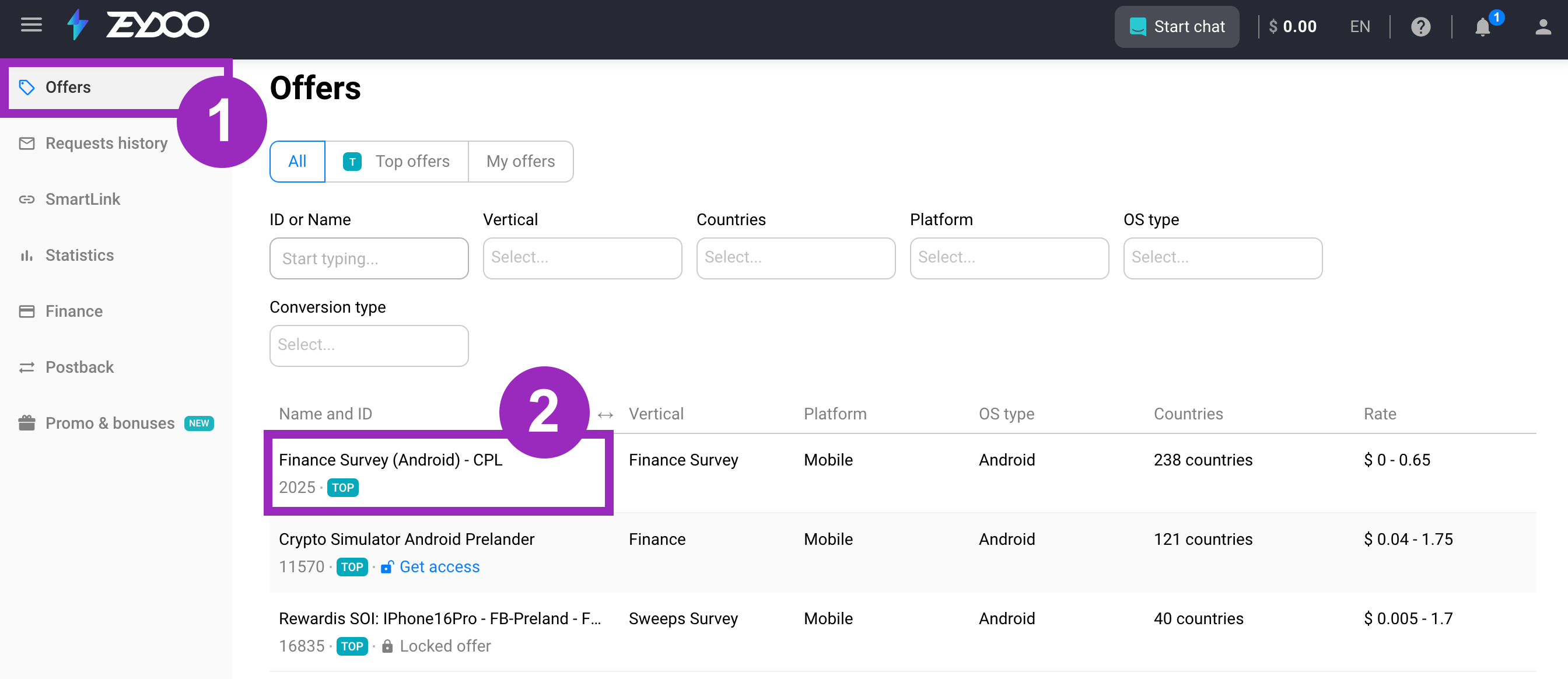
1. In Zeydoo, go to the **Offers** tab.
2. Use the filter settings to find an offer you wish to promote. Click on the selected offer.
**Optional**: By clicking on "Set global postback", you can make this postback global. Meaning, it will fire on all your current and future offers.
### III. Get an Offer from Zeydoo
Now, find an offer and retrieve the offer URL from Zeydoo. Follow these steps:
1. In Zeydoo, go to the **Offers** tab.
2. Use the filter settings to find an offer you wish to promote. Click on the selected offer.
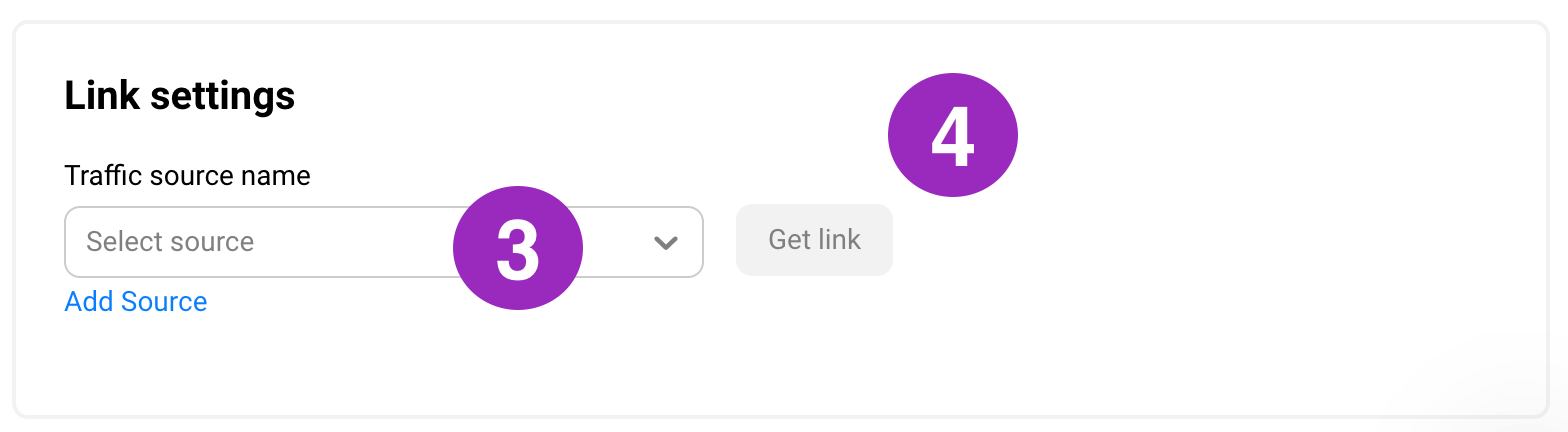
 3. Choose the traffic source from the drop-down menu or click **Create new** to set up a new one.
4. Click the **Get link** button.
3. Choose the traffic source from the drop-down menu or click **Create new** to set up a new one.
4. Click the **Get link** button.
 5. Your offer link will now appear. Click the button to copy it to the clipboard.
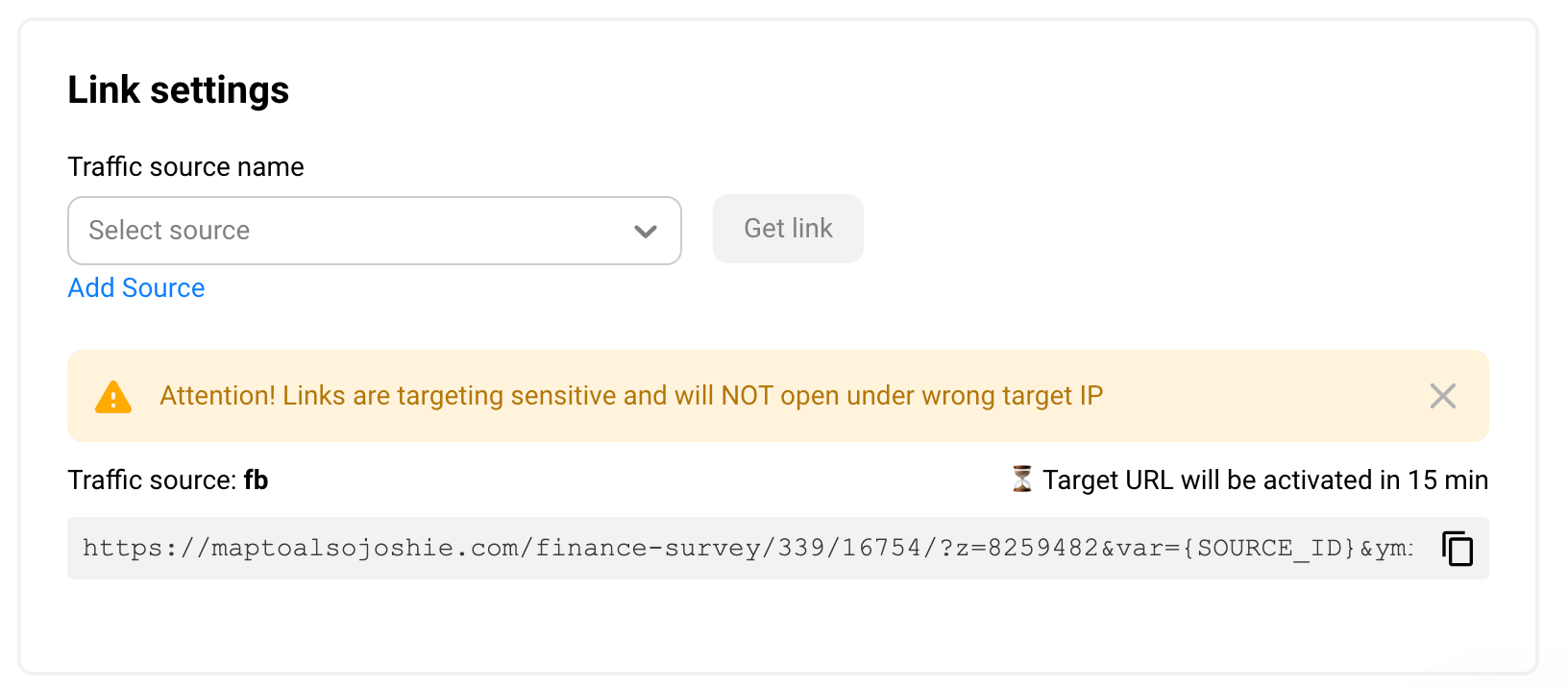 You have now obtained the offer URL.
### IV. Create an Offer in ClickFlare
Finally, create an offer in ClickFlare by following these steps:
1. In ClickFlare, go to the **Offers** section.
2. Click the **+ New** button.
You have now obtained the offer URL.
### IV. Create an Offer in ClickFlare
Finally, create an offer in ClickFlare by following these steps:
1. In ClickFlare, go to the **Offers** section.
2. Click the **+ New** button.
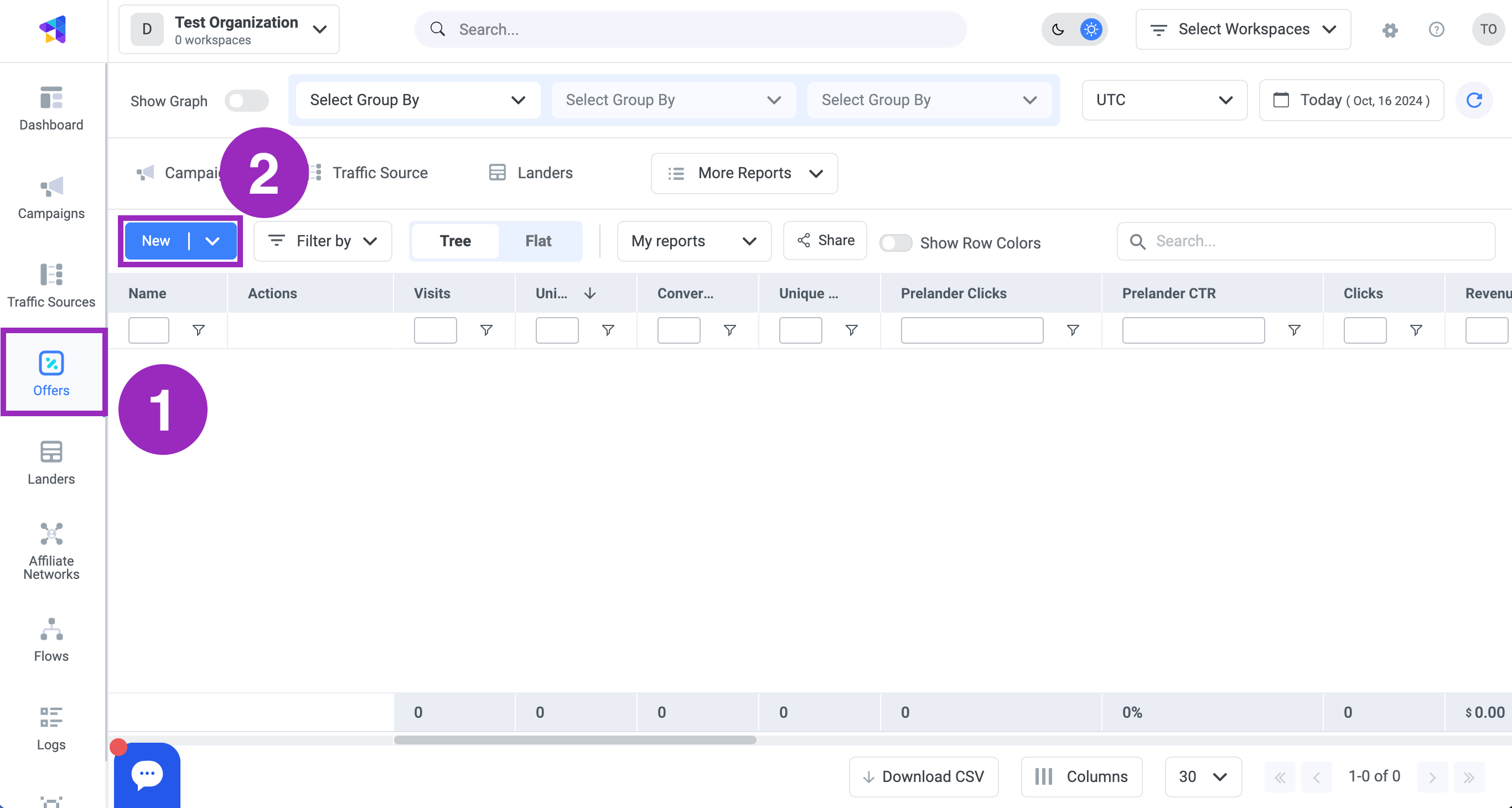 3. Choose the **Zeydoo** affiliate network from the **Affiliate Network** drop-down menu.
4. Enter a name for the offer in the **Name** text field.
5. Paste the offer URL you obtained from Zeydoo into the **Offer URL** text field.
6. Copy the tracking parameter and append it to the end of your offer URL after the & character.
3. Choose the **Zeydoo** affiliate network from the **Affiliate Network** drop-down menu.
4. Enter a name for the offer in the **Name** text field.
5. Paste the offer URL you obtained from Zeydoo into the **Offer URL** text field.
6. Copy the tracking parameter and append it to the end of your offer URL after the & character.
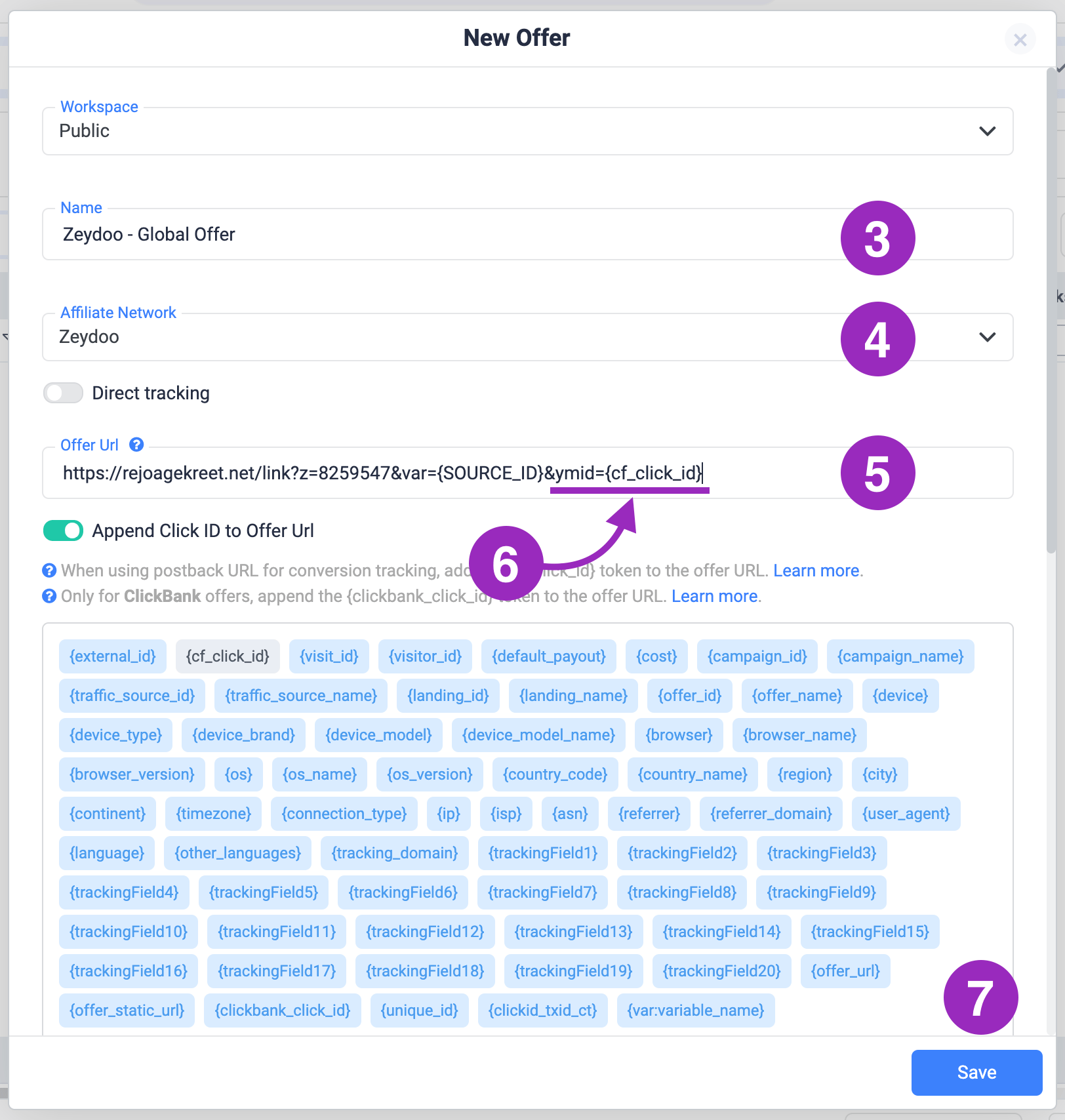 7. Click the **Save** button.
Congratulations, you have now added a Zeydoo offer to ClickFlare. You can use this offer in your campaigns.
### Related Resources
* [How to Add an Affiliate Network](/docs/en/tracking/adding-an-affiliate-network)
* [How to Add an Offer](/docs/en/tracking/creating-an-offer-1)
* [Creating a Campaign in ClickFlare](/docs/en/campaigns/creating-a-campaign-in-click-flare)
7. Click the **Save** button.
Congratulations, you have now added a Zeydoo offer to ClickFlare. You can use this offer in your campaigns.
### Related Resources
* [How to Add an Affiliate Network](/docs/en/tracking/adding-an-affiliate-network)
* [How to Add an Offer](/docs/en/tracking/creating-an-offer-1)
* [Creating a Campaign in ClickFlare](/docs/en/campaigns/creating-a-campaign-in-click-flare)