> ## Documentation Index
> Fetch the complete documentation index at: https://clickflare.com/docs/llms.txt
> Use this file to discover all available pages before exploring further.
# Adding a Custom Domain (New Verification Method)
> How custom domain verification works now, with one CNAME record and automatic SSL
We've simplified how custom domains are verified in ClickFlare. If you're adding a new custom domain, here's what's different and what you need to do.
**Important:** This new process applies only to domains added from now on. If you already have a custom domain set up and working, nothing changes for you and no action is needed on your end.
## What's changed
Previously, setting up a custom domain meant configuring three separate DNS records: a CNAME for the redirect, a TXT record to verify domain ownership, and a second TXT record for SSL verification.
Now, all you need is **one CNAME record**. Domain ownership verification and SSL are both handled automatically once that CNAME is in place, no extra TXT records required.
## How to add a new custom domain
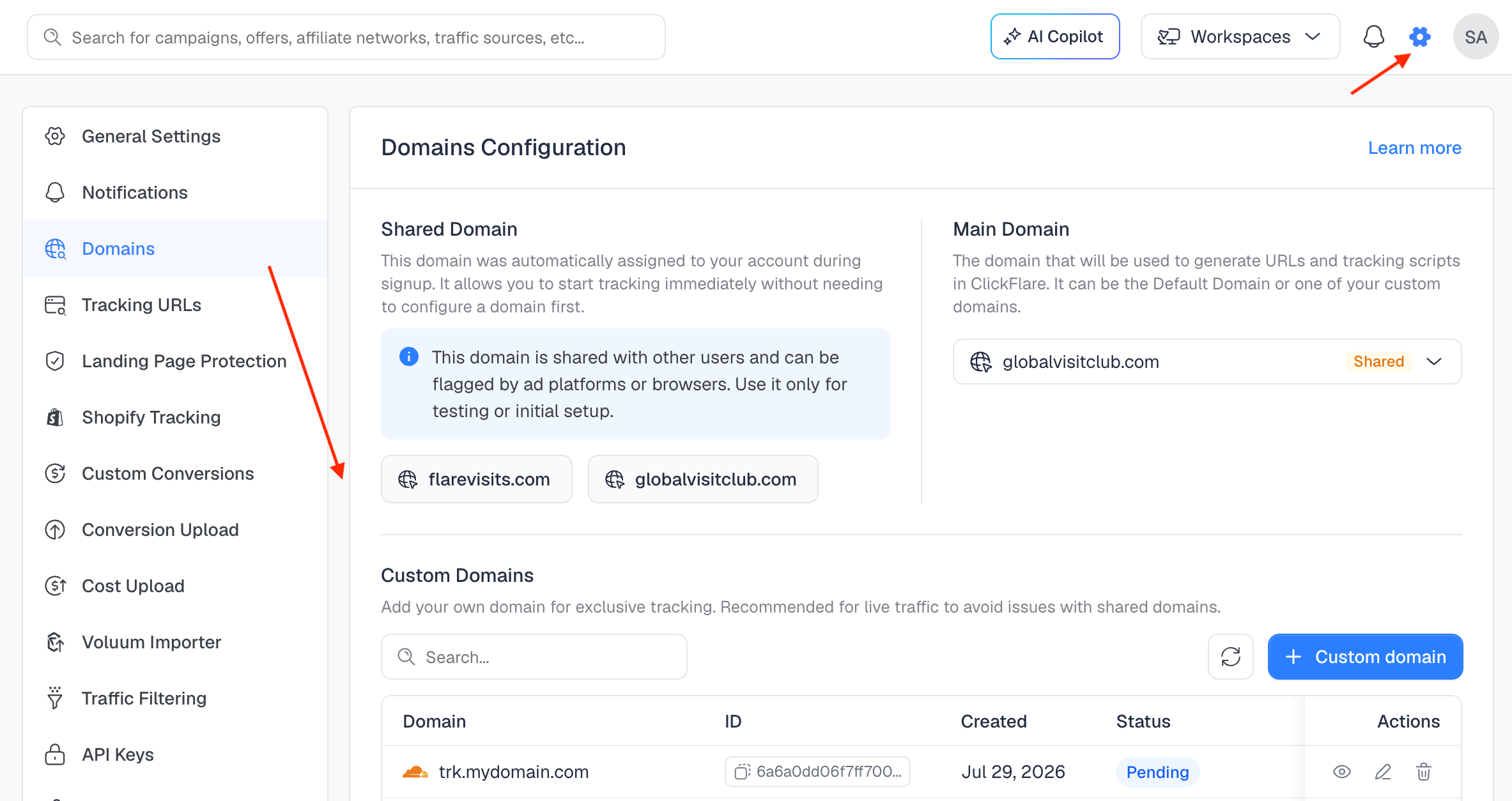
1. Go to **Settings > Domains** and click **Custom domain**.
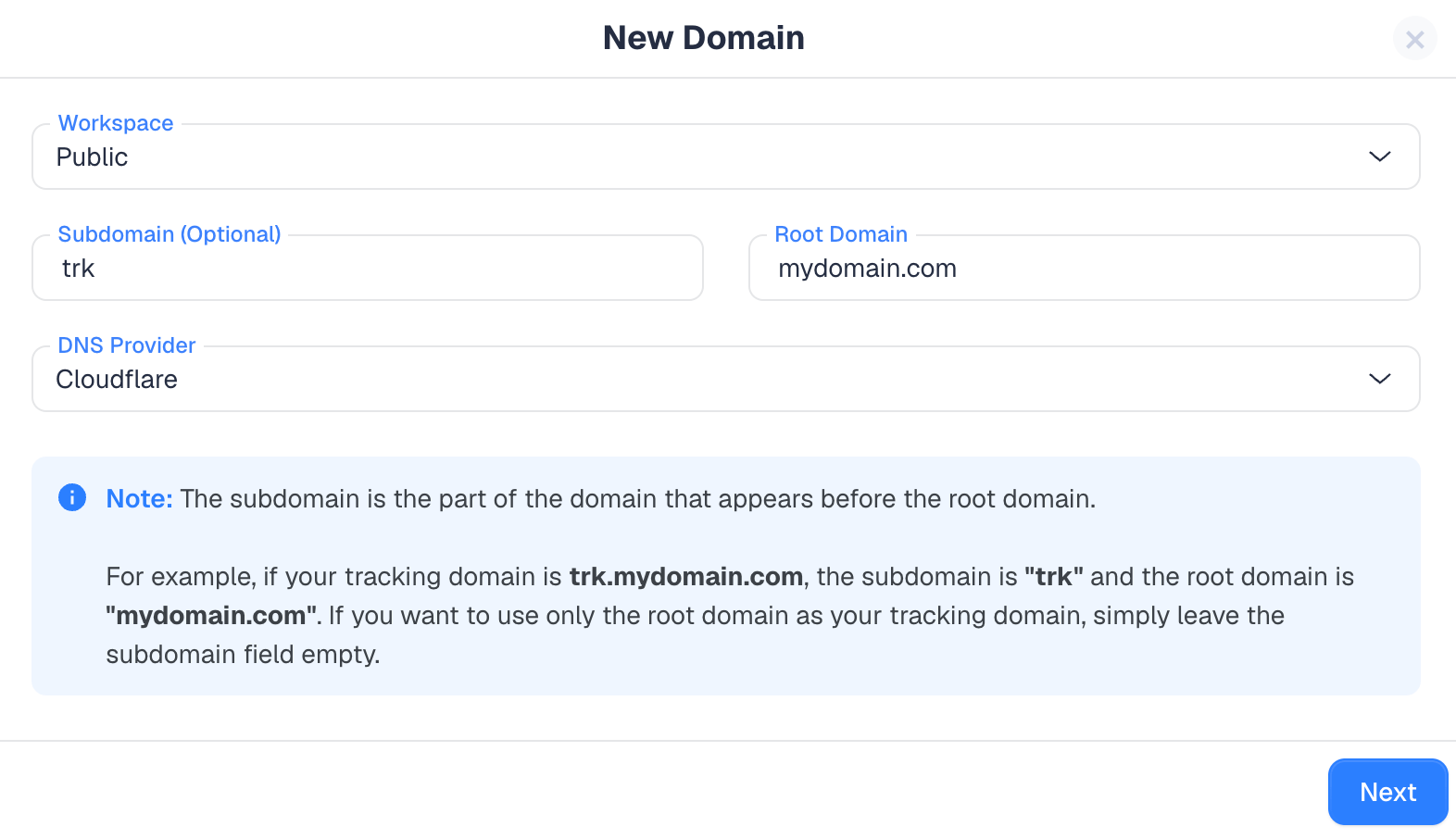
2. Fill in the **New Domain** form:
* **Workspace**: choose the workspace this domain belongs to.
* **Subdomain (Optional)**: the part before your root domain (for example, "trk" in trk.mydomain.com). Leave this empty if you want to use only the root domain as your tracking domain.
* **Root Domain**: your domain (for example, mydomain.com).
* **DNS Provider**: select your provider from the dropdown (CloudFlare, NameCheap, GoDaddy, etc).
3. Click **Next**.
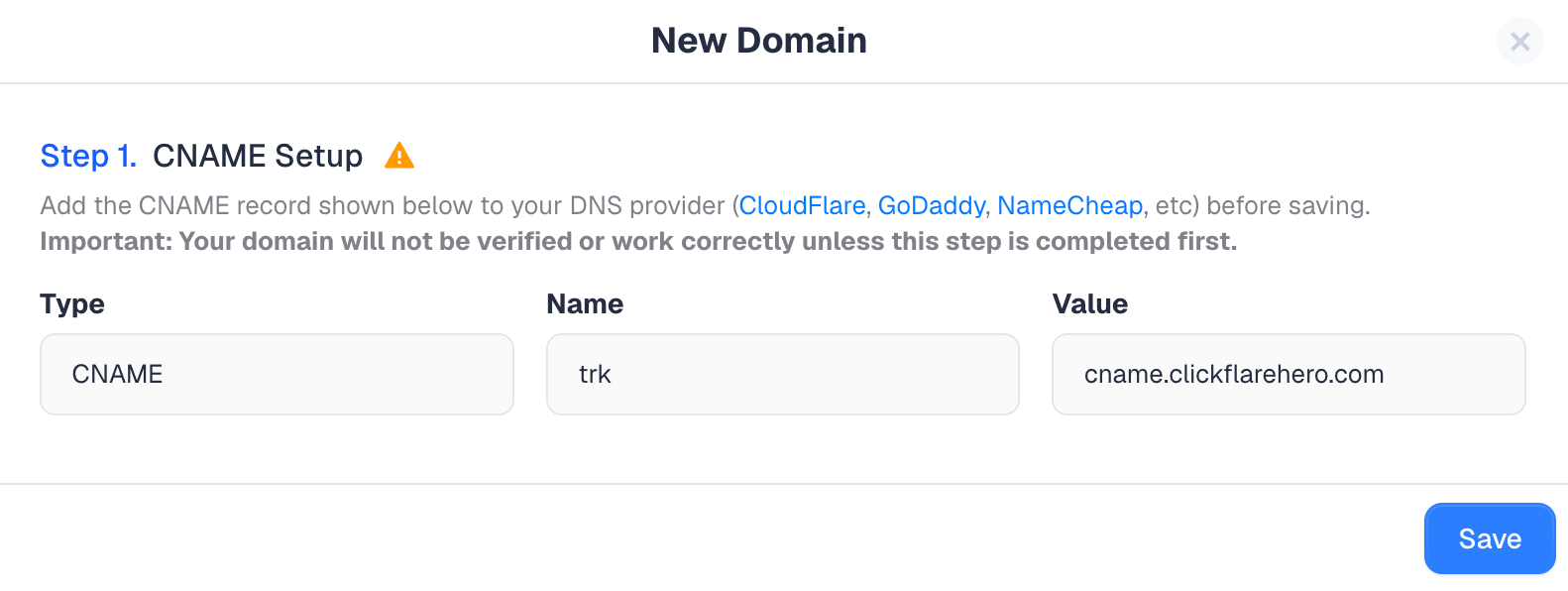
4. You'll now see **Step 1: CNAME Setup**, with the exact **Type**, **Name**, and **Value** to use.
5. Go to your DNS provider and add this single CNAME record using those exact values.
6. Back in ClickFlare, click **Save**.
 Your new domain will appear in the Custom Domains list with a **Pending** status while the DNS change propagates and SSL is issued. Once that's complete, the status will update to show your domain is active and ready to use.
 Note: DNS propagation time varies by provider. It can take anywhere from a few minutes up to an hour.
## Do I need to do anything for domains I already set up?
No. Domains added before this change keep working exactly as they were configured, with their existing CNAME and TXT records. There's nothing to migrate or re-verify.
## FREQUENTLY ASKED QUESTIONS
* **Do I still need to add a TXT record for domain verification?** No. For domains added through this new process, the CNAME record alone handles verification. You don't need to create any TXT records.
* **Do I need to request an SSL certificate separately?** No. SSL is issued automatically once the CNAME record is detected. There's no separate SSL verification step to complete.
* **I already have a custom domain set up with TXT records. Should I remove them?** No. Existing domains keep working as configured. There's no need to change or remove anything on your end.
* **How long does it take for my domain to go from Pending to Active?** It depends on DNS propagation time with your provider. This can range from a few minutes to a few hours, and in some cases up to 48 hours.
* **My domain has been Pending for a while. What should I check?** Confirm the CNAME record at your DNS provider exactly matches the Name and Value shown in ClickFlare, including no typos or extra characters. If it still doesn't verify after a reasonable wait, reach out to support.
* **Does this new process apply to both subdomains and root domains?** Yes. Whether you're using a subdomain (like trk.mydomain.com) or just the root domain, only a single CNAME record is required.
* **Which DNS providers does this work with?** Any provider you can add a CNAME record with, including Cloudflare, GoDaddy, and NameCheap, and others.
## Related Articles
* [How to set up custom domains](/docs/en/settings/custom-domains)
* [How to set up CloudFlare](/docs/en/settings/cloudflare)
* [How to set up NameCheap](/docs/en/settings/namecheap)
* [How to set up GoDaddy](/docs/en/settings/go-daddy)
Note: DNS propagation time varies by provider. It can take anywhere from a few minutes up to an hour.
## Do I need to do anything for domains I already set up?
No. Domains added before this change keep working exactly as they were configured, with their existing CNAME and TXT records. There's nothing to migrate or re-verify.
## FREQUENTLY ASKED QUESTIONS
* **Do I still need to add a TXT record for domain verification?** No. For domains added through this new process, the CNAME record alone handles verification. You don't need to create any TXT records.
* **Do I need to request an SSL certificate separately?** No. SSL is issued automatically once the CNAME record is detected. There's no separate SSL verification step to complete.
* **I already have a custom domain set up with TXT records. Should I remove them?** No. Existing domains keep working as configured. There's no need to change or remove anything on your end.
* **How long does it take for my domain to go from Pending to Active?** It depends on DNS propagation time with your provider. This can range from a few minutes to a few hours, and in some cases up to 48 hours.
* **My domain has been Pending for a while. What should I check?** Confirm the CNAME record at your DNS provider exactly matches the Name and Value shown in ClickFlare, including no typos or extra characters. If it still doesn't verify after a reasonable wait, reach out to support.
* **Does this new process apply to both subdomains and root domains?** Yes. Whether you're using a subdomain (like trk.mydomain.com) or just the root domain, only a single CNAME record is required.
* **Which DNS providers does this work with?** Any provider you can add a CNAME record with, including Cloudflare, GoDaddy, and NameCheap, and others.
## Related Articles
* [How to set up custom domains](/docs/en/settings/custom-domains)
* [How to set up CloudFlare](/docs/en/settings/cloudflare)
* [How to set up NameCheap](/docs/en/settings/namecheap)
* [How to set up GoDaddy](/docs/en/settings/go-daddy)