> ## Documentation Index
> Fetch the complete documentation index at: https://clickflare.com/docs/llms.txt
> Use this file to discover all available pages before exploring further.
# Conversion Tracking Pixel
> Using Conversion Tracking Pixels
### What is a Conversion Tracking Pixel?
A **Conversion Tracking Pixel** is a cookie-based tracking method that does not rely on passing a click ID through the offer URL.
Instead, when a user clicks your campaign link, ClickFlare stores the click information in a cookie on the visitor’s browser. This allows conversions to be tracked even if the click ID is not included later in the funnel.
Unlike postbacks, pixels are triggered **after the conversion happens**, usually on the thank-you page or confirmation page.
***
### When should you use a Conversion Pixel?
Conversion pixels are typically used when you are promoting **your own offers**, where you have direct access to the conversion (e.g., thank-you page access).
If you control the page where the conversion happens, the pixel is the simplest and most reliable tracking method.
***
### How to use the Conversion Pixel
1. In ClickFlare, go to the **Settings menu** (gear icon in the top-left corner).
2. Navigate to **Tracking URLs**.
3. Locate the **Conversion Tracking Pixel** section.
4. Copy the pixel provided for your setup.
5. Paste the pixel on your **thank-you page** (or the page where the conversion is completed).
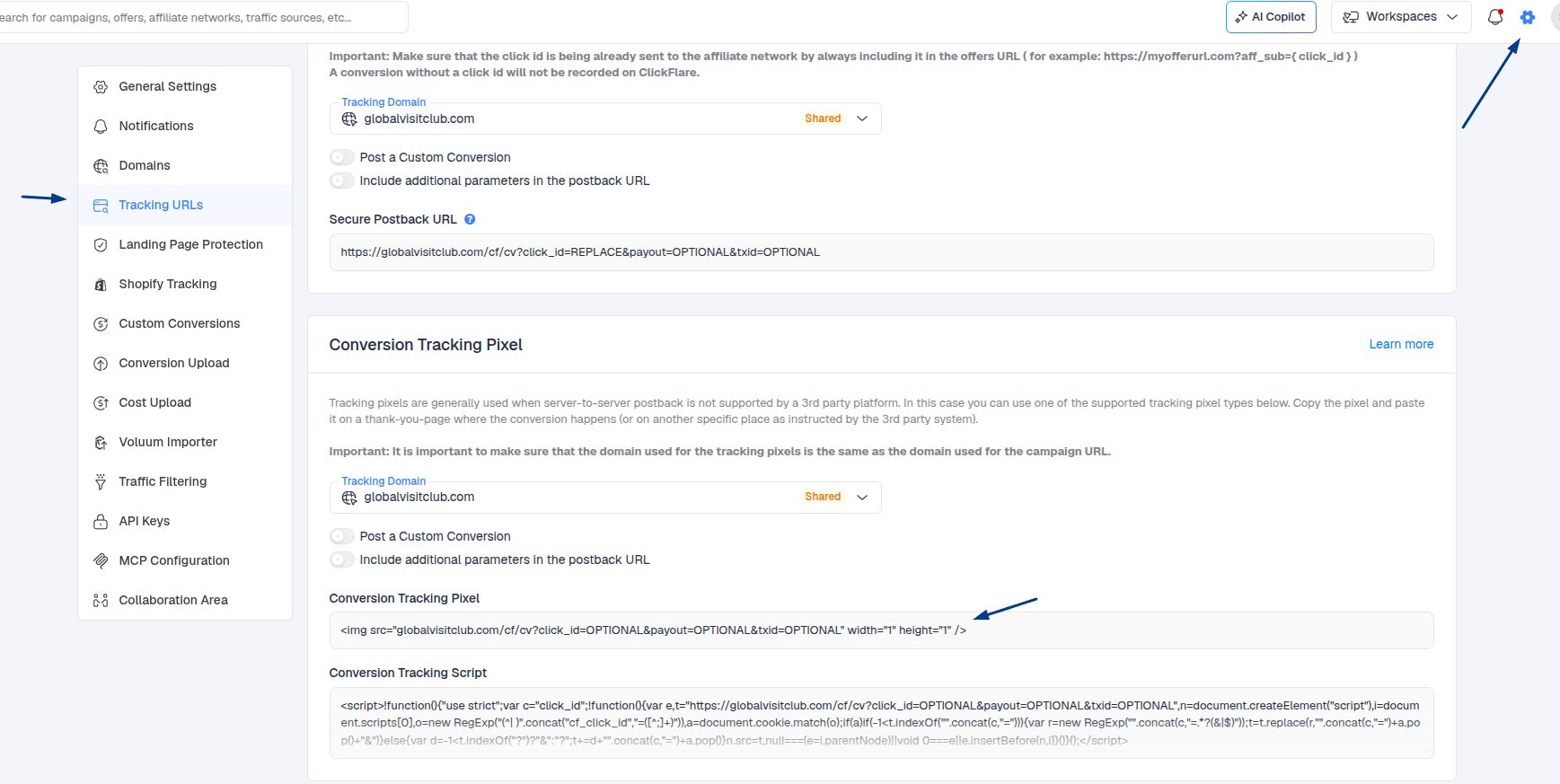 Once installed, the pixel will automatically fire when the page loads.
***
### Custom Conversion Mapping
You can also report this conversion as a **custom conversion** by appending a ct parameter to the request.
Once installed, the pixel will automatically fire when the page loads.
***
### Custom Conversion Mapping
You can also report this conversion as a **custom conversion** by appending a ct parameter to the request.
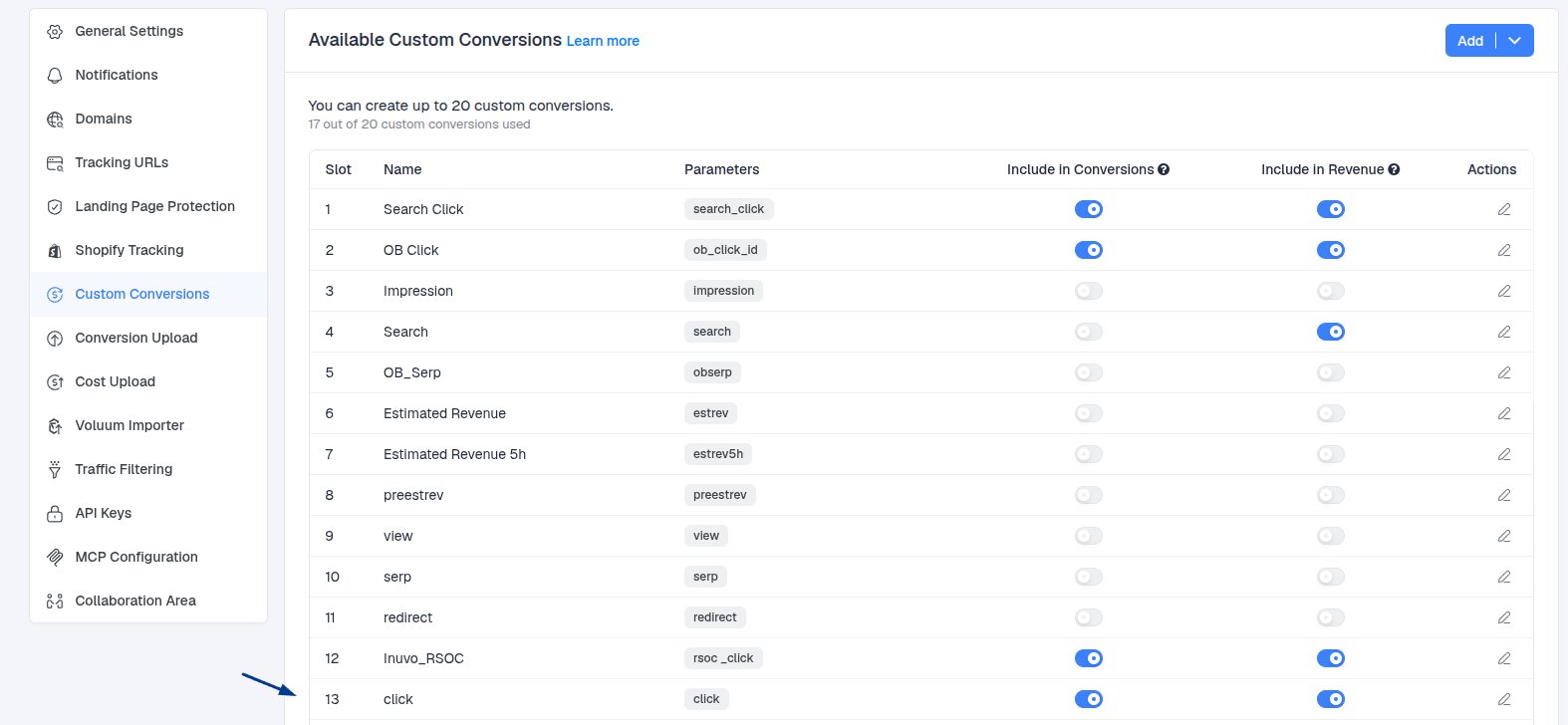
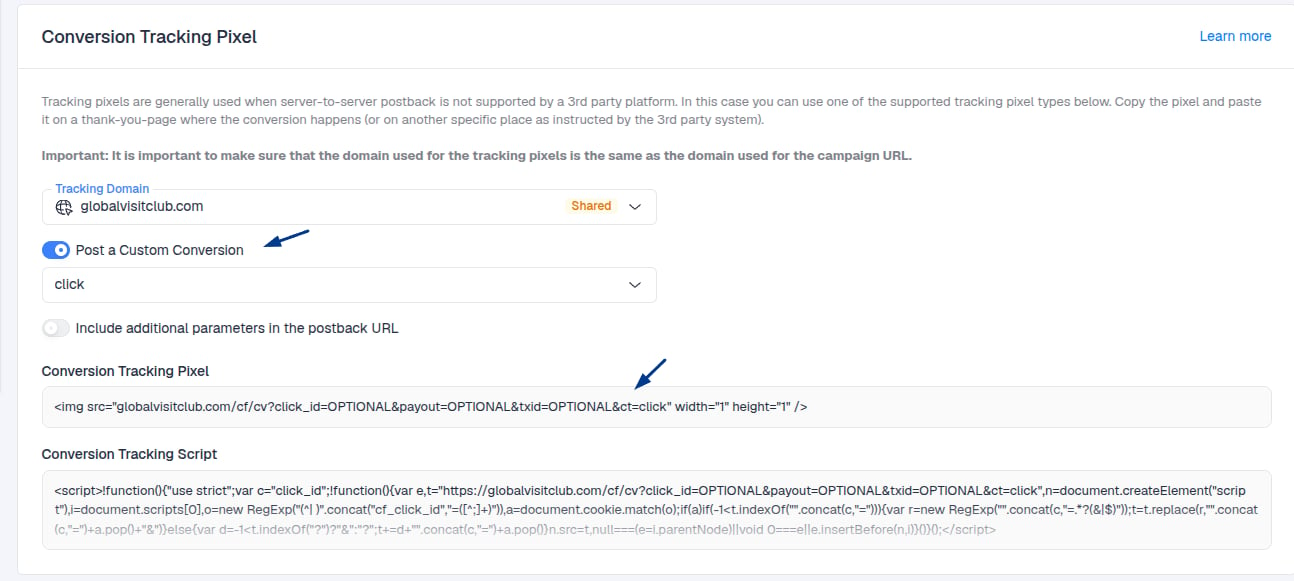 This will be logged in ClickFlare as **Custom Conversion 13**.
 Important Note: Make sure that the **domain used in the tracking pixel** **matches the domain used in your campaign URL**. This ensures proper cookie matching and accurate attribution.