> ## Documentation Index
> Fetch the complete documentation index at: https://clickflare.com/docs/llms.txt
> Use this file to discover all available pages before exploring further.
# Voluum Importer
> A step-by-step guide to importing your data from Voluum to ClickFlare
If you'd like to import your data, such as your campaigns, flows, landers, offers, affiliate networks and traffic sources from Voluum to ClickFlare, you can easily do that by using our Voluum Importer feature.
Note\*\*:\*\* Statistics will not be imported.
* To begin, click from anywhere inside ClickFlare the gear icon on the top right of the system.
 * Continue by selecting **Voluum Importer** in the *Setting Menu*.
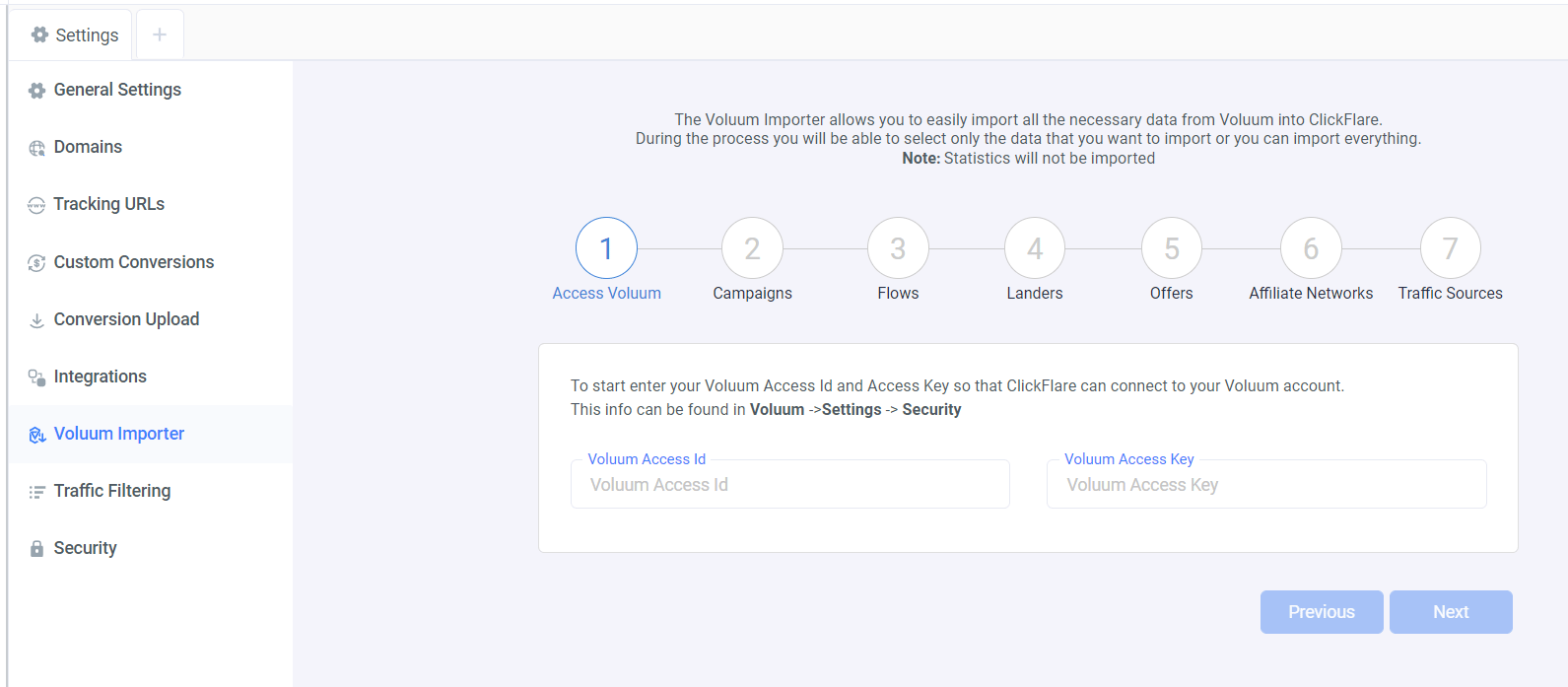 * On the first step, enter your **Voluum Access ID** & **Voluum Acess Key**.
* Next, select the **campaigns** you want to import.
* Proceed to doing the same for your **flows, landers, offers, affiliate networks** and **traffic sources**.
* Once done, click **Import** and all your data will be automatically imported to ClickFlare.
* Check the video below to see how each step of this guide will appear on your screen.
* On the first step, enter your **Voluum Access ID** & **Voluum Acess Key**.
* Next, select the **campaigns** you want to import.
* Proceed to doing the same for your **flows, landers, offers, affiliate networks** and **traffic sources**.
* Once done, click **Import** and all your data will be automatically imported to ClickFlare.
* Check the video below to see how each step of this guide will appear on your screen.