> ## Documentation Index
> Fetch the complete documentation index at: https://clickflare.com/docs/llms.txt
> Use this file to discover all available pages before exploring further.
# Click trigger
> Unlocking ClickFlare Tag Manager's Potential: A Guide to Configuring Click Triggers for Enhanced Tag Firing
Use ClickFlare Tag Manager's click trigger to fire tags based on click events. When an element is clicked on a page that matches the trigger conditions, Tag Manager will automatically fire the related tag
To configure a click trigger:
1. Click **Triggers > New**.
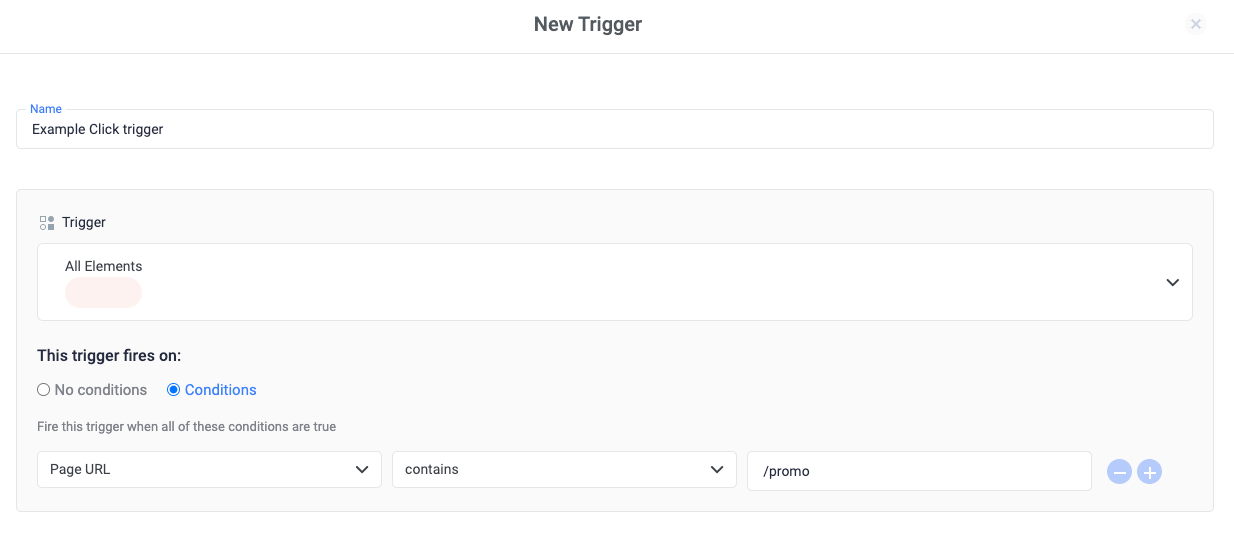
2. Click **Trigger Configuration** and choose a click trigger type:
**All Elements:** Track clicks on any element on a page, e.g. links, images, buttons, etc.
**Just Links:** Track clicks only on HTML links that use the \ element, e.g. \ClickFlare.io\ClickFlare.io\.
3. *Optional, but recommended for improved performance:* Specify conditions (usually a URL pattern) for pages where you expect a click to occur:
Under the heading "**This trigger fires on**", select "**Conditions**".
Under "**Fire this trigger when an Event occurs and all of these conditions are true**", add a filter to enable this trigger only on pages that require it, e.g. ***Click URL contains /path/to/promo***.
 ### Related Sources
* [Trigger types](/docs/en/tag-manager-1/trigger-types)
* [How triggers work](/docs/en/tag-manager-1/about-triggers)
* [Built-in variables](/docs/en/tag-manager-1/about-built-in-variables)
### Related Sources
* [Trigger types](/docs/en/tag-manager-1/trigger-types)
* [How triggers work](/docs/en/tag-manager-1/about-triggers)
* [Built-in variables](/docs/en/tag-manager-1/about-built-in-variables)