> ## Documentation Index
> Fetch the complete documentation index at: https://clickflare.com/docs/llms.txt
> Use this file to discover all available pages before exploring further.
# Event trigger
> Unlocking Advanced Tracking: Utilizing Event Triggers for Custom Interactions in ClickFlare Tag Manager
The event trigger is used to track interactions that occur on your website that aren't handled by standard methods. The most common use is when you want to track form submissions, but the default behavior for the form has been altered (e.g. the submit browser event has been overridden.)
To create a new custom event trigger:
1. Click **Triggers > New**.
2. Click **Trigger Configuration** and choose the **Event** trigger type.
3. Enter an **event name**.
4. Enter a condition when the trigger should fire, like a page URL for example
5. Click **Save**
### Example configuration
Here is an example web configuration that will fire a tag when a custom event called '*button1-click*' is pushed to the data layer:
1. Add code that will push the event into the data layer when the button is clicked:
```
Button 1
```
2. Create a new custom event trigger. In the **Trigger Configuration** section of your new tag, use these settings:
**Event name:** *button1-click*
**This trigger fires on:** *Page URL, contains, /promo*
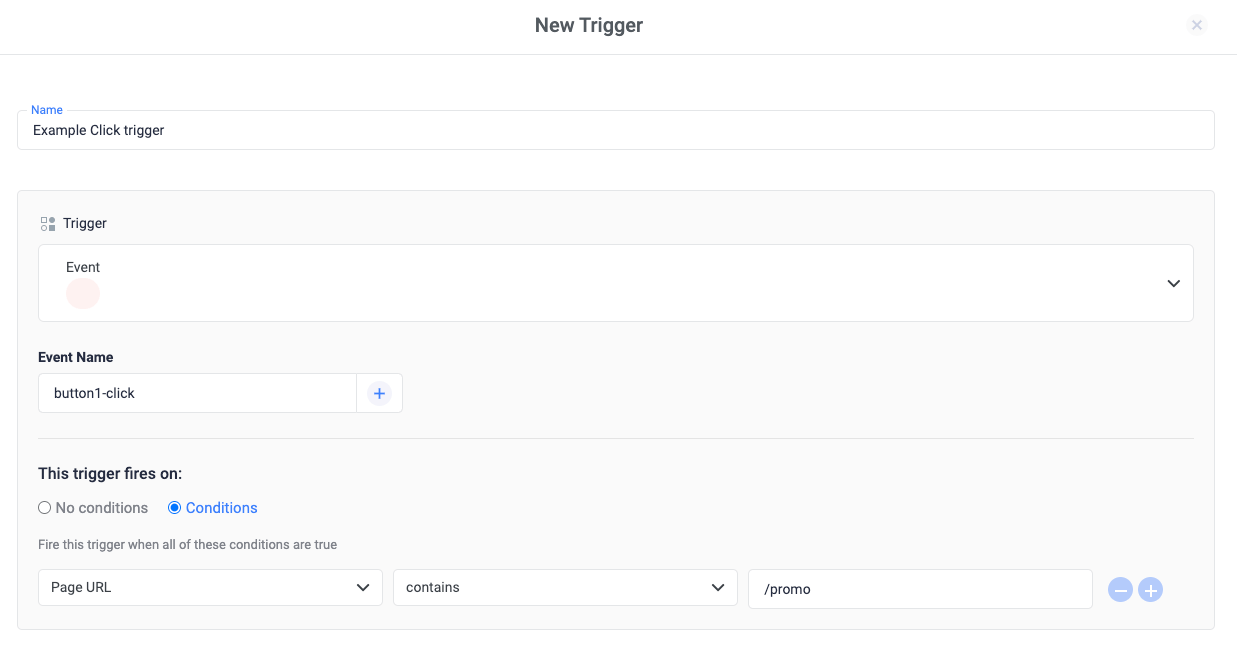 When this trigger is applied to a tag, the tag will fire even when the default submit event is overridden. When the specified button is clicked, a custom event with the value of *button1-click* is pushed to the data layer. Tag Manager then detects button1-click as a custom event value, and will proceed to fire the tag.
Use `window.clickflare.push()` to send multiple variables together with the event. For example: Send a conversion value with the custom event name:
```javascript theme={null}
window.clickflare.push({'button1-click','conversionValue':25});
```
Create the data layer variable in Tag Manager and use this variable in the conversion value field to report a conversion in ClickFlare.
### Related Resources:
* [Trigger types](/docs/en/tag-manager-1/trigger-types)
* [How triggers work](/docs/en/tag-manager-1/about-triggers)
* [About the Data Layer](/docs/en/tag-manager-1/about-the-data-layer)
* [Using the Data Layer](/docs/en/tag-manager-1/using-the-data-layer)
When this trigger is applied to a tag, the tag will fire even when the default submit event is overridden. When the specified button is clicked, a custom event with the value of *button1-click* is pushed to the data layer. Tag Manager then detects button1-click as a custom event value, and will proceed to fire the tag.
Use `window.clickflare.push()` to send multiple variables together with the event. For example: Send a conversion value with the custom event name:
```javascript theme={null}
window.clickflare.push({'button1-click','conversionValue':25});
```
Create the data layer variable in Tag Manager and use this variable in the conversion value field to report a conversion in ClickFlare.
### Related Resources:
* [Trigger types](/docs/en/tag-manager-1/trigger-types)
* [How triggers work](/docs/en/tag-manager-1/about-triggers)
* [About the Data Layer](/docs/en/tag-manager-1/about-the-data-layer)
* [Using the Data Layer](/docs/en/tag-manager-1/using-the-data-layer)