> ## Documentation Index
> Fetch the complete documentation index at: https://clickflare.com/docs/llms.txt
> Use this file to discover all available pages before exploring further.
# Tag types
> Explore ClickFlare's Array of Tags: From Standard to Custom, Unleash the Power of Custom Events, Click CTAs, and More
Within ClickFlare Tag Manager, you'll find comprehensive support for a diverse range of tags. These tags are efficiently organized into four primary groups for simplified management and implementation.
* Events
* Custom Event
* Link Utils
* Replace Links
* ClickFlare
* Click CTA
* Report Conversion
* Custom
* Custom image
* Custom HTML
* Custom JavaScript
* Append Query Parameter to Link
### Standard tags
**Custom Even**t: This tag allows you to push a custom event to ClickFlare's data layer. It functions similarly to executing the following JavaScript command::
```javascript theme={null}
window.clickflare.push({'eventName': 'value'});
```
You can associate the custom event with a trigger. When the trigger activates, this tag will push the specified event to ClickFlare's data layer.
**Replace Links:** This tag allows you to modify the destination URLs of specific links on your website. It intercepts clicks on these links and redirects users to alternative URLs, offering enhanced tracking and customization options for your website's navigation.
**Click CTA:** The ClickFlare "Click CTA" tag is a feature that tracks clicks on specific call-to-action (CTA) elements on your website. It captures when users interact with these CTAs, providing valuable data for analyzing user engagement and optimizing your website's performance.
**Report Conversion:** The ClickFlare "Report conversion" tag is designed to track and report conversions on your website. It captures when a user completes a desired action, such as making a purchase or filling out a form, and sends this information to ClickFlare for analysis. This helps you measure the effectiveness of your marketing campaigns and optimize your conversion funnel.
### Custom Tags
If you need to implement a tag that is not yet supported natively by Tag Manager, you can use a custom image, HTML, or [JavaScript tag](https://support.google.com/tagmanager/answer/6107167?hl=en\&ref_topic=3281056\&sjid=17849667143527969159-EU#functioncall).
Exploring Custom Tag Types
**Custom Image Tag**: This tag facilitates the deployment of pixel tags, vital for tracking and analytics purposes. The process for creating a Custom Image tag involves specifying the Image URL provided by the vendor, alongside options for enabling cache busting to ensure accurate hit registration.
To create a new Custom Image tag:
1. Inside your tag manager container, click **Tags > New**.
2. Click **Tag Configuration** and select **Custom Image**.
3. Enter the **Image URL** as provided by the vendor. Use "//" if protocol-relative versions of the image are available. Use "https\://" if only a secure version is available. (Use of "http\://" is not recommended.)
**Custom HTML & JavaScript Tag**: For tags not directly supported by Tag Manager, the Custom HTML Tag serves as a versatile solution. By incorporating Sandboxed JavaScript for code formatting, you can seamlessly integrate vendor-provided tag code or craft custom HTML or JavaScript code to suit your requirements. Additionally, support for document.write() calls can be enabled as needed.
To create a new Custom HTML tag:
1. Click **Tags > New**.
2. Click **Tag Configuration** and select **Custom HTML**.
3. Copy the tag code provided by the vendor and paste it into the HTML field, or enter your own custom HTML or JavaScript code. *Note: Always place JavaScript inside \ HTML tags.*
If needed, select **Support document.write()** to enable calls to document.write() in your JavaScript code.
To add a Tag Manager [variable](/docs/en/tag-manager-1/about-variables) in your custom HTML, wrap the variable's name in double braces:
```javascript theme={null}
```
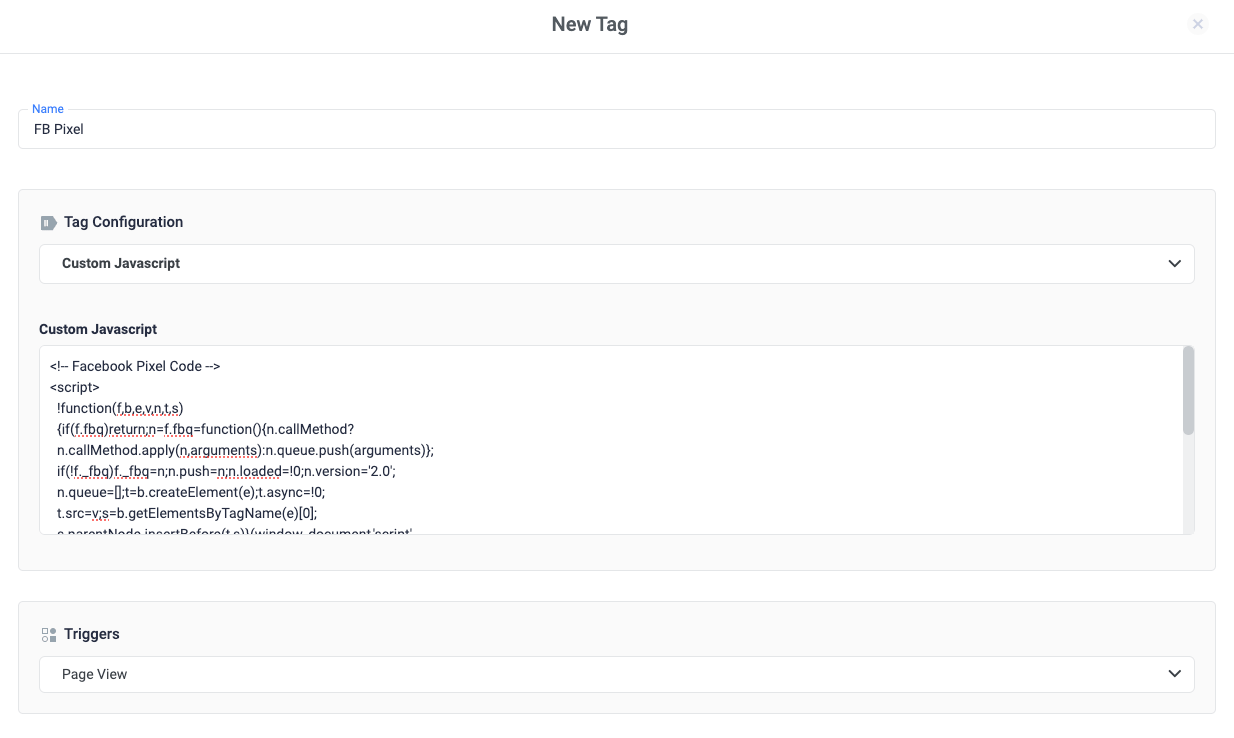
*Example of a Custom JavaScript tag:*
 **Append Query Parameter to Links Tag**: This tag enables the automatic addition of query parameters to outbound links on your website or mobile app. By configuring this tag, you can append specific parameters to URLs, facilitating enhanced tracking and analysis of user interactions. This feature is particularly useful for capturing additional context or campaign-related information when users navigate away from your site or app.
### Related Resources
* [Triggers](/docs/en/tag-manager-1/about-triggers)
* [Variables](/docs/en/tag-manager-1/about-variables)
* [Components of ClickFlare Tag Manager](/docs/en/tag-manager-1/components-of-google-tag-manager)
**Append Query Parameter to Links Tag**: This tag enables the automatic addition of query parameters to outbound links on your website or mobile app. By configuring this tag, you can append specific parameters to URLs, facilitating enhanced tracking and analysis of user interactions. This feature is particularly useful for capturing additional context or campaign-related information when users navigate away from your site or app.
### Related Resources
* [Triggers](/docs/en/tag-manager-1/about-triggers)
* [Variables](/docs/en/tag-manager-1/about-variables)
* [Components of ClickFlare Tag Manager](/docs/en/tag-manager-1/components-of-google-tag-manager)