> ## Documentation Index
> Fetch the complete documentation index at: https://clickflare.com/docs/llms.txt
> Use this file to discover all available pages before exploring further.
# Tracking Organic Traffic with Direct Tracking in ClickFlare
> Tracking Organic Traffic
Tracking organic traffic is now easier than ever with ClickFlare’s direct tracking. By adding a tracking script that contains your **campaign ID** to your landing page, you can track visits coming from web pages and search engines, while ignoring visits that don’t come through a direct tracking URL.
### Note:
If you want to track traffic from other sources, such as paid redirects or direct links, you’ll need to create a separate campaign. See [Campaigns: What They Are and How They Work](/docs/en/core-platform-concepts/campaigns-what-they-are-and-how-they-work) to learn more.
### How Direct Tracking Works
Before creating a campaign, it’s helpful to understand how direct tracking works:
* When a visitor clicks a **direct tracking URL**, the **campaign ID** is passed to the tracking script via the cpid parameter.
* The script then correctly registers the visit in ClickFlare.
Visitors who arrive at your landing page without using a direct tracking URL will not be tracked unless the landing page already has a tracking script with the campaign ID implemented. ClickFlare provides this functionality.
### Tracking Paid Traffic (Optional)
If you want to track **both organic and paid traffic**, you should:
1. Create a separate campaign for each traffic type.
2. Consider using different traffic sources for organic and paid campaigns.
3. Name your campaigns clearly so you can easily distinguish them.
### Getting Started
Creating an organic campaign and obtaining the tracking script in ClickFlare is simple and can be done in a few clicks.
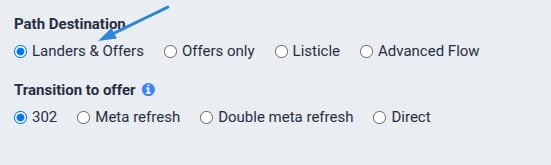
1. Create a new campaign and add a landing page to your funnel.
2. ClickFlare will generate a **direct tracking script** for your campaign.
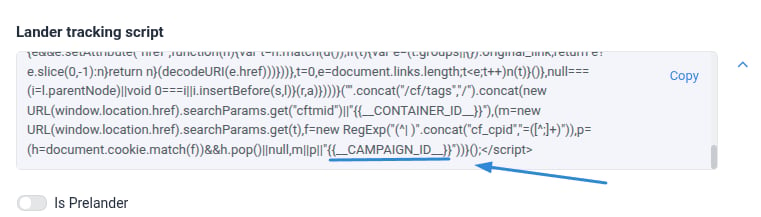
 *Example:* Replace the placeholder *\{\{\_\_CAMPAIGN\_ID\_\_}}* in the script with your actual ClickFlare campaign ID:
*"68b182233333332e0f25b"*
*
*Example:* Replace the placeholder *\{\{\_\_CAMPAIGN\_ID\_\_}}* in the script with your actual ClickFlare campaign ID:
*"68b182233333332e0f25b"*
* *
### Adding the Script to Your Landing Page
1. Open your landing page HTML.
2. Paste the tracking script at the **bottom of the \ section** of your page.
Once added, all organic visits to this landing page will be tracked and displayed in ClickFlare.
*
### Adding the Script to Your Landing Page
1. Open your landing page HTML.
2. Paste the tracking script at the **bottom of the \ section** of your page.
Once added, all organic visits to this landing page will be tracked and displayed in ClickFlare.