> ## Documentation Index
> Fetch the complete documentation index at: https://clickflare.com/docs/llms.txt
> Use this file to discover all available pages before exploring further.
# Upload Landing pages in Bulk via CSV
> A step-by-step guide to uploading multiple Landing pages via CSV file.
This feature allows you to upload multiple landing pages in bulk using a CSV file rather than creating each landing page individually.
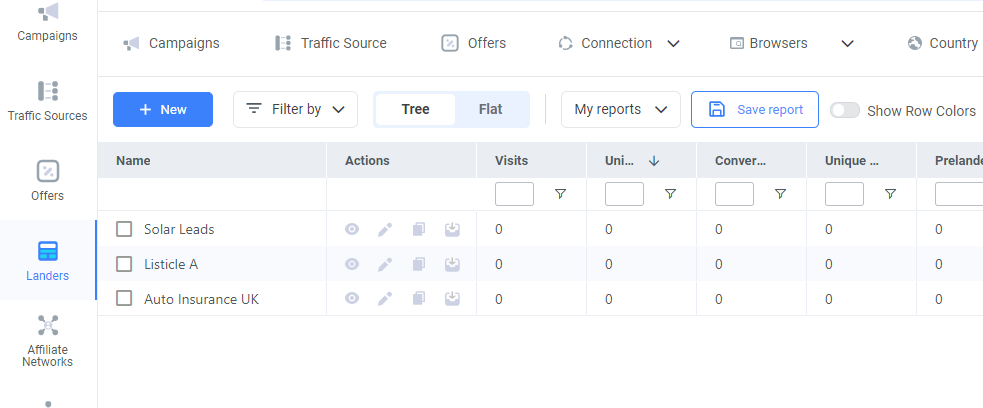
1. In ClickFlare go to **Landers** on the left side panel of your screen.
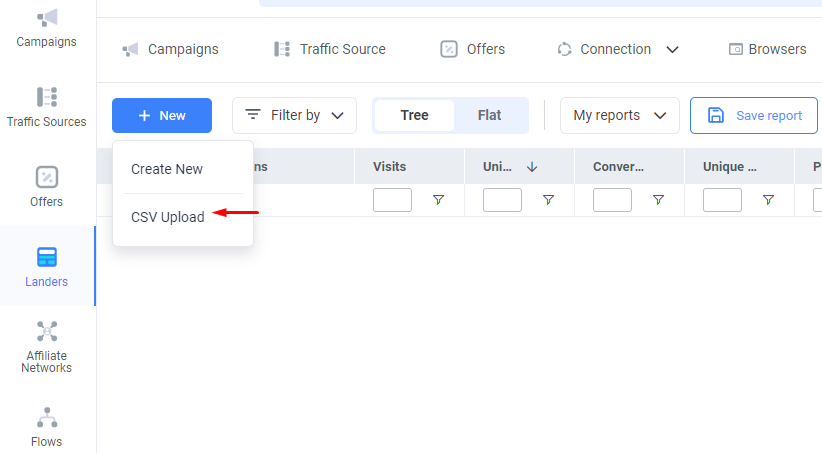
2. Click **+ New** button, and there you can select the **CSV Upload**.
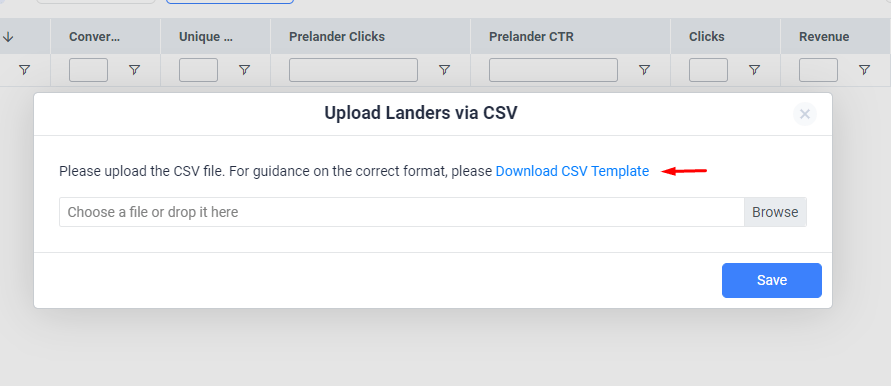
 3. In the Upload Landers via CSV dialog, click on **Download CSV Template** to get a copy of the CSV template file you will use to add your landers.
 4. Open the CSV file with your preferred spreadsheet editor, then add the needed information by adding one landing page info per line. (see example below)
 \- **Name**: An easy-to-remember name for your landing page.
\- **URL**: The URL of your landing page that is available to everyone.
\- **CTA\_count**: The number of CTAs your landing page will have.
\- **Notes**: Adding any notes to your landing page.
**Tip:**
If you need to dynamically pass tracked information on the landing page URL, make sure to add the designated tracking parameters and tokens in the URL of the lander in the CSV file. See the example below.
\- **Name**: An easy-to-remember name for your landing page.
\- **URL**: The URL of your landing page that is available to everyone.
\- **CTA\_count**: The number of CTAs your landing page will have.
\- **Notes**: Adding any notes to your landing page.
**Tip:**
If you need to dynamically pass tracked information on the landing page URL, make sure to add the designated tracking parameters and tokens in the URL of the lander in the CSV file. See the example below.
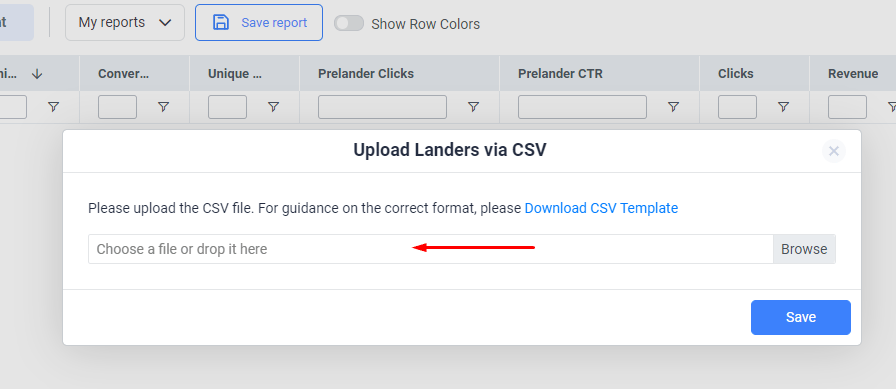
 5. Finish editing your CSV file, save it and then upload it to ClickFlare.
 6. After uploading the file, a green success message will show in the upper right corner of the screen indicating that the Landers have been successfully created.
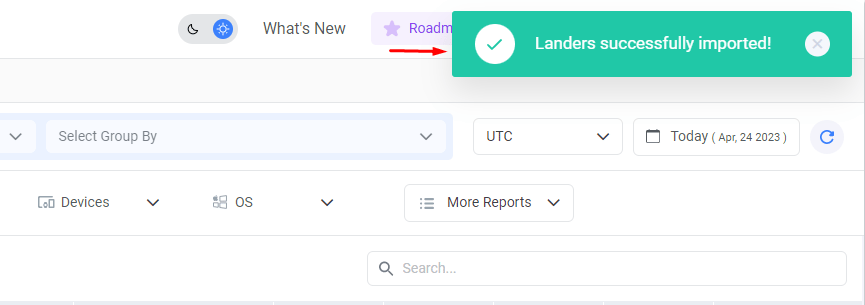 The Landing pages you've created with your CSV file will then display on the Landers dashboard.