> ## Documentation Index
> Fetch the complete documentation index at: https://clickflare.com/docs/llms.txt
> Use this file to discover all available pages before exploring further.
# Upload Offers in Bulk using CSV file
> A step-by-step guide to uploading multiple offers via CSV file.
This functionality allows each user to upload multiple offers in bulk by using a CSV file.
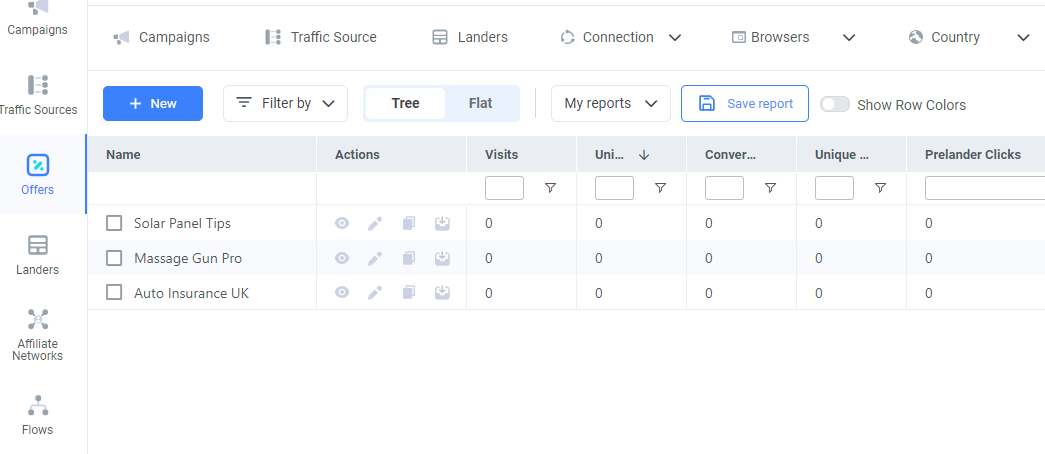
1. To add multiple **Offers**, begin by selecting Offers on the left side panel of your screen.
2. Click **+ New** button, and there you can select the **CSV Upload**.
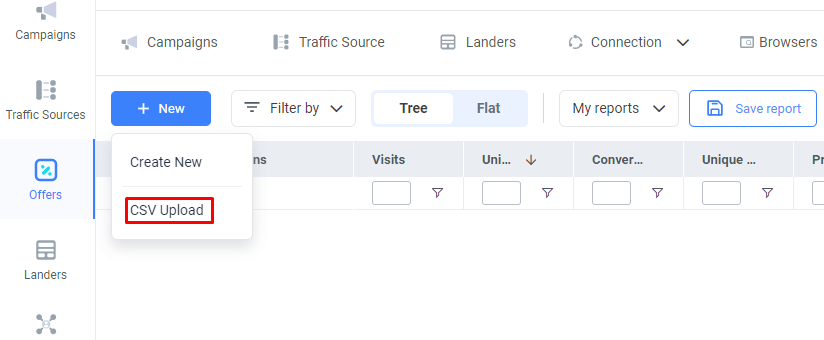 3. After clicking the CSV Upload button, a tab will appear where you can **Download the CSV template** with the right format that you will need to fill out.
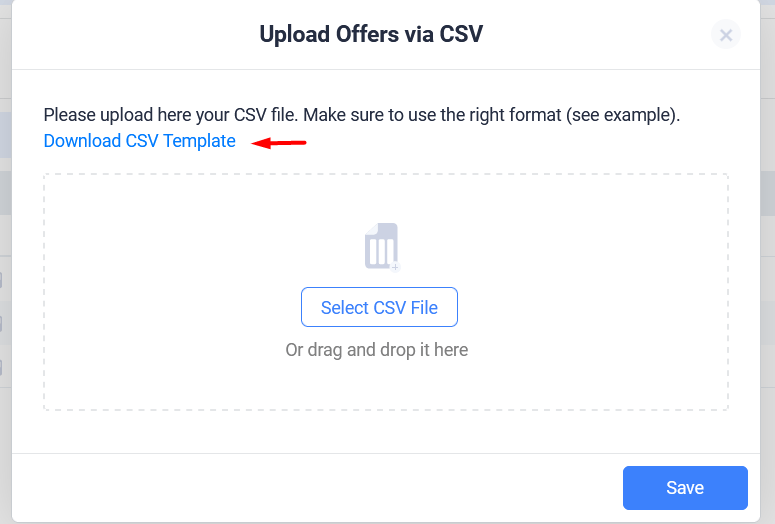 4. When you download the CSV file, each user needs to complete each section like the examples provided.
 \- **Name**: Your Offer name
\- **Url**: Your Website URL to the product/service that you advertise over the internet.
\- **Notes**: Your notes if you have any for each Offer.
\- **Direct**: If it's Direct tracking or not.
\- **Static URL**: In case you need to send an offer URL to an external 3rd party system, which is not the original offer URL.
\- **Payout**: The fixed payout amount. You can leave it 0 if you’ve added the payout parameter to your postback or pixel URL.
\- **Currency**: The oncoming payout currency that is coming from your Affiliate Network, which if it's different will be automatically converted to the one selected on general settings.
\- **Keywords Rotation:** These keywords will be rotated and appended to the offer URL automatically, directing the user to a different offer or parked domain page based on the keywords.
\*\*Important Note:
When adding the offer destination URLs in the CSV file, make sure to add all the required tracking parameters using ClickFlare tracking tokens.
\- **Name**: Your Offer name
\- **Url**: Your Website URL to the product/service that you advertise over the internet.
\- **Notes**: Your notes if you have any for each Offer.
\- **Direct**: If it's Direct tracking or not.
\- **Static URL**: In case you need to send an offer URL to an external 3rd party system, which is not the original offer URL.
\- **Payout**: The fixed payout amount. You can leave it 0 if you’ve added the payout parameter to your postback or pixel URL.
\- **Currency**: The oncoming payout currency that is coming from your Affiliate Network, which if it's different will be automatically converted to the one selected on general settings.
\- **Keywords Rotation:** These keywords will be rotated and appended to the offer URL automatically, directing the user to a different offer or parked domain page based on the keywords.
\*\*Important Note:
When adding the offer destination URLs in the CSV file, make sure to add all the required tracking parameters using ClickFlare tracking tokens.
 Not putting ClickFlare's clickid token and other tracking tokens may result in failure to track conversions.\*\*
5. After you have finished supplementing the CSV file, save it and then upload it to ClickFlare.
Not putting ClickFlare's clickid token and other tracking tokens may result in failure to track conversions.\*\*
5. After you have finished supplementing the CSV file, save it and then upload it to ClickFlare.
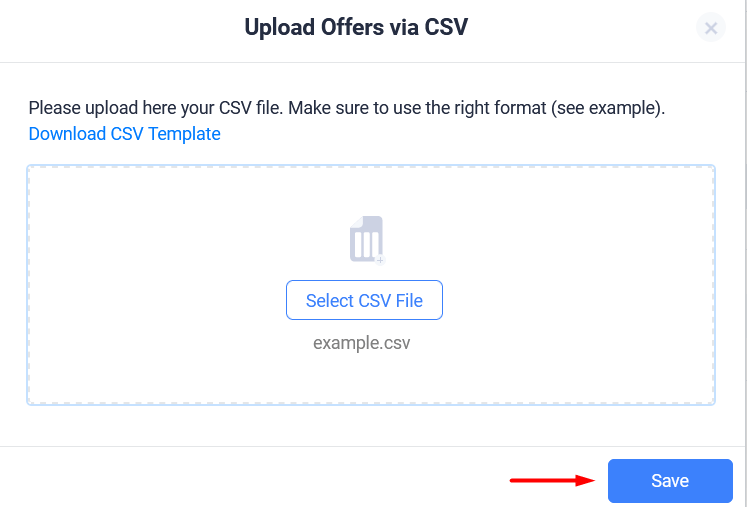 6. Right when you upload and save it, a green tab will show in the upper right corner of the screen, indicating that the Offers have been successfully imported.
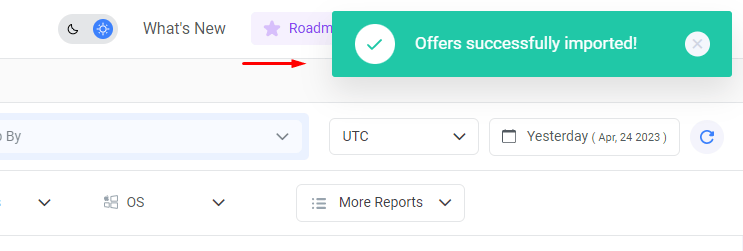 The Offers you've created with your CSV file will then display on the Offers dashboard.