

What You’ll Need:
- An active Media.net account
- An active ClickFlare account
- Your Media.net login credentials
Setting Up Media.net Integration in ClickFlare
1. Access the Integration Menu
Go to the Settings menu (gear icon) in your ClickFlare dashboard and click on Integrations.- Under Revenue Stream Integrations, click Add Integration.
- Give your new integration a name.
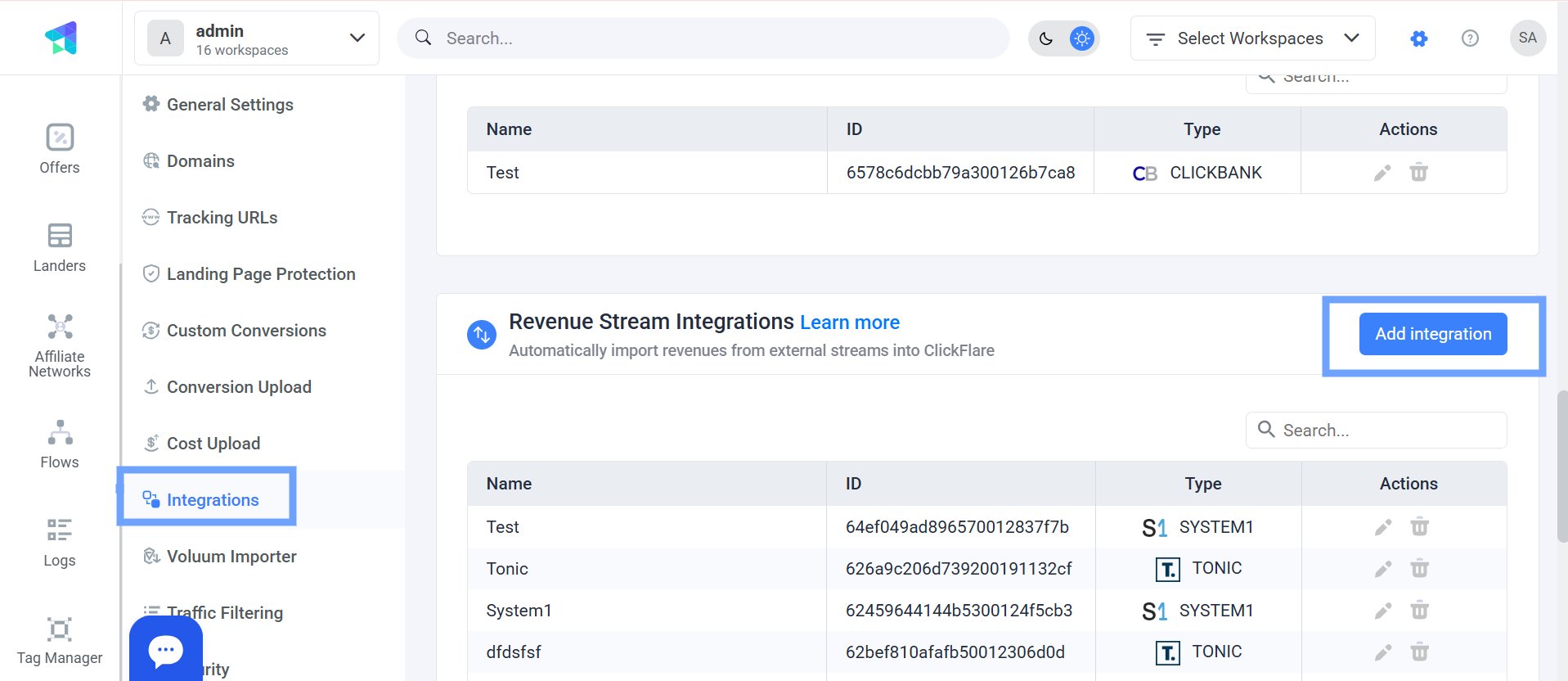
Note: Have your integrations’ connection info ready before proceeding to connect them with ClickFlare.
2. Configure the Integration:
- Choose the Media.net template
-
Assign a Name to your integration
- Name: Enter account name.
- Email: Enter your Media.net email.
- Password: Enter the corresponding credential.
- Then click Save. Click + Connect Account under Accounts
3. Select the Custom Conversion
Choose the Custom Conversion in ClickFlare to which you want Media.net conversion events to be attributed. To learn how to add a custom conversion in ClickFlare, follow our article here.4. Define the Channel Name
Select a Channel Name that ClickFlare will use to track the ClickFlare Campaign IDImportant: Use this exact channel name when creating offers for Media.net to ensure click and conversion data aligns. e.g chnm3={campaign_id)
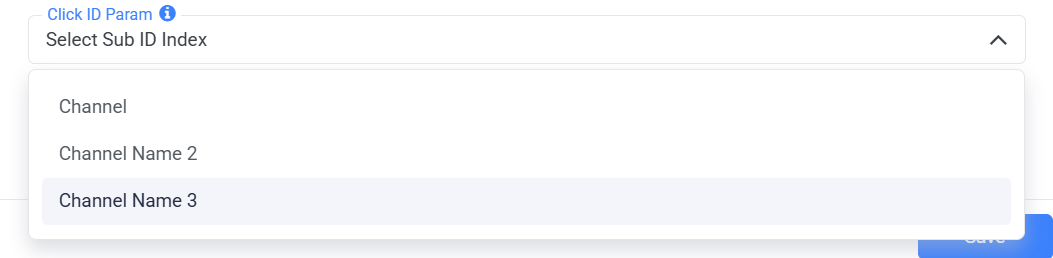
Note: You can choose any of the available channel names. Once you’ve selected a channel name, remember to consistently use it when passing the campaign ID while creating offers for this feed.
5. Add Required Tracking Parameters
When creating your offer URL, make sure to append the required tracking parameters:Important: Make sure to pass {cf_click_id} to the click_id parameter and {campaign_id} to chnm3 in the offer URL
6. Use the Proper Postback Format
ClickFlare will pull conversions from Media.net using the following postback URL:Note: The custom conversion selected in the API integration must match the one used in the postback.
For example: &ct=click parameter should align with the custom conversion Name you’ve chosen in The Revenue Stream Integration: 
7. Save & Finalize
Click Save to complete the integration. Your Media.net integration will now appear under Revenue Stream Integrations, and ClickFlare will begin syncing your conversion data.Note: Media.net Revenue reporting operates on UTC.
FREQUENTLY ASKED QUESTIONS Got questions? Find the answers below:
Q1: How can i append keywords in the offer URL?A1: Unlike other feed providers, Media.net’s offer URL only supports one keyword at a time. A common workaround for keyword rotation is to create multiple versions of the same offer, each using a different keyword, and run them under a single campaign.
Q2: What happens if I don’t set up the postback in Media.net?A2: ClickFlare won’t be able to record conversions or revenue. Make sure the postback is properly added in your Media.net account.
Q3: What should I do if my Media.net conversions aren’t showing up in ClickFlare?A3: Double-check that:
- The correct postback URL is added in Media.net
- The click ID {cf_click_id} is passed correctly in the offer URL
Q4: Can I pass additional data to Media.net?A4: Yes, you can pass additional data in the offer URL by mapping the parameters you want to send to the available Media.net fields. For example:
chnm=country.