


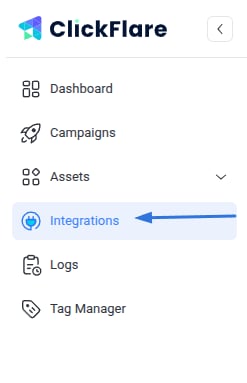
- Under Revenue Stream, click Add Integration.

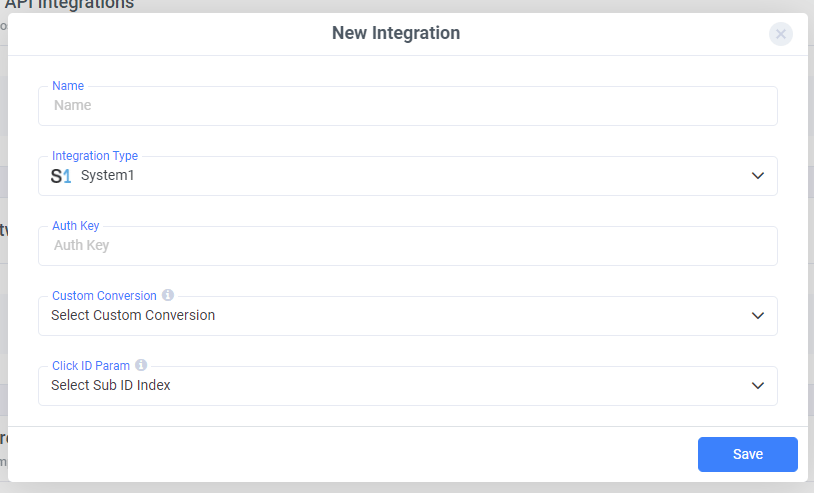
- Begin by naming your integration and select System1 from the list of supported Integration Types.
- Before adding your Authorization Key, choose the custom conversion you want to attribute the conversion event to. To learn how to add a custom conversion in ClickFlare, follow our article here.
- Then select the Click ID that is passing back the info to System1. Make sure to specify the right ID, be it Sub ID 1 or 2.
- To get your Authorization Key, you’ll have to contact your System1 account manager. Once you have the key, paste it into its field.
- When you are done with the process, click on Save, and your Integration with System1 will have been completed.
For a more detailed explanation of this guide, follow the video below.