

- Create the Sale and Upsell custom conversions in ClickFlare (optional)
- Add the Checkout Champ affiliate network from its ClickFlare template and copy the postback URL
- Create an offer from your Checkout Champ checkout URL with the click ID in
c2 - Create a campaign in ClickFlare and use its URL in your ads
- Create an affiliate profile in Checkout Champ that stores the click ID
- Add a postback pixel to that profile for every Checkout Champ campaign
- Test with a real order
How it works
Checkout Champ tracks affiliates natively. Every order can carry an affiliate ID (affId) and a set of sub-values (c1, c2, c3) read from the checkout URL. ClickFlare uses that system: the ClickFlare click ID travels into Checkout Champ as c2, and Checkout Champ returns it when the affiliate pixel fires.
1
ClickFlare issues a click ID
A visitor clicks your ad. ClickFlare generates a unique click ID and redirects to your lander or straight to the checkout.
2
The checkout URL carries it into Checkout Champ
Your offer URL contains
affId=YOUR_AFF_ID&c2={cf_click_id}. ClickFlare replaces the token with the real ID, and Checkout Champ saves it on the order as the affiliate’s c2 value.3
The order is placed
The customer buys. Checkout Champ fires the postback pixel set up on the affiliate profile.
4
Checkout Champ hands the ID back
The pixel calls your ClickFlare postback URL. Checkout Champ fills
[c2] with the click ID and [orderTotal] with the order value.5
ClickFlare attributes the sale
ClickFlare matches the click ID to the original click and records the conversion and its revenue against the campaign.
The mirror to keep straight: in the offer URL you write Checkout Champ’s parameter (
c2) and ClickFlare’s token ({cf_click_id}). In the postback URL you write ClickFlare’s parameter (click_id) and Checkout Champ’s macro ([c2]). Checkout Champ macros use square brackets, not curly braces.Before you start
- Set up your own tracking domain. Use the same custom domain for the campaign and the postback. Shared domains get flagged by ad platforms, and a postback aimed at a different domain will not reach your account. See Custom Domains.
- Have Checkout Champ access to CRM → Affiliates and CRM → Campaigns. You will create an affiliate profile and attach pixels to your campaigns.
- Know which Checkout Champ campaigns you will run traffic to. Checkout Champ needs a separate postback pixel for each one.
Part 1 – Setup in ClickFlare
Step 1 – Create the Sale and Upsell custom conversions (optional)
If you want front-end sales and upsells reported as separate columns, create a custom conversion for each. Skip this step if one combined conversion count is enough.- Go to Settings → Custom Conversions
- Click Add
- Create Sale with the parameter
sale. Enable Include in Conversions and Include in Revenue. - Create Upsell with the parameter
upsell. Enable Include in Revenue. Enable Include in Conversions only if you want upsells to count as additional conversions. - Save
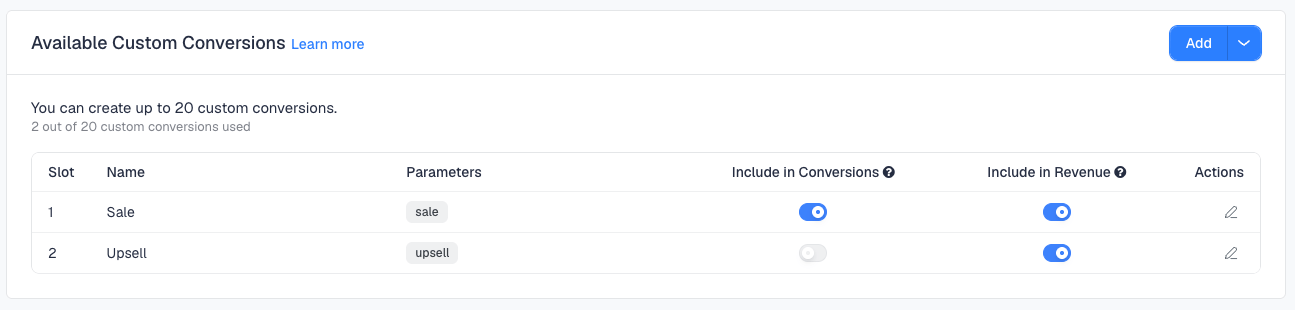
ct parameter of the postback. The two must match exactly. See Custom Conversions.
Step 2 – Add the Checkout Champ affiliate network
ClickFlare has a ready-made Checkout Champ template. It fills in Checkout Champ’s macros for you, so the postback URL is built correctly without typing any tokens.- Go to Affiliate Networks and click + New
- Type
checkin the search box and select the Checkout Champ template
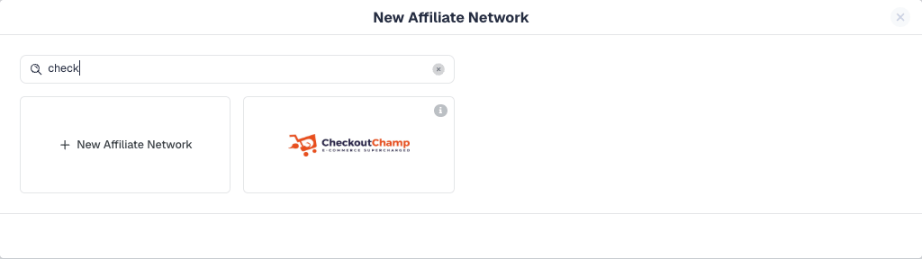
- Review the form. The template pre-fills these parameters:
- Workspace: keep Public or choose the workspace that runs your Checkout Champ campaigns
- Tracking Domain: select your own custom domain, the same one your campaigns run on. Avoid domains marked Shared.
- Tracking method: keep S2S Postback URL
- Copy the postback URL shown under the form, then click Save
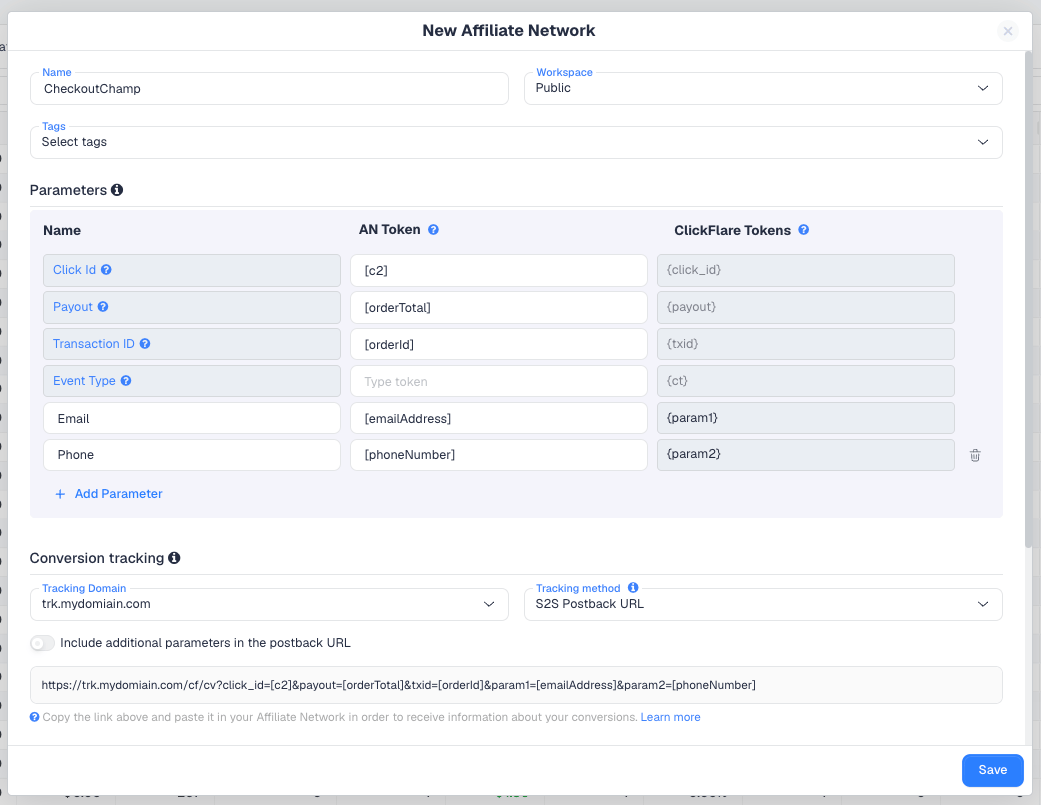
ct=sale on the sale pixel, ct=upsell on the upsell pixel.
To pass more order data, click Add Parameter, give it a name, and enter the Checkout Champ macro as the AN Token. ClickFlare maps it to the next free param slot (param3, param4 and so on) and adds it to the postback URL.
Keep this URL. You will paste it into Checkout Champ in Part 2. For every parameter ClickFlare accepts, see ClickFlare Parameters in Postback URLs.
Step 3 – Create the offer from your checkout URL
The offer is the Checkout Champ checkout (or the first funnel page hosted on Checkout Champ) with the affiliate parameters added.- Go to Offers → Add offer
- Select the Checkout Champ affiliate network from Step 2
- Paste your checkout URL and append the affiliate parameters:
affId– the Aff Id of the affiliate profile you create in Part 2, Step 5. Come back and fill it in once Checkout Champ has generated it.c2={cf_click_id}– required. This is how the click ID reaches Checkout Champ.c1– optional. Checkout Champ treatsc1as the publisher ID. You can pass a fixed label, for examplec1=meta, to see where orders came from inside Checkout Champ too.
- Save the offer
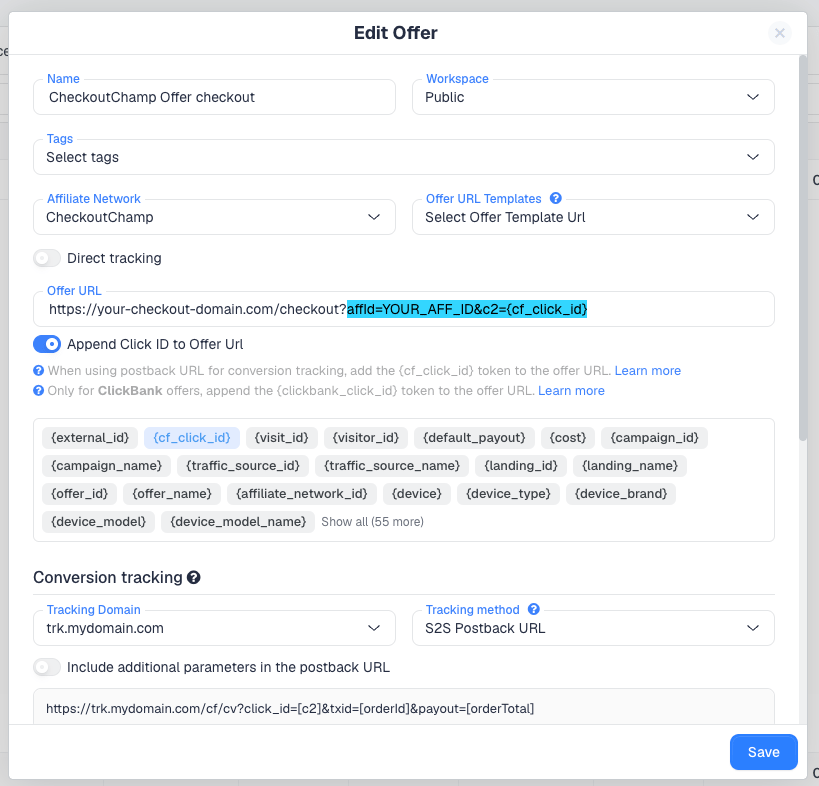
?, start the affiliate parameters with &. See How to Add an Offer in ClickFlare.
Step 4 – Create the campaign
- Go to Campaigns → Add campaign
- Select your traffic source. Use a template (Meta, Google, TikTok, Taboola and so on) so the source’s tokens are filled in for you.
- Choose Redirect or Direct tracking
- In the path, add your lander if you run one, and the Checkout Champ offer from Step 3
- Save and copy the campaign URL
c2.
Paste the campaign URL into your ad platform:
- Meta Ads → Website URL
- Google Ads → Final URL
- TikTok Ads → Destination URL
- Taboola / Outbrain → URL field
Part 2 – Setup in Checkout Champ
Step 5 – Create the affiliate profile
- Log in to Checkout Champ
- Go to CRM → Affiliates and click +
- Enter a Title, for example
ClickFlare. Checkout Champ generates the Aff Id automatically. - Copy the Aff Id and put it in the
affIdparameter of the offer URL from Step 3 - In Passed Values, click + and add:
- Save the affiliate profile
Step 6 – Add a postback pixel for each campaign
Checkout Champ fires conversion pixels per campaign. Your Checkout Champ campaigns (CRM → Campaigns) appear in the Campaign tab of the affiliate profile.- Open the affiliate profile and go to Pixels
- Click + and fill in:
- Save
- Repeat for every Checkout Champ campaign that receives ClickFlare traffic
Tracking upsells
[orderTotal] is the value of the order. To send the value of the individual product the customer accepted on an upsell page, use [productTotal] instead.
Add a second postback pixel for the upsell, with the same settings as Step 6 and this URL:
-upsell suffix on txid is not optional. It is what keeps ClickFlare from discarding the upsell.
Why the upsell needs its own transaction ID
Why the upsell needs its own transaction ID
ClickFlare deduplicates conversions. When a second postback arrives for the same click ID with the same
txid, ClickFlare treats it as a repeat and does not record it. Checkout Champ normally adds one-click upsells to the original order, so the upsell carries the same [orderId] as the main sale.Making the upsell’s txid different (here, [orderId]-upsell) tells ClickFlare it is a separate conversion on the same click. See the txid section of ClickFlare Parameters in Postback URLs.Funnels with more than one upsell
Funnels with more than one upsell
Every upsell posted to ClickFlare needs a unique
txid. If your funnel has two or more upsells and they all post with [orderId]-upsell, ClickFlare keeps the first and drops the rest.Ask Checkout Champ support which macro identifies the individual product or upsell step, and use it in the txid, for example txid=[orderId]-[productId]. Confirm the exact macro name with Checkout Champ before relying on it.Sending one combined value instead
Sending one combined value instead
If you only need total revenue per order and don’t care about the upsell split, keep a single pixel with
[orderTotal] and skip the upsell pixel. You will see one conversion per order, valued at whatever [orderTotal] holds when the pixel fires.Postback reference
To carry more order details into ClickFlare reports, add them as parameters on the affiliate network (Step 2), not by hand in the URL. Check the macros your Checkout Champ account offers before adding them.
Step 7 – Test the setup
- Open your ClickFlare campaign URL in a browser. Don’t open the checkout URL directly: without a click from ClickFlare there is no click ID to attribute the order to.
- Check that the checkout URL now shows
c2=followed by a long ID, not the text{cf_click_id} - Complete an order
- In ClickFlare, open the campaign report and look for the conversion and its revenue
- If you set up the upsell pixel, accept an upsell and check that a second conversion appears with the
upselltype
Test-card orders may not fire pixels or exports in Checkout Champ. If your test order doesn’t arrive, place a small real order and refund it afterwards.
Troubleshooting
No conversions arrive at all
No conversions arrive at all
- Check that a postback pixel exists for the exact Checkout Champ campaign the order went through.
- Check that Pixel type is Postback, not an HTML or iframe pixel.
- Check that the postback URL uses your own tracking domain, the same one the campaign runs on.
- Check that the visitor came through the ClickFlare campaign URL, not a direct link to the checkout.
Conversions arrive without a campaign
Conversions arrive without a campaign
The postback reached ClickFlare but carried no usable click ID.
- The offer URL has
cf_click_idwithout braces, so Checkout Champ stored the literal text. - The offer URL sends the click ID in one field (for example
c3) and the postback returns another ([c2]). The two must be the same field. c2is not set up as a passed value on the affiliate profile.
Sales arrive, upsells don't
Sales arrive, upsells don't
- The upsell pixel uses the same
txidas the sale, so ClickFlare deduplicated it. Give it a uniquetxid. See Tracking upsells. - There is no upsell pixel for that Checkout Champ campaign.
Revenue is wrong
Revenue is wrong
- The upsell pixel uses
[orderTotal], which counts the front-end sale again. Use[productTotal]for upsells. - The store currency differs from the offer currency in ClickFlare. Set the currency on the affiliate network or offer, or add
payout_currencyto the postback.
FREQUENTLY ASKED QUESTIONS
Q1: Is Konnektive the same as Checkout Champ?A1: Yes. Konnektive CRM was renamed Checkout Champ. The affiliate, passed values and pixel settings in this guide work the same way in both.
Q2: Do I have to use c2 for the click ID?
A2: No, but it is the convention, because Checkout Champ treats c2 as the sub-affiliate field. Whichever field you choose, the offer URL and the postback must use the same one, for example c3={cf_click_id} in the offer and click_id=[c3] in the postback.
Q3: Do I need a lander?A3: No. You can send traffic from the ad straight to the checkout, as long as it goes through the ClickFlare campaign URL. If you use a lander, its CTA must point to the ClickFlare click URL.
Q4: Are rebills and subscription renewals tracked?A4: Not by this setup. The pixel fires when the order is placed on the funnel pages. Recurring rebills are charged later, with no visitor on the page, so they don’t trigger it.
Q5: Are refunds and chargebacks removed from ClickFlare?A5: No. The pixel only reports new orders. Refunds stay in Checkout Champ.
Q6: Can I use the same setup for several Checkout Champ campaigns?A6: Yes. Use one affiliate profile and one Aff Id, and add a postback pixel for each Checkout Champ campaign. The postback URL is the same for all of them.
Related
S2S postback setup
How server-to-server conversion tracking works in ClickFlare.
Postback parameters
Every parameter ClickFlare accepts, including txid and ct.
Custom conversions
Split sales and upsells into separate columns.
Conversions not showing
The general checklist when postbacks don’t arrive.