

- An active Microsoft Bing Ads Account
- An active ClickFlare Account
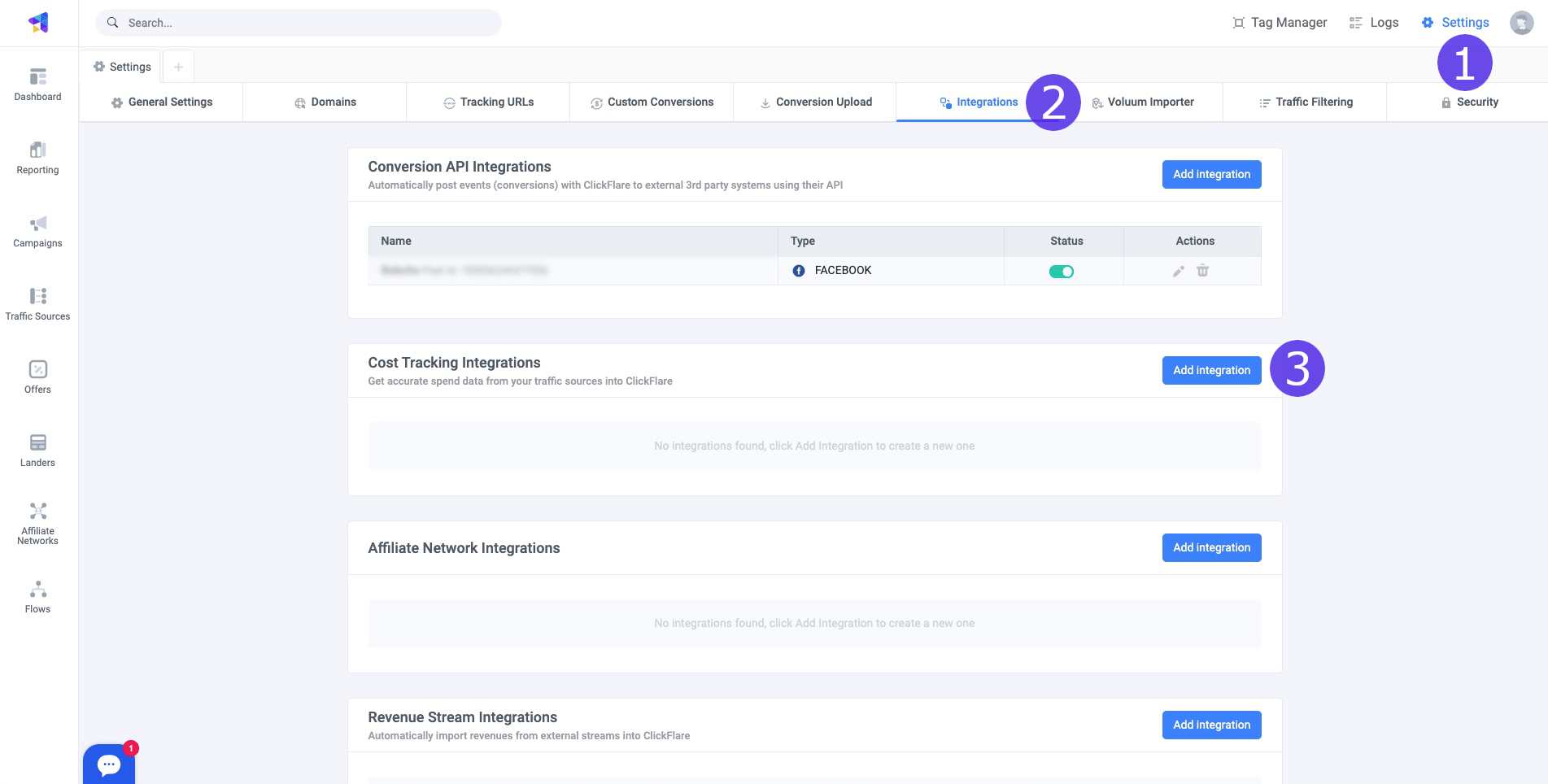
- Entering the Settings Menu (gear icon in the upper right corner) inside ClickFlare.
- Go to the Integrations tab.
-
In the Cost Tracking Integrations section, click on Add Integration.
-
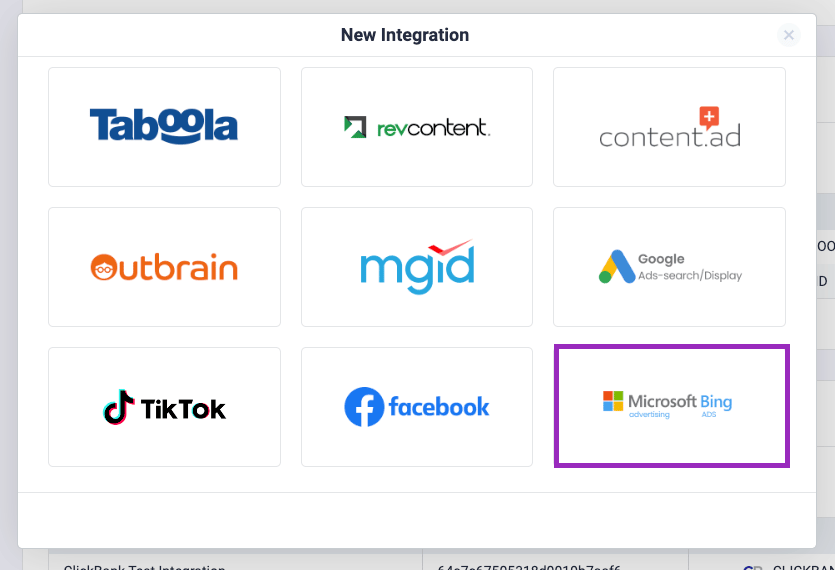
Choose Microsoft Bing icon card.
-
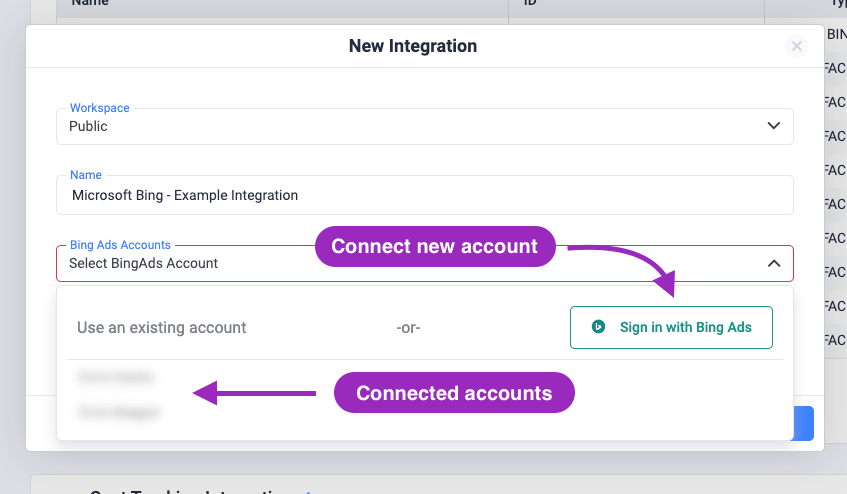
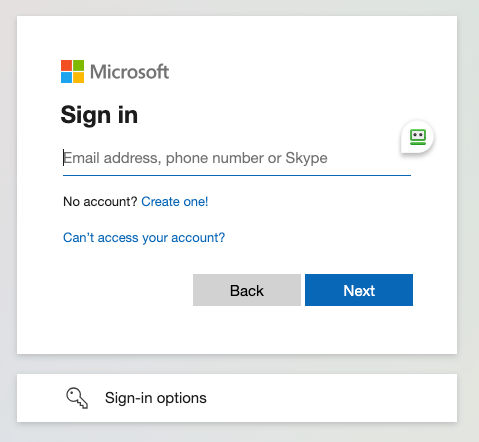
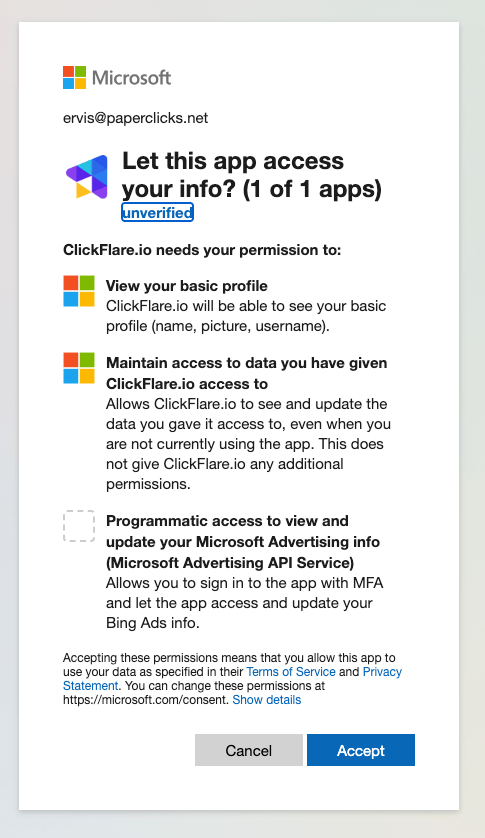
Select a workspace first, and then give your integration a name and finally pick the Microsoft Bing Account you want to connect to and the Integration Timezone.
Note: The timezone should match the one in your Microsoft Bing account. If you already have A Microsoft Bing account connected to ClickFlare, you should be able to see it under “Use an existing account” (image below).
-
After clicking Next, you’ll see all your ad accounts. Choose the ones from which you want costs to be pulled, then click Save.
 Note: You only need to create one integration per Business Account. In one integration, you can select multiple ad accounts. ClickFlare will then automatically know to which campaigns to associate costs to.
 -
Optional Step - Specify the traffic source configurations you want to assign this cost integration to.
 Important note: Make sure that the traffic source configurations you select in this step belongs to the traffic source you created the integration for. Once done, click on Save.
 -
Lastly, go to the traffic source configuration settings and add the previously created cost integration under the cost integration settings.
 Important Note: When adding a Traffic Source, remember to select the new integration you just added. Failing to do so, will result in costs not being pulled.