


- An active RevContent Account
- An active CF Account
- RevContent Client ID and Client Secret
Where to find Revcontent’s API information
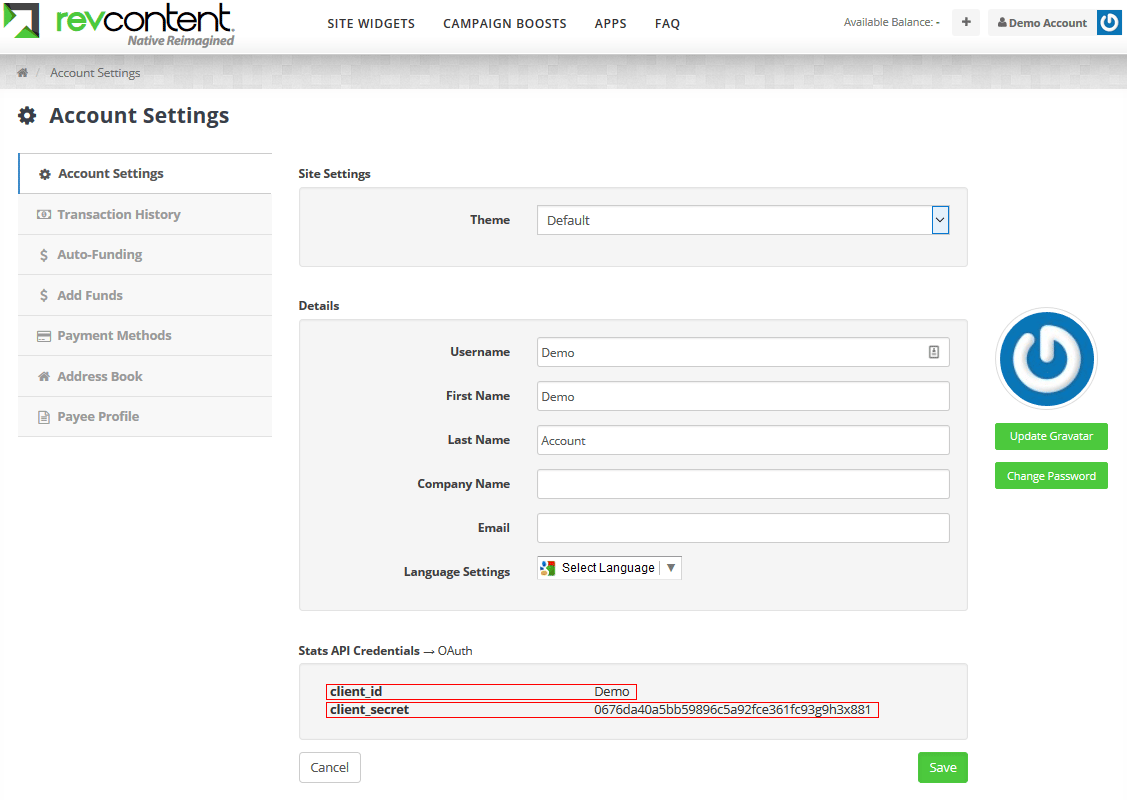
Copy this information and be ready to use it during the integration with CF
How to Set Up the Integration
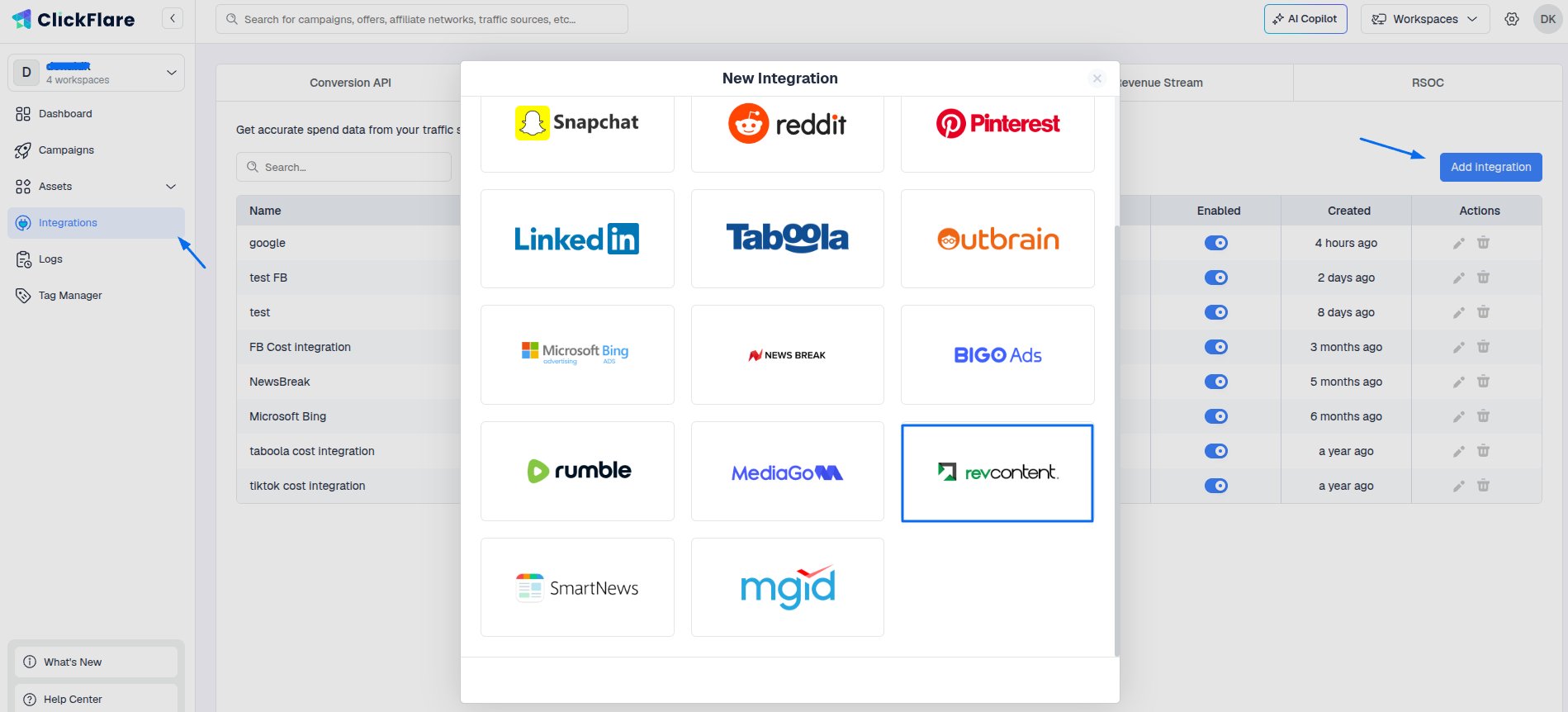
Begin the process by:- Open the ClickFlare left sidebar
- Go to the Integrations tab.
- In the Cost Tracking Integrations section, click on Add Integration.
- Select RevContent from the list of available integrations
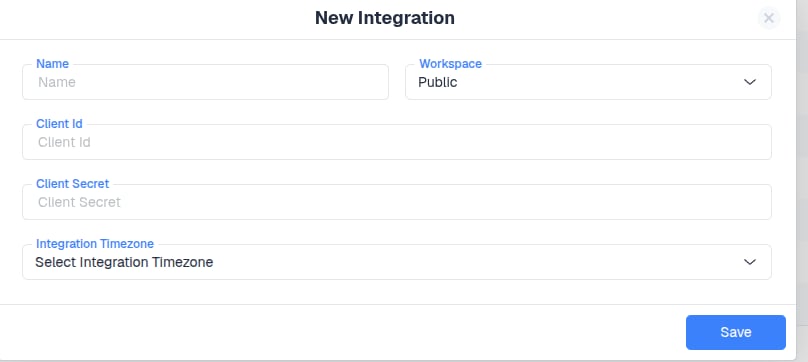
Configure Integration Details
Now fill in the required information:- Workspace: Choose where this integration will be used (public or private workspace)
- Integration Name: Give it a clear, recognizable name
- Paste the Client ID and the Client Secret
- Timezone: Select the same timezone used in your Revcontent account
-
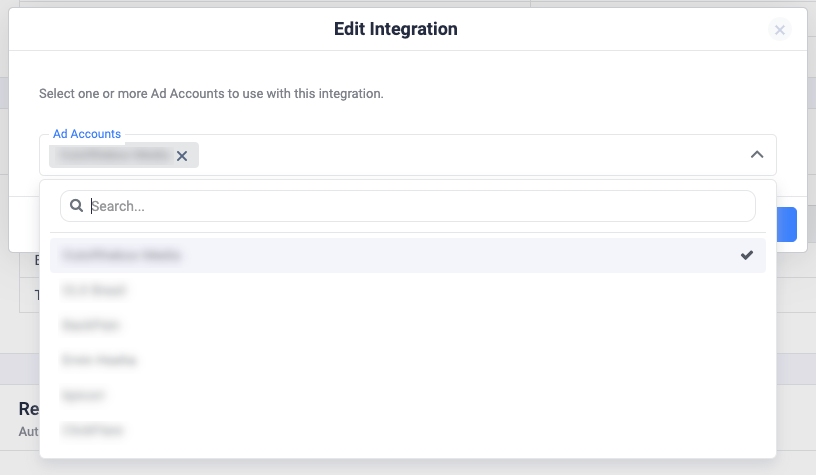
Choose the Ad Account(s) from which you want costs to be pulled then click Save.
Optional Settings
- You can assign specific traffic sources to this integration
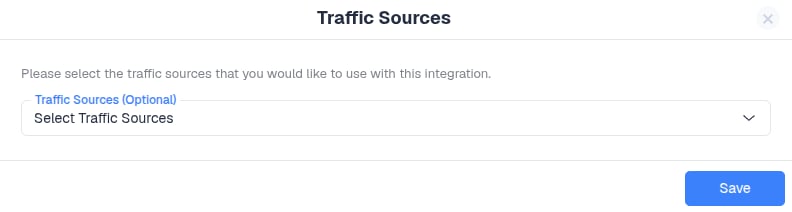
Important note: Make sure that the traffic source configurations you select in this step belong to the traffic source you created the integration for. Once done, click on Save.
- Lastly, go to the Traffic Source configuration settings and assign the cost integration you created under the Cost Integration section.
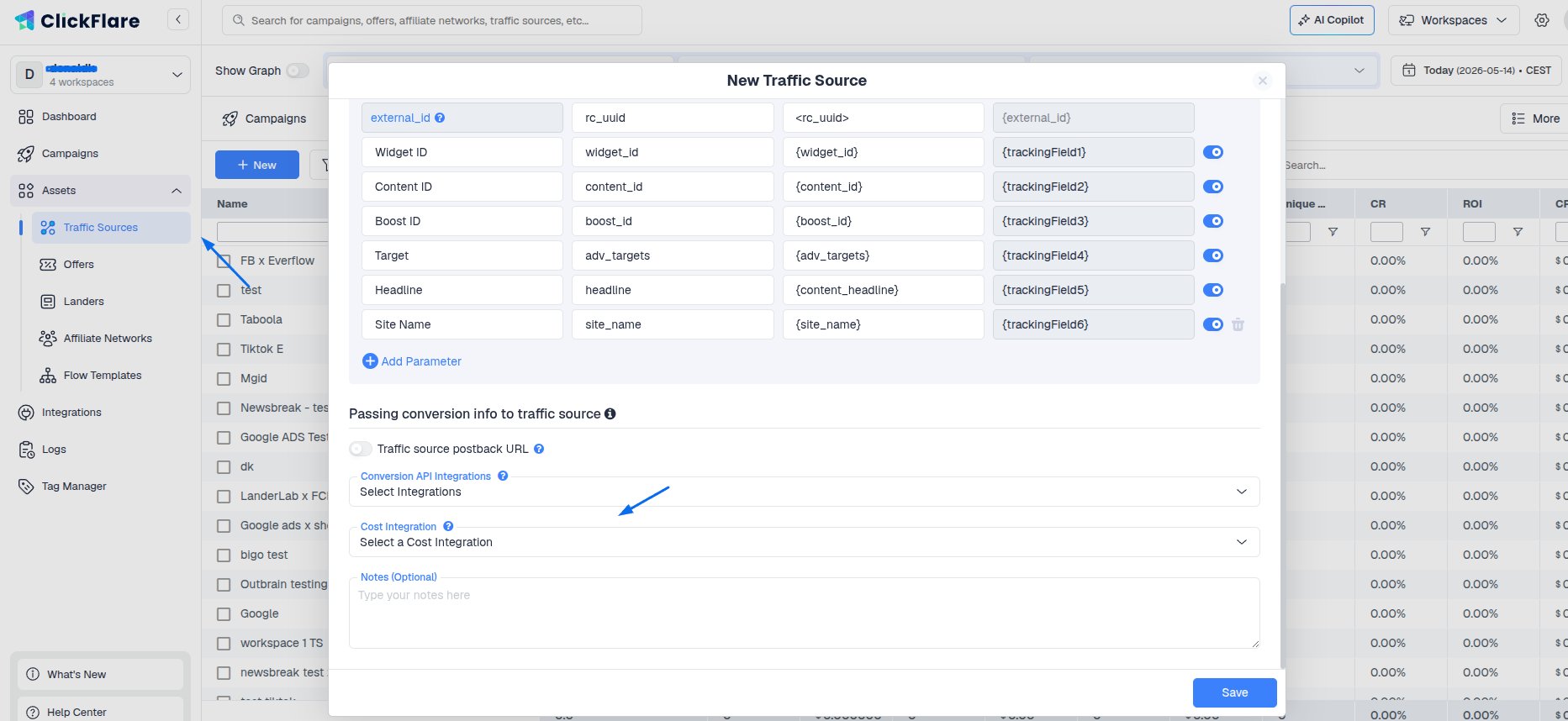
Important Note: When setting up the Traffic Source, make sure to select the newly created integration. If this step is missed, cost data will not be imported correctly.