


What you’ll need for the integration
- An active ClickFlare account
- An active Pinterest Business account with access to Ads Manager
- Your Pinterest login credentials
How Pinterest Cost Integration Works
ClickFlare connects to the official Pinterest Ads API and automatically retrieves your campaign spend. Once connected, ClickFlare pulls cost data from Pinterest at the following levels:- Campaign level
- Ad group level
- Ad (Pin promotion) level
- Cost data from Pinterest
- Clicks/impressions tracked by ClickFlare through your tracking URLs
Setting Up the Pinterest Cost Integration
Follow the steps below to connect your Pinterest Ads account to ClickFlare.- In ClickFlare, open the left-side menu and go to Integrations → Cost Tracking Integrations.
- Click Add Integration.
- From the list of available integrations, select Pinterest.
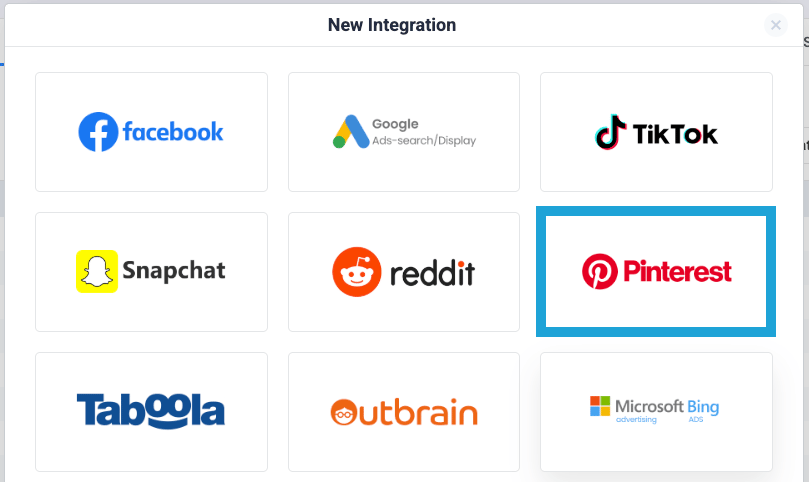
Step 1 — Authorize Your Pinterest Account
When you add the Pinterest integration, ClickFlare will ask you to connect your Pinterest Ads account.- If you already have a Pinterest login connected to ClickFlare, you’ll see it under Use an existing account. Just select it and continue.
- If not, click Sign in with Pinterest. You’ll be redirected to Pinterest’s login/authorization screen, where you must allow ClickFlare to access your advertising data.
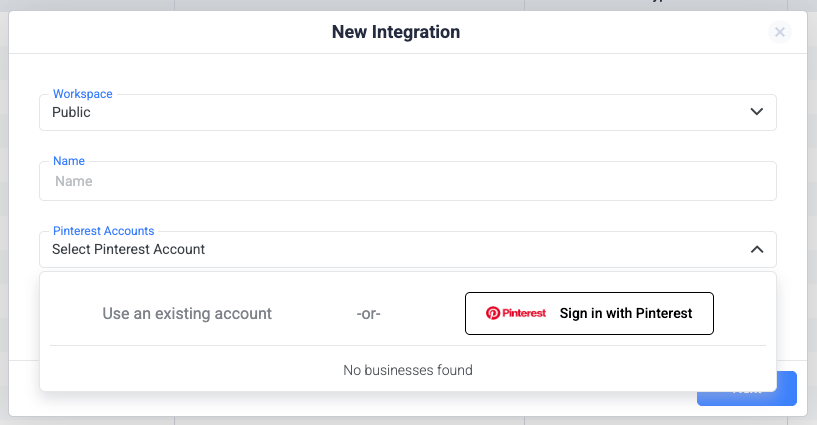
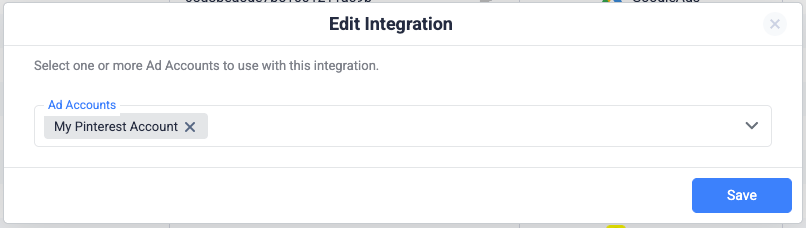
Step 2 — Select Ad Accounts
Once your Pinterest login is connected, click Next and choose which ad account(s) you want ClickFlare to pull cost data from.- You can select one or multiple ad accounts under the same Pinterest login.
- ClickFlare will automatically sync campaign spend for each selected ad account.
Step 3 — (Optional) Assign to a Traffic Source Configuration
You can optionally link your Pinterest cost integration directly to one or more Traffic Source Configurations in ClickFlare.- If you do this here, ClickFlare will automatically use this cost integration whenever that Pinterest traffic source is selected in a campaign.
- If you skip this step, you can always assign the integration later inside the Traffic Source settings.
Step 4 — Verify Cost Data Sync
After saving the integration, ClickFlare will start syncing cost data from Pinterest automatically. To verify everything is working:- Open any active Pinterest campaign in your ClickFlare reports.
- Look at the Cost column.
- Confirm that you see cost values that match what you see in Pinterest Ads Manager (after allowing for the sync delay).
Sync Frequency
The cost update frequency depends on your ClickFlare plan and whether you have a faster cost-update add-on enabled.
Cost pulls can range from every 60 minutes down to every 5 minutes for eligible plans and add-ons.
How Cost Matching Works
ClickFlare matches Pinterest’s cost data to your campaigns based on:- Unique Pinterest campaign and ad identifiers
- Tracking parameters passed through your campaign URLs
- All required macros/parameters are automatically added to your tracking URLs.
- Pinterest’s campaign/ad IDs are captured by ClickFlare and used to align incoming cost data with the correct campaigns, paths, and reports.
Troubleshooting
FREQUENTLY ASKED QUESTIONS Got questions? Find the answers below:
Q1: Do I need to tag my Pinterest URLs differently for cost tracking?A1: No additional tagging is required beyond using the Pinterest traffic source template in ClickFlare. That template already includes the parameters needed for cost matching.
Q2: Does the integration pull impressions, clicks, or conversions from Pinterest?A2: The Pinterest cost integration is focused on spend. Clicks, impressions, and conversions are tracked directly by ClickFlare (or via your conversion setup), and combined with Pinterest cost data for full performance reporting.
Q3: Can I use multiple Pinterest integrations in the same account?A3: Yes. For example, you might use separate integrations for different teams or business units. Just make sure each Pinterest integration is assigned to the correct Traffic Source Configurations and Workspaces (if you’re using Workspaces).