

What you’ll need for the integration:
Ensure you have the following before proceeding:- An active ClickFlare account
- An active Zeydoo account
I. Create an Affiliate Network in ClickFlare and Get the Postback URL
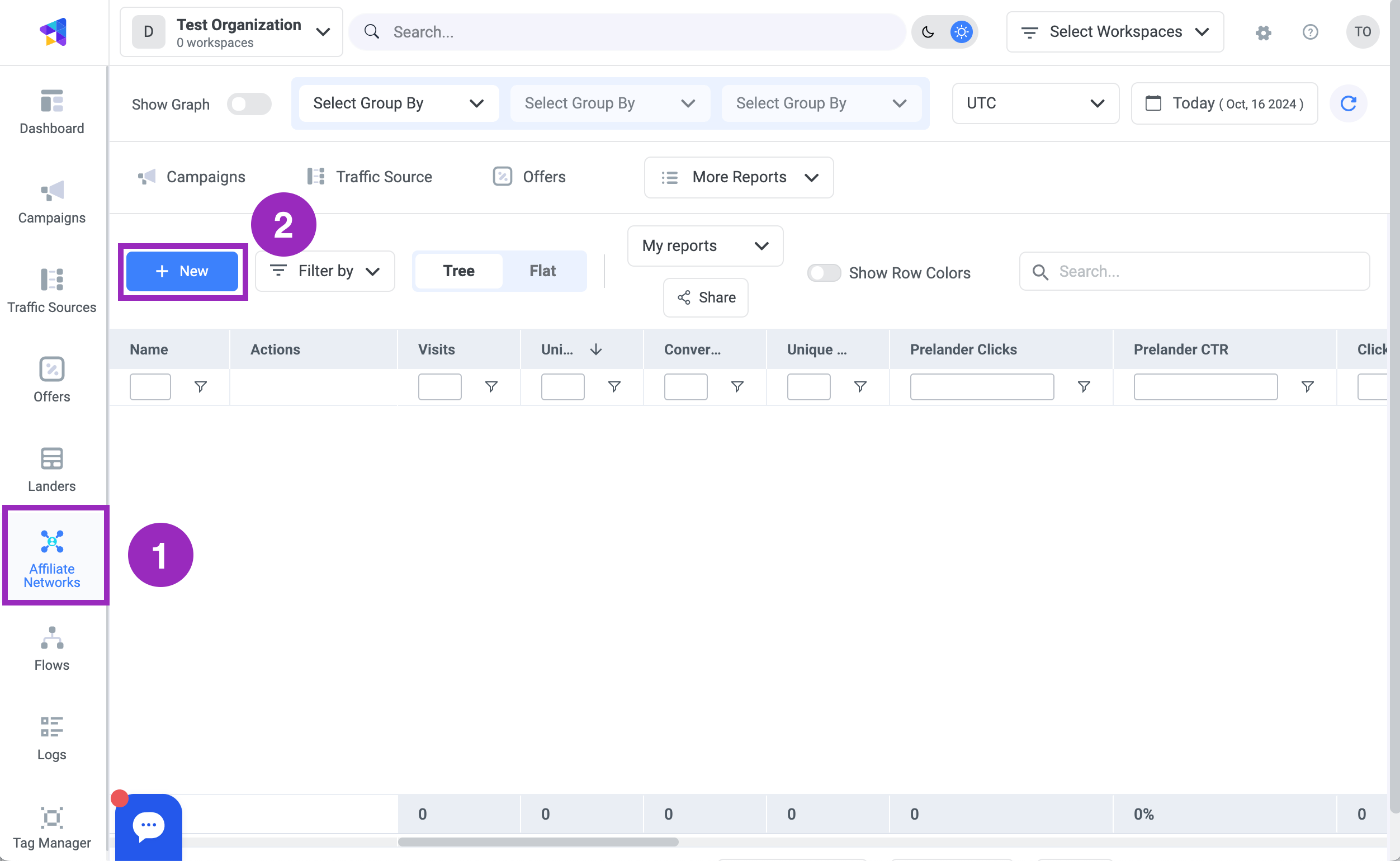
The first step is to create an affiliate network element in ClickFlare using a template. Follow these steps:- In ClickFlare, navigate to the Affiliate Networks tab.
- Click the + New button.
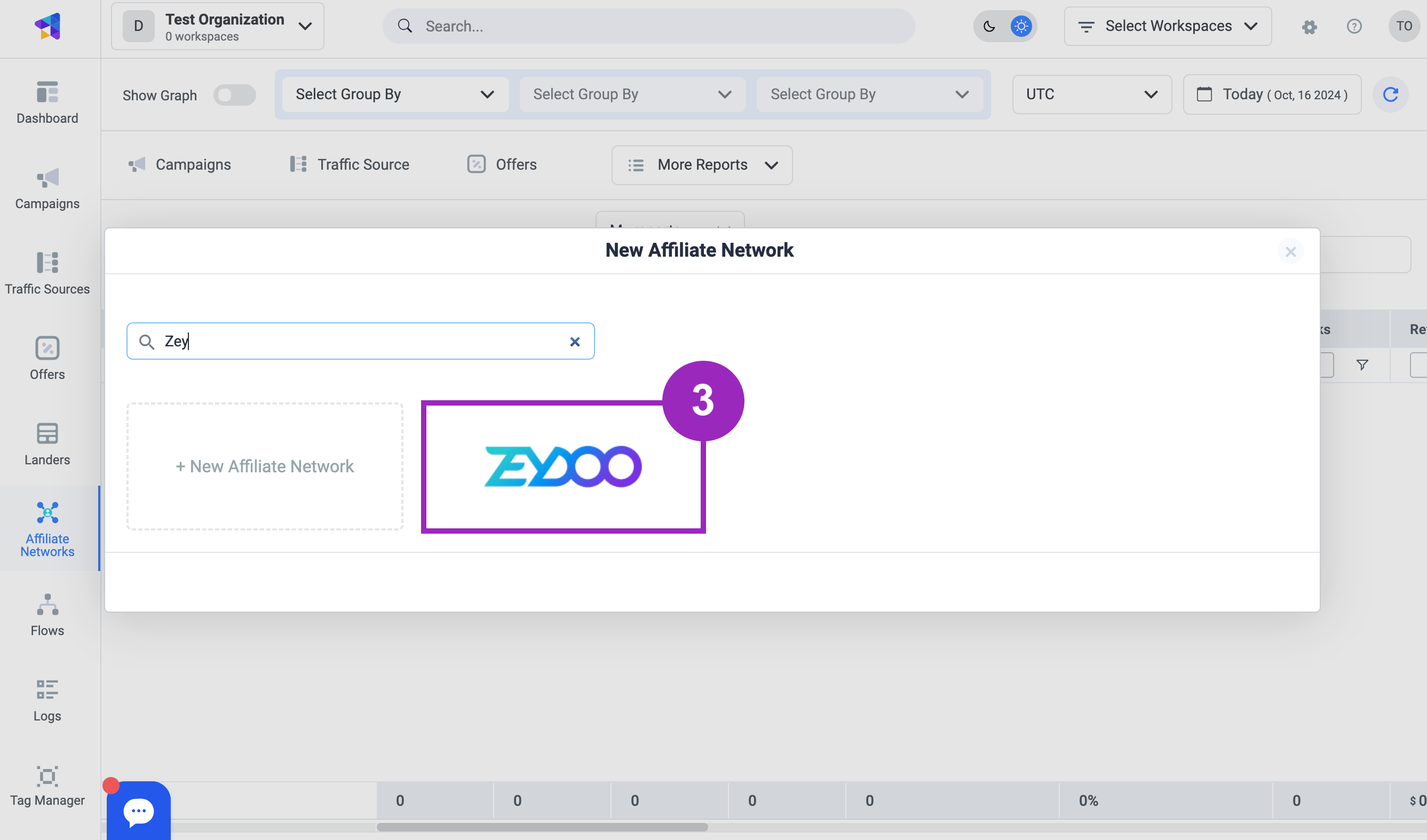
- Choose the Zeydoo affiliate network template.
- Click the Copy button next to the postback URL to copy it to your clipboard.
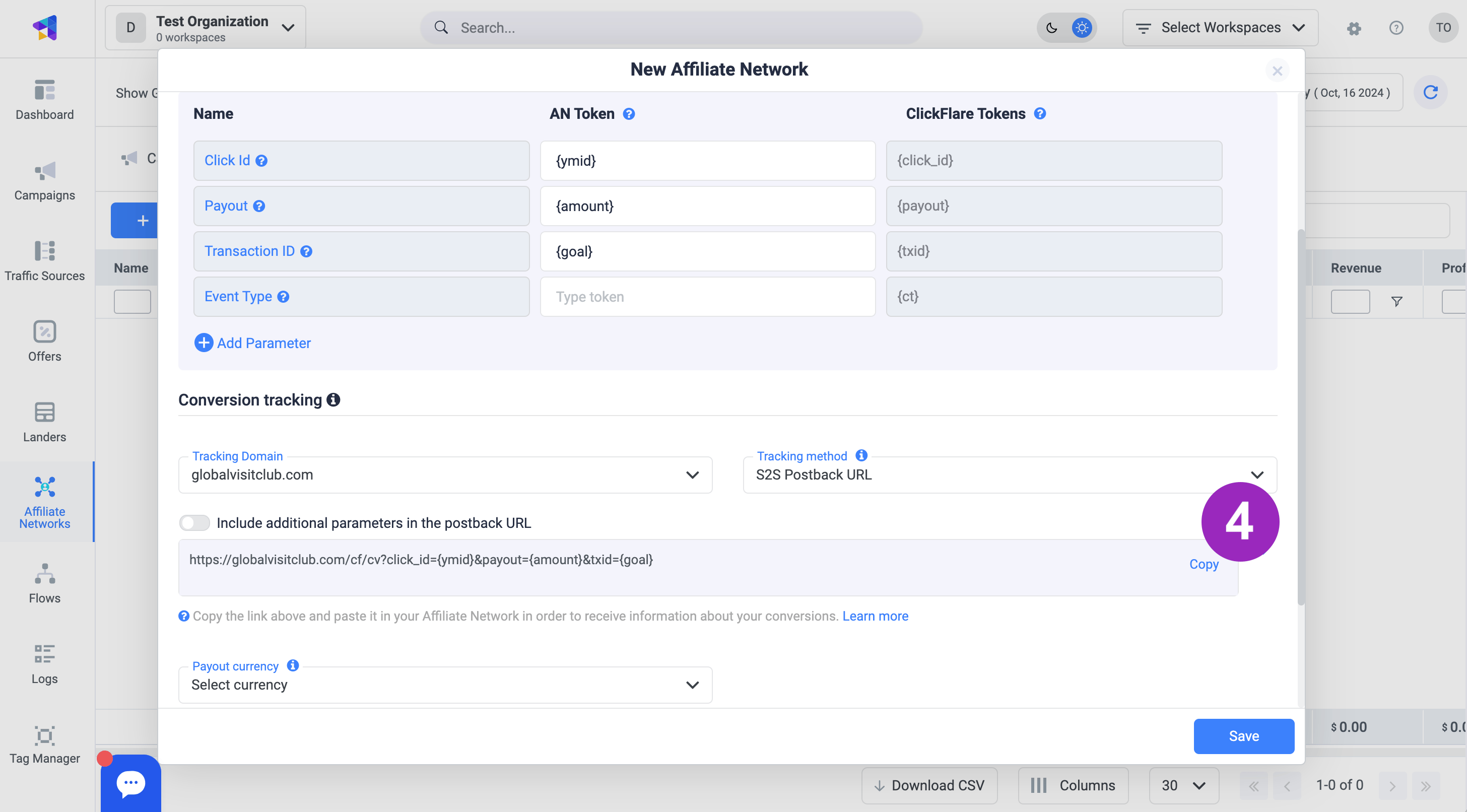
- Click the Save button.
II. Submit the Postback URL to Zeydoo
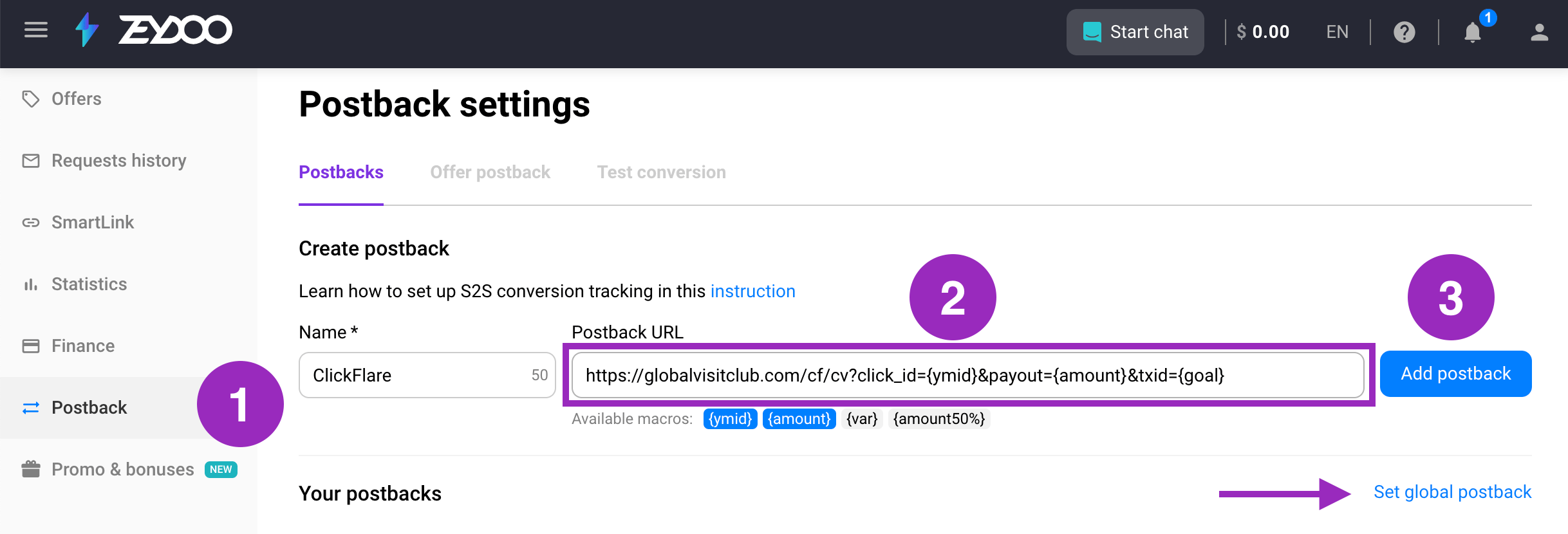
Next, set up the postback URL in Zeydoo by following these steps:- In Zeydoo, go to the Postback tab.
- Paste the postback URL copied from ClickFlare into the text field.
- Click the Add Postback button.
III. Get an Offer from Zeydoo
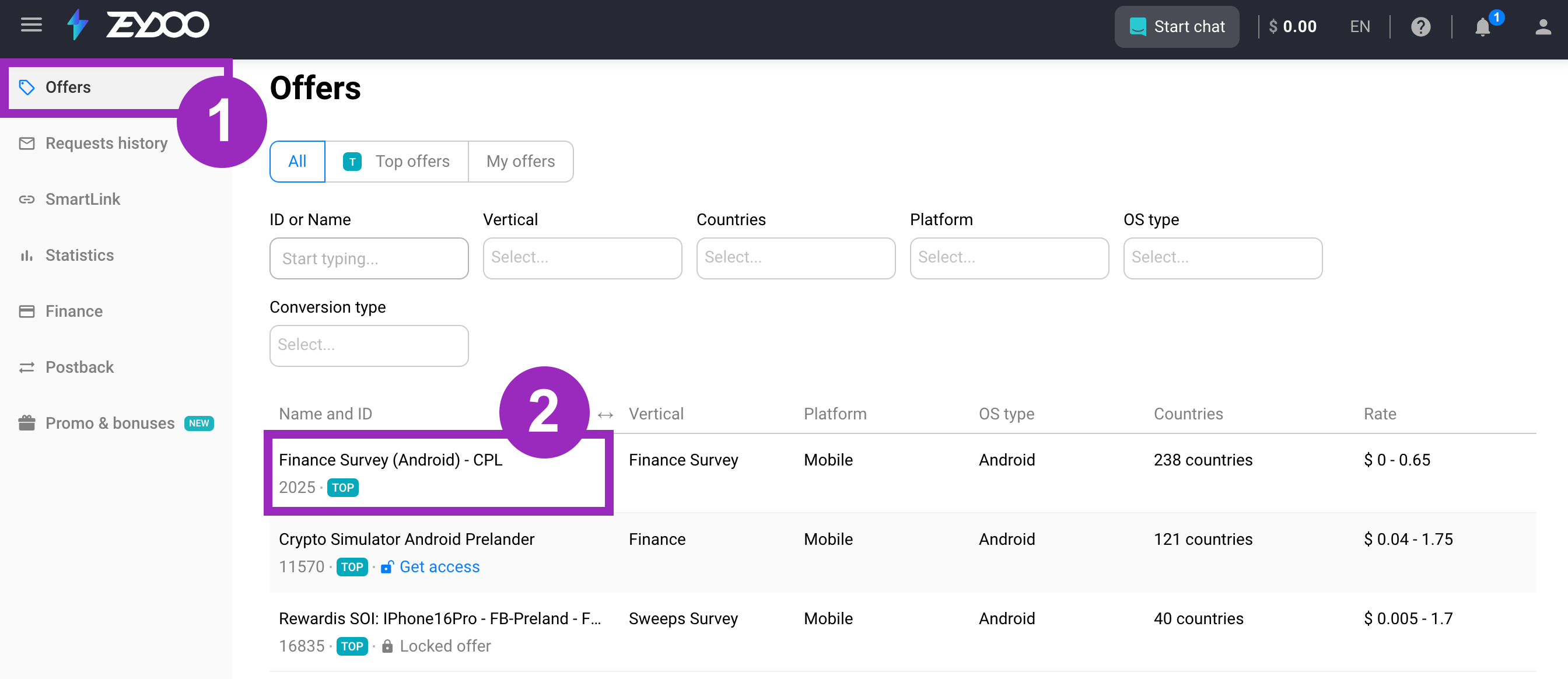
Now, find an offer and retrieve the offer URL from Zeydoo. Follow these steps:- In Zeydoo, go to the Offers tab.
- Use the filter settings to find an offer you wish to promote. Click on the selected offer.
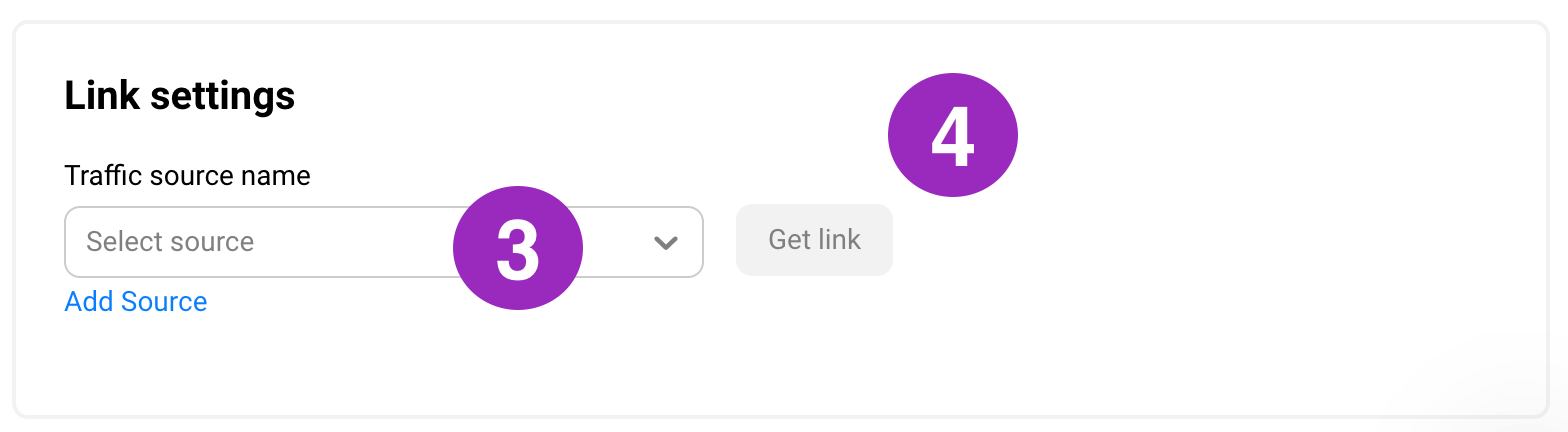
- Choose the traffic source from the drop-down menu or click Create new to set up a new one.
- Click the Get link button.
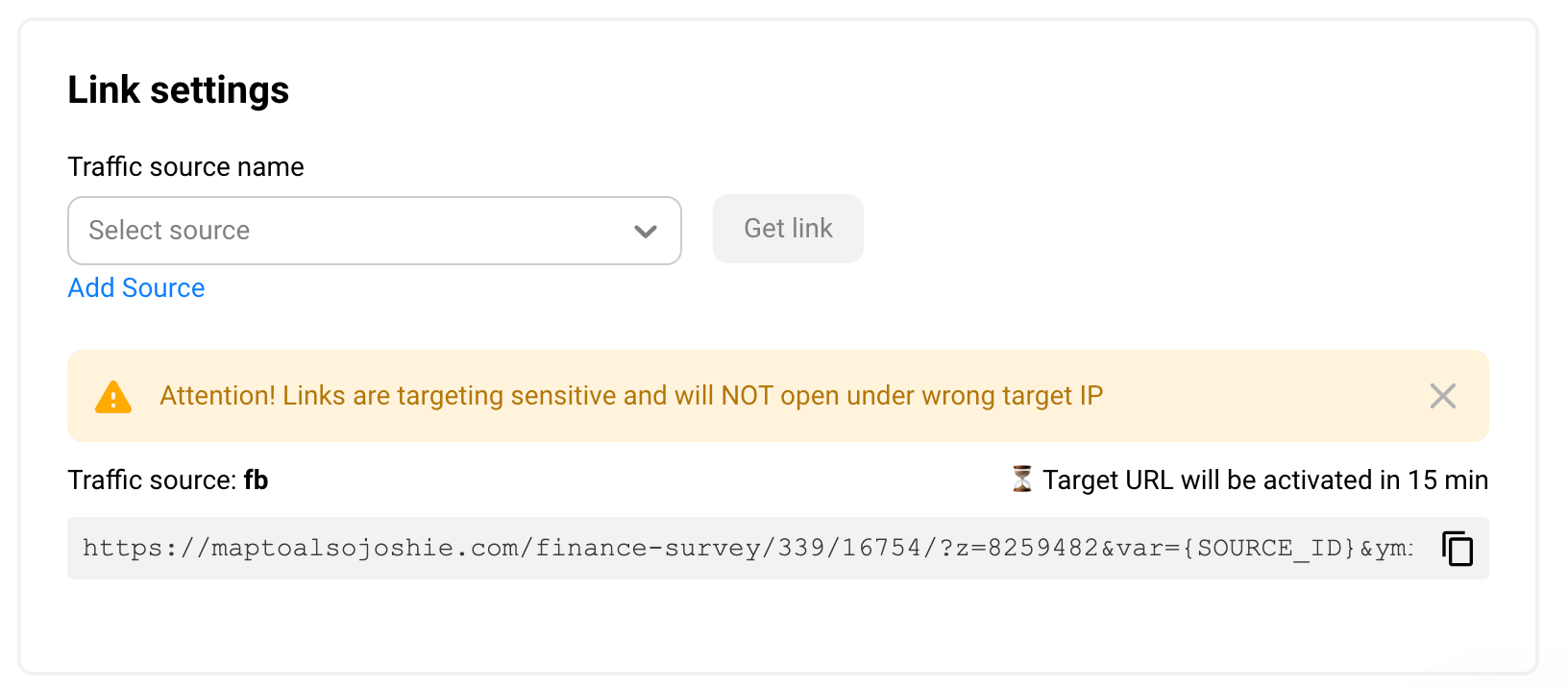
- Your offer link will now appear. Click the button to copy it to the clipboard.
IV. Create an Offer in ClickFlare
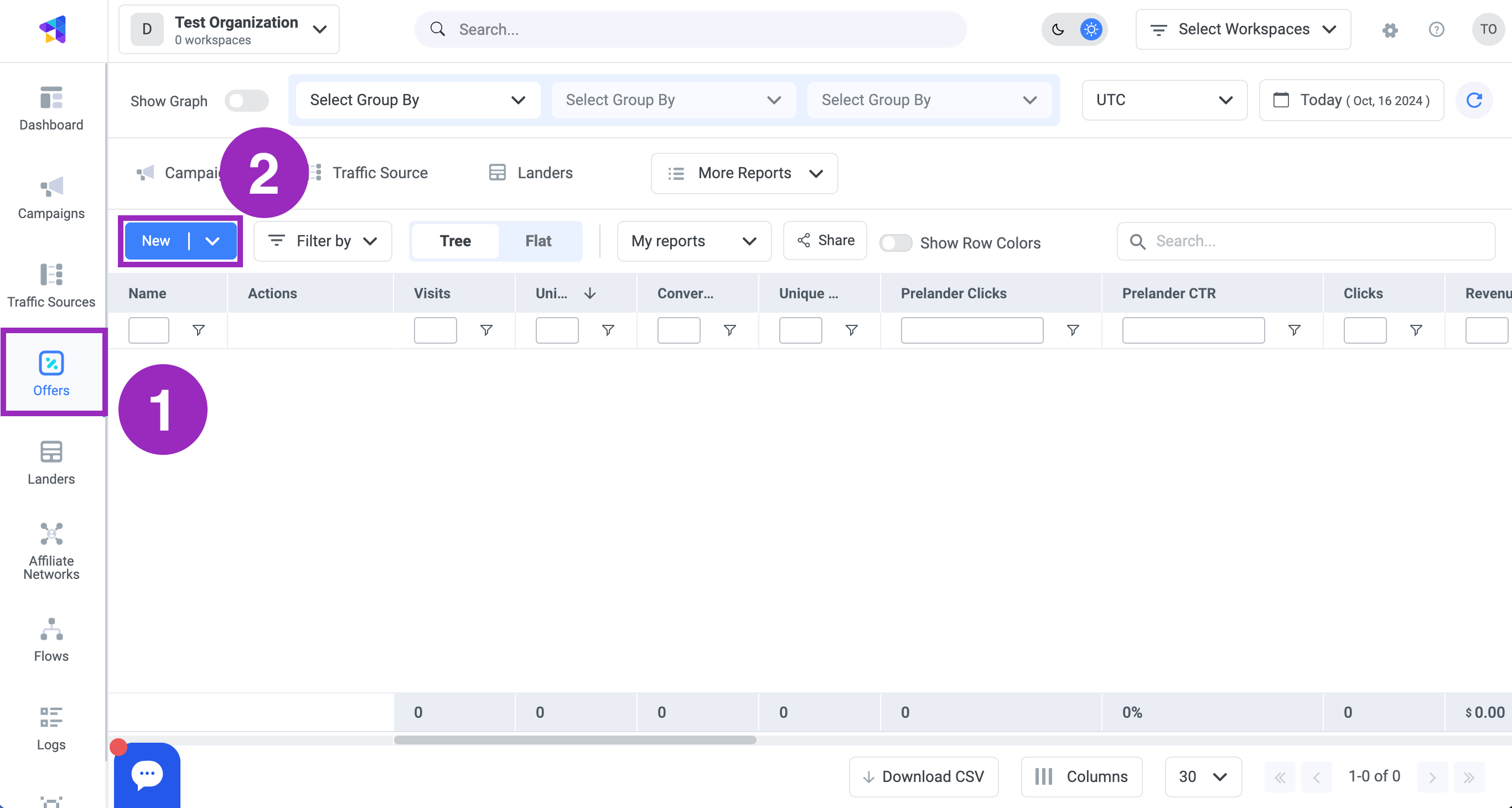
Finally, create an offer in ClickFlare by following these steps:- In ClickFlare, go to the Offers section.
- Click the + New button.
- Choose the Zeydoo affiliate network from the Affiliate Network drop-down menu.
- Enter a name for the offer in the Name text field.
- Paste the offer URL you obtained from Zeydoo into the Offer URL text field.
- Copy the tracking parameter and append it to the end of your offer URL after the & character.
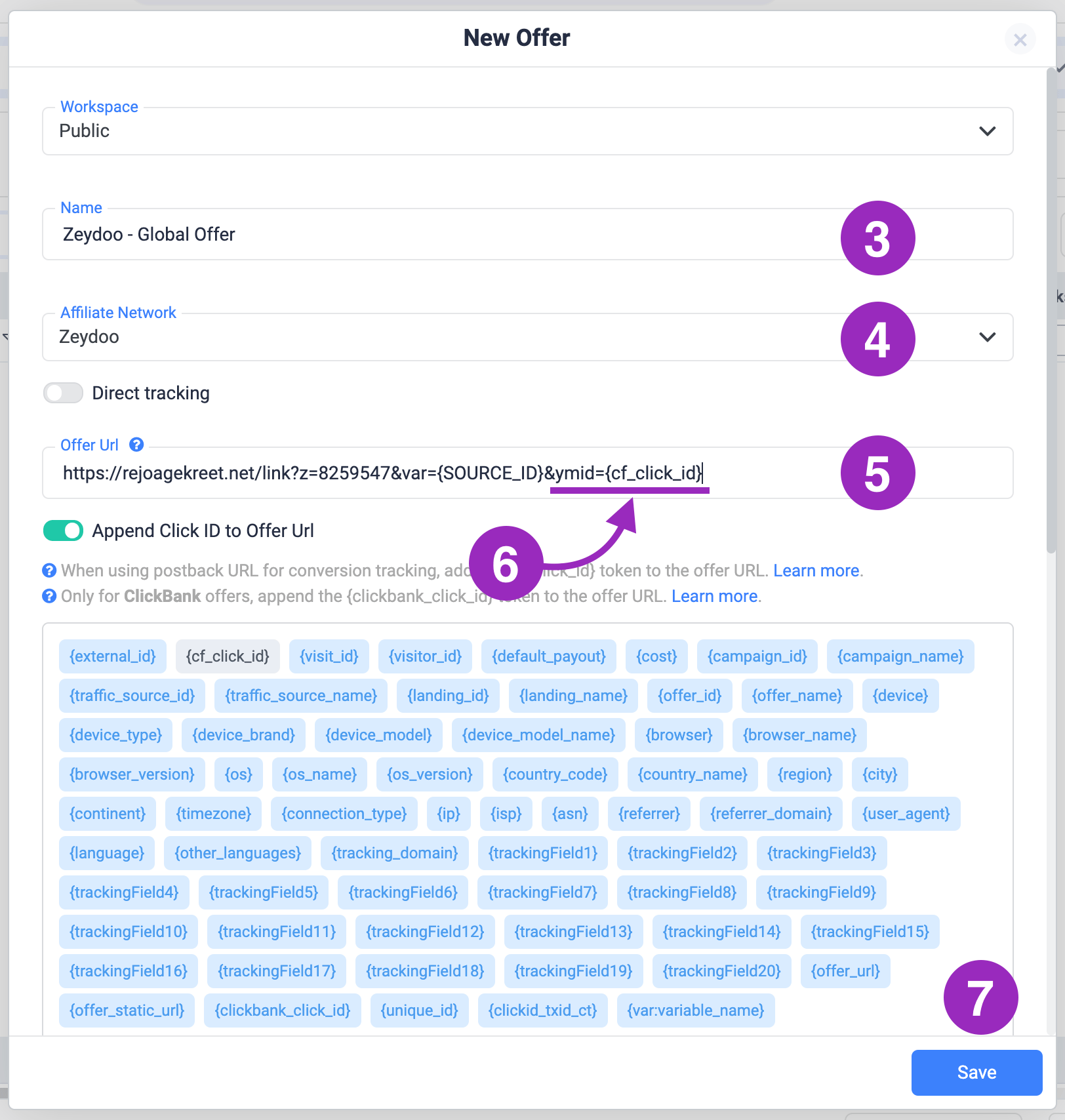
- Click the Save button.