

- The offer URL is your Traffic Company promotion link, with the ClickFlare click ID in its
click_idparameter. - The postback URL sends the click ID back to ClickFlare with every conversion, together with the payout and a unique conversion ID. Traffic Company builds it for you in a postback builder: you don’t paste a URL.
How the data flows
Offer URL = their parameter + your token. Postback URL = your parameter + their variable. Both sides use the name
click_id. In the postback you pick Traffic Company’s value from a drop-down instead of typing a macro.What you’ll need
- An active ClickFlare account with your own tracking domain set up. Shared domains get flagged by networks and blocked by browsers. See Tracking domains.
- A Traffic Company publisher account at
controlpanel.trafficcompany.com. - Your account’s postback. There is only one, so if another tracker uses it, switching it moves all your Traffic Company conversions to ClickFlare.
What the Traffic Company template contains
ClickFlare has a Traffic Company affiliate network template. It fills in the Traffic Company macros ClickFlare needs.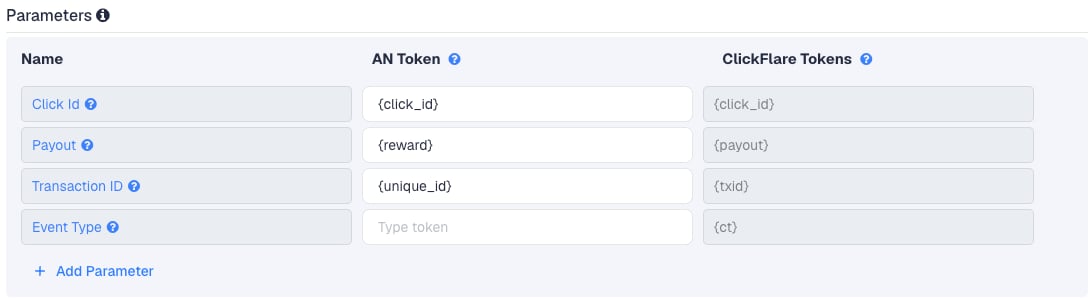
You won’t type these macros in Traffic Company. You pick the variables from a drop-down, and the builder writes the macros.
Setup
Everything in ClickFlare is done from inside the campaign editor. Create the offer and the affiliate network inline as you go.1
Set up your own tracking domain
Add a custom tracking domain before anything else, for example
trk.yourdomain.com. The postback is built on this domain, so changing it later means updating your Traffic Company postback too. See Tracking domains.2
Report conversions by postback time
Go to Settings → General Settings and set Conversion registration time reporting to Postback Timestamp.With the default Visit Timestamp, ClickFlare reports a conversion on the day of the original click. A conversion that comes in later then lands on a different date than in Traffic Company’s statistics. See Conversion registration time.
This is an account-wide setting. It changes the date conversions are reported on for every campaign.
3
Create the campaign
Go to Campaigns → New Campaign, choose Redirect tracking, pick your traffic source and select your tracking domain. See Creating a campaign.
4
Create the Traffic Company affiliate network
While creating the offer for the campaign, create a new affiliate network in its Affiliate Network field. You can also create it first under Affiliate Networks → + New. Either way:
- Search for Traffic Company and pick the Traffic Company template.
- Keep the name, or add your account to it if you run more than one.
- Check the parameters: Click Id
{click_id}, Payout{reward}, Transaction ID{unique_id}. - Leave Event Type empty.
- Under Conversion tracking, select your own Tracking Domain and keep S2S Postback URL as the tracking method.
- Set Payout currency to US dollars or euros. You’ll choose the same currency in Traffic Company’s postback builder, and they must match.
5
Get the promotion link from Traffic Company
Both kinds of link are under Promotions in the control panel.The subdomain is random and rotates. The link already ends in an empty
- Direct link: choose the offer category, then the offer. Fill in Promo info, tick “I have read the promotion regulations”, click Create link and then Copy.
- Smart link: choose the mainstream or adult smart link, tick the regulations box and click Create link.
&click_id=.6
Create the offer in ClickFlare
In the offer form:
- Name the offer.
- Select the Traffic Company affiliate network you just created.
- Paste the promotion link into Offer URL and type
{cf_click_id}right after the existingclick_id=:
-
Leave Append Click ID to Offer Url off. The link already has its
click_idparameter, so the toggle would add a second one. See The empty click ID on Traffic Company links.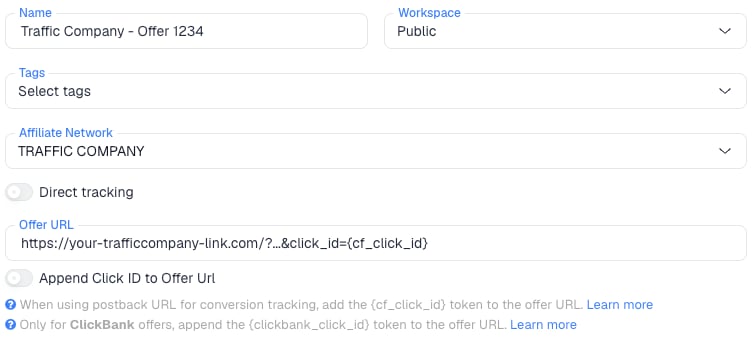
payout value from the postback. See Payouts and the smart link.7
Build the postback in Traffic Company
Click your profile icon, open Account and go to the Postback tab (next to Account details, Login details, Access-tokens and Subscriptions). Click Edit postback settings.The postback is a builder, not a free URL field. Choose the Custom platform card, not Voluum or WeCanTrack, and fill it in:
The three rows pair a URL Parameter you type with a Variable you pick from the drop-down:
Type the URL parameter names in lowercase, exactly as shown: they are ClickFlare’s parameter names.Save the settings. The page then shows the postback’s Status, Currency, Platform and the final Postback URL. Check two things:
- Status reads Enabled.
- The Postback URL matches the one ClickFlare generated:
https://trk.yourdomain.com/cf/cv?click_id={click_id}&payout={reward}&txid={unique_id}. The order of the parameters may differ. That’s fine.
The postback is global: it applies to all your Traffic Company offers, direct links and smart links alike. There’s one per account, and we found no per-offer postback.
8
Add a lander (optional)
If you send traffic through a lander before the offer, the lander’s CTA must use the ClickFlare click URL, not the Traffic Company link. ClickFlare then adds the click ID when it redirects to the offer. See Paths with landers and offers.
9
Save the campaign and launch
Save the campaign, copy the campaign URL from the Tracking tab and use it in your ads. Before you spend money on traffic, run the checks in Verify the setup.
The empty click ID on Traffic Company links
Every promotion link Traffic Company generates ends in&click_id= with no value. That matters for the Append Click ID to Offer Url toggle, which adds click_id={cf_click_id} to the end of the offer URL. On a Traffic Company link that gives:
click_id twice, once empty. Traffic Company doesn’t document which of the two it reads, so the click ID may not be stored.
Use one of these two ways, not both:
The first way is easier to check, because you see the full link in the Offer URL field.
Expect every new link to end the same way: Traffic Company may add
click_id= automatically once a postback is configured.
Payouts and the smart link
Usepayout → Reward in the postback and payout Auto in ClickFlare. A fixed payout in ClickFlare will often be wrong, for three reasons:
- Direct-link payouts vary. The control panel warns that a direct link’s payout can differ from the listed one if your targeting is wrong, and recommends the reward parameter.
- The smart link picks the offer, so each conversion can come from a different offer at a different payout.
- The conversion optimizer reroutes traffic. It’s a toggle at the top of Promotions → Offer wall. When it’s on, traffic with the wrong targeting, or traffic sent to a disabled offer, goes to your smart link instead. A conversion can then come from an offer you didn’t link, at its payout.
Why the transaction ID matters
By default ClickFlare keeps one conversion per click ID. If several postbacks arrive with the same click ID and no transaction ID, ClickFlare treats them as the same conversion, and you only see one of them (the last one received). Thetxid parameter tells ClickFlare that each postback is a separate conversion.
Map txid to Unique conversion ID. As its name says, it identifies one conversion, so:
- If Traffic Company resends the same conversion, it carries the same ID, and ClickFlare doesn’t count it twice.
- If a click produces a second conversion, it gets its own ID and ClickFlare counts it separately.
Voluum’s guide uses
{transaction_id}, from Traffic Company’s separate Voluum platform card. In the Custom builder, Unique conversion ID is written as {unique_id}, as in ClickFlare’s template.Pending and rejected conversions
Traffic Company shows the last 5 days of revenue as pending, to allow for delayed conversions. We found no status variable or per-status option in the builder. ClickFlare counts conversions as Traffic Company sends them. Compare the two once the pending window has passed, and adjust in ClickFlare if conversions were removed.Verify the setup
1
Click through the campaign
Open the ClickFlare campaign URL (with a lander, also click the CTA). When the offer loads, the first request goes to Traffic Company’s
blueviking.info domain. In the address bar or your browser’s network tab, check that there is one click_id= followed by a real ClickFlare click ID, not the literal text {cf_click_id} and not an empty value.2
Generate a test conversion
We found no postback test tool in the control panel. Ask your affiliate manager whether they can fire a test conversion on your click. Its statistics are real-time, so you can check that your click arrived with its
click_id. To check the ClickFlare side on its own, open the postback URL in your browser with the click ID from the previous step and real values in place of the macros.3
Check the conversion in ClickFlare
The conversion should appear on the campaign with the payout from Traffic Company. In Logs → Event Logs, check that it has a payout and a
txid.Troubleshooting
Conversions show in Traffic Company but not in ClickFlare
Conversions show in Traffic Company but not in ClickFlare
- The postback isn’t enabled. Open Account → Postback and check that Status reads Enabled.
- The Postback domain has parameters in it. The field takes the base URL only:
https://trk.yourdomain.com/cf/cv. Remove anything from?onward and map the parameters in Map URL Parameters instead. - The URL parameter names are wrong. They must be ClickFlare’s names, in lowercase:
click_id,payout,txid. - The click ID didn’t reach Traffic Company. The offer URL still ends in an empty
click_id=, carriesclick_idtwice (the toggle is on as well), or the lander CTA links straight to Traffic Company instead of using the ClickFlare click URL.
ClickFlare receives a literal cf_click_id or an empty click ID
ClickFlare receives a literal cf_click_id or an empty click ID
A literal
cf_click_id means the token lost its braces. An empty value means Traffic Company read the empty click_id= from the link. See The empty click ID on Traffic Company links.The payout differs from the offer's listed payout
The payout differs from the offer's listed payout
That’s expected with direct links when targeting is off, with the smart link, and with the conversion optimizer on. If amounts look converted, the builder’s Currency and ClickFlare’s Payout currency don’t match. Check that
payout is mapped to Reward and that the offer’s payout is Auto in ClickFlare. See Payouts and the smart link.Only one of several conversions shows in ClickFlare
Only one of several conversions shows in ClickFlare
The postback has no
txid, or txid is mapped to a variable that repeats. Map txid to Unique conversion ID. Conversions that were already merged are not restored.FAQ
Can I pass more data to Traffic Company?
Can I pass more data to Traffic Company?
The postback builder notes that custom parameters can be added to your promotion URL to track any data you like. Other trackers pass
sub_id and pi. The details are in Traffic Company’s technical documentation, which is behind the login, so check there or ask your affiliate manager before relying on a parameter. Keep click_id for the ClickFlare click ID.My account stopped working
My account stopped working
Traffic Company suspends accounts after 2 months of inactivity. Ask your affiliate manager how to get it reactivated.
Can I send the conversion back to my traffic source?
Can I send the conversion back to my traffic source?
Yes. Once ClickFlare records the Traffic Company conversion, it can send it to the traffic source through the traffic source’s postback or conversion API integration. Nothing changes on the Traffic Company side.
Related
Macro reference
Every network’s values
Postback parameters
click_id, payout, txid
Postback issues
Troubleshoot S2S