


ad.admitad.com/g/....
To track Admitad offers in ClickFlare, two links have to carry the ClickFlare click ID in both directions:
- The offer URL sends the ClickFlare click ID to Admitad in
subid4. - The postback URL sends it back to ClickFlare with every action, together with the payout and Admitad’s action ID.
subid4, the postback form’s Advanced mode, and which action statuses to tick.
How the data flows
Offer URL = their parameter + your token. Postback URL = your parameter + their macro. Admitad writes the click ID into
subid4 on the way in and reads it back with the [[[subid4]]] macro on the way out. Admitad macros are wrapped in three square brackets, not braces.What you’ll need
- An active ClickFlare account with your own tracking domain set up. Shared domains get flagged by networks and blocked by browsers. See Tracking domains.
- An Admitad publisher account with an ad space that has joined the program. You only get a working link for programs your ad space is connected to.
What the Admitad template contains
ClickFlare has an Admitad affiliate network template. It fills in the Admitad macros ClickFlare needs.![The Admitad template in ClickFlare: Click Id is [[[subid4]]], Payout is [[[payment_sum]]] and Transaction ID is [[[action_id]]]](https://mintcdn.com/clickflare/Yhae9Jga7DowS_ZL/images/integrations/admitad/clickflare-admitad-template-parameters.png?fit=max&auto=format&n=Yhae9Jga7DowS_ZL&q=85&s=dd300bd4b57a5b93be99303dbff17b80)
The template’s Append Click ID to Offer Url toggle adds
subid4={cf_click_id}, which is exactly what Admitad expects. Use it.
Setup
Everything in ClickFlare is done from inside the campaign editor. Create the offer and the affiliate network inline as you go.1
Set up your own tracking domain
Add a custom tracking domain before anything else, for example
trk.yourdomain.com. The postback URL is built on this domain, so changing it later means updating the postback in Admitad too. See Tracking domains.2
Report conversions by postback time
Go to Settings → General Settings and set Conversion registration time reporting to Postback Timestamp.Admitad reports an action on the day it happened. With the default Visit Timestamp, ClickFlare reports it on the day of the original click, so a sale that comes in days later lands on a different date in each platform. See Conversion registration time.
This is an account-wide setting. It changes the date conversions are reported on for every campaign.
3
Create the campaign
Go to Campaigns → New Campaign, choose Redirect tracking, pick your traffic source and select your tracking domain. See Creating a campaign.
4
Create the Admitad affiliate network
While creating the offer for the campaign, create a new affiliate network in its Affiliate Network field. You can also create it first under Affiliate Networks → + New. Either way:
- Search for Admitad and pick the Admitad template.
- Keep the name. One Admitad postback can cover all your ad spaces and programs, so one affiliate network in ClickFlare is enough.
- Leave Event Type empty.
- Under Conversion tracking, select your own Tracking Domain and keep S2S Postback URL as the tracking method.
- Set Payout currency to the currency your programs pay in. See Payout and currency.
5
Get the program's link from Admitad
In Admitad:
- Open Admitad Store and tick Joined in the filter.
- Open the program by clicking its logo, its name or More.
- Go to Banners and Links and copy the link with Copy link.
Tools → Deeplink Generator builds many deeplinks at once, but it only fills
subid, not subid4. Leave its SubID empty or use it for your own label, and let ClickFlare add subid4 in the next step.6
Create the offer in ClickFlare
In the offer form: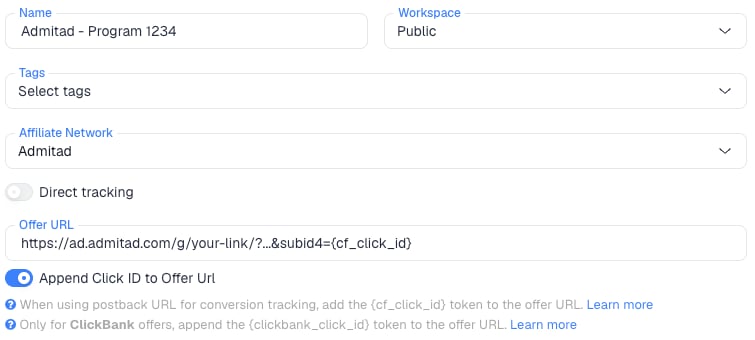
- Name the offer, for example after the program.
- Select the Admitad affiliate network you just created.
- Paste the Admitad link into Offer URL.
- Turn on Append Click ID to Offer Url. ClickFlare adds
subid4={cf_click_id}when it redirects:
subid4={cf_click_id} into the offer URL yourself and leave the toggle off. Use one or the other, not both.Set the payout to Auto so ClickFlare uses the payout value from the postback.7
Add the postback in Admitad
Back in Admitad, go to Tools → Postback URL and click Add postback URL. Fill in the form:
Click Test, then Save. The postback appears in the table, and you can edit or test it again under Settings.
8
Add a lander (optional)
If you send traffic through a lander before the offer, the lander’s CTA must use the ClickFlare click URL, not the Admitad link. ClickFlare then adds the click ID when it redirects to the offer. See Paths with landers and offers.
9
Save the campaign and launch
Save the campaign, copy the campaign URL from the Tracking tab and use it in your ads. Before you spend money on traffic, run the checks in Verify the setup.
Why subid4
Admitad links have five SubIDs:subid, subid1, subid2, subid3 and subid4. Use subid4 for the click ID:
- It’s Admitad’s own slot for click IDs, in Admitad’s documentation and in other trackers’ integrations.
- It’s the only one with room.
subid4takes up to 120 characters.subidtosubid3take 50. - It keeps the others free for your own labels. The Deeplink Generator fills
subid.
subid3 for anything: Admitad replaces its value with promo code information.
Simple or Advanced mode
The Editing mode at the bottom of the postback form decides which parameter names Admitad sends:- Simple sends Admitad’s parameters under Admitad’s own names, such as
subid4=...&payment_sum=.... ClickFlare expectsclick_id,payoutandtxid, so it can’t match them. - Advanced lets you name each parameter and drag the Admitad value onto it. Map
click_idto subid4,payoutto payment_sum andtxidto action_id. The Generated link line then shows:
[[[...]]] macros into Link also works: Admitad replaces each macro. In Simple mode Admitad may add its own parameters after yours, so Advanced is the cleaner choice.
Which action statuses to tick
The Action status setting decides which statuses send you a postback:
ClickFlare keeps one conversion per click ID and transaction ID: a later postback with the same
[[[action_id]]] replaces the earlier one (the last one received). The status filter implies that each ticked status sends its own postback with the same action ID, though Admitad doesn’t say so outright. With Created and Confirmed, an action arrives when it’s created and is replaced when it’s confirmed, without counting twice.
ClickFlare doesn’t read Admitad’s status, so a Declined postback would keep the conversion counted. Leave Declined off. An action declined after Created still stays in ClickFlare, so compare with Admitad’s reports, or tick only Confirmed if you can wait for approved actions.
To see the status in ClickFlare, add ¶m1=[[[payment_status]]] to the postback. Admitad sends new, approved, declined or pending (confirmed, then put on hold).
Why the action ID is the transaction ID
By default ClickFlare keeps one conversion per click ID. If several postbacks arrive with the same click ID and no transaction ID, ClickFlare treats them as the same conversion, and you only see one of them (the last one received). Thetxid value has to be different on every conversion, but the same for every status update of one conversion.
With
[[[action_id]]], a lead followed by a sale on the same click, or a second purchase, arrives with its own ID and counts as its own conversion.
Leads and sales
Each Admitad action has a type,lead or sale, and a rate name. To report leads and sales as separate columns in ClickFlare, add &ct=[[[type]]] to the postback and create two custom conversions with the parameters lead and sale:
[[[action]]] sends the rate name instead. You can also add one postback per Action type or Rate, each with a fixed ct= value.
Payout and currency
[[[payment_sum]]] is your earnings, a decimal such as 12.50. [[[order_sum]]] is the order amount. [[[currency]]] is the program’s currency, which isn’t always USD. Admitad doesn’t say whether [[[payment_sum]]] is converted to your account currency, so assume it isn’t: ClickFlare reads the number in the affiliate network’s Payout currency. Add ¶m2=[[[currency]]] to the postback to see each program’s currency, and if your programs pay in different currencies, compare revenue per program with Admitad’s reports.
Verify the setup
1
Click through the campaign
Open the ClickFlare campaign URL (with a lander, also click the CTA). Check that the request to
ad.admitad.com has subid4= followed by a real ClickFlare click ID, not the literal text {cf_click_id}. Copy that click ID.2
Test the postback
In the postback form, click Test. For a GET postback, Admitad shows the URL with test values, which you can edit. Replace the
click_id value with the click ID you copied, then click Test. Admitad answers “The request has been sent to your address.” If you see “An error occurred during the request. Check the address.”, check the tracking domain in the URL.3
Check the conversion in ClickFlare
The conversion should appear on the campaign with the test payout. In Logs → Event Logs, check that it arrived with a
txid. If you see [[[subid4]]] or another macro literally, Admitad didn’t replace it: check the spelling. If the test succeeds in Admitad but nothing reaches ClickFlare, contact Admitad support.Troubleshooting
Actions show in Admitad but not in ClickFlare
Actions show in Admitad but not in ClickFlare
Work through these in order:
- The postback is in Simple mode. ClickFlare receives Admitad’s parameter names. Switch to Advanced.
- The event type isn’t Action. Only Action fires on leads and sales.
- The status filter doesn’t match. A postback on Confirmed only doesn’t fire for new actions.
- The filters exclude the program. Check Ad space, Program, Rate and Action type.
- subid4 is empty in Admitad. The offer URL is missing
subid4={cf_click_id}, the link came from the Deeplink Generator without it, or the lander CTA links straight to Admitad instead of using the ClickFlare click URL.
Declined actions still count in ClickFlare
Declined actions still count in ClickFlare
The action was sent when it was Created, and ClickFlare doesn’t read Admitad’s status. Make sure Declined isn’t ticked, or tick only Confirmed. See Which action statuses to tick.
Admitad's SubID report stopped grouping by SubID4
Admitad's SubID report stopped grouping by SubID4
Admitad stops grouping a SubID in Reports → on SubID past 100,000 unique values in 30 days, which per-click IDs reach fast. Tracking and postbacks keep working, and the data stays in the On actions report and the API.
The payout is 0 or in the wrong currency
The payout is 0 or in the wrong currency
Check that the postback has
payout=[[[payment_sum]]], not [[[order_sum]]], and that the offer’s payout is set to Auto in ClickFlare. For the currency, see Payout and currency.FAQ
Can I pass more data to Admitad?
Can I pass more data to Admitad?
Yes. Use
subid to subid3 in the offer URL, for example subid={campaign_id}&subid1={trackingField1}. Each takes up to 50 characters, and Admitad shows them in its SubID reports. Keep subid4 for the click ID.Can I send the conversion back to my traffic source?
Can I send the conversion back to my traffic source?
Yes. Once ClickFlare records the Admitad conversion, it can send it to the traffic source through the traffic source’s postback or conversion API integration. Nothing changes on the Admitad side.
Related
Macro reference
Every network’s values
Custom conversions
Split leads and sales
Postback issues
Troubleshoot S2S