

- The offer URL is your Everad stream link, with the ClickFlare click ID in
sid1. - The postback URL sends the click ID back to ClickFlare with the payout.
How the data flows
Offer URL = their parameter + your token. Postback URL = your parameter + their macro. Everad writes the click ID into
sid1 on the way in and reads it back with the {sid1} macro on the way out. The parameter is lowercase sid1.What you’ll need
- An active ClickFlare account with your own tracking domain set up. Shared domains get flagged by networks and blocked by browsers. See Tracking domains.
- An Everad affiliate account with access to the offer you want to run. Offers need an access request and approval before you can create a stream for them.
Everad’s menu labels below come from Everad’s own 2021 blog posts and from tracker guides. The dashboard may have changed since, so a label can differ slightly in your account. The settings themselves are the same.
What the Everad template contains
ClickFlare has an Everad affiliate network template. It fills in the Everad macros ClickFlare needs.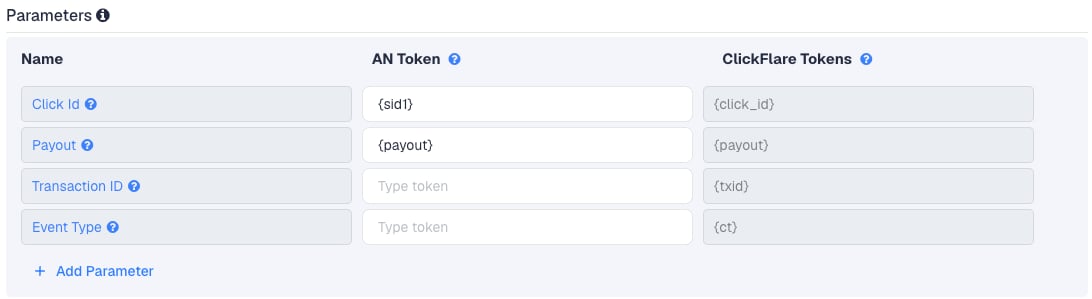
Setup
Everything in ClickFlare is done from inside the campaign editor. Create the offer and the affiliate network inline as you go.1
Set up your own tracking domain
Add a custom tracking domain before anything else, for example
trk.yourdomain.com. The postback URL is built on this domain, so changing it later means updating the postback in Everad too. See Tracking domains.2
Report conversions by postback time
Go to Settings → General Settings and set Conversion registration time reporting to Postback Timestamp.On COD offers, the approval comes in long after the click. With the default Visit Timestamp, ClickFlare reports the conversion on the day of the original click, so past days keep changing as approvals arrive, and the dates don’t match Everad’s. See Conversion registration time.
This is an account-wide setting. It changes the date conversions are reported on for every campaign.
3
Create the campaign
Go to Campaigns → New Campaign, choose Redirect tracking, pick your traffic source and select your tracking domain. See Creating a campaign.
4
Create the Everad affiliate network
While creating the offer for the campaign, create a new affiliate network in its Affiliate Network field. You can also create it first under Affiliate Networks → + New. Either way:
- Search for Everad and pick the template.
- Check that Click Id is
{sid1}and Payout is{payout}. - Leave Event Type empty. Leave Transaction ID empty for now, or fill it as in Transaction ID.
- Under Conversion tracking, select your own Tracking Domain and keep S2S Postback URL as the tracking method.
- Set Payout currency to the currency of your Everad streams. See Payout currency.
5
Request access to the offer in Everad
In Everad, go to Offers, filter for the offer and click Request access. Once Everad approves it, the offer moves to My offers.
6
Create a stream in Everad
In Everad, a tracking link belongs to a stream, which guides also call a campaign or flow. Tracker guides describe it under Campaigns → Add campaign. Everad’s FAQ mentions Tools → Streams. In the stream form:
- Pick the offer and enter a name.
- Choose the GEO, language and traffic source.
- Choose the currency. This sets the currency of
{payout}. - Choose the landing and transit. In Everad, “landing” is the offer page and “transit” is the pre-lander.
- Save the stream, then click the link icon next to it to copy the link.
7
Create the offer in ClickFlare
In the offer form: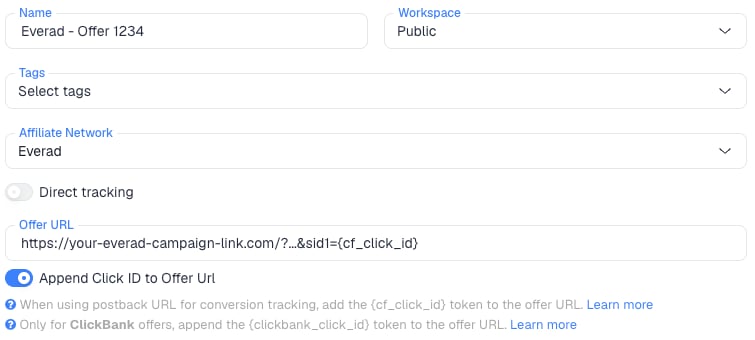
- Name the offer.
- Select the Everad affiliate network you just created.
- Paste the stream link into Offer URL.
- Turn on Append Click ID to Offer Url. ClickFlare adds
sid1={cf_click_id}, built from the template’s{sid1}macro. Or add it yourself and leave the toggle off:&sid1={cf_click_id}if the link already has a?,?sid1={cf_click_id}if it doesn’t.
payout value from the postback.8
Add the global postback in Everad
Tracker guides describe a Global postback button on the Campaigns (streams) page. Then:
- Paste the ClickFlare postback URL into the Postback URL field.
- Set it to fire for Approved only. See Which postback mode to choose.
- Click Save.
9
Add a lander (optional)
If you use your own lander instead of an Everad transit, its CTA must use the ClickFlare click URL, not the Everad link. ClickFlare then adds the click ID when it redirects to the offer. See Paths with landers and offers.
10
Save the campaign and launch
Save the campaign, copy the campaign URL from the Tracking tab and use it in your ads. Before you spend money on traffic, run the checks in Verify the setup.
Which postback mode to choose
An Everad lead has one of four statuses:
Everad’s own blog lists these firing options for a postback:
- On status change: fires every time the lead’s status changes.
- Don’t send trash: used together with status change.
- Approved only.
- Pending only: fires once, with no later changes.
- Payout only for approved leads: available on a local (per-stream) postback only.
Recommended: Approved only
Set the global postback to Approved only. ClickFlare then receives a postback only for approved leads, so every conversion in your reports is one Everad pays you for. The trade-off is timing: conversions show up only after the call, hours or days after the click. Judge a campaign on yesterday’s or last week’s numbers, not the last hour. ClickFlare doesn’t read the lead status. Any postback that arrives counts as a conversion, with whatever payout it carries.Alternative: status change on a local postback
If you want to see leads as they come in, use On status change with Don’t send trash on a stream’s local postback, and turn on Payout only for approved leads. Know what ClickFlare does with it:- All status updates are one conversion. Every update for a lead carries the same click ID, and without a different
txidthe last postback received replaces the earlier one. So each lead counts once, with its latest payout. - Rejected leads stay counted. A lead that ends up rejected is still a conversion in ClickFlare. With Payout only for approved leads, it should arrive without a payout, but we couldn’t confirm what Everad sends there. Check a rejected postback in your logs.
- You can tag the latest status. Add
&ct={status}to the URL and create matching custom conversions with the parameterspending,approvedandrejected. You then see each lead’s current status, not a count of leads next to a count of approvals.
Transaction ID (optional)
By default ClickFlare keeps one conversion per click ID. Postbacks with the same click ID and no transaction ID count as one conversion, and ClickFlare keeps the last one received. On Everad that’s mostly fine: one click makes one lead, and status changes update the same lead. A transaction ID helps when a visitor orders twice from the same click, and stops a resent postback from counting twice. The template leaves Transaction ID empty because sources disagree on the macro name. One tracker uses{id}, which looks like the lead or order ID. Another lists {transactionid}. To add one:
- Open the macro list next to the postback field in Everad and check which of the two it shows.
-
In ClickFlare, type that macro into the network’s Transaction ID field. The postback URL gets
&txid=with it, for example: - Paste the new postback URL into Everad.
Payout currency
{payout} is in the currency you chose for the stream. Set your streams to the currency of the network’s Payout currency in ClickFlare, usually US dollars. If you run streams in other currencies, you can pass the currency along as an extra value with ¶m1={currency}:
Verify the setup
1
Click through the campaign
Open the ClickFlare campaign URL (with a lander, also click the CTA). When the offer loads, the first request goes to the Everad stream domain. Check that it has one
sid1= followed by a real ClickFlare click ID, not the literal text {cf_click_id}.2
Check the click in Everad
Everad’s statistics update live. Check that the click is recorded and that sid1 shows the ClickFlare click ID. If sid1 is empty there, no postback can be matched.
3
Check the postback
With Approved only, a postback fires only after a real approval, so test conversions aren’t possible. Don’t submit fake orders: they end up as trash. Instead:
- Wait for the first approved lead and check that it arrives in ClickFlare. The Global postback section also has a resend tool: choose a stream, a conversion and a date to fire a real conversion’s postback again.
- To check the URL itself right away, copy it, replace the macros with a real ClickFlare click ID from your test click and a test payout, and open it in your browser.
4
Check the conversion in ClickFlare
The conversion should appear on the campaign with the payout from Everad. In Logs → Event Logs, check the click ID, the payout and, if you added one, the
txid.Troubleshooting
Approved leads show in Everad but not in ClickFlare
Approved leads show in Everad but not in ClickFlare
Work through these in order:
- The stream has its own postback. A local postback overrides the global one. Remove it or replace it with the ClickFlare URL.
- The global postback wasn’t saved, or it’s set to a mode that doesn’t fire for approved leads.
- sid1 is empty in Everad. The offer URL is missing
sid1={cf_click_id}, or your lander’s CTA links straight to Everad instead of using the ClickFlare click URL. - The stream overwrote sid1. Automatic UTM-to-sid mapping put another value in
sid1. Turn it off forsid1. - The approval hasn’t happened yet. Check the lead’s status in Everad. A pending lead fires nothing on Approved only.
ClickFlare shows far more revenue than Everad pays
ClickFlare shows far more revenue than Everad pays
The postback fires on status change or pending, so leads arrive with a payout before the call center decides, including ones that are later rejected. Switch to Approved only. Leads already recorded stay in ClickFlare, so adjust past days by hand.
ClickFlare receives a literal macro or cf_click_id
ClickFlare receives a literal macro or cf_click_id
- A literal
{sid1}means Everad didn’t replace the macro. Check the spelling: it’s lowercase. - A literal
cf_click_idmeans the offer URL has the token without braces. It must be{cf_click_id}. - Placeholders left in a copied postback template, such as
REPLACEorOPTIONAL, break tracking. Paste the URL from ClickFlare as it is.
The payout is in the wrong currency
The payout is in the wrong currency
The stream’s currency doesn’t match the network’s Payout currency in ClickFlare. Change the stream’s currency or the network’s, as in Payout currency.
FAQ
Why sid1?
Why sid1?
sid1 is the ClickFlare template’s default and what most trackers use for Everad. Everad has sid1 to sid5. Another one works as long as the offer URL and the postback use the same one.Can I pass more data to Everad?
Can I pass more data to Everad?
Yes. Use
sid2 to sid5 in the offer URL, for example sid2={campaign_id}&sid3={trackingField1}, and see them in Everad’s statistics. Keep sid1 for the click ID.Can I send the conversion back to my traffic source?
Can I send the conversion back to my traffic source?
Yes. Once ClickFlare records the Everad conversion, it can send it to the traffic source through the traffic source’s postback or conversion API integration. With Approved only, the traffic source optimizes for approved leads, which is usually what you want on COD.
Related
Macro reference
Every network’s values
Dr.Cash
Another nutra COD setup
Custom conversions
Report leads by status