


#s2#, #price#) and CAKE-like menus. If you know CAKE, most of it will look familiar. The CAKE guide has more background on how those tokens work.
To track ClickDealer offers in ClickFlare, two links have to carry the ClickFlare click ID in both directions:
- The offer URL sends the ClickFlare click ID to ClickDealer in
s2. - The postback URL sends it back to ClickFlare with every conversion, together with the payout and a unique conversion ID.
How the data flows
s2 on the way in and reads it back with the #s2# token on the way out. Its tokens are lowercase and wrapped in #, not braces.What you’ll need
- An active ClickFlare account with your own tracking domain set up. Shared domains get flagged by networks and blocked by browsers. See Tracking domains.
- A ClickDealer affiliate account (CPA network login), approved for the offer you want to run. Offers you apply for wait under Pending campaigns until ClickDealer approves them.
What the ClickDealer template contains
ClickFlare has a ClickDealer affiliate network template. It fills in the tokens ClickFlare needs.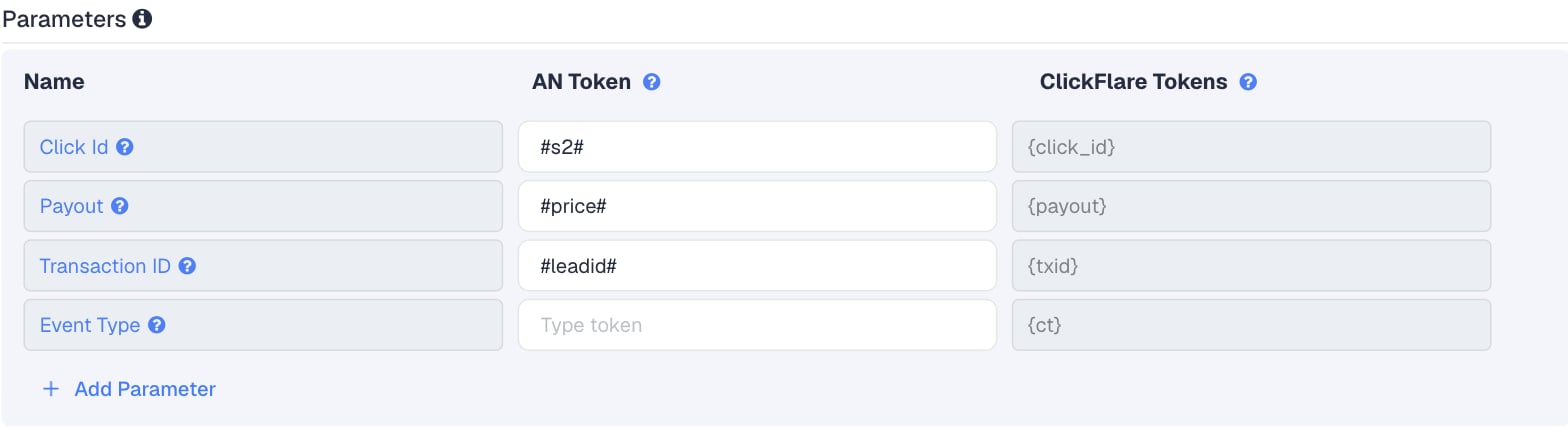
Setup
Everything in ClickFlare is done from inside the campaign editor. Create the offer and the affiliate network inline as you go.Set up your own tracking domain
trk.yourdomain.com. The postback URL is built on this domain, so changing it later means updating the postback in ClickDealer too. See Tracking domains.Report conversions by postback time
Create the campaign
Create the ClickDealer affiliate network
- Search for ClickDealer and pick the ClickDealer template.
- Keep Click Id as
#s2#, Payout as#price#and Transaction ID as#leadid#. - Leave Event Type empty.
- Under Conversion tracking, select your own Tracking Domain and keep S2S Postback URL as the tracking method.
- Set Payout currency to the currency ClickDealer pays you in.

Get the offer's tracking link from ClickDealer
- Go to Offers → Browse offers and open the offer.
- Tick I agree and click Apply for offer.
- Choose a Media type, add notes if you want, and click Apply.
- Once approved, the offer moves from Pending campaigns to My campaigns. Open it there.
- Scroll to Get tracking links, pick a creative and click Copy URL to clipboard.
s2, not s1. On CAKE-style platforms s1 is meant for sub-affiliate IDs and holds only 50 characters. s2 to s5 take up to 100 characters each, and ClickFlare click IDs fit easily.Create the offer in ClickFlare
- Name the offer.
- Select the ClickDealer affiliate network you just created.
- Paste the ClickDealer link into Offer URL with
&s2={cf_click_id}at the end:
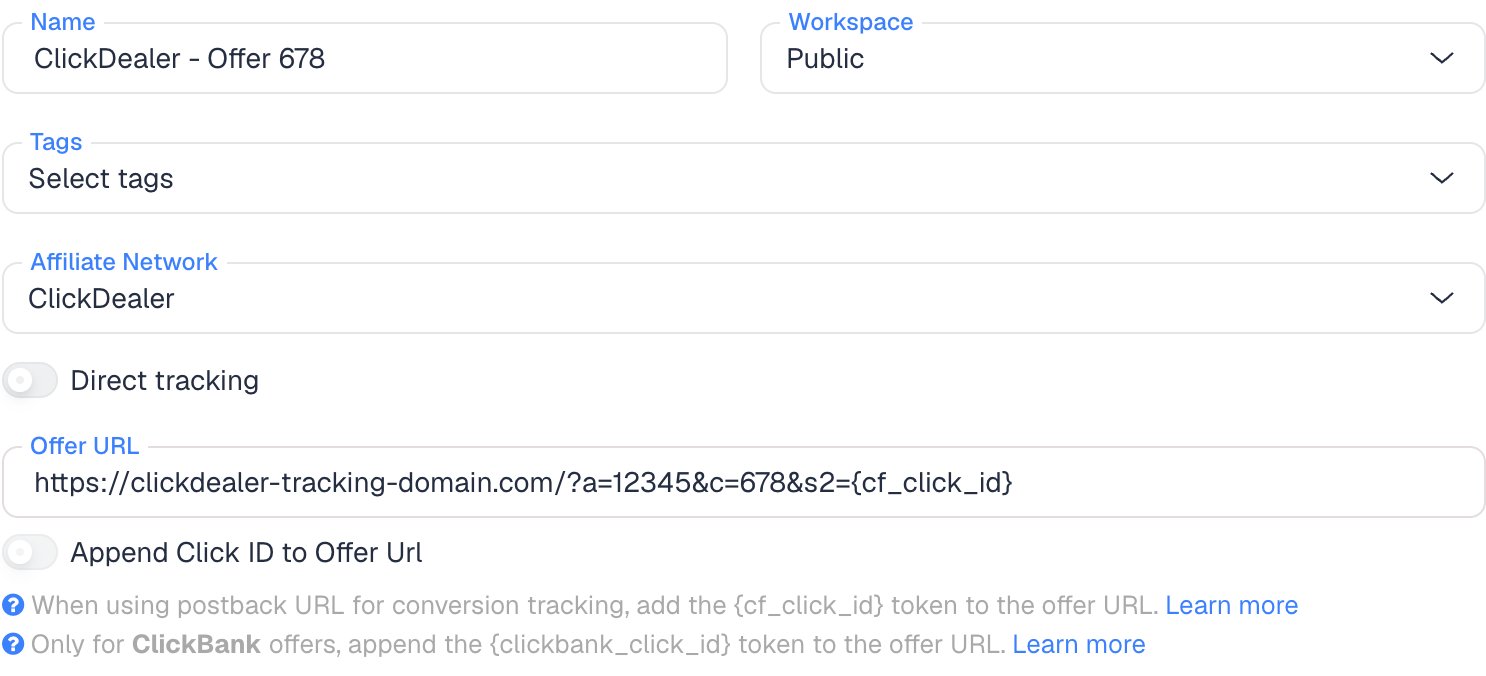
s2, turn on Append Click ID to Offer Url instead. ClickFlare then adds s2={cf_click_id} from the template. Use one or the other, not both.Set the payout to Auto so ClickFlare uses the payout value from the postback.Add the postback in ClickDealer
- In the left menu, go to Tools → Global postback.
- Paste the ClickFlare postback URL into Global S2S postback URL.
- Click Save.
Add a lander (optional)
Save the campaign and launch
Global, campaign and event postbacks
ClickDealer lets you add a global postback on your account, or individual postbacks on selected campaigns and events.Why the transaction ID matters
By default ClickFlare keeps one conversion per click ID. If several postbacks arrive with the same click ID and no transaction ID, ClickFlare treats them as the same conversion, and you only see one of them (the last one received). Thetxid parameter tells ClickFlare that each postback is a separate conversion, so its value has to be different on every conversion.
#leadid# is assigned once per conversion. A resend of the same conversion carries the same value, so ClickFlare doesn’t count it twice, while a separate event on the same click gets its own value and counts on its own.
ClickDealer doesn’t publish its token list, so confirm #leadid# is supported in your account. Check the token list on the offer’s page, or ask your affiliate manager. If it isn’t listed, remove &txid=#leadid# from the postback. Single-event offers still work without it. On multi-event offers, conversions on the same click then merge into one.
Offers with several events
Some offers pay on more than one step, for example a lead and then a sale. ClickDealer supports postbacks per event, but has no known token that sends the event name. To report each step as its own conversion type in ClickFlare:- Create a custom conversion for each step under Settings → Custom Conversions, for example
leadandsale. See Custom conversions. - Add a separate postback on each event in ClickDealer, with a fixed
&ct=value that exactly matches the custom conversion parameter:
- Don’t also cover those events with the global postback, or each event arrives twice: once with
ctand once without.
txid=#leadid# so each step counts, and use the payout to tell them apart in your reports.
Pending and rejected conversions
ClickDealer has no known status token, and nothing public says it sends a postback when a conversion is later rejected or reversed. ClickFlare doesn’t read a status from the postback anyway. ClickFlare therefore counts what ClickDealer recorded, not what it finally paid. Compare against ClickDealer’s conversion report before payday, and adjust in ClickFlare if conversions were scrubbed.Verify the setup
Click through the campaign
s2= followed by a real ClickFlare click ID, not the literal text {cf_click_id}. Copy that click ID.Fire a test postback with a real click ID
#s2# with the click ID from the previous step, #price# with a number and #leadid# with any test value. Open it in your browser. Or run a real conversion.Check the conversion in ClickFlare
txid.Troubleshooting
Conversions show in ClickDealer but not in ClickFlare
Conversions show in ClickDealer but not in ClickFlare
- No postback saved. Check Tools → Global postback, or the offer’s own postback if you set one there.
- s2 is missing or empty. The offer URL is missing
s2={cf_click_id}, or the lander CTA links straight to ClickDealer instead of using the ClickFlare click URL. A missings2is the most common mistake. - The click ID went into another sub ID. If the offer URL uses
s1ors3but the postback reads#s2#, ClickFlare receives the wrong value. Both sides must use the same sub ID. - You only used the test tool. ClickDealer’s postback test has no real ClickFlare click ID, so it never shows up as a conversion. See Verify the setup.
Only one of several conversions shows in ClickFlare
Only one of several conversions shows in ClickFlare
txid, or #leadid# isn’t replaced in your account. Check that the postback ends in &txid=#leadid# and that the offer’s token list includes #leadid#. Conversions that were already merged are not restored.ClickFlare receives a literal #s2# or cf_click_id
ClickFlare receives a literal #s2# or cf_click_id
- A literal
#s2#means ClickDealer didn’t replace the token. Check the spelling against the offer’s token list. Tokens are lowercase. - A literal
cf_click_idmeans the offer URL in ClickFlare has the token without braces. It must be{cf_click_id}.
The payout is 0, empty or in the wrong currency
The payout is 0, empty or in the wrong currency
- Check that the postback has
payout=#price#and the offer’s payout is set to Auto in ClickFlare. #price#has no currency. Set the affiliate network’s Payout currency in ClickFlare to the currency ClickDealer pays you in.
Each event arrives twice
Each event arrives twice
FAQ
Is ClickDealer built on CAKE?
Is ClickDealer built on CAKE?
Does this work for ClickDealer Smartlink?
Does this work for ClickDealer Smartlink?
Can I pass more data to ClickDealer?
Can I pass more data to ClickDealer?
s3={campaign_id}. ClickDealer shows them in its reports. Keep s2 for the click ID.Can I send the conversion back to my traffic source?
Can I send the conversion back to my traffic source?