

- The offer URL is your Monetizer Direct Link, with the ClickFlare click ID in it.
- The postback URL sends the click ID back to ClickFlare with every conversion, together with the payout and a transaction ID. Monetizer has one Global Postback for your whole account.
How the data flows
Offer URL = their parameter + your token. Postback URL = your parameter + their macro. With Monetizer you don’t write the parameter yourself: you type
{cf_click_id} into the link’s Click ID field and Monetizer puts it in the Direct Link. The {clickID} macro returns it in the postback.What you’ll need
- An active ClickFlare account with your own tracking domain set up. Shared domains get flagged by networks and blocked by browsers. See Tracking domains.
- A Monetizer account.
- A domain added to your Monetizer account, with its SSL certificate generated. Monetizer won’t create a Direct Link without one. This is a separate step from your ClickFlare tracking domain.
What the Monetizer template contains
ClickFlare has a Monetizer affiliate network template. It fills in the Monetizer macros ClickFlare needs.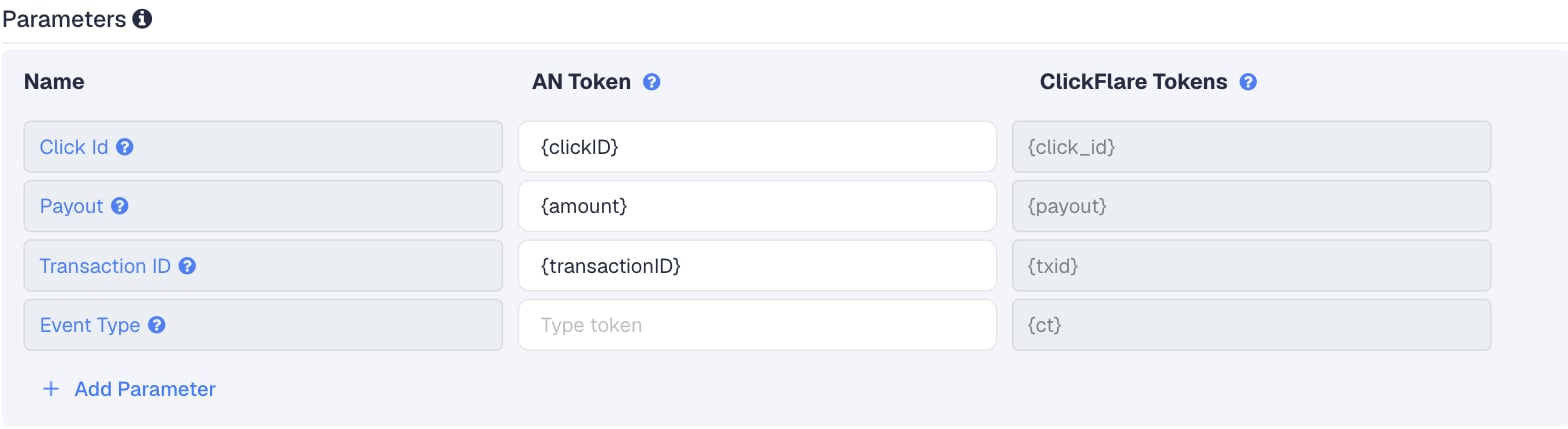
The macros are case-sensitive as written:
{clickID}, {amount}, {transactionID}. Monetizer doesn’t publish a description of each macro, so the meanings above come from their names and where the dashboard offers them. See What the postback macros send.
Setup
Everything in ClickFlare is done from inside the campaign editor. Create the offer and the affiliate network inline as you go.1
Set up your own tracking domain
Add a custom tracking domain before anything else, for example
trk.yourdomain.com. The postback URL is built on this domain, so changing it later means updating your Monetizer Global Postback too. See Tracking domains.2
Report conversions by postback time
Go to Settings → General Settings and set Conversion registration time reporting to Postback Timestamp.With the default Visit Timestamp, ClickFlare reports a conversion on the day of the original click. A conversion that comes in later then lands on a different date than in Monetizer’s stats. See Conversion registration time.
This is an account-wide setting. It changes the date conversions are reported on for every campaign.
3
Create the campaign
Go to Campaigns → New Campaign, choose Redirect tracking, pick your traffic source and select your tracking domain. See Creating a campaign.
4
Create the Monetizer affiliate network
While creating the offer for the campaign, create a new affiliate network in its Affiliate Network field. You can also create it first under Affiliate Networks → + New. Either way:
- Search for Monetizer and pick the Monetizer template.
- Keep the name, or add your account to it if you run more than one.
- Check the parameters: Click Id
{clickID}, Payout{amount}, Transaction ID{transactionID}. - Leave Event Type empty.
- Under Conversion tracking, select your own Tracking Domain and keep S2S Postback URL as the tracking method.
- Set Payout currency to the currency Monetizer pays you in. The dashboard shows amounts in US dollars.
5
Add a domain in Monetizer
A Direct Link runs on a domain you add to your Monetizer account. Add one there and wait until Monetizer has generated its SSL certificate. Until then, Monetizer shows a message asking you to add a domain and wait for the certificate, and won’t create the Direct Link.
6
Create the link in Monetizer
In Monetizer, create a new link. The form has these fields:
The Click ID field has quick-insert buttons for other trackers’ tokens, such as
{clickid} and #clickid#. Don’t use them: type {cf_click_id} yourself, with braces. On an existing link, the same field is called Click ID/Subid under General Settings when you edit the link. Keyword 1 to Keyword 5 there take up to five more values from your traffic source.7
Copy the Direct Link and check it
In your link list, click Get Direct Link on the link. Monetizer builds it from your domain and the link’s settings, and leaves out empty fields:Before you copy it, check that
{cf_click_id} is in the link, braces included. In the current dashboard it follows cid=. See Which parameter carries the click ID.The Direct Link dialog also offers two optional switches: add &np=1 to skip push subscription collection and go straight to the offer, or &np=2 to skip it and go to an offer that doesn’t collect subscribers.8
Create the offer in ClickFlare
In the offer form:
- Name the offer.
- Select the Monetizer affiliate network you just created.
-
Paste the Direct Link into Offer URL as it is, with
cid={cf_click_id}already in it. -
Leave Append Click ID to Offer Url off. The toggle would add
clickID={cf_click_id}from the template’s Click Id macro, which isn’t the parameter the Direct Link uses.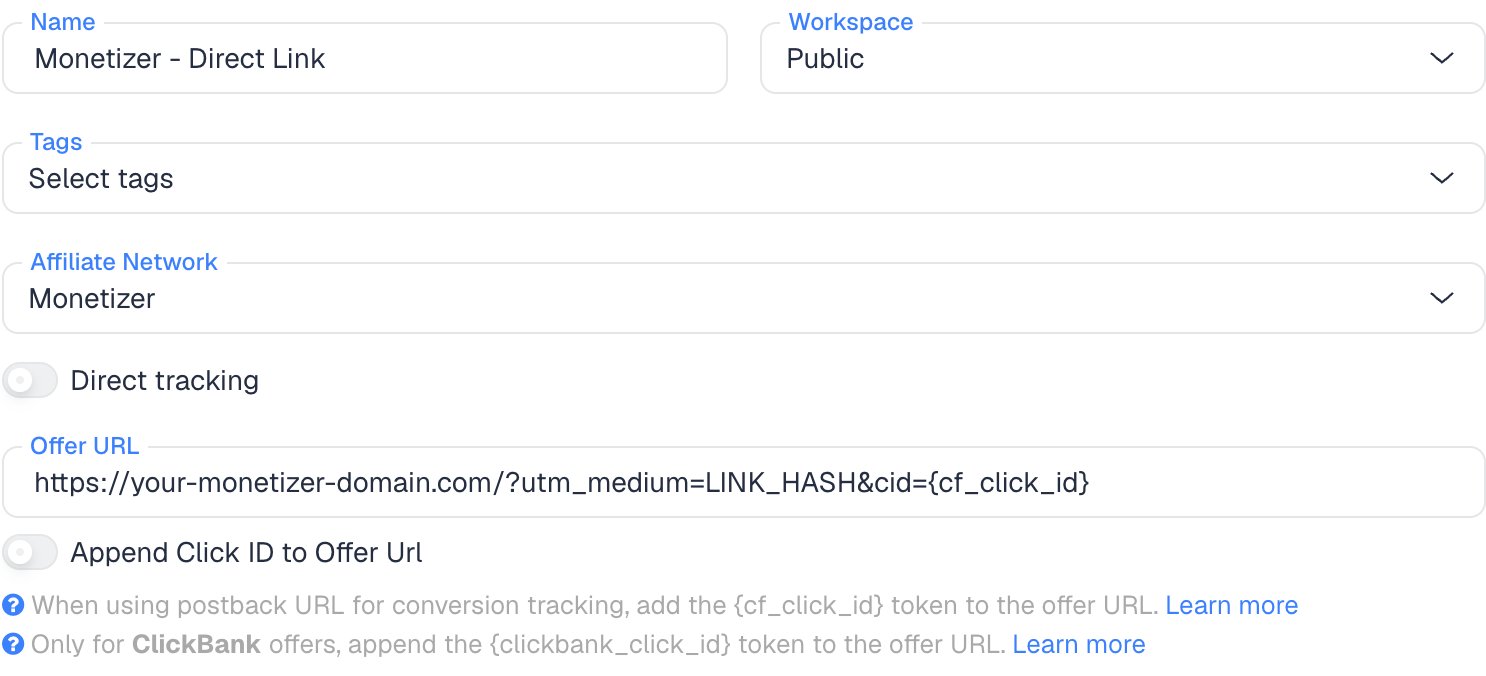
payout value from the postback. Monetizer routes each visitor to a different offer, and Smart Fallback changes the payout, so a fixed payout would be wrong.9
Add the Global Postback in Monetizer
In Monetizer, open your profile’s account settings and find Global Postback. Paste the ClickFlare postback URL into the field and save.
- The field holds up to 320 characters. The basic ClickFlare URL fits easily. Watch the length if you add extra parameters.
- Monetizer checks the macros when you save. A misspelled macro gives the error “Unsupported macro in ‘Global Postback’.”
- There are no event, goal or status options. The postback fires for your conversions, whatever the offer.
There is one Global Postback per account. It can only point to one tracker. If it already holds another tracker’s URL, replacing it moves all your Monetizer conversions to ClickFlare.
10
Add a lander (optional)
If you send traffic through a lander before the offer, the lander’s CTA must use the ClickFlare click URL, not the Monetizer Direct Link. ClickFlare then adds the click ID when it redirects to the offer. See Paths with landers and offers.
11
Save the campaign and launch
Save the campaign, copy the campaign URL from the Tracking tab and use it in your ads. Before you spend money on traffic, run the checks in Verify the setup.
Which parameter carries the click ID
Sources disagree on the URL parameter Monetizer reads the click ID from:- The Direct Link builder in the current dashboard puts the Click ID field’s value in
cid=. - Some tracker guides tell you to append
clickID=to the link instead. That may be an older or alternative name. We couldn’t confirm that Monetizer still reads it.
{cf_click_id} into the Click ID field, copy the Direct Link it generates, and check that {cf_click_id} is in it. Don’t append a parameter by hand, and don’t use Append Click ID to Offer Url in ClickFlare. Then run a test click and check that Monetizer recorded the click ID, as in Verify the setup.
What the postback macros send
The Global Postback field offers these macros as buttons. Monetizer doesn’t document what each one contains, so treat the meanings below as what the names and the dashboard suggest, and confirm with a test conversion.
The macro validator also accepts lowercase
{clickid}. Stick to the template’s spelling.
By default ClickFlare keeps one conversion per click ID. Postbacks with the same click ID and no transaction ID count as one conversion, and ClickFlare keeps the last one received. Monetizer doesn’t say whether {transactionID} is unique per conversion. It’s sent next to {clickID} as a separate value, so it’s most likely the lead or conversion ID. Keep it as the txid: if Monetizer resends a conversion, the same transaction ID stops ClickFlare from counting it twice.
To see which offer and advertiser converted in ClickFlare, add them as extra parameters, for example:
Other Monetizer postbacks
Monetizer has a few other postback fields. None of them replaces the Global Postback for your ClickFlare conversions:- Push Subscription Postback fires when a visitor subscribes to push notifications. Monetizer describes it as informational only, with no revenue. Its macros include
{clickID}and{subscriptionid}. - App Link postback is set per app link and takes
{clickID}and{payout}. - League Postback URL is for network and partner accounts.
Verify the setup
1
Click through the campaign
Open the ClickFlare campaign URL (with a lander, also click the CTA). When the offer loads, the first request goes to your Monetizer domain. Check that
cid= is followed by a real ClickFlare click ID, not the literal text {cf_click_id}.2
Test the postback
We found no postback test button in the Monetizer dashboard. Ask Monetizer support whether they can fire a test conversion on your click. To check the ClickFlare side on its own, open the postback URL in your browser with the click ID from the previous step and real values in place of the macros.
3
Check the conversion in ClickFlare
The conversion should appear on the campaign with the payout from Monetizer. In Logs → Event Logs, check that it has a payout and a
txid. Once real conversions come in, compare them with Monetizer’s Leads report or live lead feed.Troubleshooting
Conversions show in Monetizer but not in ClickFlare
Conversions show in Monetizer but not in ClickFlare
Work through these in order:
- The Global Postback is empty or points elsewhere. Check the field in your account settings.
- The click ID didn’t reach Monetizer. The Direct Link in the offer URL has no
{cf_click_id}, or the lander CTA links straight to Monetizer instead of using the ClickFlare click URL. Users of other trackers have reported Monetizer postback errors (HTTP 400) when the click ID was missing, for example in back-button flows. - The click ID went into the wrong parameter. You appended
clickID=by hand or turned on Append Click ID to Offer Url. Use the Direct Link as Monetizer builds it, with{cf_click_id}in the Click ID field.
Monetizer says Unsupported macro in Global Postback
Monetizer says Unsupported macro in Global Postback
A macro is misspelled. Use the buttons next to the field, or copy the spelling exactly:
{clickID}, {amount}, {transactionID}. Some Monetizer Academy videos show macros in square brackets, such as [clickid]. The Global Postback uses braces.I can't create a Direct Link
I can't create a Direct Link
Monetizer needs a domain in your account with a generated SSL certificate first. Add the domain and wait for the certificate.
The payout differs from what I expected
The payout differs from what I expected
- Check that the postback has
payout={amount}and the offer’s payout is set to Auto in ClickFlare. - With Smart Fallback on, traffic that doesn’t match an offer goes to another offer at a different payout. That’s expected.
- Check that the affiliate network’s Payout currency matches what Monetizer pays you in.
FAQ
I use Afflow. Does this guide apply?
I use Afflow. Does this guide apply?
Afflow was renamed Monetizer Plus. Log in to Monetizer with your Afflow details and follow the same steps.
What is the Postback Threshold field?
What is the Postback Threshold field?
It’s an optional field in a link’s General Settings, hidden on basic accounts. Monetizer doesn’t describe what it does. Leave it empty for ClickFlare, or ask Monetizer support.
Can I track push subscriptions in ClickFlare?
Can I track push subscriptions in ClickFlare?
Possibly, through the Push Subscription Postback. You could point it to ClickFlare with no payout and a
ct value that matches a custom conversion, for example https://trk.yourdomain.com/cf/cv?click_id={clickID}&txid={subscriptionid}&ct=push_sub. We haven’t confirmed how Monetizer fills these macros, so test it before relying on it.Can I send the conversion back to my traffic source?
Can I send the conversion back to my traffic source?
Yes. Once ClickFlare records the Monetizer conversion, it can send it to the traffic source through the traffic source’s postback or conversion API integration. Nothing changes on the Monetizer side.
Related
Macro reference
Every network’s values
Postback parameters
click_id, txid, param1–20
Postback issues
Troubleshoot S2S