

At a glance
How it works
1
Yandex sends the click
A visitor clicks your ad. Yandex Direct opens your ClickFlare campaign URL and fills in its dynamic parameters: the click ID in
yclid, plus the campaign name, ad, keyword, placement and position.2
ClickFlare stores the Yandex click ID
ClickFlare saves the value of
yclid as the visit’s External ID and redirects the visitor to your lander or offer.3
The conversion reaches ClickFlare
Your affiliate network or store posts the conversion back to ClickFlare, matched on the ClickFlare click ID. ClickFlare now knows which
yclid converted.4
Yandex Metrica receives the conversion
ClickFlare can’t post to Yandex. Instead, the conversion reaches Yandex Metrica, either through the Metrica tag on a page you control or through an offline conversion file that lists the converting
yclid values. Yandex Direct then optimizes on that Metrica goal.The mirror to keep straight: in the campaign URL you write ClickFlare’s parameter (
yclid) and Yandex’s dynamic parameter ({yclid}). The template does this for you. There is no postback to write. On the way back, the click ID goes into the Yclid column of a Yandex Metrica offline conversion file, filled from ClickFlare’s External ID.Before you start
- Set up your own tracking domain. Run the campaign on your own custom domain. Shared domains get flagged by networks and blocked by browsers, and Yandex moderates the domains in your ad links. See Custom Domains.
- Have an offer ready in ClickFlare, and its affiliate network set up to post conversions back to ClickFlare. See Creating an Offer and Adding an Affiliate Network.
- Have a Yandex Metrica tag. Both ways of sending conversions to Yandex go through Metrica. You need a tag (counter), access to its Goals and Settings pages, and the tag linked to your Yandex Direct campaigns.
- Decide which conversions Yandex should receive. Yandex Direct optimizes on the Metrica goals you choose. If your funnel has several steps (lead, then sale), decide now whether to send one goal or several. See Tracking several events.
Step 1 – Create the campaign and the Yandex traffic source
- Go to Campaigns and click New.
- In Traffic Source, open the dropdown and click + New Traffic Source.
- Type
yandexin the search box and select the Yandex template. - Enter a Name, for example
Yandex Direct. - Set Cost currency to the currency your Yandex Direct account is billed in, for example RUB, USD or EUR. See Multicurrency in ClickFlare.
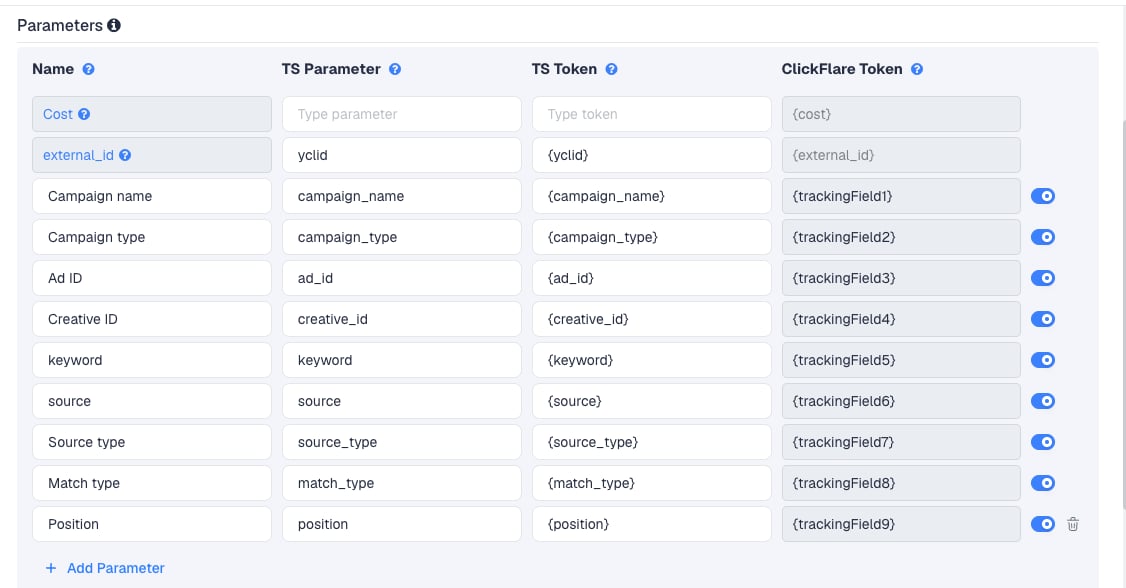
source shows which partner sites convert, so you can exclude the rest. On search, keyword and position show which queries pay.
The template has no campaign ID row, and names can change, so the ID is the safer key for matching data with Yandex Direct. To add it and other useful data, click Add Parameter, give it a name and parameter, and enter the Yandex dynamic parameter as the TS Token. ClickFlare assigns the next free tracking field.
Step 2 – Send conversions to Yandex
Yandex Direct does not accept S2S postback URLs. That is why the template has no postback, and why Traffic source postback URL stays off on this traffic source. Yandex Direct learns about conversions from Yandex Metrica goals. There are two ways to get a conversion into Metrica. You can use both.Option A: Offline conversion upload, matched on yclid (works with any offer)
This sends ClickFlare’s conversions to Metrica as a file. Metrica matches each row to the ad click through itsyclid. It works when the conversion happens on a site you don’t control, such as an affiliate offer.
- Create the goal in Metrica. On the Goals page of your Metrica tag, create a goal of the JavaScript event type, for example with the identifier
order_confirmed. Metrica only accepts offline conversions for JavaScript event goals. - Collect the conversions from ClickFlare. For each conversion you need three values: the External ID (the
yclid), the conversion time, and, if you want to pass revenue, the payout. Pull them from ClickFlare’s reports for the campaign, with the External ID as a column, and export them with Download CSV. - Build the file. Metrica’s offline conversion file is a UTF-8 CSV with these columns:
A row looks like this:
- Upload it. In Metrica, open Settings and the Upload data tab. In Upload offline conversions, click Upload data, select Yclid as the linking type, choose your file and click Upload data.
- Check the match. The conversions show in Metrica reports within a few hours. The Offline conversions report shows how many rows Metrica matched.
yclid row is credited to the session that started from the Yandex ad. That session has to exist in Metrica, which means the Metrica tag must load on your lander with yclid in its URL. See Keep yclid on your lander below.
Metrica also offers the same upload as an API: a POST to /management/v1/counter/{counterId}/offline_conversions/upload with an OAuth token. ClickFlare’s traffic source postback sends a simple URL request, so it can’t call this API. To automate the upload, run a script on your side that pulls conversions from ClickFlare and sends them to Metrica.
Option B: Metrica goals on pages you control
If the conversion happens on your own site (your store, your lead form, your thank-you page), install the Metrica tag there and set up a goal for the conversion page or event in Metrica. The tag records the conversion in the visitor’s browser, in real time, with no upload. Conversions on an affiliate offer’s site never load your tag. For those, use Option A.Keep yclid on your lander
Metrica ties a session to a Yandex Direct click through theyclid in the page URL. With Redirect tracking, Yandex sends the click to ClickFlare, and ClickFlare redirects to your lander. The lander URL doesn’t carry yclid unless you add it.
Add it with ClickFlare’s External ID token at the end of your lander’s URL in ClickFlare:
{external_id} with the stored yclid on each visit. The Metrica tag on the lander then sees the same click ID Yandex gave. Both options above depend on this.
With Direct tracking, the visitor lands on your lander straight from Yandex, so yclid is already in the URL. See Direct Campaign Tracking.
Step 3 – Finish the campaign and copy its URL
- Name the campaign.
- Set the Cost Model to CPC and enter your average cost per click from Yandex Direct. See Cost.
- Choose Redirect or Direct tracking. Redirect works for every setup. Choose Direct if Yandex moderation needs the ad link to point at your lander’s domain.
- Leave Disable sending postbacks to traffic source as it is. The Yandex traffic source has no postback, so nothing is sent either way.
- Click Next and, on Destination, add your lander (with
yclid={external_id}in its URL, as above) and your offer. - Save, open Tracking, select your own tracking domain and copy the campaign URL.
yclid={yclid} and source={source}.
If you use a lander, its call-to-action must link to the ClickFlare click URL, not to the offer directly. Otherwise the visit reaches the offer without a ClickFlare click ID, the conversion can’t be traced back to its yclid, and it can’t go into your Metrica file.
See Creating a Campaign in ClickFlare.
Step 4 – Create the campaign in Yandex Direct
- In Yandex Direct, create a campaign and its ad groups as usual.
- Paste the ClickFlare campaign URL into each ad’s link.
- Link your Metrica tag to the campaign and choose the goal from Step 2 as the conversion goal Yandex Direct should optimize for.
- Submit the ads for moderation.
{...} dynamic parameter when the ad is clicked. If an ad already has its own tracking parameters, check that yclid appears only once in the final link.
Step 5 – Test the integration
Yandex has no postback test, so test each half separately.- The click. Open your campaign URL in a browser and replace
{yclid}with a test value, for exampleyclid=test123. In ClickFlare, find the visit and check that its External ID istest123. - The lander. On the same visit, check that the lander opened with
yclid=test123in its address bar. If it didn’t, theyclid={external_id}part is missing from the lander URL. - The conversion. Complete the offer the way a real visitor would. The conversion should appear in ClickFlare against that visit.
- The upload. After your first real conversions, upload a small file and check the Offline conversions report in Metrica. Rows that don’t match usually have a mistyped
yclidor a session older than 21 days.
Tracking several events
Each Metrica goal is one event. To send a lead and a sale separately:- In ClickFlare, create a custom conversion for each step, for example
leadandpurchase. - In Metrica, create a JavaScript event goal for each, for example
leadandpurchase. - In your upload file, put each conversion’s goal identifier in the
Targetcolumn. One file can hold several goals. - In Yandex Direct, choose which goal the campaign optimizes for.
Sending only one event
Sending only one event
If Yandex should only learn from your final sale, upload only rows for that custom conversion. Earlier steps (leads, add to carts) still show in ClickFlare. They just don’t reach Yandex.
Cost
The template has no cost row, and Yandex Direct has no dynamic parameter for the price of a click. ClickFlare can’t read cost from the URL. Set the campaign’s Cost Model to CPC and enter your average cost per click from Yandex Direct. Check the average CPC in Yandex Direct after a few days and update it. When the recorded spend differs from your Yandex Direct spend, correct it with a manual cost upload. If you added thecampaign_id row, you can match the upload to Yandex Direct’s spend report by campaign. See Cost Models.
Delayed revenue
Revenue that arrives late (search arbitrage feeds, approved leads) simply goes into your next upload file with the final payout inPrice, inside the 21-day window. For the general approach, see Sending Delayed Revenue to Traffic Sources.
Troubleshooting
External ID is empty in ClickFlare
External ID is empty in ClickFlare
- The campaign URL in Yandex Direct is missing
yclid={yclid}, or the dynamic parameter was edited. Copy the URL from ClickFlare again. - The
externalIdrow was removed from the traffic source. - The URL was opened outside a real Yandex click, for example in moderation or a preview, where the dynamic parameter isn’t replaced.
Metrica doesn't match the uploaded conversions
Metrica doesn't match the uploaded conversions
- The lander URL doesn’t pass
yclid={external_id}, so Metrica never recorded the session that started from the ad. - The Metrica tag isn’t on the lander, or it loads after the visitor has left.
- More than 21 days passed between the session and the upload.
DateTimeis in milliseconds, in the future, or ignores the tag’s time zone.- The goal in
Targetisn’t a JavaScript event goal.
Yandex Direct shows no conversions
Yandex Direct shows no conversions
- The Metrica tag isn’t linked to the Yandex Direct campaign, or the campaign doesn’t use the goal you upload to.
- The upload hasn’t been processed yet. Allow a few hours.
- Check the Offline conversions report in Metrica first. If Metrica shows the conversions, the gap is in the Yandex Direct campaign settings.
Source or keyword columns are empty
Source or keyword columns are empty
Yandex only fills each dynamic parameter where it applies.
keyword and position are empty or 0 on the Advertising Network, and source is none on Yandex search. If every value is empty, the URL was edited or pasted somewhere Yandex doesn’t process parameters. See Traffic Source Tokens Arriving Empty.FREQUENTLY ASKED QUESTIONS
Q1: Can ClickFlare send conversions to Yandex automatically?A1: Not with a postback. Yandex Direct has no postback URL, and Metrica’s upload API needs an OAuth token and a file in a
POST request, which a traffic source postback can’t send. Upload files by hand, automate the upload with your own script, or record conversions with the Metrica tag on pages you control.
Q2: Why do I need yclid on my lander if ClickFlare already stores it?
A2: ClickFlare stores it for its own reports and for your upload file. Metrica can only credit a yclid to a session it saw, and it sees the session through its tag on your lander. Without yclid in the lander URL, the session looks like ordinary traffic and the uploaded row doesn’t match.
Q3: Should I use Redirect or Direct tracking with Yandex?A3: Both work. Redirect is simpler to set up. Direct keeps
yclid on the lander without extra steps, and lets Yandex moderation see your lander’s domain in the ad link. See Direct Campaign Tracking.
Q4: Does Yandex use the payout I upload?A4: Metrica stores
Price and Currency as the goal’s value. Whether Yandex Direct bids on that value depends on the campaign’s strategy. Upload it anyway, so Metrica’s reports show revenue per campaign.
Related
Direct campaign tracking
Send Yandex clicks straight to your lander.
Custom conversions
Split leads and sales into separate events.
Manual cost upload
Correct spend with Yandex Direct’s own figures.
Conversions not showing
The general checklist when conversions don’t arrive.