

At a glance
Does ClickFlare fit your Mintegral campaign?
Mintegral supports three ways to report conversions. The ClickFlare template is for one of them.
Mintegral grants S2S and pixel access separately. Before you start, ask your Mintegral account manager to enable S2S for your account.
How it works
1
Mintegral sends the click
A user taps your ad. Mintegral opens your ClickFlare campaign URL and fills in its macros: the click ID in
click_id, the promotion ID in uuid, the device IDs (IDFA, GAID and others), plus the creative, offer and sub-channel.2
ClickFlare stores the Mintegral click ID
ClickFlare saves the value of
click_id as the visit’s External ID, stores the promotion ID and device IDs in tracking fields, and redirects the user to your offer, which leads to the app store.3
The install reaches ClickFlare
The user installs and opens the app. The offer’s network, or your own attribution, posts the install back to ClickFlare, matched on the ClickFlare click ID.
4
ClickFlare posts the install to Mintegral
ClickFlare fires the Mintegral postback with the stored click ID, promotion ID and IDFA. Mintegral matches it to the original click.
The mirror to keep straight: in the campaign URL you write ClickFlare’s parameter (
click_id) and Mintegral’s macro ({click_id}). The template does this for you. In the postback URL you write Mintegral’s parameter (clickid, no underscore) and ClickFlare’s token ({external_id}). Mintegral also needs its promotion ID back, as campuuid.Before you start
- Set up your own tracking domain. Run the campaign and the postback on your own custom domain. Shared domains get flagged by networks and blocked by browsers. See Custom Domains.
- Have an offer ready in ClickFlare, and its affiliate network set up to post installs back to ClickFlare. See Creating an Offer and Adding an Affiliate Network.
- Get S2S access from Mintegral. S2S is not on by default. Ask your account manager.
- Make sure the click redirects. ClickFlare must redirect the user to the offer. Mintegral also supports “async” clicks, where the tracking URL only receives click data server-side and the user goes straight to the store. With an async click, the user never reaches your offer through ClickFlare, so the install cannot be attributed. Confirm with Mintegral that your ClickFlare URL is used as a redirect click URL.
- Know which conversion is the install. The template’s postback tells Mintegral an install happened. Only installs should fire it.
Step 1 – Create the campaign and the Mintegral traffic source
- Go to Campaigns and click New.
- In Traffic Source, open the dropdown and click + New Traffic Source.
- Type
mintegralin the search box and select the Mintegral template. - Enter a Name, for example
Mintegral. - Leave Cost currency on USD unless your Mintegral account is billed in another currency.
Most rows are device identifiers. Expect many empty columns: an iPhone has an IDFA but no GAID, IMEI or OAID.
affiliate_id and creative_id are the columns you will use most for optimization: they tell you which sub-channels and creatives bring installs.
The template uses all 20 tracking fields. To pass another Mintegral macro, such as {os_version}, {device_model} or {ip}, replace a row you don’t need rather than adding one. The MAC and IMEI rows are the usual candidates: IMEI only applies to Android in China.
Step 2 – Set up the postback
The postback is what sends installs to Mintegral. It lives on the traffic source, so every campaign that uses this Mintegral traffic source reports installs the same way.- In the New Traffic Source form, scroll to Passing conversion info to traffic source.
- Turn on Traffic source postback URL. The template’s postback appears:
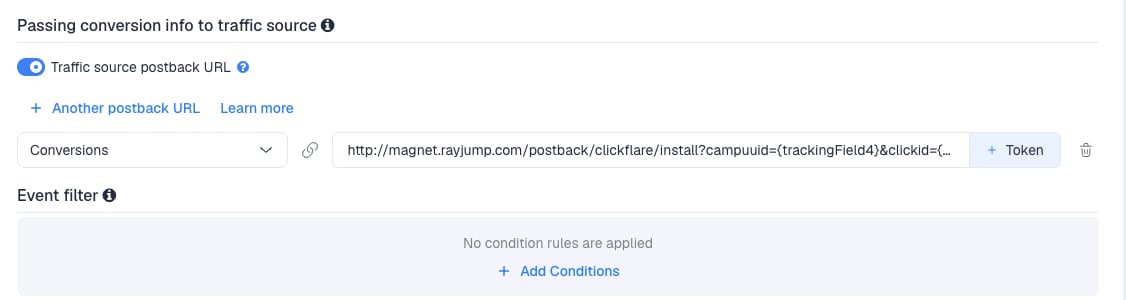
- Check what each part sends:
- In the dropdown on the left, choose the ClickFlare event that means “installed”. If your offer’s network only posts installs, keep Conversions. If it also posts in-app events (registrations, purchases), create an
installcustom conversion and choose that, so only installs reach Mintegral. - Click Save. You are back in the campaign editor with the Mintegral traffic source selected.
idfa is empty for Android installs, and matching relies on clickid and campuuid. If Mintegral asks for the GAID on Android installs, ask them for the parameter name on this endpoint and fill it with {trackingField10}, the gaid row.
To learn what each postback token does, see How to Configure a Traffic Source S2S Postback URL.
Step 3 – Finish the campaign and copy its URL
- Name the campaign.
- Set the Cost Model. See Cost.
- Choose Redirect tracking. The user must pass through ClickFlare on the way to the offer and the app store.
- Click Next and, on Destination, add your offer. App campaigns usually go straight to the offer, without a lander.
- Save, open Tracking, select your own tracking domain and copy the campaign URL.
click_id={click_id}, uuid={uuid} and idfa={idfa}.
Your offer URL must pass ClickFlare’s click ID to the offer’s network, in the parameter that network expects. Otherwise the network cannot post the install back to ClickFlare, and ClickFlare cannot post it to Mintegral.
See Creating a Campaign in ClickFlare.
Step 4 – Create the campaign in Mintegral
- In Mintegral, create the offer and campaign for the app as usual.
- On the tracking URL page, paste the ClickFlare campaign URL as the click URL. Mintegral’s macros use the same
{xxx}format as the template, so leave them exactly as ClickFlare wrote them. - Validate the tracking URL and save.
- Set the app’s download URL (the store listing) correctly in Mintegral.
{...} macro when the ad is tapped.
Step 5 – Test the integration
Mintegral tests the tracking URL with a real device.- On the tracking URL page in Mintegral, enter your test device’s ID: the IDFA on iOS, the GAID on Android outside China.
- Click Test. Mintegral generates a QR code.
- Scan the QR code with the test device, using a standard mobile browser. Mintegral sends the click to ClickFlare.
- In ClickFlare, check that the visit arrived, with the click ID and your device ID in the Idfa or gaid column.
- Install the app from the store, open it, and use it as your offer requires.
- Once the offer’s network posts the install to ClickFlare, go to Logs → Postback Status and filter by the campaign. A successful request to
magnet.rayjump.comconfirms ClickFlare sent it. Checkcampuuidandclickidhave real values.
In-app events
The template reports installs only. Mintegral’s Target CPE and Target ROAS campaigns optimize on in-app events and revenue, which this postback doesn’t send.Sending in-app events
Sending in-app events
Mintegral uses a separate event postback for in-app events, with the event name, value and time. The ClickFlare template doesn’t include it. To send events:
- Ask your Mintegral account manager for the current event postback URL for your S2S setup.
- In ClickFlare, create a custom conversion for each event, for example
purchase. - On the Mintegral traffic source, click + Another postback URL, paste the event postback, and map it to that custom conversion.
- Use
{external_id}for the click ID,{trackingField4}forcampuuid, and{payout}for the event value.
Keeping installs and events apart
Keeping installs and events apart
If your offer’s network posts both installs and events to ClickFlare, map the install postback to an
install custom conversion, not to Conversions. Otherwise every purchase reaches Mintegral as an extra install.To send a postback only for some conversions, use Event filter under the postback to add conditions.Cost
The template has no cost macro, so ClickFlare doesn’t receive Mintegral’s spend. Set the Cost Model on the campaign to match how you buy in Mintegral:- CPA for CPI bidding, with your bid per install as the value. ClickFlare then counts cost per conversion, so make sure only installs are counted as conversions on this campaign.
- CPC if you have agreed a per-click price.
Troubleshooting
The QR test doesn't reach ClickFlare
The QR test doesn't reach ClickFlare
- The QR code was opened in an in-app browser. Use a standard mobile browser.
- The tracking URL in Mintegral is not the one ClickFlare gave you, or a macro was edited. Copy it again.
- The URL is set up as an async click. Ask Mintegral to use it as a redirect click URL.
The install shows in ClickFlare but not in Mintegral
The install shows in ClickFlare but not in Mintegral
- Traffic source postback URL is off on the Mintegral traffic source.
- Disable sending postbacks to traffic source is on in the campaign.
campuuidwas empty because the UUID row moved or was removed. Check the URL in Logs → Postback Status.- The postback is mapped to a different event than the one the install logged. Check Logs → Event Logs.
- S2S is not yet enabled on your Mintegral account.
The install never reaches ClickFlare
The install never reaches ClickFlare
- The offer URL doesn’t pass ClickFlare’s click ID to the offer’s network, so it cannot post back.
- The offer’s network has not attributed the install yet. Third-party attribution can take up to an hour.
- The user didn’t pass through ClickFlare, because the click is async. See Before you start.
Device ID columns are empty
Device ID columns are empty
Expected for identifiers that don’t exist on the device: an Android device has no IDFA, an iPhone no GAID. If every column is empty, the macros were not replaced. See Traffic Source Tokens Arriving Empty.
FREQUENTLY ASKED QUESTIONS
Q1: I promote my own app with AppsFlyer. Should I put ClickFlare between Mintegral and AppsFlyer?A1: No. Mintegral integrates with AppsFlyer, Adjust and other MMPs directly. The MMP attributes the install and posts it to Mintegral. ClickFlare would only add a redirect to that path.
Q2: Can I use the same Mintegral traffic source for all my Mintegral campaigns?A2: Yes. The postback is set once on the traffic source, and the promotion ID comes from each click’s
uuid, so one traffic source covers every promotion. Create a second one only if a campaign needs a different postback.
Q3: Why is itA3: They are two halves of the same value. ClickFlare reads Mintegral’s click ID from its ownclick_idin the campaign URL andclickidin the postback?
click_id parameter. Mintegral expects it back in its own clickid parameter. Change neither name.
Q4: Does Mintegral receive the payout?A4: No. The template’s postback only reports that an install happened. Revenue-based optimization needs Mintegral’s event postback. See In-app events.
Q5: Do I need both the IDFA and the GAID rows?A5: Keep both. iOS clicks fill the IDFA and Android clicks the GAID, and one traffic source serves both platforms. The postback only uses the IDFA row.
Related
Traffic source postbacks
Every token you can use in a postback.
Custom conversions
Keep installs and in-app events apart.
Cost models
How CPA and CPC costs are calculated.
Conversions not showing
The general checklist when postbacks don’t arrive.