

- Focused Campaign Management: If you wish to concentrate on specific campaigns, simply turn off the visibility of irrelevant Workspaces to avoid distractions. Campaigns in filtered-out Workspaces will continue to run seamlessly in the background.
- Comparative Analysis: Compare the performance of different Workspaces by filtering out all but one in a tab and opening a new tab for another Workspace. This enables you to evaluate stats from different Workspaces side by side.
- Worker Performance Monitoring: To assess how your Workers are performing, select only the Workspaces exclusively assigned to a specific Worker. This allows you to view their individual statistics.
- Accelerated Element Management: If you’re working with numerous Workspaces and need to create several elements, streamline the process by filtering out unnecessary Workspaces. This ensures you select the relevant Workspace faster when creating new elements.
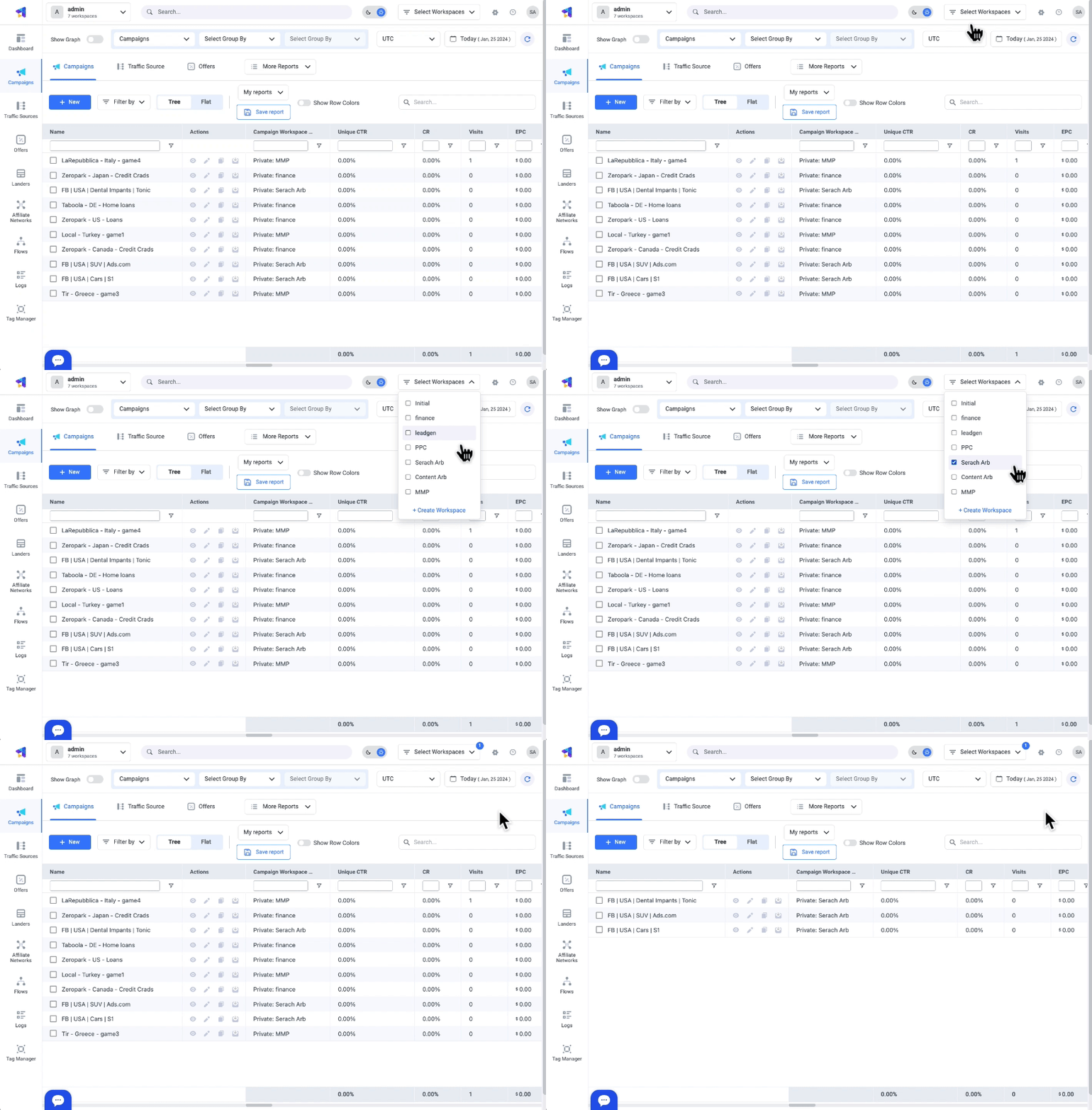
- Inside ClickFlare, click the Workspaces list drop-down menu in the top right corner.
- Uncheck the boxes next to irrelevant Workspaces to exclude them from viewing.
- Click the Apply button.
Will my traffic be impacted if I filter out certain Workspaces?No worries! Employing the Workspace filtering option is all about refining your view—your traffic and hidden elements remain unaffected.