

Requirements:
- An active ClickFlare account.
- One or more landing pages.
- Access to your landing pages’ source code.
Adding a Landing Page in ClickFlare
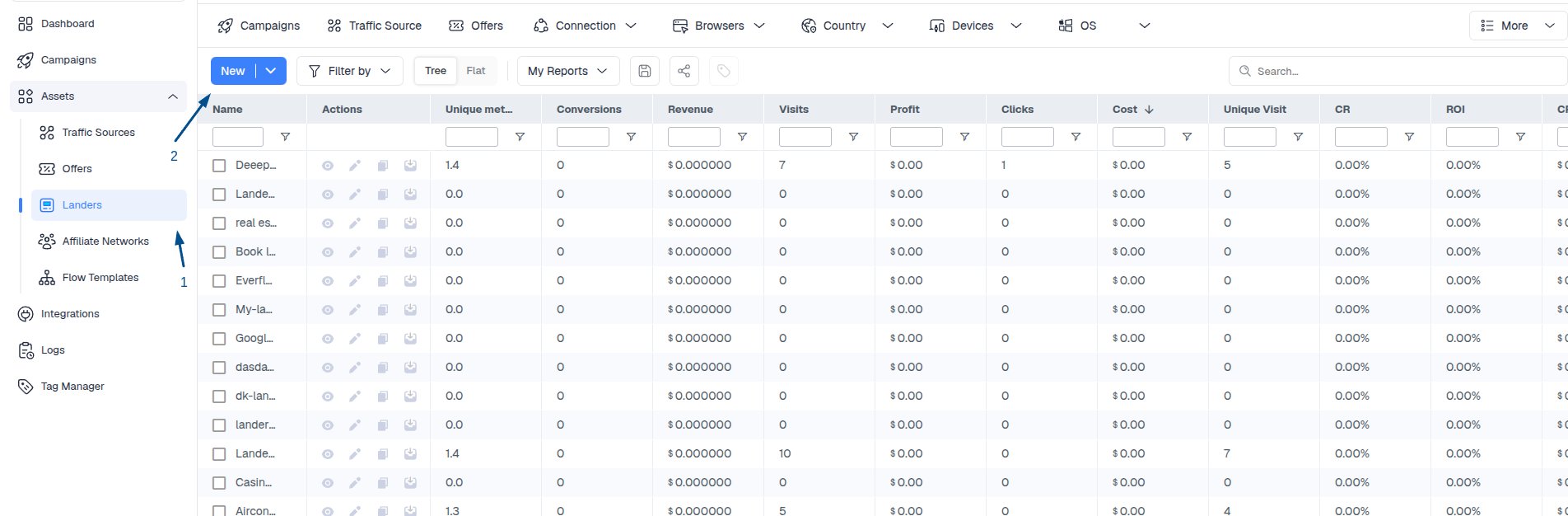
To add a landing page, begin by selecting Landers on the left side panel of your screen, then proceed by clicking the [+ New] button to add a new landing page.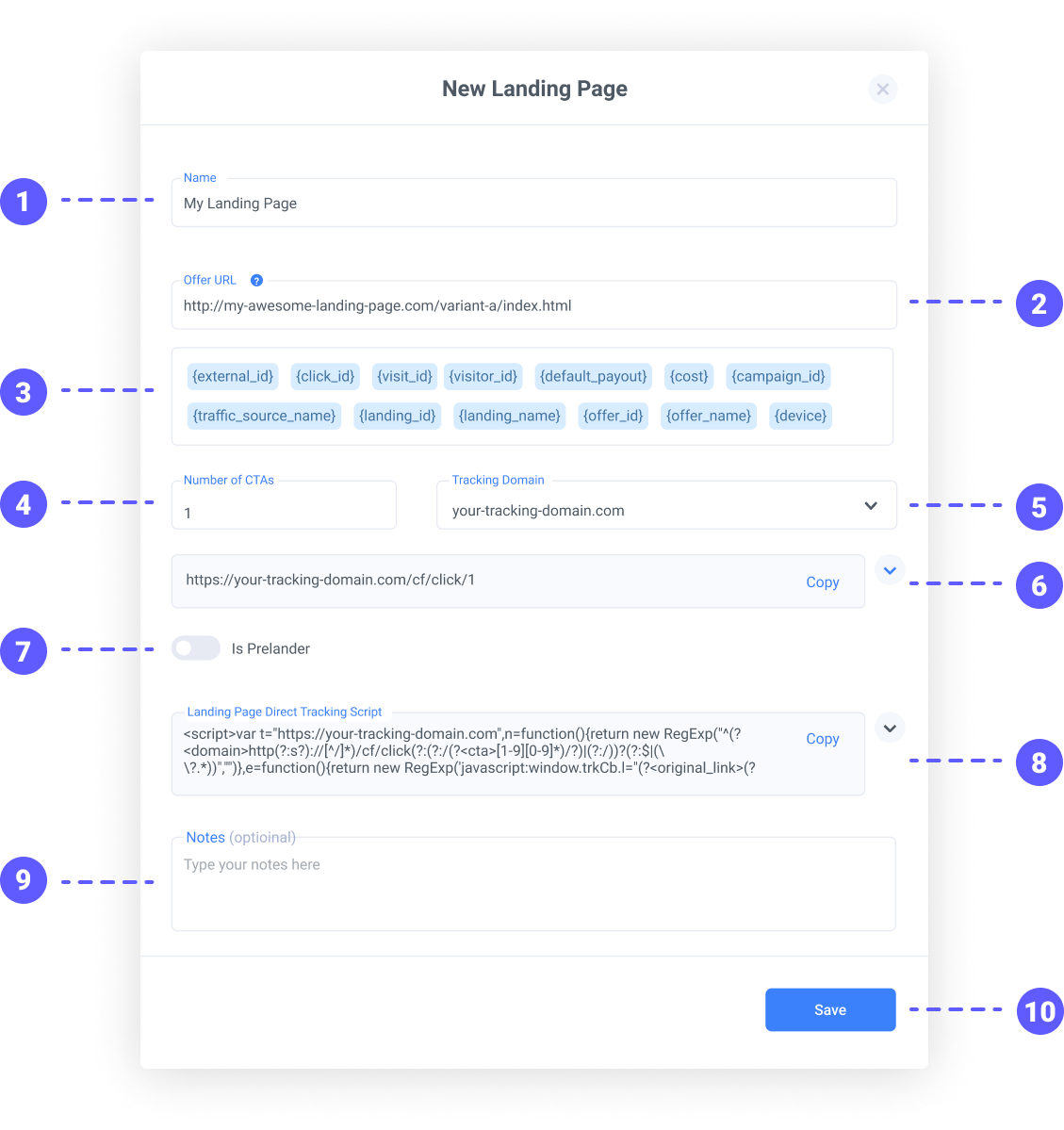
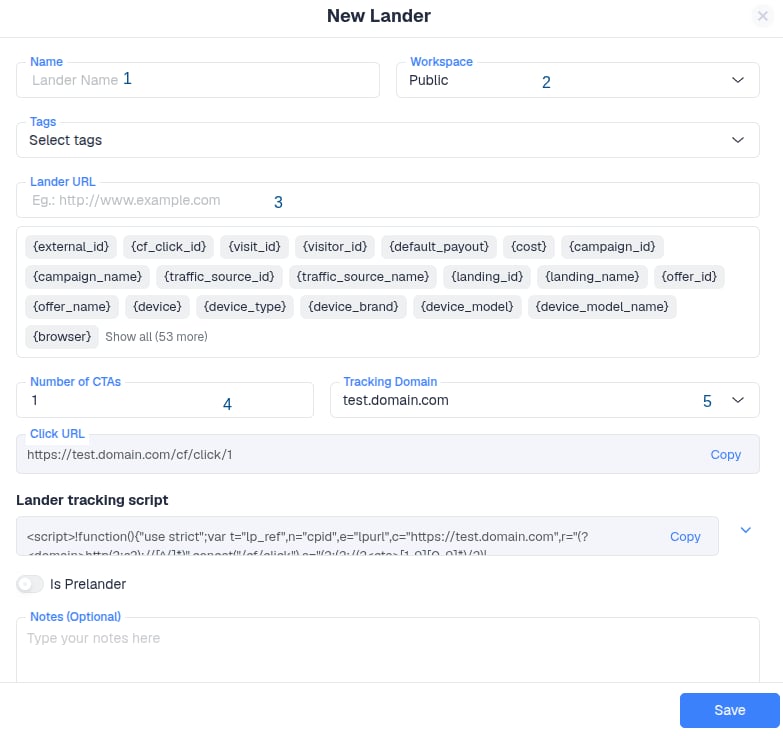
- An easy-to-remember name for your landing page. (required)
- The publicly accessible URL of your landing page. (required)
- List of available tokens/macros that can be used for dynamic call-outs.
- The number of CTAs your landing page will have. (required)
- The tracking domain name (in case you are using more than one). (required)
- Your landing page click URL (used for click tracking).
- Determine the type of landing page, whether it is a Pre-lander or not.
- Landing page Direct Tracking script (used for direct tracking campaigns).
- Used for adding any notes to your landing page.
- Saves the changes made to your landing page configuration.
Understanding CTA Setup (Important)
The number of CTAs defines how ClickFlare tracks user behavior on your landing page.Use Case 1 — Single CTA, One or More Offers
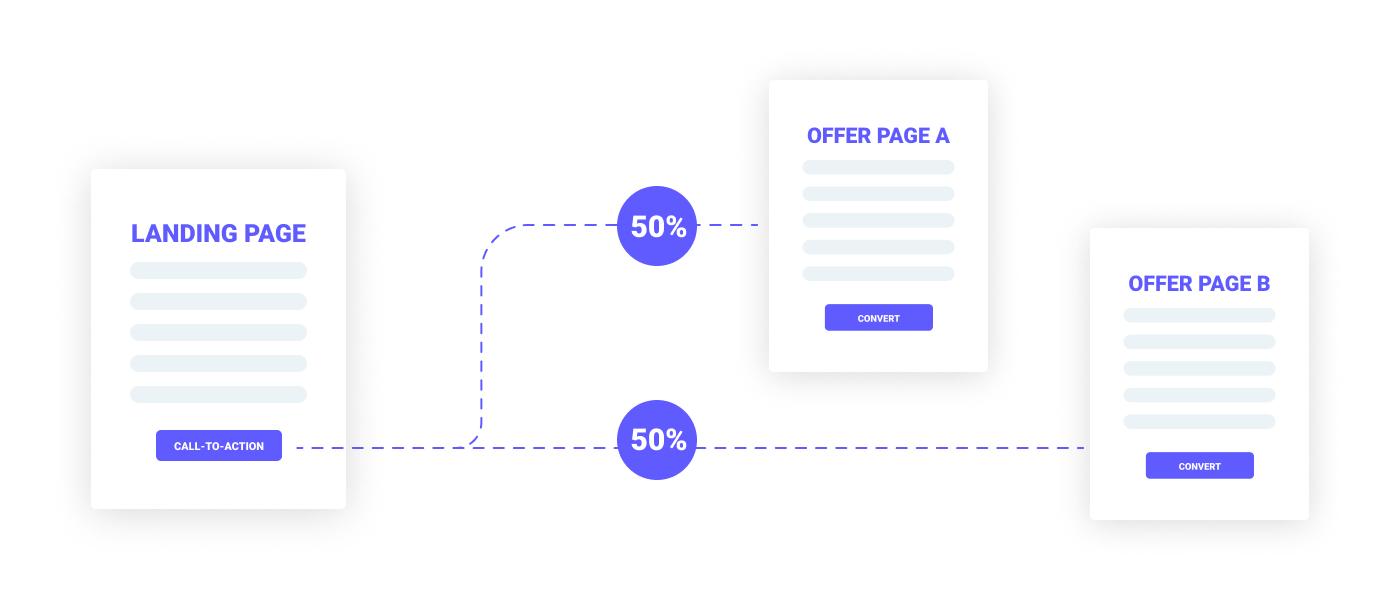
- One call-to-action button on the page
- Traffic is sent to one or multiple offers, rotating
- If multiple offers are used, traffic is distributed based on campaign rotation settings
Use Case 2 — Multiple CTAs, Same Destination
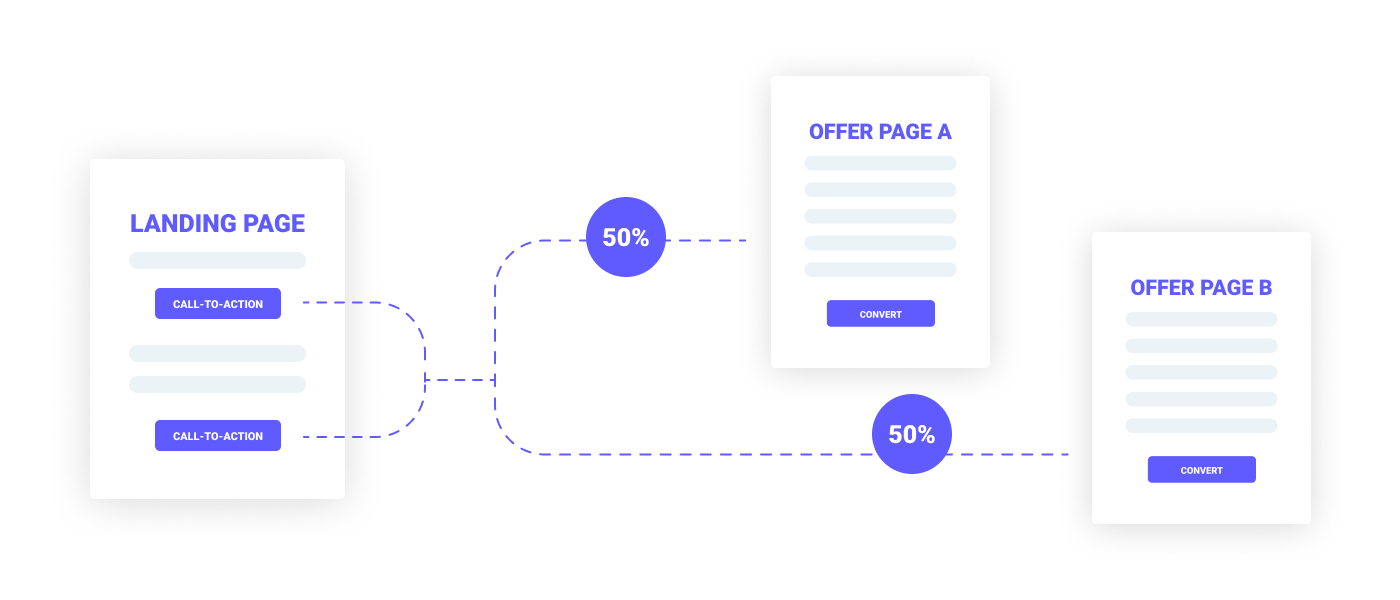
- Two or more CTA buttons
- All buttons lead to the same offer destination
- Often used for A/B testing layouts or button placements
Use Case 3 — Multiple CTAs, Different Destinations
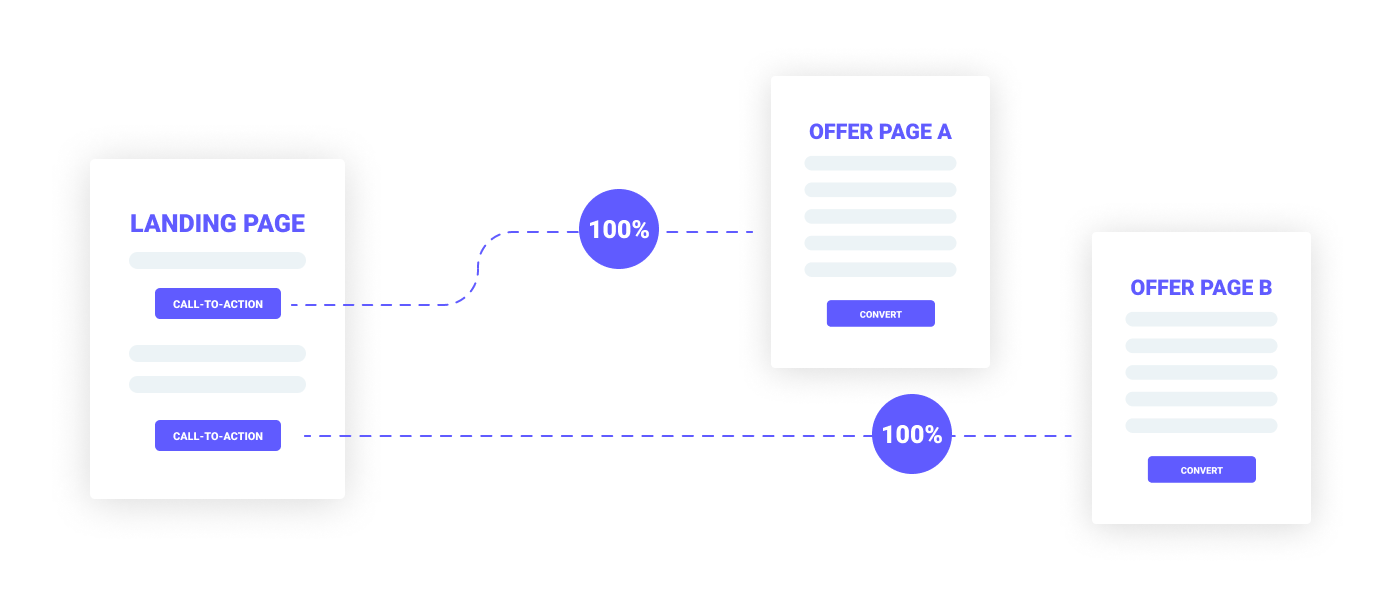
- Multiple CTA buttons
- Each button leads to a different offer
- Traffic is split based on user choice (100% routed per selected CTA)
Creating the Lander element
- Go to Assets → Lander
- Click New to create the lander.
Make sure to append cpid={campaign_id} to the landing page URL when using redirect tracking.
Implementing the Click Tracking URL
After selecting your tracking domain, copy your ClickFlare click URL and assign it to your CTA buttons. Example implementation:Implementing the Lander Script
After selecting your tracking domain, copy your ClickFlare lander script and place it on your landing page right before the </body> closing tag.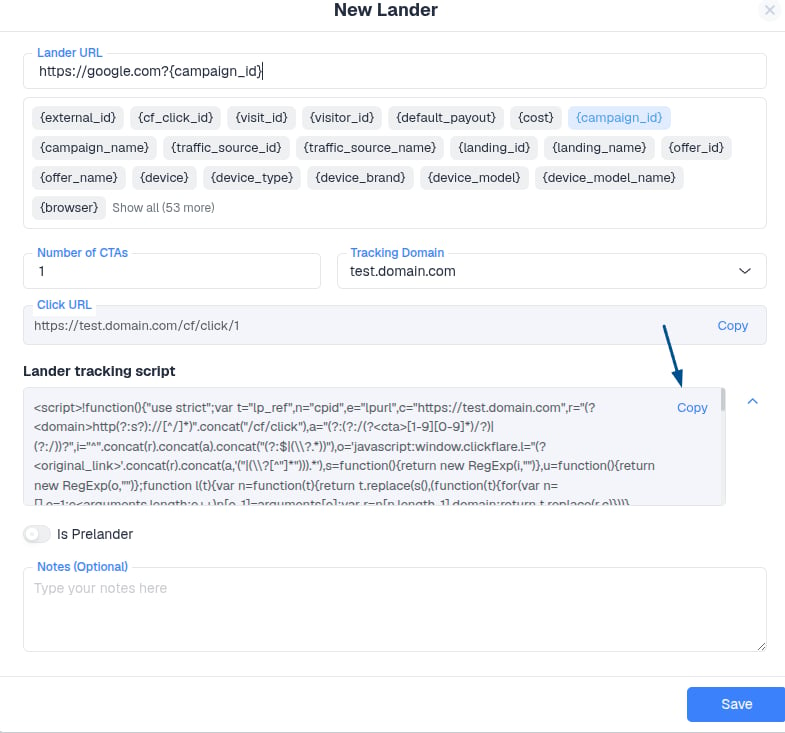
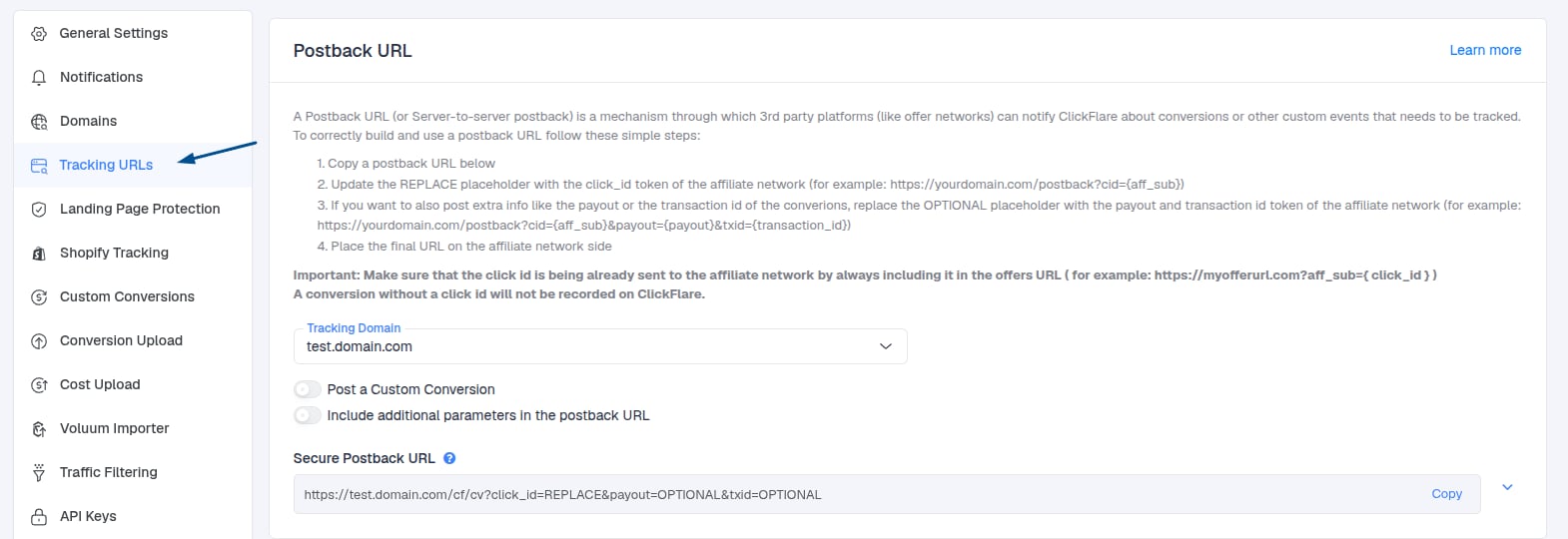
Where to Find Your Tracking URLs
You can also access your landing page click URLs here: Settings → Tracking URLs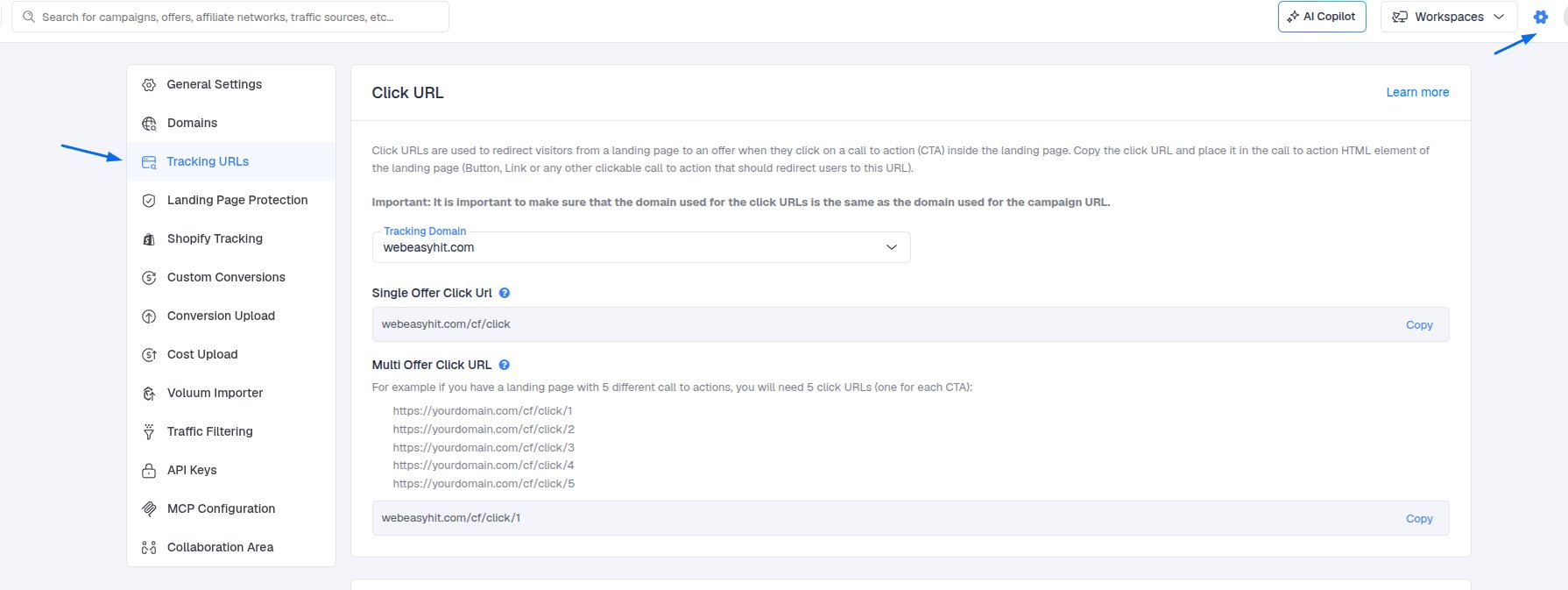
Final Steps
After configuration:- Optionally add internal notes for documentation
- Click Save to complete setup