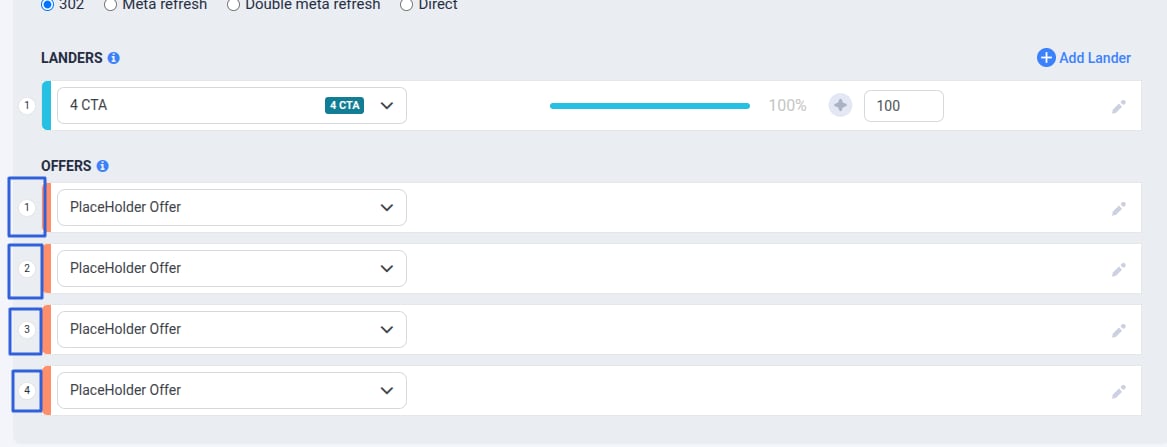
Step 1: Access Landers
In the left sidebar, go to Assets, then select Lander.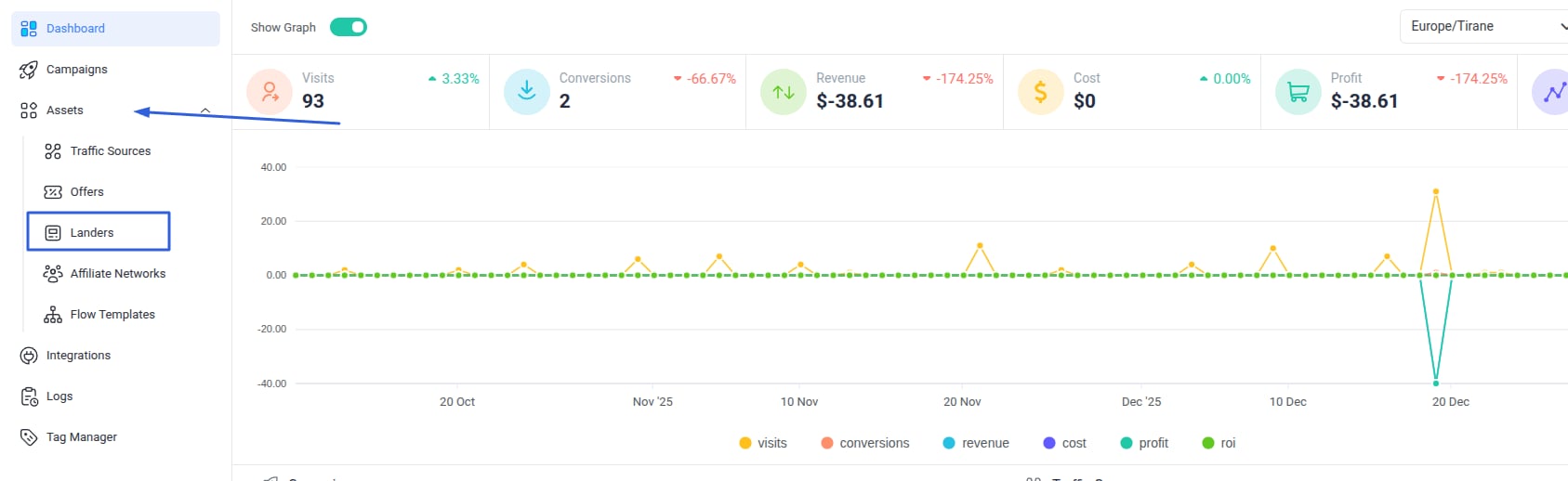
Step 2: Create a New Lander
- Click the New button.
- Add a name for your Lander.
- Paste the landing page URL in the provided space.
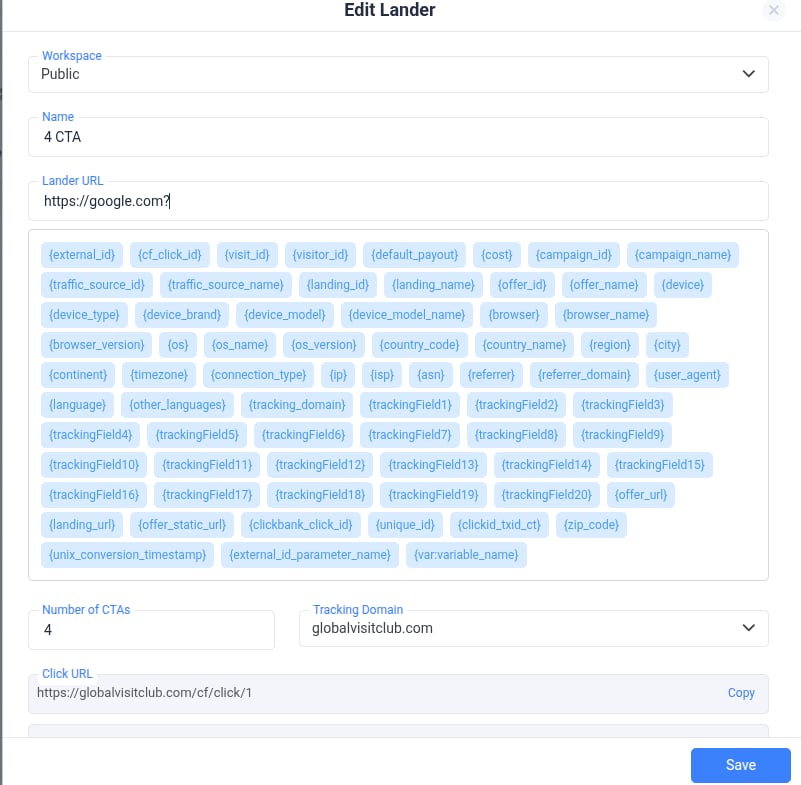
Tip: You can add any of the available tokens to your URL here.
Step 3: Set the Number of CTAs
- Choose the number of Call-to-Actions (CTAs) you want.
- Example: If you’re redirecting visitors to 4 different offers, select 4 CTAs.
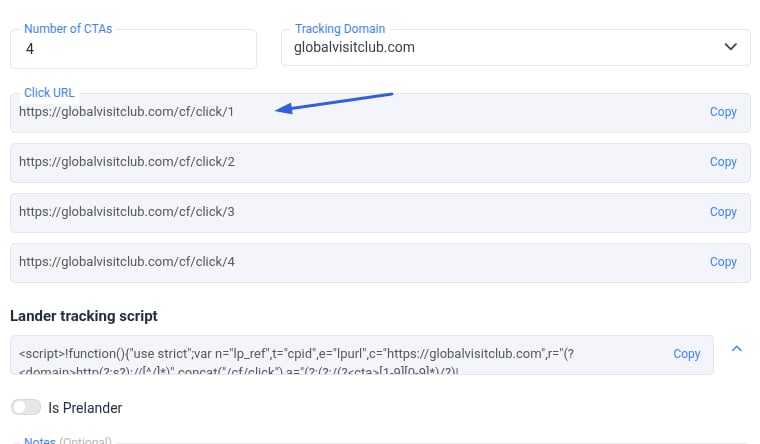
Step 4: Assign Offers to CTAs
- Copy each provided Click URL.
- Insert each URL under the element (link or button) that leads to its specific offer.
Important:
- Link 1 → Offer 1
- Link 2 → Offer 2
- …and so on. Each link will always redirect to the designated offer.
- The first offer in the row will be redirected from: https://globalvisitclub.com/cf/click/1
- The second offer will be redirected from: https://globalvisitclub.com/cf/click/2
- And so on for the remaining offers.