

At a glance
How it works
1
Mondiad sends the click
A visitor clicks your ad. Mondiad opens your ClickFlare campaign URL and fills in its macros: the click ID in
clickid, the bid in bid, plus the zone, sub ID, country, campaign, creative, subscription age and ad format.2
ClickFlare stores the Mondiad click ID
ClickFlare saves the value of
clickid as the visit’s External ID, records the cost, and redirects the visitor to your lander or offer.3
The conversion reaches ClickFlare
Your affiliate network or store posts the conversion back to ClickFlare, matched on the ClickFlare click ID.
4
ClickFlare posts it back to Mondiad
ClickFlare fires the Mondiad postback, replacing
{external_id} with the stored Mondiad click ID and {payout} with the revenue. Mondiad matches it to the original click and shows it in your campaign stats.The mirror to keep straight: in the campaign URL you write ClickFlare’s parameter (
clickid) and Mondiad’s macro ([clickid]). The template does this for you. In the postback URL you write Mondiad’s parameter (clickid) and ClickFlare’s token ({external_id}). The parameter has the same name on both sides. The values that fill it do not.Before you start
- Set up your own tracking domain. Run the campaign and the postback on your own custom domain. Shared domains get flagged by networks and blocked by browsers. See Custom Domains.
- Have an offer ready in ClickFlare, and its affiliate network set up to post conversions back to ClickFlare. See Creating an Offer and Adding an Affiliate Network.
- Find your Mondiad
uid. In your Mondiad advertiser account, open Conversion Tracking in the left menu. The postback URL shown there contains youruid. It goes into the ClickFlare postback. - Decide which conversions Mondiad should receive. Mondiad reports and optimizes on what you send it. If your funnel has several steps (lead, then sale), decide now whether to send one event or several. See Tracking several events.
Step 1 – Create the campaign and the Mondiad traffic source
- Go to Campaigns and click New.
- In Traffic Source, open the dropdown and click + New Traffic Source.
- Type
mondiadin the search box and select the Mondiad template. - Enter a Name, for example
Mondiad. - Leave Cost currency on USD unless your Mondiad account is billed in another currency.
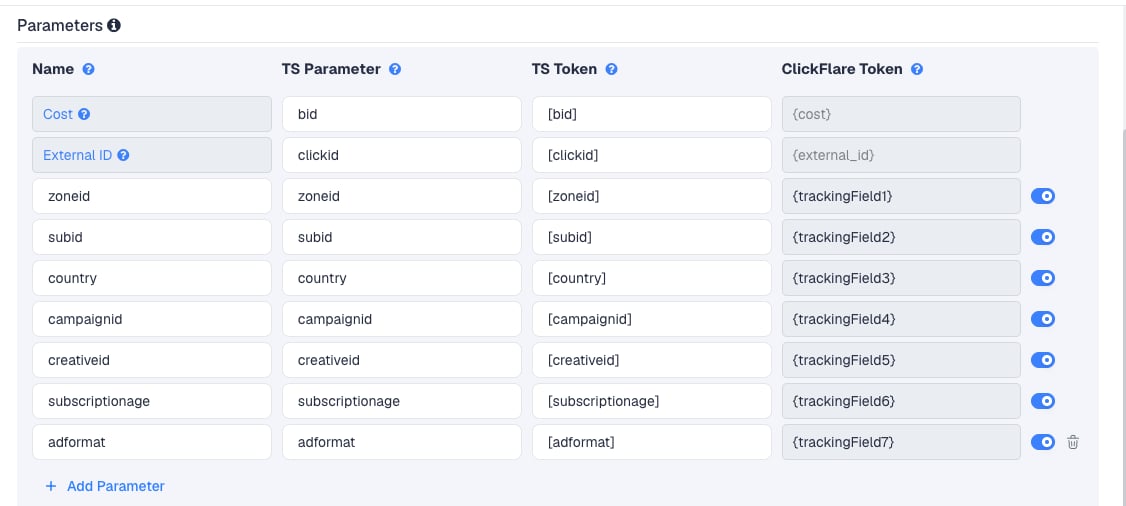
zoneid and subid are the ones you will use most. Mondiad lets you bid, block and whitelist by zone and by sub ID, so these columns tell you exactly which sources to cut or bid up. subscriptionage is useful on push: fresh subscribers usually click and convert differently from old ones.
Mondiad offers more macros than the template uses, for example the visitor’s operating system, browser, browser and OS versions, region, city, connection type, mobile carrier, user agent and site keywords. To pass one, click Add Parameter, give it a name and parameter, and enter the Mondiad macro as the TS Token. ClickFlare assigns the next free tracking field. Check the exact macro names in your Mondiad account or in Mondiad’s FAQ before adding them.
Step 2 – Set up the postback
The postback is what sends conversions to Mondiad. It lives on the traffic source, so every campaign that uses this Mondiad traffic source sends conversions the same way.Get your uid from Mondiad
- In Mondiad, open Conversion Tracking in the left menu.
- Look at the postback URL Mondiad shows for your account. Copy the value of
uid. - Note the domain of that URL. You will compare it with the template’s in a moment.
Add it to the traffic source in ClickFlare
- Back in the New Traffic Source form, scroll to Passing conversion info to traffic source.
- Turn on Traffic source postback URL. The template’s postback appears:
{external_id}) and the payout ({payout}), both as ClickFlare tokens.
- Replace
REPLACEwith theuidyou copied from Mondiad. The result:
- Compare the domain with the one in your Mondiad account. The template uses
postback.pbmnd.com. Some Mondiad accounts and tracker guides showpostback.mondiad.com. If Mondiad shows a different domain, use Mondiad’s. Keep the rest of the URL as it is. - In the dropdown on the left, choose the ClickFlare event that should fire the postback. Keep Conversions to send every conversion. If your final action is a custom conversion (for example
purchase), choose that instead. - Click Save. You are back in the campaign editor with the Mondiad traffic source selected.
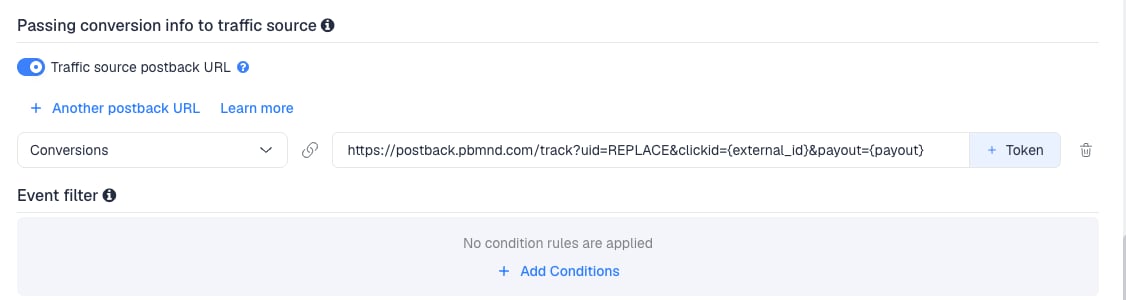
payout as the conversion’s value and uses it for revenue and ROI in your Mondiad stats. If your offers pay in a currency other than your Mondiad account’s, ClickFlare’s {payout} is in the offer’s currency. See Multicurrency in ClickFlare.
To learn what each postback token does, see How to Configure a Traffic Source S2S Postback URL.
Step 3 – Finish the campaign and copy its URL
- Name the campaign.
- Set the Cost Model to Not Tracked, so ClickFlare uses the bid Mondiad passes. On CPM campaigns, read Cost first.
- Choose Redirect or Direct tracking. Redirect is the usual choice and needs no code on your lander.
- Click Next and, on Destination, add your lander (optional) and your offer.
- Save, open Tracking, select your own tracking domain and copy the campaign URL.
clickid=[clickid] and zoneid=[zoneid].
If you use a lander, its call-to-action must link to the ClickFlare click URL, not to the offer directly. Otherwise the visit reaches the offer without a ClickFlare click ID, and the conversion cannot be traced back to Mondiad.
See Creating a Campaign in ClickFlare.
Step 4 – Create the campaign in Mondiad
- In Mondiad, go to Campaigns and click Create campaign.
- Choose the ad format and name the campaign.
- Paste the ClickFlare campaign URL into the Target URL field.
- Set up your creative, targeting, bid and optimization options as usual.
- Tick the box confirming you have read the Campaign Quality Guidelines, then click Sent to moderation.
[...] macro when the ad is clicked. Mondiad reviews campaigns manually, usually within an hour during working hours.
Create a separate Mondiad campaign per ad format. Mondiad only allows classic push and in-page push in one campaign, and even then it advises against it because the stats are harder to read.
Step 5 – Test the integration
Mondiad can check the setup before you spend anything.- In Mondiad, open Conversion Tracking and go to the test conversion tool.
- Enter your ClickFlare campaign URL, with its
clickid=[clickid]part, as the target URL to verify. - Click Validate Conversion. If the URL leads to a CPA offer, complete the offer the way a real visitor would, so a conversion actually happens.
- In ClickFlare, go to Logs → Postback Status and filter by the campaign. A successful request to Mondiad’s
/trackendpoint confirms ClickFlare sent the postback. - In Mondiad, open the Conversion Log, select the campaign and the time frame. It lists valid conversions, and invalid conversions across all campaigns.
uid and the clickid value. See Troubleshooting.
Tracking several events
Mondiad tracks extra events through conversion goals, for example a lead and a purchase. Each goal has its own unique tag, so each event needs its own postback.- In Mondiad, open Conversion Tracking, go to Additional Conversion Goals and click Add Conversion.
- Name the goal, choose a conversion type (Subscription, Lead, Purchase, Website interaction, Form submission, App Install or Other) and a payout method: Fixed or Dynamic. Choose Dynamic to receive ClickFlare’s
{payout}. - Save, then click Get Tag to copy that goal’s postback URL. Its
uidis unique to the goal. - In ClickFlare, create a custom conversion for each step, for example
leadandpurchase. - On the Mondiad traffic source, click + Another postback URL once per goal. Paste each goal’s URL, with
clickid={external_id}&payout={payout}, and map it to its ClickFlare event:leadto the lead goal’s URL,purchaseto the purchase goal’s URL.
Rules for multi-goal postbacks
Rules for multi-goal postbacks
- One postback per goal. Each goal has its own
uid. Don’t reuse one goal’s URL for another event. - Keep the main postback, mapped to Conversions, only if Mondiad should also count every conversion. Otherwise a sale fires twice: once on the main postback and once on its goal.
- Map each postback to exactly one ClickFlare event, so each conversion type reaches only its own goal.
Sending only one event
Sending only one event
If Mondiad should only learn from your final sale, keep a single postback and map it to that event. Earlier steps (leads, add to carts) still show in ClickFlare. They just don’t reach Mondiad.To send a postback only for some conversions, for example only those above a certain payout, use Event filter under the postback to add conditions.
Cost
The template passes cost per click. TheCost row sends Mondiad’s [bid] macro, which Mondiad describes as the bid value (CPC or CPM), and ClickFlare records it as the visit’s cost.
On the campaign, set the Cost Model to Not Tracked so ClickFlare uses the cost passed in the URL.
On CPC campaigns,
[bid] is the price of the click, which is what ClickFlare needs. On CPM campaigns, the bid is a price per thousand impressions, so the recorded cost per visit can be far too high. After launch, compare the Cost column with your Mondiad spend. If it doesn’t match, switch the Cost Model to CPC and enter your CPM bid divided by 1,000 as the cost value.[bid] is your bid, not a final settled price. Mondiad bids are adjustable by zone, sub ID and country, and the macro follows those adjustments, but small gaps with your Mondiad spend are normal. When the recorded spend differs, correct it with a manual cost upload. See Cost Models.
Delayed revenue
If you run search arbitrage (RSOC or AFD) behind Mondiad, the feed reports revenue hours or days after the click. To pass that revenue to Mondiad once it arrives, see Sending Delayed Revenue to Traffic Sources.Troubleshooting
Mondiad shows the conversion as invalid
Mondiad shows the conversion as invalid
- The campaign URL in Mondiad is missing
clickid=[clickid], or the macro was edited. Copy the URL from ClickFlare again. - The postback uses another tracker’s click ID token, for example
{externalid}or{clickid}, instead of ClickFlare’s{external_id}. ClickFlare doesn’t know those tokens and sends them as literal text. - The
External IDrow was removed from the traffic source.
Conversions show in ClickFlare but not in Mondiad
Conversions show in ClickFlare but not in Mondiad
- Traffic source postback URL is off on the Mondiad traffic source.
- Disable sending postbacks to traffic source is on in the campaign.
REPLACEwas never replaced with your Mondiaduid, or a goal’s URL carries the wronguid.- The postback domain differs from the one in your Mondiad account. Use the domain Mondiad shows.
- The postback is mapped to a different event than the one the conversion logged. Check Logs → Event Logs to see which event was recorded.
- Check Logs → Postback Status: a failed request shows the status code Mondiad returned.
Mondiad shows conversions with no revenue
Mondiad shows conversions with no revenue
The template sends
payout={payout}, so it was removed or edited. Restore &payout={payout} at the end of the postback.For an additional conversion goal, also check that the goal’s payout method is Dynamic. A Fixed goal uses the amount set in Mondiad.Cost in ClickFlare is far higher than Mondiad spend
Cost in ClickFlare is far higher than Mondiad spend
The campaign buys on CPM, and
[bid] carries the price per thousand impressions. Switch the Cost Model to CPC with your CPM bid divided by 1,000. See Cost.Zone or sub ID columns are empty
Zone or sub ID columns are empty
The macros were not replaced, usually because the URL was edited or pasted somewhere Mondiad doesn’t process macros. Paste the campaign URL from ClickFlare unchanged into Target URL.
subscriptionage is only filled on push traffic. See Traffic Source Tokens Arriving Empty.FREQUENTLY ASKED QUESTIONS
Q1: Can I use the same Mondiad traffic source for all my Mondiad campaigns?A1: Yes. The postback is set once on the traffic source and every campaign using it sends conversions the same way. Create a second Mondiad traffic source only if a campaign needs a different postback, for example a different set of conversion goals.
Q2: Mondiad lists ClickFlare as an integration. Do I still need the postback?A2: Yes. The integration listing points you to the setup. Conversions only reach Mondiad through the postback on the ClickFlare traffic source.
Q3: Why is it clickid in both the campaign URL and the postback?
A3: Both sides happen to use the same name. In the campaign URL, clickid is ClickFlare’s parameter, filled by Mondiad’s [clickid]. In the postback, clickid is Mondiad’s parameter, filled by ClickFlare’s {external_id}. Change neither.
Q4: Should I use Redirect or Direct tracking with Mondiad?A4: Redirect is the usual choice and works with every Mondiad format. Use Direct only if Mondiad must see your lander’s domain as the destination. See Direct Campaign Tracking.
Q5: Can I track Mondiad popunders with this template?A5: Mondiad sells popunders through PopCash, a separate network with its own account. Use the PopCash template for that traffic, not this one.
Related
Traffic source postbacks
Every token you can use in a postback.
Custom conversions
Split leads and sales into separate events.
Cost models
How CPC, CPA and RevShare costs are calculated.
Conversions not showing
The general checklist when postbacks don’t arrive.