

At a glance
How it works
1
ShareChat sends the click
A visitor taps your ad. ShareChat opens your ClickFlare campaign URL and fills in its macros: the click ID in
clickId, plus the campaign name, the ad ID, the advertising ID of the device and ShareChat’s user identifier.2
ClickFlare stores the ShareChat click ID
ClickFlare saves the value of
clickId as the visit’s External ID, stores the other values in tracking fields, and redirects the visitor to your lander or offer.3
The conversion reaches ClickFlare
Your affiliate network or store posts the conversion back to ClickFlare, matched on the ClickFlare click ID.
4
ClickFlare posts it back to ShareChat
ClickFlare fires the ShareChat postback, replacing
{external_id} with the stored ShareChat click ID, {payout} with the revenue, {unix_conversion_timestamp} with the conversion time in Unix seconds, and the tracking field tokens with the campaign name, ad ID, advertising ID and user ID from the click. ShareChat matches it to the original click.The mirror to keep straight: in the campaign URL you write ClickFlare’s parameter (
clickId) and ShareChat’s macro (%%DELIVERY_IDENTIFIER%%). The template does this for you. In the postback URL you write ShareChat’s parameter (clickId) and ClickFlare’s token ({external_id}). Here the two parameter names happen to be the same.Before you start
- Set up your own tracking domain. Run the campaign and the postback on your own custom domain. Shared domains get flagged by networks and blocked by browsers. See Custom Domains.
- Have an offer ready in ClickFlare, and its affiliate network set up to post conversions back to ClickFlare. See Creating an Offer and Adding an Affiliate Network.
- Register a data source in ShareChat with Direct Integration. In ShareChat Ads Manager, open Event Manager from the left menu and click Setup New Data Source. Choose Mobile app conversion APIs and click Get Started. On App Details, enter the app name and Play Store URL, and click Next. On Integration Partner, don’t pick any of the listed partners: click Direct Integration at the bottom.
- Note your ADVID. ShareChat identifies you in every postback with an ADVID. It is the app name you entered on App Details, exactly as written, including its case. In Event Manager, the panel on the right lists it under Mobile app conversion API. It is not the Advertiser Id shown at the top of that panel.
- Talk to your ShareChat account manager. ShareChat’s ad-ops team verifies Direct Integration postbacks, and has to enable the Conversion campaign objective for your ad account. Until they do, the objective is locked. See Step 5 below.
- Decide which conversions ShareChat should receive. ShareChat optimizes on what you send it. If your funnel has several steps (registration, then purchase), decide now whether to send one event or several. See Tracking several events.
Step 1 – Create the campaign and the ShareChat traffic source
- Go to Campaigns and click New.
- In Traffic Source, open the dropdown and click + New Traffic Source.
- Type
sharechatin the search box and select the ShareChat template. - Enter a Name, for example
ShareChat. - Set Cost currency to the currency your ShareChat Ads Manager account is billed in, usually INR. See Multicurrency in ClickFlare.
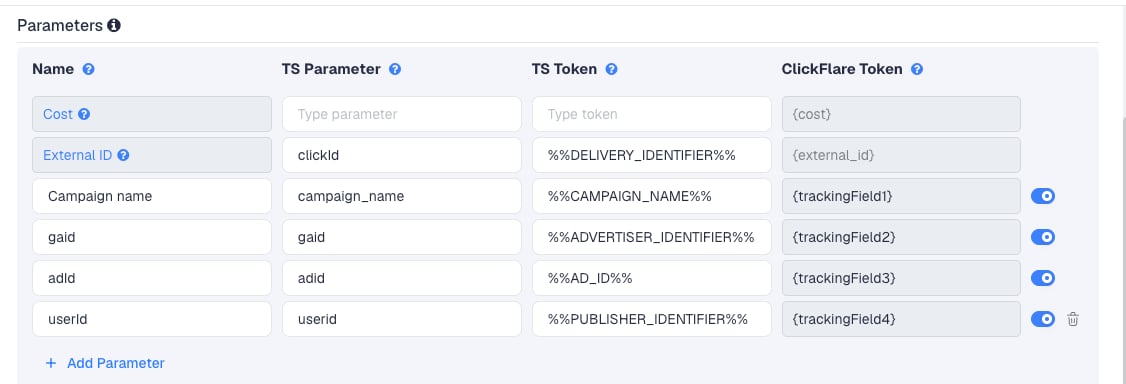
campaignName, gaid, adId, userId), so ShareChat receives the same values it sent on the click. Don’t remove these rows, and don’t move them to other tracking fields, or the postback sends them empty.
To pass more ShareChat data, click Add Parameter, give it a name and parameter, and enter the ShareChat macro as the TS Token. ClickFlare assigns the next free tracking field. ShareChat also offers %%CAMPAIGN_ID%%, the campaign ID, which the template doesn’t include. Add it if you want a campaign ID column next to the name.
Step 2 – Set up the postback
The postback is what sends conversions to ShareChat. It lives on the traffic source, so every campaign that uses this ShareChat traffic source sends conversions the same way.- In the New Traffic Source form, scroll to Passing conversion info to traffic source.
- Turn on Traffic source postback URL. The template’s postback appears:
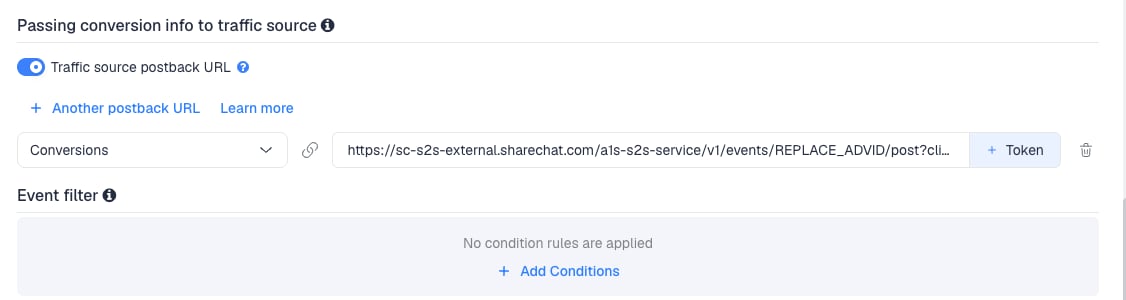
{external_id}), the event time ({unix_conversion_timestamp}), the value ({payout}) and the four click details, all as ClickFlare tokens. Replace the two placeholders:
The template has a stray comma after
REPLACE. Replace REPLACE, including the comma, so the parameter reads eventName=transaction&eventValue={payout}. ShareChat accepts these event names:
The result, for a purchase:
- In the dropdown on the left, choose the ClickFlare event that should fire the postback. Keep Conversions to send every conversion. If your final action is a custom conversion (for example
purchase), choose that instead. - Click Save. You are back in the campaign editor with the ShareChat traffic source selected.
The event time
The template fillsEventTime with {unix_conversion_timestamp}. ClickFlare replaces it with the time of the conversion in Unix seconds, which is the format ShareChat expects. Leave it as it is.
The value ShareChat receives
eventValue={payout} sends the conversion’s payout as ClickFlare records it. For a transaction, that is the revenue, for example 499.00. For events with no revenue, ShareChat’s own integrations send eventValue=1. If a postback should count an event without a value, replace {payout} with 1 in that postback.
The postback sends no currency. Keep your payouts in one currency, ideally the one your ShareChat account uses, so the values mean the same thing on both sides. See Multicurrency in ClickFlare.
To learn what each postback token does, see How to Configure a Traffic Source S2S Postback URL.
Step 3 – Finish the campaign and copy its URL
- Name the campaign.
- Set the Cost Model to CPC and enter your average cost per click. See Cost.
- Choose Redirect or Direct tracking. Redirect is the usual choice for ShareChat.
- Click Next and, on Destination, add your lander (optional) and your offer.
- Save, open Tracking, select your own tracking domain and copy the campaign URL.
clickId=%%DELIVERY_IDENTIFIER%% and adid=%%AD_ID%%.
If you use a lander, its call-to-action must link to the ClickFlare click URL, not to the offer directly. Otherwise the visit reaches the offer without a ClickFlare click ID, and the conversion cannot be traced back to ShareChat.
See Creating a Campaign in ClickFlare.
Step 4 – Create the campaign in ShareChat
- In ShareChat Ads Manager, click New Campaign on the overview page. The form has three sections: Campaign Info, Set Up Campaign and Creatives.
- In Campaign Info, pick your Advertiser Categories, enter a Campaign Title and, under Campaign Objectives, choose Conversion. If it is locked, ad-ops hasn’t enabled it for your account yet.
- Choose an Ad Format, for example Native in-feed Display or Native in-feed Video, and the placements: ShareChat, Moj or both.
- In Set Up Campaign, set Budget & Schedule and Target Audience as usual.
- In Creatives, upload your image or video. Wherever the creative asks for the CTA or Landing Page URL, paste the ClickFlare campaign URL.
- Submit the campaign. It runs after ShareChat approves the creative.
%%...%% macro when the ad is tapped.
Step 5 – Test the integration
ShareChat Ads Manager has no self-serve postback check. ShareChat’s ad-ops team verifies Direct Integration postbacks for you, and asks every Direct Integration advertiser to do this before running conversion campaigns.- Open your ClickFlare campaign URL on a phone, with test values in place of the macros, for example
clickId=cf-test-1. - Complete the offer the way a real visitor would, so a conversion reaches ClickFlare.
- In ClickFlare, go to Logs → Postback Status and filter by the campaign. A successful request to
sc-s2s-external.sharechat.comconfirms ClickFlare sent the postback. ShareChat answers with200and the messageEvents received.when it accepts it. - Note the time, and message your ShareChat account manager or ad-ops team with your ADVID, the event name you sent, the test click ID and the time.
- In the same message, ask them to enable the Conversion objective for your ad account.
Tracking several events
ShareChat can receive several events from the same campaign, for example aregistration and a transaction. Each event needs its own postback, with its own eventName:
- In ClickFlare, create a custom conversion for each step, for example
leadandpurchase. - On the ShareChat traffic source, click + Another postback URL once per extra event.
- Map each postback to its ClickFlare event: the
leadcustom conversion to theeventName=registrationURL,purchasetoeventName=transaction. - Have ad-ops verify each event, as in Step 5.
Rules for multi-event postbacks
Rules for multi-event postbacks
- Use only ShareChat’s event names:
install,registration,transaction,page_visits. ShareChat accepts only these. - One postback per event. Don’t combine events in one URL.
- You can map more than one ClickFlare event to the same ShareChat event, for example two payment steps to
transaction. - Send revenue in
eventValuefortransaction. Use1for events without revenue.
Sending only one event
Sending only one event
If ShareChat should only learn from your final sale, keep a single postback and map it to that event. Earlier steps still show in ClickFlare. They just don’t reach ShareChat.To send a postback only for some conversions, for example only those above a certain payout, use Event filter under the postback to add conditions.
Cost
The template passes no cost. Its Cost row has no parameter and no macro, and ShareChat has no cost macro in its click URL. ClickFlare has no cost integration for ShareChat either. Set the campaign’s Cost Model to CPC and enter your average cost per click from ShareChat Ads Manager. If you buy on impressions, divide your spend by your clicks to get the cost per click. A CPM bid divided by 1,000 doesn’t work here: on an in-feed ad, most impressions are not clicks.Compare the Cost column with your ShareChat spend after the first days. When they differ, correct them with a manual cost upload, and update the CPC value on the campaign.
Delayed revenue
If your offer reports revenue hours or days after the click, for example search arbitrage feeds or subscriptions, see Sending Delayed Revenue to Traffic Sources to pass that revenue to ShareChat once it arrives.Troubleshooting
The Conversion objective is locked
The Conversion objective is locked
ShareChat enables it per ad account for advertisers on S2S postbacks. Ask your ShareChat account manager or ad-ops team to turn it on.
Campaign name or adId columns are empty
Campaign name or adId columns are empty
The macros were not replaced, usually because the URL was edited or pasted somewhere ShareChat doesn’t process macros. Paste the campaign URL from ClickFlare unchanged. Empty tracking fields also mean the postback sends empty
campaignName and adId. See Traffic Source Tokens Arriving Empty.FREQUENTLY ASKED QUESTIONS
Q1: Can I use the same ShareChat traffic source for all my ShareChat campaigns?A1: Yes, as long as they report to the same ADVID. The postback is set once on the traffic source and every campaign using it sends conversions the same way. Create a second ShareChat traffic source for campaigns that report to another ADVID or need a different event setup.
Q2: What is the ADVID and why isn’t it my Advertiser Id?A2: The ADVID is the name of the data source you registered in Event Manager. ShareChat uses it to file the postback. The Advertiser Id is your ad account’s ID. They are different values, and only the ADVID belongs in the postback.
Q3: ShareChat’s data source is called Mobile app conversion APIs. Does it work for web offers?A3: ShareChat’s Direct Integration is set up as a mobile app data source, with a Play Store URL. If you promote web offers, ask your ShareChat account manager how they want those conversions registered before you launch.
Q4: Should I use Redirect or Direct tracking with ShareChat?A4: Redirect is the usual choice. Use Direct only if ShareChat must see your lander’s domain as the destination. See Direct Campaign Tracking.
Q5: Does ShareChat support view-through conversions?A5: This setup is click-based. The postback can only reach ShareChat for visitors who tapped the ad, because the
clickId ShareChat passes on the tap is what it matches on. Ask your ShareChat account manager about view-through measurement.
Related
Traffic source postbacks
Every token you can use in a postback.
Custom conversions
Split registrations and purchases into separate events.
Cost models
How CPC, CPA and RevShare costs are calculated.
Conversions not showing
The general checklist when postbacks don’t arrive.