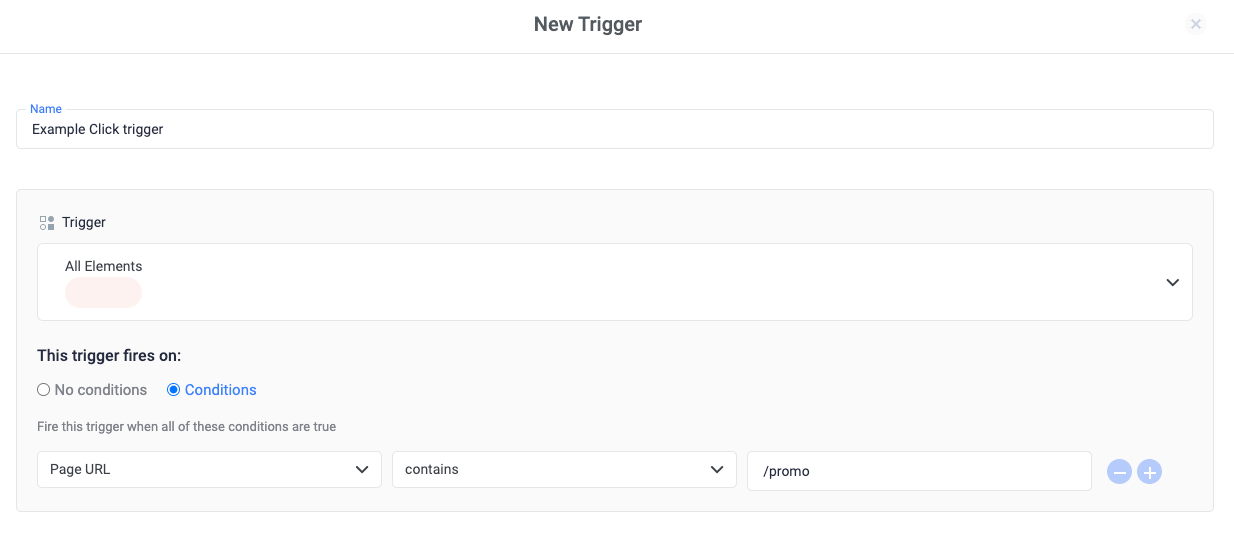
- Click Triggers > New.
- Click Trigger Configuration and choose a click trigger type: All Elements: Track clicks on any element on a page, e.g. links, images, buttons, etc. Just Links: Track clicks only on HTML links that use the <a> element, e.g. <a href=“www.clickflare.com”>ClickFlare.io</a>.
- Optional, but recommended for improved performance: Specify conditions (usually a URL pattern) for pages where you expect a click to occur: Under the heading “This trigger fires on”, select “Conditions”. Under “Fire this trigger when an Event occurs and all of these conditions are true”, add a filter to enable this trigger only on pages that require it, e.g. Click URL contains /path/to/promo.