Black Friday came early. Early-access prices until Nov 8.Black Friday: early-access prices until Nov 8.Early-access price ends in0d00h00m00sClaim the deal


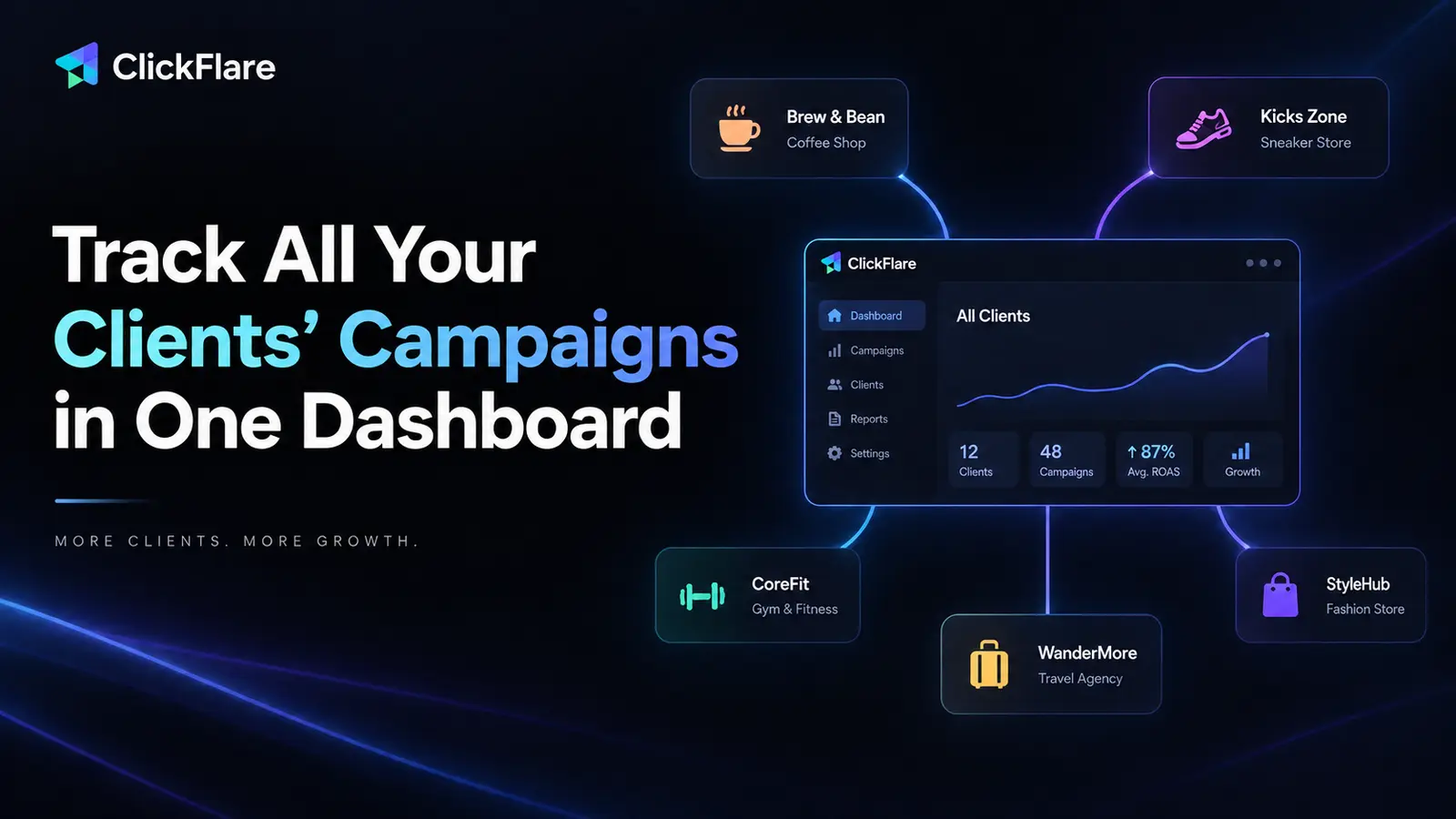

If you run ad campaigns for more than one client, you already know the two options nobody's happy with. Either every client gets their own tracker login, and you're duplicating setup work and losing the ability to compare performance across all of them. Or everyone shares one account, and now a client can technically stumble into another client's numbers or campaign structure. Neither is a real answer.
There's a third way to run this: one account, one dashboard, and every client's data separated from every other client's, with your team seeing only what they're supposed to see. That's what this guide walks through, why the usual setups break down, what actually needs to be true for this to work, and how to build it in ClickFlare.
Quick summary
Every new client comes with the same setup work: a tracking domain, Conversion API connections to their ad accounts, postbacks for their affiliate or lead sources, and a way for them to see their own results.
None of that goes away, no matter how you organize your accounts. What changes is where that setup lives and who can see it once it's done.
Most agencies and media buying teams end up defaulting to one of two setups, and both create real problems as the client list grows.
This feels safe. Client A can't see Client B because they're not even in the same account. But it means paying for and maintaining a separate subscription per client, rebuilding your integrations and postback templates every single time, and logging in and out all day just to check numbers across your accounts.
Worse, there's no single view of how your whole team or agency is performing. You're comparing exported spreadsheets instead of looking at one dashboard.
If you're still weighing whether a dedicated tracker is worth it for a growing client list, our breakdown of the best ad tracking software in 2026 covers exactly this comparison for agencies.
This solves the "one dashboard" problem, but creates a data problem instead. If every user, and every client you've given login access to, is sitting in the same account with no boundaries, a client browsing their own reports is often a click or two away from another client's spend, ROI, or even contact details tied to a campaign.
Same goes for team members: a media buyer who only needs to see their own campaigns can usually see everyone else's too, along with account-level settings they have no business touching.
Neither setup is careless. They're just the two solutions you get when a tracker only gives you an all-or-nothing choice: separate accounts, or one account with no walls inside it.
Client onboarding guides tend to treat "grant tracking access" as a single line item, right next to "send welcome email." In practice, it's closer to a security decision than an admin task.
You're handing out access to spend data, conversion numbers, and sometimes contact or revenue information, to people both inside and outside your company, and every one of those handoffs is a chance for the wrong person to see the wrong client's numbers.
This is the same reasoning behind the principle of least privilege in security more broadly: give each person access to exactly what they need to do their job, and nothing else. Applied here, that means a client sees their own campaigns and nothing else.
A media buyer sees the workspaces they're assigned to and nothing else. An account owner or admin sees everything, because they need to for reporting and QA. Nobody gets more than their role requires, and nobody has to duplicate an entire account just to stay within their own lane.
| Setup | One Dashboard? | Data Isolated Per Client? | Setup Work Per New Client |
|---|---|---|---|
| Separate account per client | No | Yes, by default | Full rebuild every time |
| One shared account, no roles | Yes | No | Fast, but risky |
| One account, private Workspaces | Yes | Yes | New Workspace, not a new account |
The requirement is quite simple: you need one place to see all your clients' performance side by side, and a way to guarantee that a person assigned to Client A's campaigns cannot see Client B's, even by accident.
That means the isolation has to happen at the data level, tracking domains, integrations, reports, campaign elements, not at the account level. One account, with internal walls, instead of many accounts with no walls at all.
It also means client-facing access and team-facing access are two different problems. A client usually just wants to see their own results. A media buyer or account manager on your team needs to actually work inside the platform, building and adjusting campaigns. Those two groups need different kinds of access, not the same login.
ClickFlare handles this with three pieces that work together: private Workspaces to isolate data, Multi-User roles to control what each team member can do, and Shared Reports to give clients visibility without giving them the platform itself.
A Workspace in ClickFlare is a container you can assign campaigns, offers, tracking domains, and integrations to. When something is assigned to a Private Workspace, it, and its reporting data, is only visible to the users assigned to that Workspace.
Set up a Private Workspace per client, assign their domain and their Conversion API or cost integrations to it (see our guide to ad spend tracking if you're setting cost integrations up for the first time), and their entire tracking setup is sealed off from every other client's, inside the same ClickFlare account.
This is also why the setup work doesn't disappear: you're still connecting each client's ad accounts and postbacks. You're just doing it inside one platform instead of ten.
On top of Workspaces, ClickFlare's Multi-User feature lets the Account Owner invite team members under one of three roles:
A media buyer handling three clients gets added as a Worker on exactly those three Workspaces. They never see the other twelve clients on the account. An account owner or admin still sees everything, side by side, for reporting and comparison.
Not every client needs, or should have, a login to your tracking platform. For that, ClickFlare's Shared Reports feature lets you build a report scoped to one client's data and share it as its own link, so they get a live view of their results without ever touching your account, your other clients' Workspaces, or your settings.
Here's what this looks like in practice, from a fresh client to a report in their inbox.
Step 1: Create a Private Workspace for the new client
Go to Settings > Collaboration Area > Workspaces, and create a new Private Workspace named after the client. This is the container everything else attaches to.

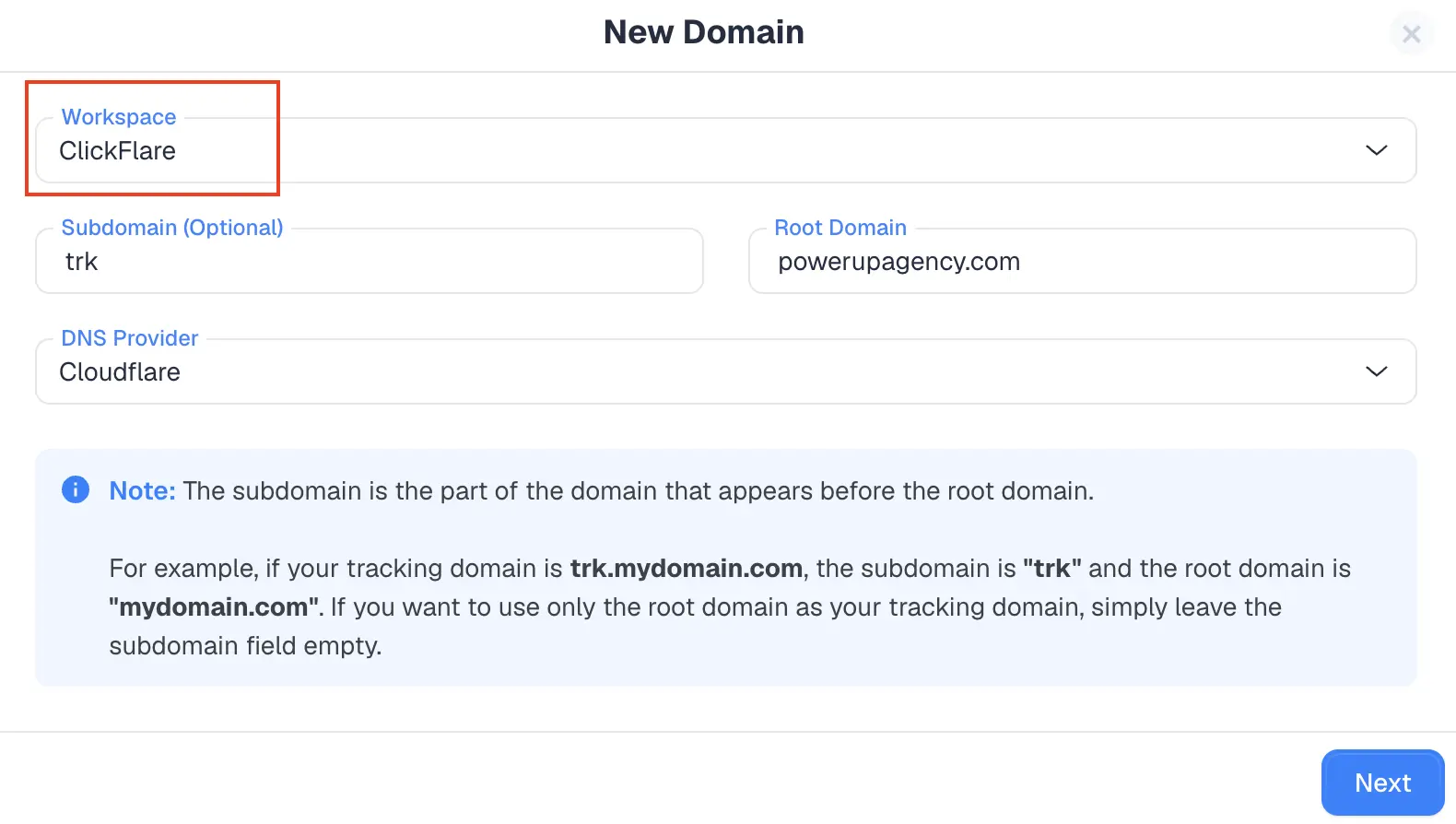
Step 2: Assign their domain and integrations to that Workspace
Connect the client's tracking domain, Conversion API integrations, cost integrations, and any revenue stream integrations as you normally would, then assign each one to the new Workspace. Every time you create a new element on ClickFlare, the first option asks you to assign it to a workspace.
From this point on, that domain and those integrations, along with all reporting data tied to them, are only visible inside this Workspace.
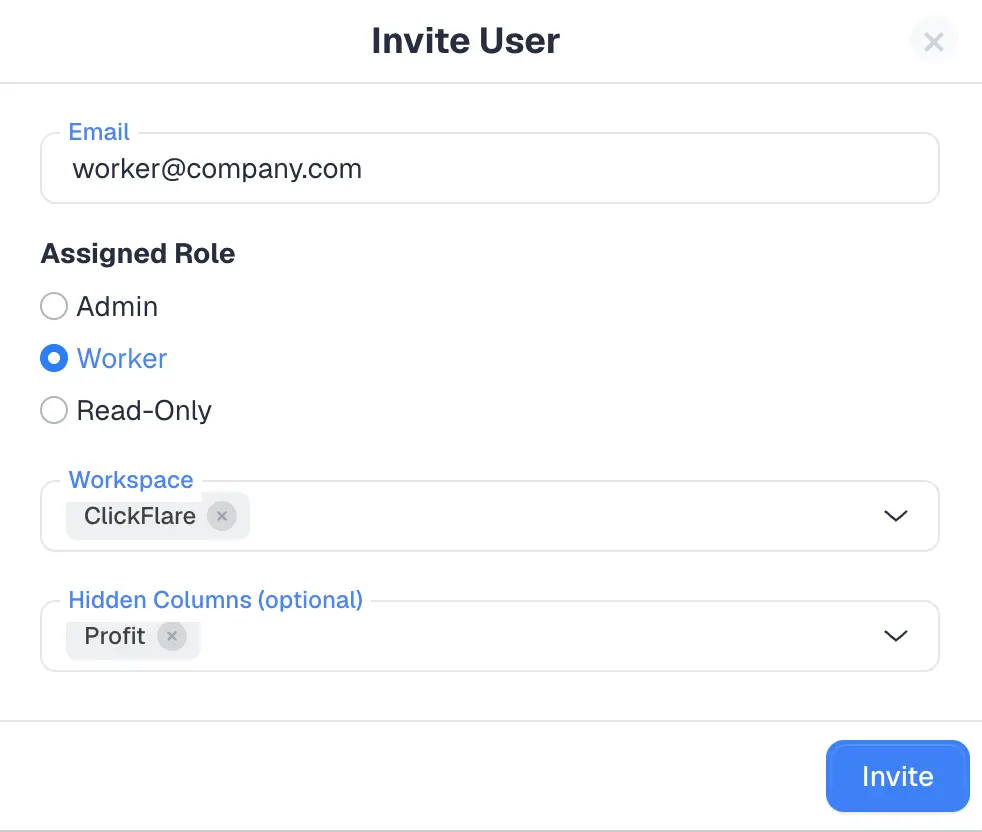
Step 3: Invite the person who'll work on this client, with the right role
In the Multi-User tab, invite the team member by email and assign them as a Worker on this Workspace (or Read-only, if they only need to view results). If they're handling more than one client, assign them to each relevant Workspace, and only those.
Step 4: Share results with the client without giving them platform access
If the client just needs to see performance, skip adding them as a platform user altogether. Build a Shared Report scoped to their Workspace and send them the link instead.
To create a Shared Report, simply go to the main Campaign reporting dashboard in ClickFlare, create the report you wish to share (with the right campaigns, columns, etc) and click on Share.

Select your preferred settings for the report, such as timezone, time range, and the columns you wish to include. Once you create this link, the report will be automatically updated every day for the given time range, without you having to continuously generate a new one.

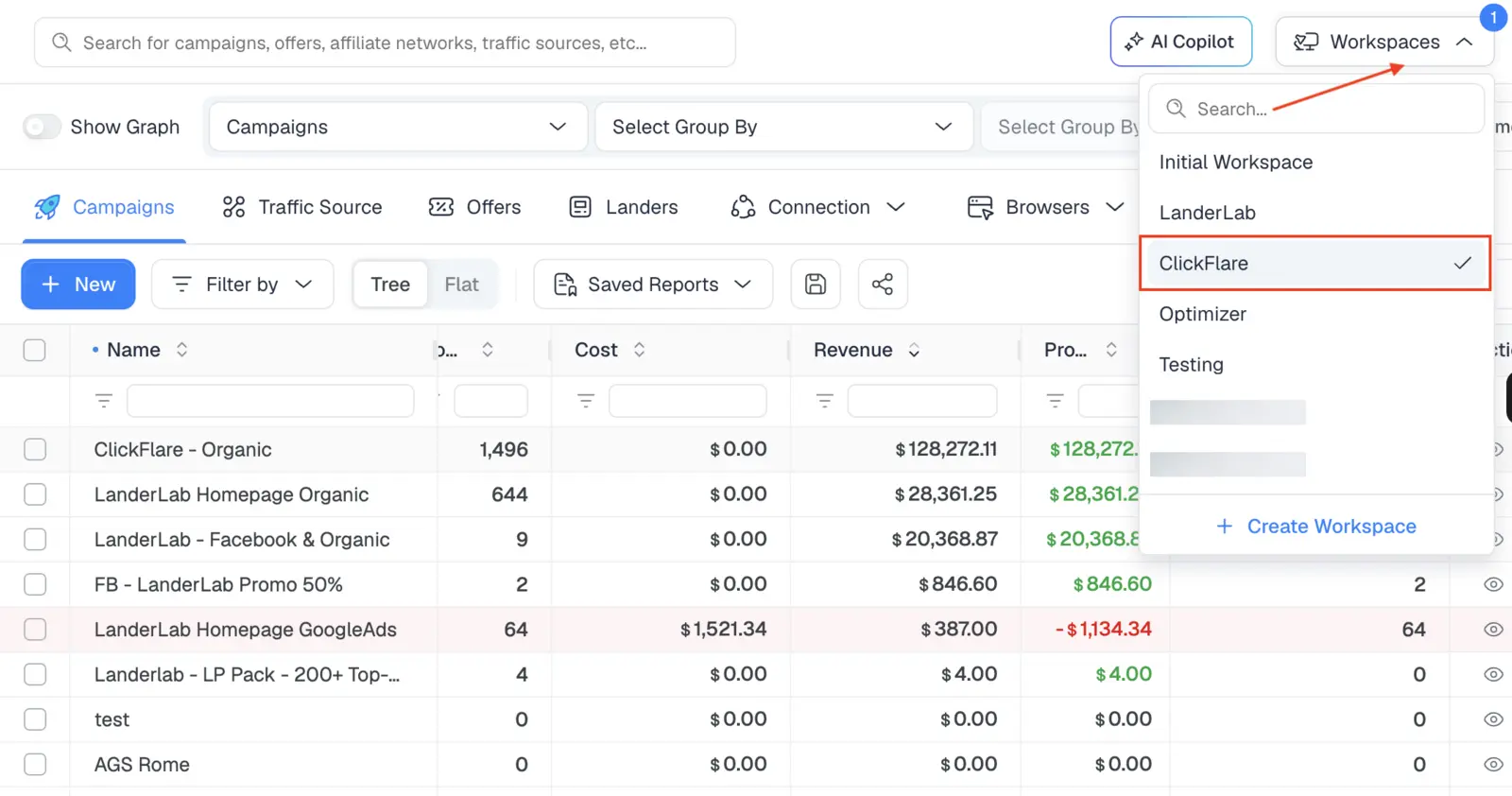
Step 5: Use Workspace filtering to view one client, or all of them, from your dashboard
As the Account Owner or an Admin, filter your dashboard by Workspace to drop into one client's numbers, or clear the filter to see every client's performance side by side, without opening a second account or a second browser tab.
Add a new client, and the process is the same five steps, not a new subscription, not a rebuilt integration list, not a spreadsheet to merge into your master file. Your dashboard filters between clients instead of switching between logins.
Reporting for your entire business, average ROAS, total spend, which client's campaigns are pulling their weight, comes from one account instead of stitched-together exports, which also sidesteps the classic headache of numbers not matching across platforms when you're reconciling several clients' data by hand.
This same structure works whether you're separating client accounts, splitting Workspaces by media buyer so managers can compare individual performance, or keeping different business verticals, like search arbitrage and lead generation, from bleeding into each other's reporting. The setup is identical either way: a Private Workspace per thing you need isolated, roles that match who actually needs access.
Running ad tracking for multiple clients doesn't have to mean choosing between a unified dashboard and clean data separation. With Private Workspaces, role-based Multi-User access, and Shared Reports, ClickFlare lets you keep every client's campaigns, integrations, and reporting walled off from every other client's, while you still get one dashboard to see how the whole book of business is actually performing.
The tracking setup itself doesn't get any smaller, you're still connecting each client's ad accounts and postbacks, but where that work lives, and who can see it once it's done, changes completely.
Not if their campaigns and integrations are assigned to a Private Workspace. Private Workspace data is only visible to the users assigned to that specific Workspace, so a client or team member without access to another Workspace simply can't see it.
No. ClickFlare's Shared Reports let you send a client a live report link scoped to their data without giving them a login to the platform at all.
A Worker can build and edit campaigns within their assigned Workspace. A Read-only user can view stats and campaign elements in their assigned Workspace but can't make any edits.
Workspaces, Multi-User access, and Shared Reports are included starting on ClickFlare's entry-level plan, with higher plans including more Workspaces, additional users, and Shared Reports. Check the pricing page for current plan limits.
Yes. Workspaces aren't limited to client separation. Agencies use the same setup to isolate media buyers so managers can compare individual performance, or to keep different verticals, like search arbitrage and lead generation, reporting separately.
Need a hand setting up client Workspaces?
Try out ClickFlare for free and book a call with one of our tracking specialists who will guide you through the entire process.