

suid, the account ID Traforama uses to credit a conversion, and it sends no conversion price. This guide goes through each fix.
At a glance
How it works
1
Traforama sends the click
A visitor clicks your ad, or a popunder opens. Traforama opens your ClickFlare campaign URL and fills in its macros: the click ID in
id, the page and domain the ad ran on, the spot ID and the ID of the server node that handled the request.2
ClickFlare stores the click ID and the node
ClickFlare saves the value of
id as the visit’s External ID and the node ID in a tracking field, then redirects the visitor to your lander or offer.3
The conversion reaches ClickFlare
Your affiliate network or store posts the conversion back to ClickFlare, matched on the ClickFlare click ID.
4
ClickFlare posts it back to Traforama
ClickFlare fires the postback. It puts the stored node ID into the host name, the stored click ID into the path, and your
suid and payout into the query string. Traforama matches the conversion to the original click.The mirror to keep straight: in the campaign URL you write ClickFlare’s parameter (
id) and Traforama’s macro (%ID%). The template does this for you. In the postback URL, Traforama has no parameter name for the click ID: it goes in the path, after /api/click/, as ClickFlare’s token ({external_id}).Before you start
- Set up your own tracking domain. Run the campaign and the postback on your own custom domain. Shared domains get flagged by networks and blocked by browsers. See Custom Domains.
- Have an offer ready in ClickFlare, and its affiliate network set up to post conversions back to ClickFlare. See Creating an Offer and Adding an Affiliate Network.
- Have a Traforama advertiser account. AdSpyglass itself is the publisher side. You buy traffic in Traforama.
- Copy your
suid. In Traforama, click the Campaigns tab and select Conversion tracker. Open the S2S Postback URL tab and copy your uniquesuid. It goes into the postback. - Decide which conversions Traforama should receive. Auto CPA optimizes on what you send it. If your funnel has several steps, decide now which ones to send. See Tracking several events.
Step 1 – Create the campaign and the AdSpyglass traffic source
- Go to Campaigns and click New.
- In Traffic Source, open the dropdown and click + New Traffic Source.
- Type
adspyglassin the search box and select the ADSpyglass template. - Enter a Name, for example
AdSpyglass (Traforama). - Leave Cost currency on USD unless your Traforama account is billed in another currency.
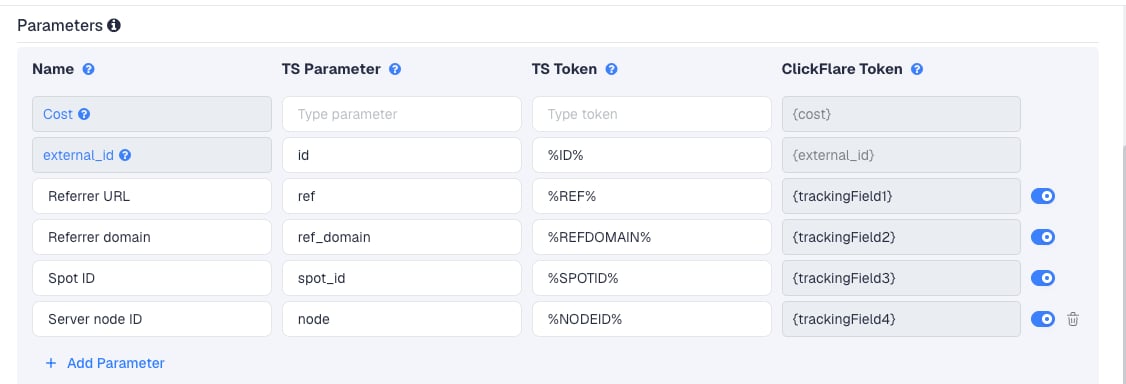
ref_domain and spot_id are the ones you will use most. They tell you which sites and spots convert, so you can add them to Traforama’s Only selected spots or Exclude selected spots lists.
There is no Cost row. Traforama’s cost macros are covered in Cost.
To pass more Traforama data, click Add Parameter, give it a name and parameter, and enter the Traforama macro as the TS Token. ClickFlare assigns the next free tracking field. Traforama documents these extra macros for click links:
%CAMPAIGNID% and %CREATIVEID% are worth adding. They let you split ClickFlare reports by Traforama campaign and creative.
Step 2 – Set up the postback
The postback is what sends conversions to Traforama. It lives on the traffic source, so every campaign that uses this AdSpyglass traffic source sends conversions the same way.How Traforama’s postback works
Traforama’s Conversion tracker documents its postback in this shape:- The click ID goes in the path, right after
/api/click/. suididentifies your Traforama account.cis the conversion number, from 1 to 10. Use different numbers for different kinds of conversion.cpais the price of the conversion. It is optional.
{click_tracker} and {coversion_cost} parts are Traforama’s placeholders, not ClickFlare tokens. You never paste them into ClickFlare.
Add it to the traffic source in ClickFlare
- Back in the New Traffic Source form, scroll to Passing conversion info to traffic source.
- Turn on Traffic source postback URL. The template’s postback appears:
{external_id}) in the path, and routes the request to the node that handled the click: {trackingField4} is the Server node ID row, so a click handled by node 11 posts back to n11.pa4ka.com. It does not send your suid, a conversion number or a price.
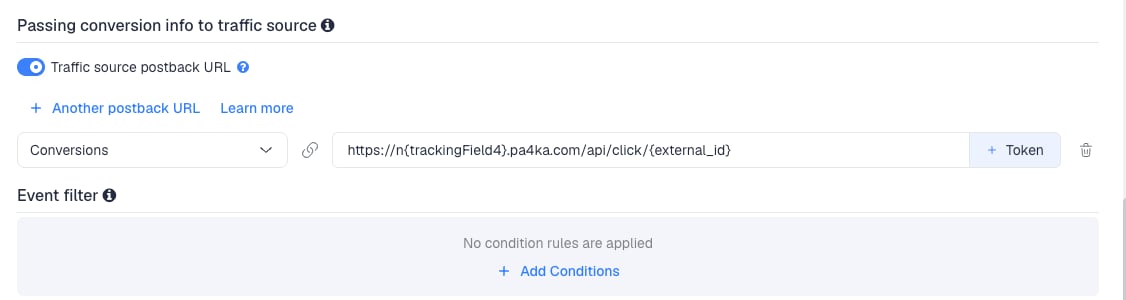
- Add the missing query string at the end of the URL. Replace
YOUR_SUIDwith thesuidyou copied from Traforama’s Conversion tracker:
- Compare the result with the URL on Traforama’s S2S Postback URL tab. If Traforama shows a different host (its help center shows
p.pa6ka.com), use Traforama’s host and keep ClickFlare’s tokens:
- In the dropdown on the left, choose the ClickFlare event that should fire the postback. Keep Conversions to send every conversion. If your final action is a custom conversion (for example
purchase), choose that instead. - Click Save. You are back in the campaign editor with the AdSpyglass traffic source selected.
cpa={payout} sends the conversion’s revenue as its price. Traforama’s help center doesn’t say which currency it expects. Assume your Traforama account currency, and if your offers pay in another one, see Multicurrency in ClickFlare.
To build a retargeting audience from converters, Traforama supports &retargeting=1 at the end of the postback.
To learn what each postback token does, see How to Configure a Traffic Source S2S Postback URL.
Traforama's pixel, and why ClickFlare doesn't use it
Traforama's pixel, and why ClickFlare doesn't use it
Traforama also offers an image pixel for your conversion page:
https://p.pa6ka.com/c.png?suid=XXXXXXX&c=1. It relies on the visitor’s browser and Traforama’s cookie. The ClickFlare postback is server to server, so it works even if the visitor clears cookies or switches browser. Use one or the other for a given conversion, not both, or the same conversion may be counted twice.Step 3 – Finish the campaign and copy its URL
- Name the campaign.
- Set the Cost Model to CPC and enter your cost per visit. See Cost.
- Choose Redirect or Direct tracking. Redirect is the usual choice for popunder and banner traffic.
- Click Next and, on Destination, add your lander (optional) and your offer.
- Save, open Tracking, select your own tracking domain and copy the campaign URL.
id=%ID% and node=%NODEID%.
If you use a lander, its call-to-action must link to the ClickFlare click URL, not to the offer directly. Otherwise the visit reaches the offer without a ClickFlare click ID, and the conversion cannot be traced back to Traforama.
See Creating a Campaign in ClickFlare.
Step 4 – Create the campaign in Traforama
- In Traforama, click the Campaigns tab and select Campaign list.
- Click Add campaign, enter a name, set the budget and targeting, and click Create.
- In the campaign list, click Add creative and name the creative.
- Paste the ClickFlare campaign URL into the Link URL field.
- Optionally set frequency capping and traffic filters.
- Set your CPM, either one rate for all countries or one per country, and click Save.
%...% macro when the ad is clicked or the popunder opens.
Step 5 – Test the integration
Traforama’s help center doesn’t describe a test conversion tool. Test with a live click instead.- Launch the campaign with a small budget, or wait for the first clicks after approval.
- In ClickFlare, open the campaign’s report and check that External ID and the Server node ID column are filled in. Empty values mean the URL was edited. See Traffic Source Tokens Arriving Empty.
- Complete the offer yourself through the campaign URL, or wait for a real conversion.
- In ClickFlare, go to Logs → Postback Status and filter by the campaign. Check the URL ClickFlare called: it should contain a real node number in the host, a real click ID in the path, and your
suid. - In Traforama’s statistics, check that the conversion appears.
Tracking several events
Traforama separates conversions with thec parameter, from c=1 to c=10. Each kind of conversion needs its own postback with its own number:
- In ClickFlare, create a custom conversion for each step, for example
leadandpurchase. - On the AdSpyglass traffic source, click + Another postback URL once per extra event.
- Map each postback to its ClickFlare event: the
leadcustom conversion to thec=1URL,purchasetoc=2. - Keep a note of which number means what. Traforama shows the number, not your event name.
Rules for multi-event postbacks
Rules for multi-event postbacks
- Ten events at most:
c=1toc=10. - One postback per event. Don’t combine events in one URL.
- Keep the same
suidin every postback. - Use the same
cnumbers on every campaign, so Traforama’s stats stay comparable.
Sending only one event
Sending only one event
If Traforama should only learn from your final sale, keep a single postback and map it to that event. Earlier steps (leads, add to carts) still show in ClickFlare. They just don’t reach Traforama.To send a postback only for some conversions, for example only those above a certain payout, use Event filter under the postback to add conditions.
Cost
The template passes no cost. It has no Cost row, so ClickFlare records nothing from the click URL. Traforama sells on CPM by default, with Smart CPM and Auto CPA on top, and on CPC for banner and in-page push campaigns once support enables it. On the campaign:- Popunder, interstitial and other CPM formats: set the Cost Model to CPC and enter your CPM bid divided by 1,000. A popunder impression is roughly one visit, so this gives a close cost per visit.
- Banner and in-page push on Traforama’s CPC model: set the Cost Model to CPC and enter your CPC bid.
- Auto CPA: you still pay per impression. Use CPC with your effective cost per visit (spend divided by visits) and correct it later.
Traforama documents cost macros for click links:
%AUCTIONPRICE% (the CPM paid), %CPVPRICE% (the CPV paid) and %CPC% (on the CPC model). The template doesn’t use them. Adding one with Add Parameter gives you a tracking field you can report on, but not cost in ClickFlare’s Cost column.Delayed revenue
If you run search arbitrage (RSOC or AFD) behind Traforama, the feed reports revenue hours or days after the click. To pass that revenue to Traforama once it arrives, see Sending Delayed Revenue to Traffic Sources.Troubleshooting
Conversions show in ClickFlare but not in Traforama
Conversions show in ClickFlare but not in Traforama
- The postback has no
suid, orYOUR_SUIDwas never replaced. Copy yoursuidagain from Campaigns → Conversion tracker → S2S Postback URL. - Traffic source postback URL is off on the AdSpyglass traffic source.
- Disable sending postbacks to traffic source is on in the campaign.
- The postback is mapped to a different event than the one the conversion logged. Check Logs → Event Logs to see which event was recorded.
- Check Logs → Postback Status: a failed request shows the status code Traforama returned.
The postback URL has an empty host, like n.pa4ka.com
The postback URL has an empty host, like n.pa4ka.com
{trackingField4} was empty, so the Server node ID didn’t arrive. Check that the campaign URL in Traforama still contains node=%NODEID%, and that the Server node ID row is on the traffic source. If you can’t fix it, switch the postback to the host shown in Traforama’s Conversion tracker.Traforama shows conversions with no price
Traforama shows conversions with no price
The template doesn’t send one. Add
&cpa={payout} at the end of the postback.Domain or spot columns are empty
Domain or spot columns are empty
The macros were not replaced, usually because the URL was edited or pasted with spaces. Paste the campaign URL from ClickFlare unchanged into Link URL. See Traffic Source Tokens Arriving Empty.
FREQUENTLY ASKED QUESTIONS
Q1: Is this template for AdSpyglass or for Traforama?A1: Both. AdSpyglass is the publisher platform, and Traforama is where advertisers buy that traffic. Traforama uses the Adspyglass click ID and macros, so the AdSpyglass template is the one to pick for Traforama campaigns.
Q2: Why does the postback host contain {trackingField4}?
A2: Traforama processes each click on a server node. The template stores the node ID from %NODEID% in tracking field 4, and the postback uses it to call that node directly, for example n11.pa4ka.com. ClickFlare accepts tracking fields as postback tokens.
Q3: Can I use the same AdSpyglass traffic source for all my Traforama campaigns?A3: Yes. The postback is set once on the traffic source, with your
suid, and every campaign using it sends conversions the same way. Create a second traffic source only if a campaign needs a different postback, for example a different c number.
Q4: Does Traforama support CPA or RevShare buying?A4: Traforama bills on CPM, with Auto CPA adjusting your CPM bid to a target cost per conversion, and on CPC for some formats. Auto CPA needs the postback, because it learns from the conversions it receives.
Related
Traffic source postbacks
Every token you can use in a postback.
Custom conversions
Split leads and sales into separate events.
Cost models
How CPC, CPA and RevShare costs are calculated.
Conversions not showing
The general checklist when postbacks don’t arrive.