


You launch a Microsoft Advertising campaign, the sales start rolling in, and then you open your reporting only to see Bing crediting a fraction of the conversions you know actually happened. Closing that gap is the whole point of Bing Ads conversion tracking.
As browsers tighten privacy rules and the Universal Event Tracking tag quietly drops events, leaning on a browser pixel alone leaves you optimizing on incomplete data. In this guide, we will break down how Bing Ads conversion tracking really works, why the UET tag is no longer enough on its own, and how to set up accurate server-side tracking with the Microsoft Bing Conversions API and cost integration inside ClickFlare.
Quick Summary
Bing Ads conversion tracking is the process of recording the actions people take after they click your Microsoft Advertising ads, such as purchases, sign-ups, and leads, and tying each of those actions back to the specific campaign, ad group, and keyword that produced them. It is what turns a vague sense that "Bing is working" into hard numbers you can actually optimize against.
A quick note on naming: Bing Ads was rebranded to Microsoft Advertising, but most advertisers still search for and refer to it as Bing Ads, so we use both terms throughout this guide. Whatever you call it, the tracking happens across two layers.
The first is the browser layer: the Universal Event Tracking (UET) tag, a site-wide pixel that fires from the visitor's browser when they load a page or complete an action. The second is the server layer: Microsoft's server-side conversion reporting, which sends those same events back to Microsoft without depending on the browser at all. Modern, accurate tracking uses both layers together, and that is the setup this guide walks through.
At a basic level, every conversion tracking setup follows the same pattern: a click gets a unique identifier, and the system logs whatever that identifier does next. When someone clicks your Bing ad, Microsoft attaches a click identifier, the Microsoft Click ID (MSCLKID), to the visit. If that same person later completes a purchase or fills out a form, the tracking system connects that action back to the original click using the MSCLKID.
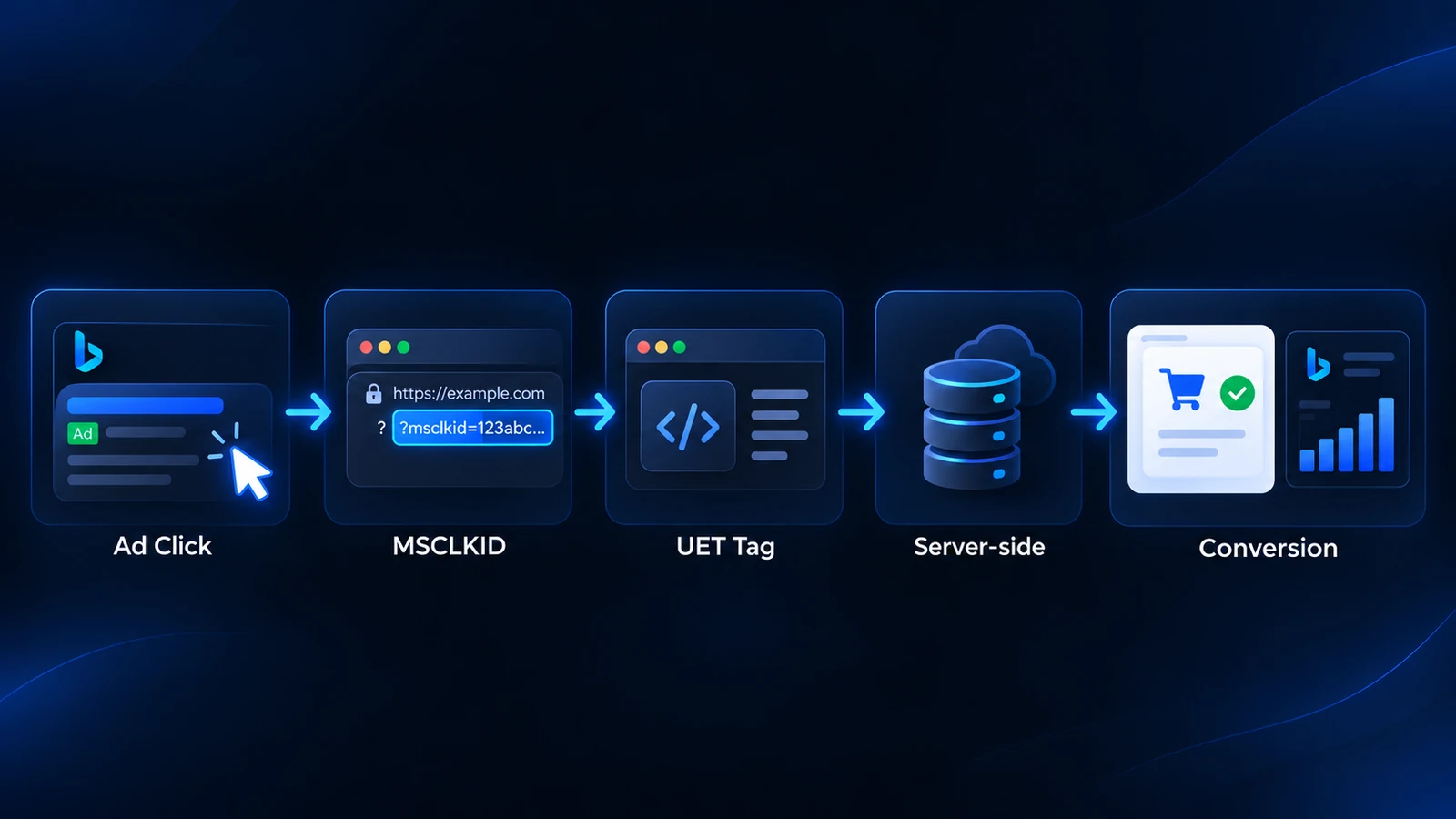
On the Microsoft side, the UET tag logs that activity, and Microsoft counts a conversion whenever the logged action matches a conversion goal you have defined, within the conversion window you set. That connection is what lets you say "this exact keyword, in this exact campaign, generated this exact sale," instead of guessing from platform totals.
The tricky part is that browsers, apps, and privacy regulations increasingly restrict how much of this journey can be tracked directly in the browser. That is why the most reliable Bing Ads conversion tracking setups combine a browser method with a server-side method rather than relying on one alone.
Universal Event Tracking is Microsoft's browser-based tag, a single site-wide pixel that reports user activity back to Microsoft Advertising. It fires when a page loads or an action happens, and it is the foundation every other feature, from conversion goals to remarketing, is built on.
It is essential groundwork, and you should absolutely have it installed across your site. The catch is that a browser pixel is exposed to everything working against client-side tracking today: ad blockers, cookie restrictions, consent choices, and the privacy features baked into modern browsers and devices. The UET tag is necessary, but on its own it is no longer sufficient.
Server-side reporting sends conversion events directly from your server back to Microsoft, bypassing the browser entirely. Because the events do not have to survive a cookie or a browser restriction, this layer recovers conversions the UET tag alone would miss. It leans on the MSCLKID that Microsoft auto-tags to your ad clicks: your server stores that identifier at click time, then reports the conversion back against it later.
Microsoft offers this server-side path through offline conversion imports and, more recently, a real-time Conversions API that runs the same event model as the UET tag. The Conversions API is newer and rolling out gradually, so availability varies by account, but the principle is the same in both cases: conversions get back to Microsoft through the server rather than the browser.
It works much like a traditional server-to-server postback, and it gives Microsoft cleaner data to optimize bidding and delivery against. If you want the full background on how server-to-server tracking operates, our guide on what a postback URL is covers it step by step.
Server-side tracking is the broader shift this accuracy layer is part of. Instead of trusting a fragile browser pixel to capture and report every event, you move the reporting to your own server, which then talks directly to the ad platform. This matters because the data holds up regardless of what happens on the browser or device side.
Consent banners, third-party cookie deprecation, and mobile tracking limits all chip away at client-side data, but server-side events sail past most of that. For Bing specifically, this is what keeps your reported conversions close to what actually happened, which keeps Microsoft's optimization pointed at the right people.
If the UET tag captured everything, none of this would be necessary. But several forces work against browser-only tracking at the same time:
The result is under-reported conversions and, worse, an optimization algorithm learning from partial data. It is also a common reason platform numbers disagree with each other. If you have ever seen three different conversion counts for one campaign, the server-side accuracy layer is usually what is missing.
ClickFlare brings both sides of accurate Bing Ads conversion tracking into one place. On the measurement side, its Microsoft Bing Conversions API integration reports your tracked conversions back to Microsoft server-to-server. On the reporting side, its Microsoft Bing cost integration pulls your ad spend in automatically, so you can read true ROI without exporting spreadsheets.
Set up together, they give you spend, clicks, and conversions side by side for every campaign. The same two-part approach powers our guides to Reddit conversion tracking and Pinterest conversion tracking, so if you run traffic on more than one platform the workflow will feel familiar.
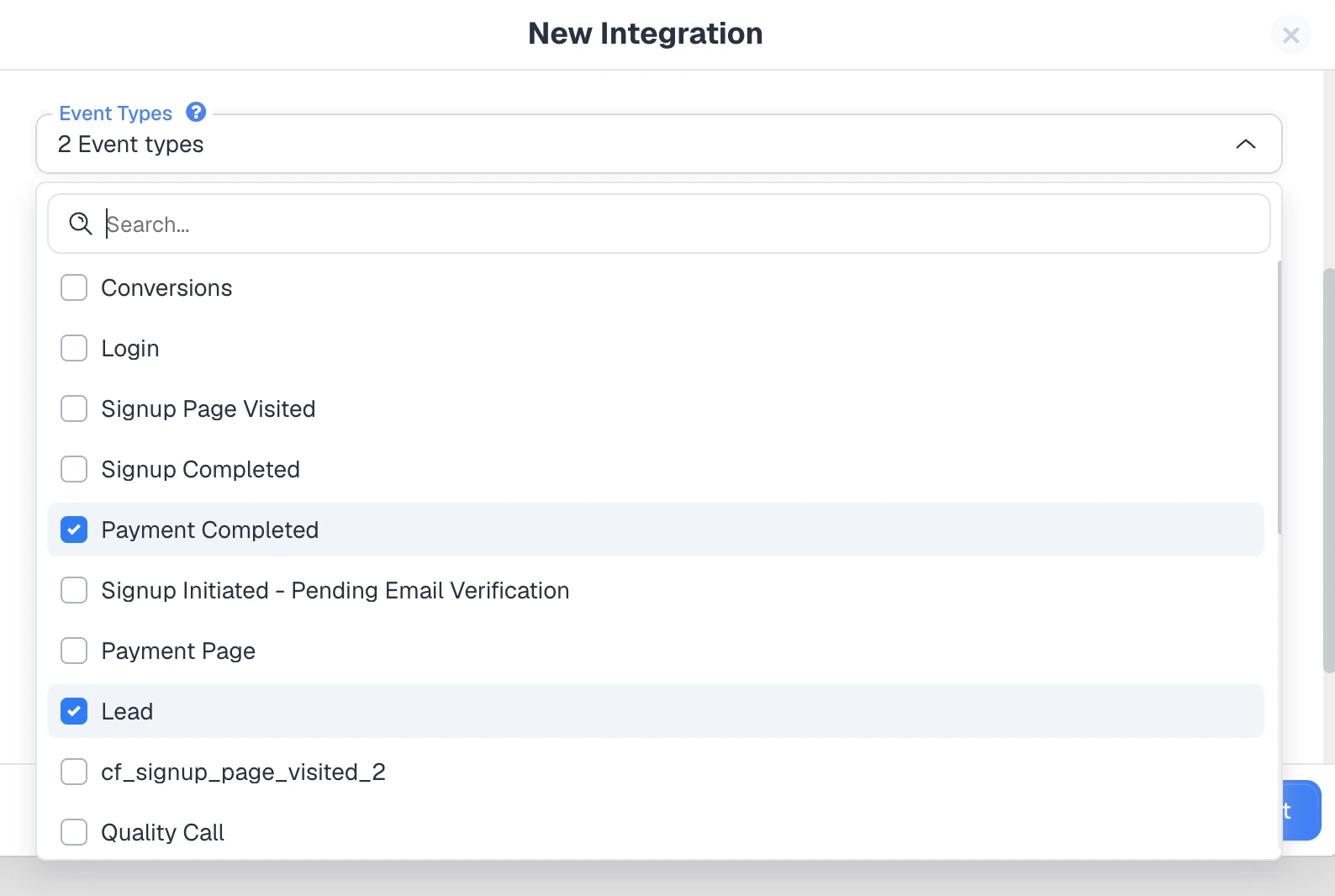
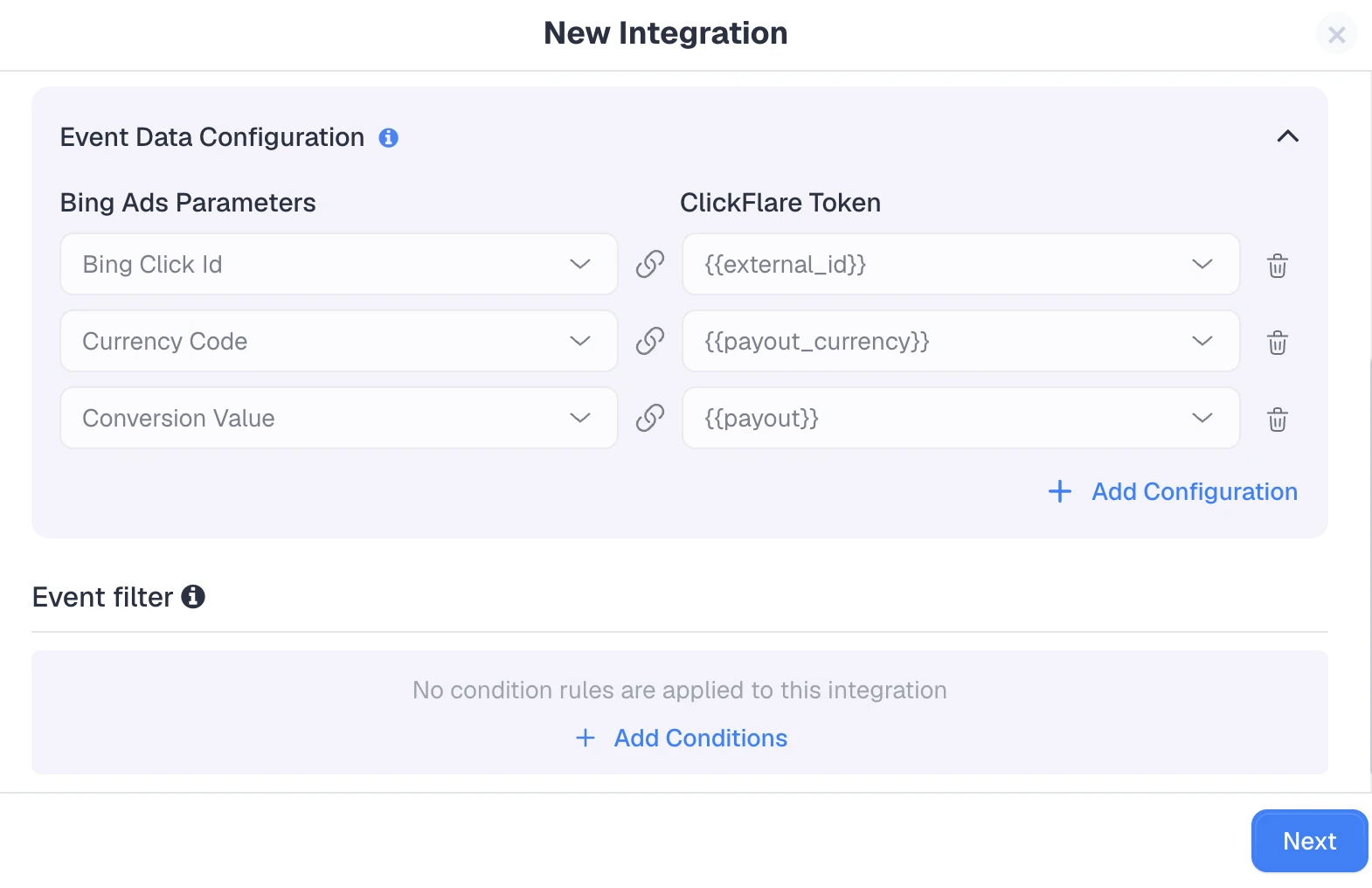
Before you begin, make sure you have an active Microsoft Advertising account and an active ClickFlare account. You will also want a conversion goal already created in Microsoft Advertising, since that is where ClickFlare sends your conversions. With those in hand, the setup inside ClickFlare runs as follows:
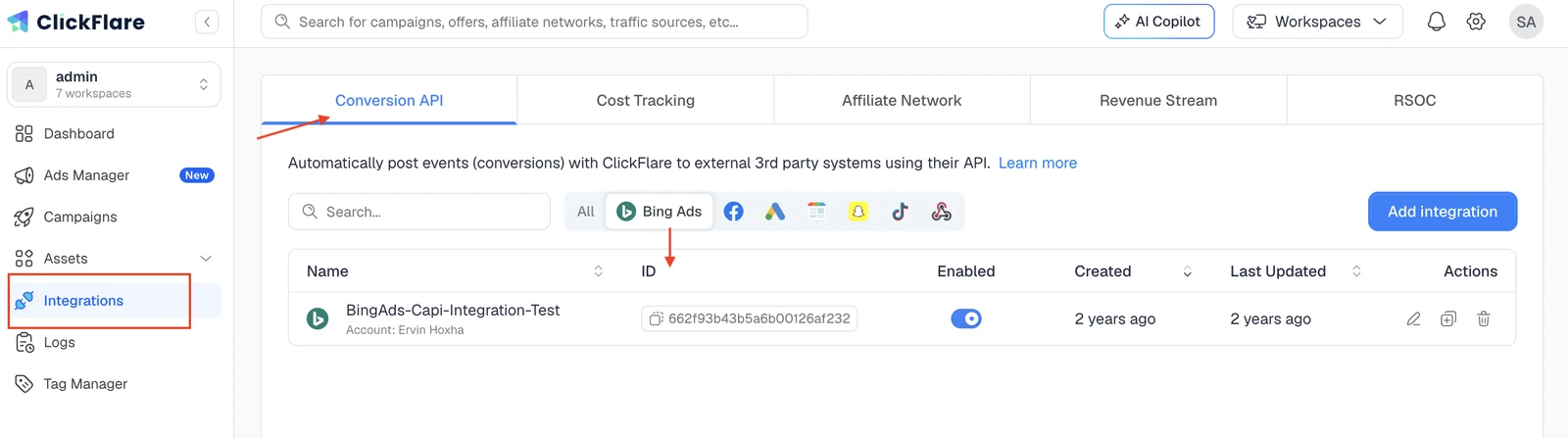
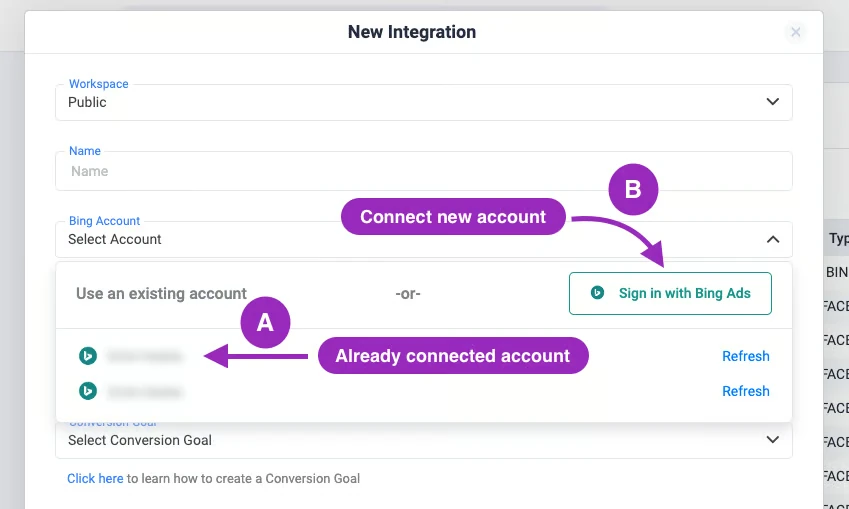
Accurate conversions are only half the ROI picture; you also need to know what you spent. ClickFlare's Microsoft Bing cost integration connects to the official Microsoft Advertising API and pulls your campaign spend in automatically. Here is how to set it up:
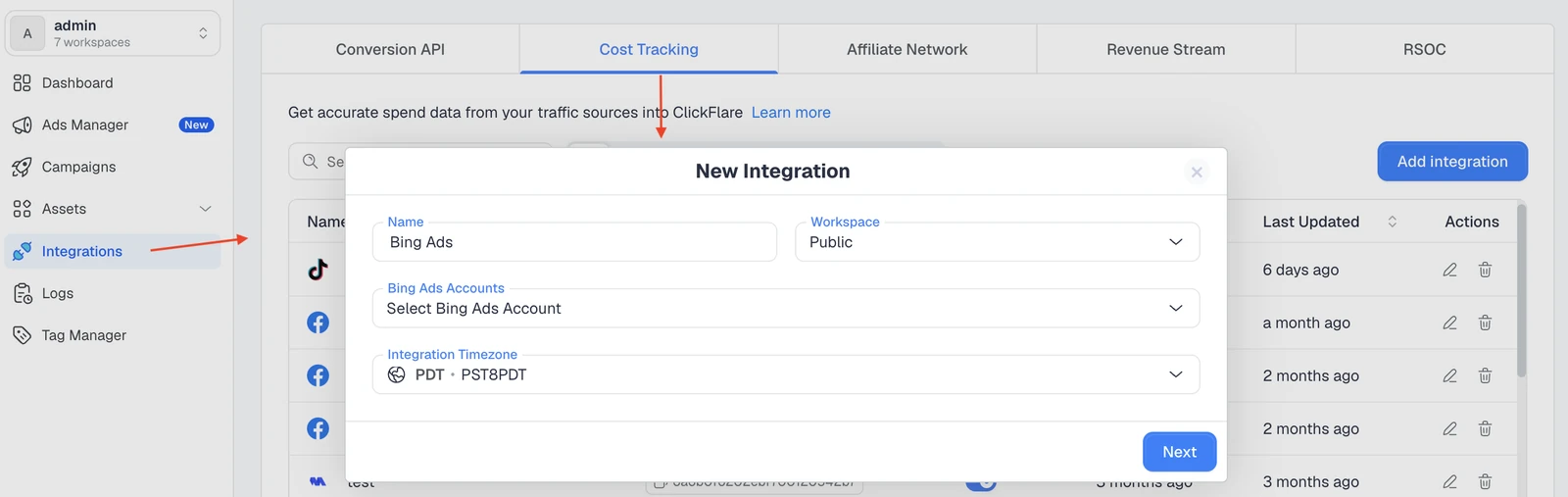
It helps to know what does and does not get pulled:
For the bigger picture on centralizing spend across networks, our complete guide to ad spend tracking is a useful next read.
It is tempting to treat the UET tag and the Conversions API as an either-or decision. They are not.
Each covers for the other's blind spots, and using them together produces the most complete and accurate picture. The table below shows how they compare.
| Aspect | UET Tag (Pixel) | Conversions API (Server-Side) |
|---|---|---|
| Where it fires | In the visitor's browser | From your server |
| Affected by ad blockers | Yes | No |
| Affected by cookie and browser limits | Yes | Largely no |
| Captures offline and cross-device conversions | Limited | Yes, via the MSCLKID |
| Best role | Baseline coverage | Accuracy and recovery layer |
Running both is also Microsoft's own recommendation. It positions the Conversions API alongside the UET tag rather than as a replacement, with UET capturing browser activity and the Conversions API filling in events the browser misses.
When both send the same events, Microsoft deduplicates them so nothing is double counted, and the combined signal is stronger than either source alone. You can read Microsoft's own explanation in its guide to Universal Event Tracking.
The takeaway is simple: keep the UET tag as your table stakes, and add server-side reporting as the layer that makes your numbers trustworthy.
Once both layers are live, a few habits keep your Bing Ads conversion tracking clean and dependable:
Reliable Bing Ads conversion tracking is no longer about installing a UET tag and hoping for the best. The tag is still the necessary foundation, but privacy changes, ad blockers, and cross-device behavior mean it will always leave gaps.
Server-side reporting through the Microsoft Click ID and Conversions API closes those gaps by moving your events off the browser, and pairing it with automatic cost tracking gives you the full ROI picture in one dashboard. With ClickFlare handling both the Microsoft Bing Conversions API and cost integration, you get accurate conversions and accurate spend feeding the same reports, which is what you need to scale Microsoft Advertising campaigns with confidence.
If you are still weighing platforms, our roundup of the best ad tracking software in 2026 puts these capabilities in context.
Yes. Bing Ads was rebranded to Microsoft Advertising, but the platform and its tracking tools are the same. Many advertisers still say "Bing Ads," so you will see both names used interchangeably, including inside tools like ClickFlare, which labels the integration Microsoft Bing.
Yes. Microsoft recommends running the UET tag and Conversions API together rather than replacing one with the other. The UET tag provides baseline browser coverage while server-side reporting recovers events it misses, and Microsoft deduplicates shared events so nothing is double counted.
The MSCLKID is Microsoft's click identifier, auto-tagged to your ad clicks at click time. It lets Microsoft match a later conversion back to the original click, which is what makes server-side and offline conversion reporting work. ClickFlare captures and passes it when you use the Microsoft Bing traffic source template.
No. The cost integration fetches only spend data from Microsoft Bing. Clicks, impressions, and conversions are tracked by ClickFlare, and metrics like CPC, CPM, CTR, and ROI are calculated inside ClickFlare by combining that data with Bing cost.
Small differences are normal and usually come from attribution windows, sync delays, or a timezone or currency mismatch between the two platforms. Aligning timezone and currency, and allowing for the sync window, resolves most discrepancies.
Need a hand with Bing Ads conversion tracking?
Try out ClickFlare for free and book a call with one of our tracking specialists who will guide you through the entire process.