

Black Friday came early. Early-access prices until Nov 8.Black Friday: early-access prices until Nov 8.Early-access price ends in0d00h00m00sClaim the deal



If you are sending paid traffic to ClickBank offers, the hardest part is rarely finding a product that converts. It is knowing which ad, campaign or placement actually drove each sale. ClickBank conversion tracking solves that by connecting every sale, refund and rebill back to the exact click that produced it. The good news is that ClickFlare tracks ClickBank through a direct API connection, so you do not have to wire up a single postback. In this guide we will walk through the full API setup step by step, from creating your ClickBank API key to pulling upsells and refunds into your reports.
Quick summary
ClickBank conversion tracking is the process of recording what happens after someone clicks your affiliate link and ties each ClickBank event, a sale, a refund, a rebill or an upsell, back to the original click and traffic source.
On its own, ClickBank tells you that a sale happened. What it does not tell you is which Facebook ad, native campaign or email actually earned that sale. A dedicated tracker like ClickFlare fills that gap by assigning every click a unique ID, then matching ClickBank's conversion data back to it. That is the difference between knowing you made ten sales and knowing that eight of them came from one ad set.
ClickBank's native reporting is built around your account, not around your media buying. If you run traffic across more than one source, or test multiple angles against the same offer, you need conversion data broken down by campaign, ad and placement.
A tracker gives you that granularity and a single source of truth. Instead of reconciling ClickBank sales against three different ad dashboards, you see cost, clicks and revenue side by side, down to the individual ad. For a wider view of how affiliate tracking works across networks, our guide to the best affiliate tracking software is a good starting point.
Most ClickBank tracking tutorials you will find online rely on ClickBank's Instant Notification Service (INS) and manually configured postback URLs. That works, but it means pasting secret keys, building notification URLs and debugging failed pings.
ClickFlare takes a different route. It connects to ClickBank through the official API, which means your sales, refunds, chargebacks, rebills and upsells are pulled in automatically once the integration is live. There are no postbacks to configure on the ClickBank side. If you want to understand how server-side tracking works more broadly, our postback tracking guide breaks down the server-to-server model that underpins all accurate affiliate tracking.
The full setup takes about ten minutes. Before you begin, make sure you have:
The API key is what lets ClickFlare read your ClickBank data. You generate it once inside your ClickBank account.
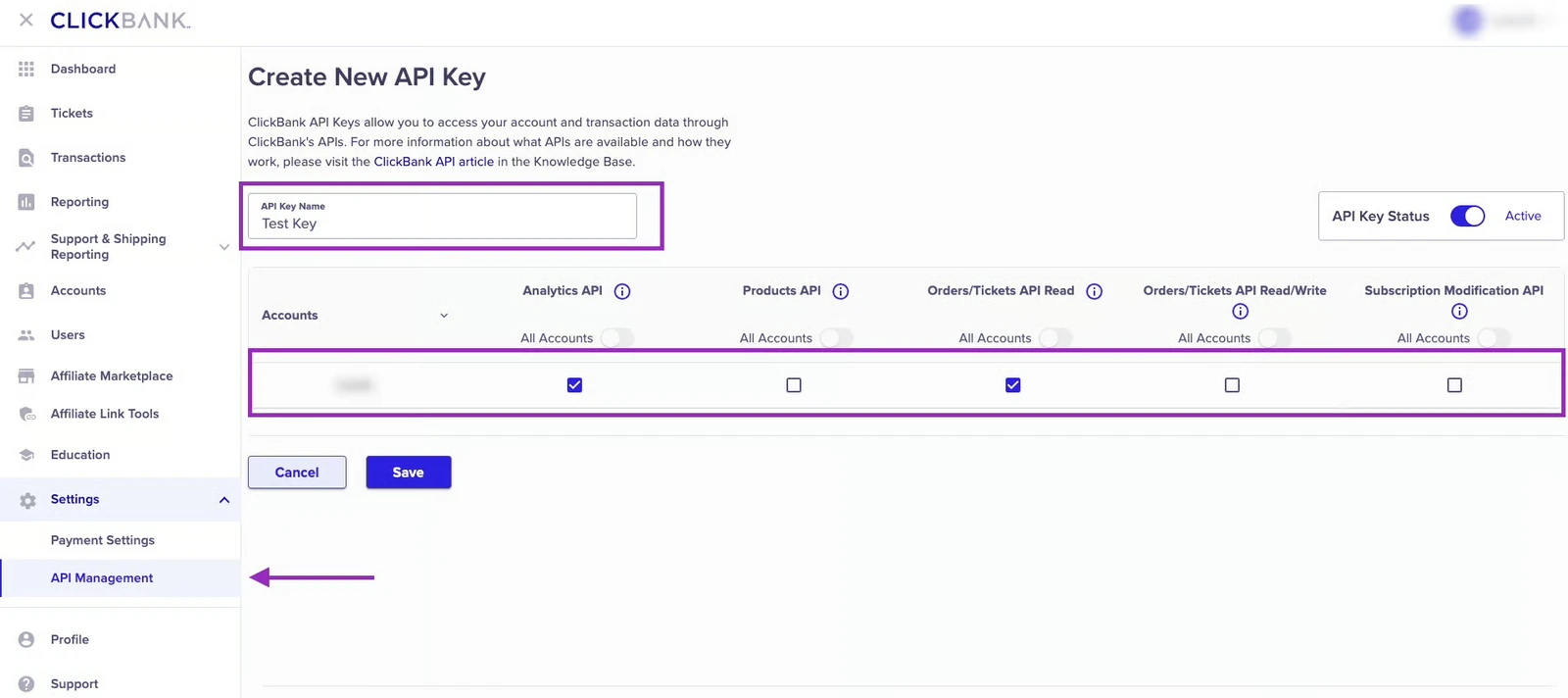
Log in to ClickBank and open Settings, then API Management from the left-hand menu (ClickBank's own knowledge base covers account-level API settings in more detail). Click Create New API Key, give the key a name you will recognise later, and enable the two permissions ClickFlare needs: Analytics API and Orders/Tickets API Read.
Once the key is created, copy it and keep it somewhere safe. You will paste it into ClickFlare in the next step. These two permissions are read-only, so the key lets ClickFlare pull your sales data without giving it the ability to change anything in your ClickBank account.
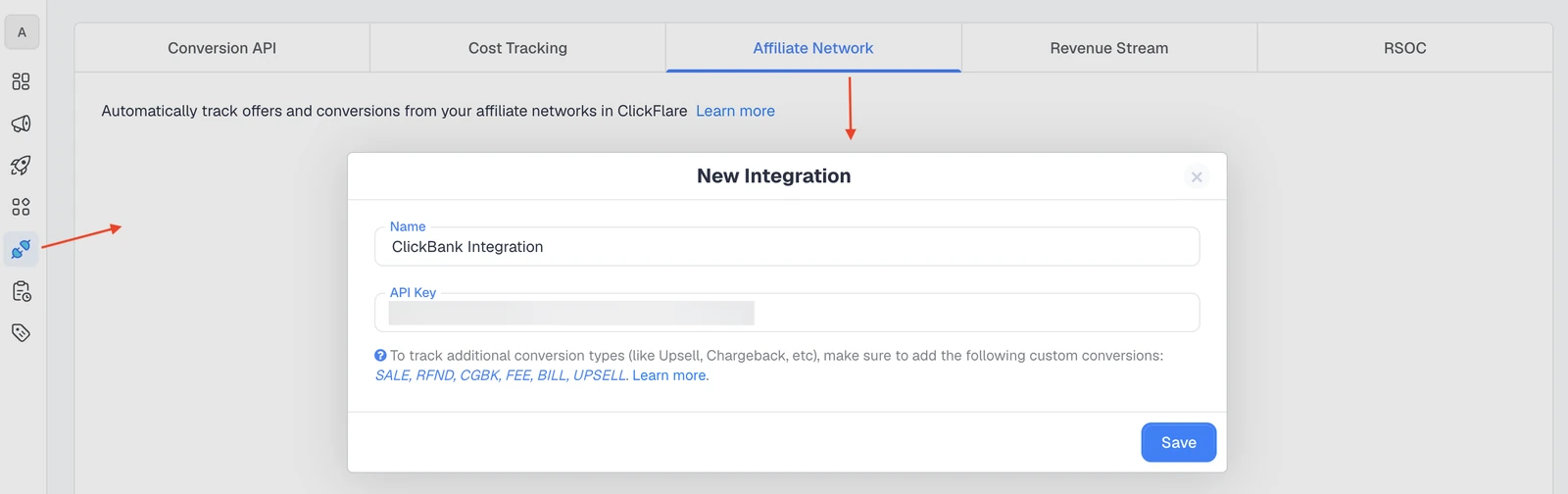
With your API key copied, switch over to ClickFlare and open Integrations from the left-hand menu. Go to the Affiliate Network tab and choose ClickBank.
In the New Integration window, give the integration a name, paste in the API key you just created, and click Save.
Your new ClickBank integration will now appear under Affiliate Network. That single connection is what feeds every ClickBank conversion into ClickFlare from here on.
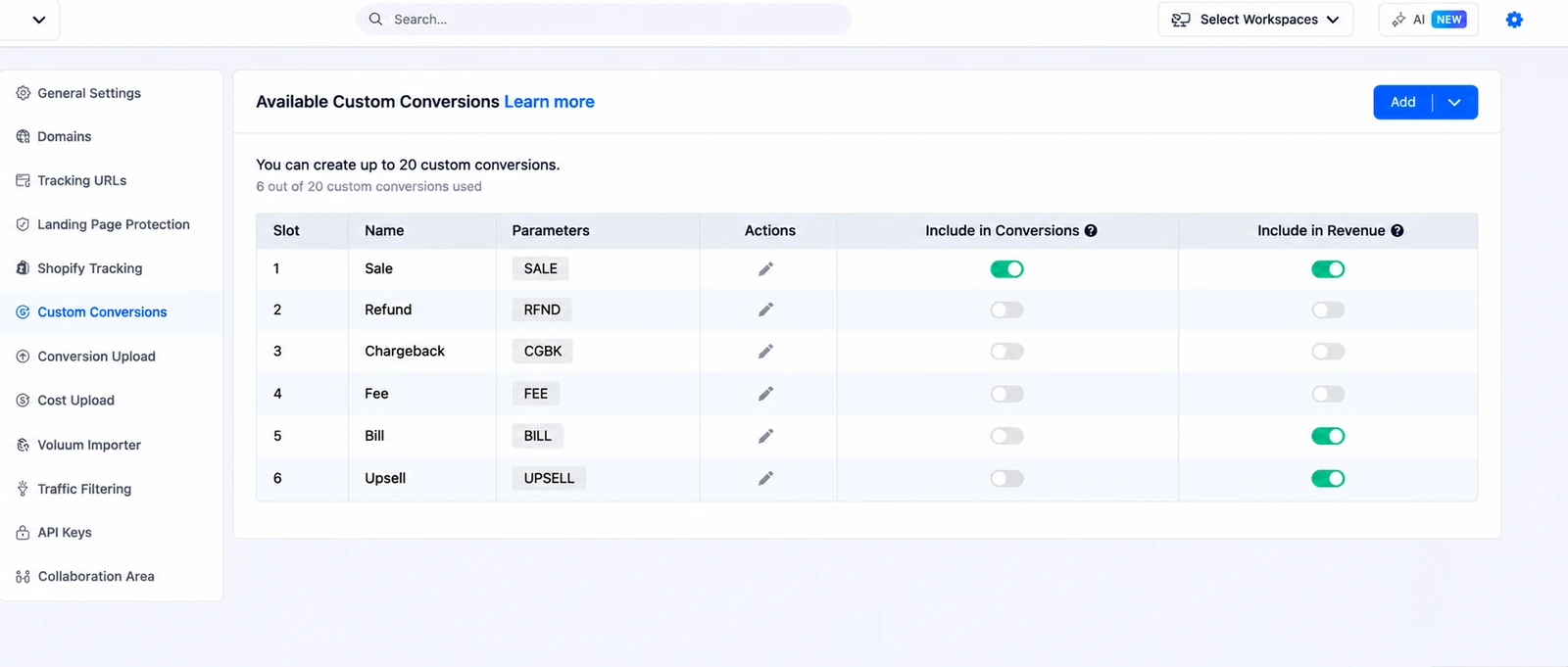
ClickBank reports several event types, and ClickFlare maps each one to a custom conversion. The most important is the initial sale, so you set that up first.
From the Settings menu, open Custom Conversions and create a new custom conversion called Sale. Turn on Include in Conversions and Revenue, then click Save.

The integration pulls ClickBank's sales data, but ClickBank still needs a way to tell ClickFlare which click each sale belongs to. You do that by passing the ClickFlare click ID through your offer link, the same way you would with any affiliate network.
The one difference with ClickBank is the macro. Instead of the usual {cf_click_id}, you use the ClickBank-specific macro {clickbank_click_id}, passed through ClickBank's tracking ID parameter (tid). So your offer URL ends up looking something like this:
https://YOURHOP.hop.clickbank.net/?tid={clickbank_click_id}
When someone clicks through, ClickFlare drops its click ID into the tid field. ClickBank stores it against the sale and hands it back through the API, which is how each conversion gets matched to the right click, campaign and traffic source. For the full breakdown of tracking parameters, see ClickFlare's doc on how to dynamically pass user info to the offer.
The Sale conversion covers your core revenue, but ClickBank sends several other event types that are worth tracking, especially if you promote recurring or high-ticket offers. Each event type you want to see needs its own custom conversion, created exactly the way you created Sale in Step 3.
| Event code | What it means | Worth tracking when |
|---|---|---|
| SALE | The initial sale or purchase | Always, this is your required main conversion |
| BILL | A rebill, the recurring payment on a subscription | You promote subscription or continuity offers |
| UPSELL | An upsell purchase (ClickFlare distinguishes this automatically) | Your funnel has one-click upsells or order bumps |
| RFND | A refund issued on a previous sale | You want net revenue, not just gross sales |
| CGBK | A chargeback | You want to monitor dispute rates by source |
| FEE | A ClickBank fee event | You want the most complete accounting of each sale |
Each custom conversion you add shows up as its own column in your ClickFlare stats, and for each one you decide separately whether it feeds the main Conversions and Revenue totals. A common setup is to count SALE, BILL and UPSELL toward revenue while keeping RFND and CGBK as visible-but-separate columns so you can watch refund rates by campaign without distorting your profit numbers.
You do not need to create all six. Set up only the event types you actually want in your reports, and remember that every type set up as a custom conversion is pulled in automatically through the API. There is nothing to configure on the ClickBank side.
The API setup is forgiving, but a few small slips account for most of the "my conversions are not showing up" cases.
This is the big one. The integration can be connected perfectly, but if you never create the Sale custom conversion, ClickFlare has no bucket to record purchases in. Your revenue column stays at zero even though sales are happening.
ClickBank does not use ClickFlare's standard {cf_click_id} macro. If you paste in the default macro out of habit, the click ID will not pass through and your sales will come back unattributed. Use {clickbank_click_id} in the tid parameter of your offer link.
The tracking parameter has to be on the actual link your traffic clicks. If you test an offer with a plain HopLink and forget the tid parameter, those sales will record in ClickFlare without a matching click and you will not be able to tie them to a source.
Once sales are flowing into ClickFlare, the data becomes something you can act on rather than just read.
ClickFlare's Conversion API support lets you feed clean conversion signals back to the ad platforms you buy on, so their algorithms optimise toward real buyers instead of modelled data. That is particularly valuable for ClickBank traffic, where the sale happens off your own site and the ad platform would otherwise never see it. You simply map your ClickBank events, like Sale and Upsell, to the matching ad-platform event, such as Purchase.

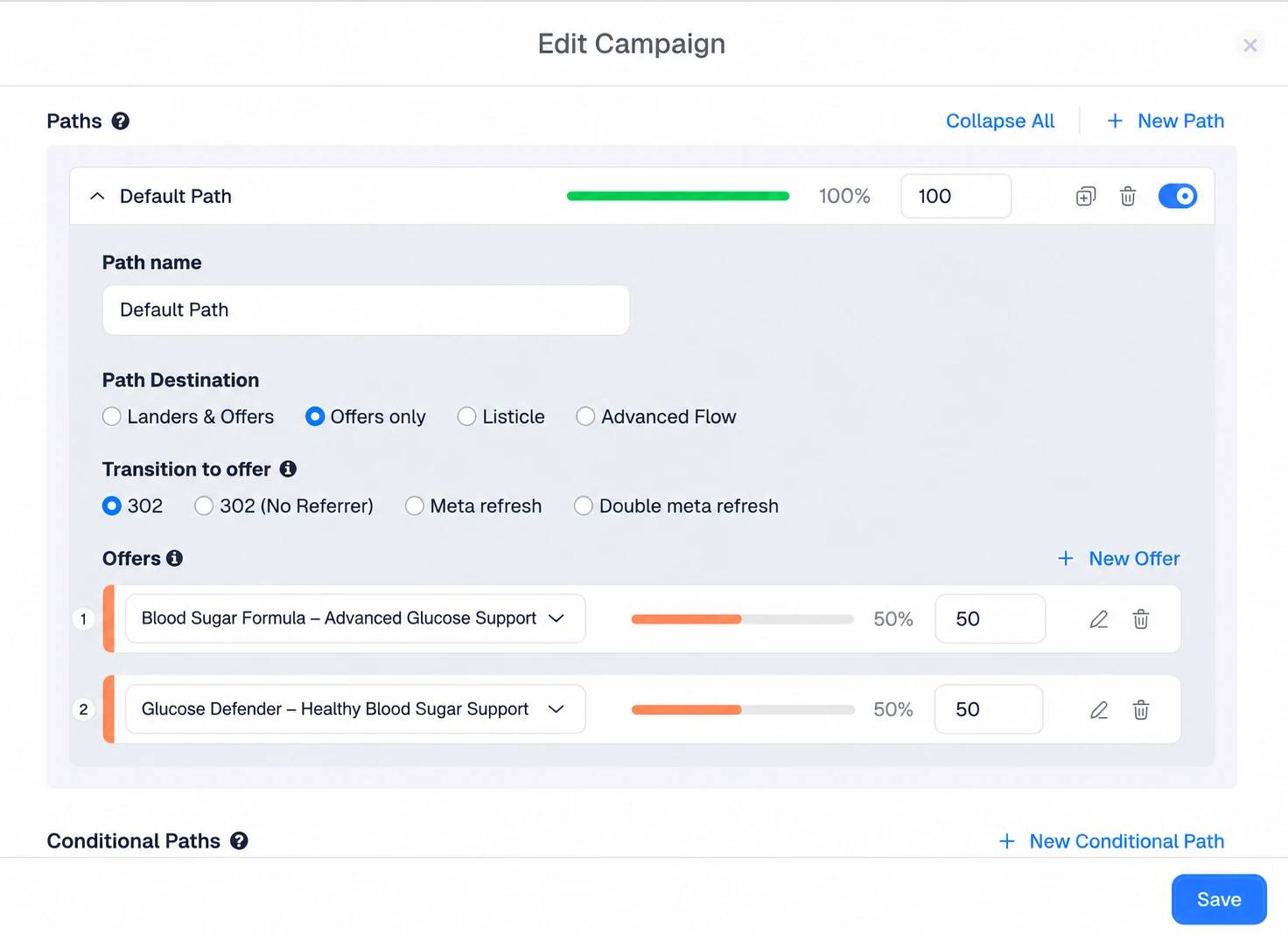
With every sale tied to a source, you can run clean A/B tests between offers, angles and landing pages and let the revenue data, not a hunch, decide the winner. Split your traffic across two ClickBank offers inside a single campaign path and compare real conversion data side by side.
Rather than reading rows of stats, you can ask ClickFlare's AI Copilot to point out your best and worst performers. Our rundown of ways to use AI ad tracking software covers how that speeds up day-to-day analysis.
ClickBank conversion tracking does not have to mean wrestling with postback URLs and secret keys. With ClickFlare's API integration, you create one API key, connect it, set up a Sale custom conversion, and pass the {clickbank_click_id} macro through your offer link. From there, sales, rebills, upsells and refunds are pulled in automatically and tied back to the exact click that earned them. That is the level of clarity that separates affiliates who scale ClickBank offers profitably from those who are guessing which campaign is actually working.
Yes. ClickFlare connects to ClickBank through its official API, so sales, refunds, chargebacks, rebills and upsells are pulled in automatically. You create a ClickBank API key, add it in ClickFlare, and set up custom conversions for the events you want to track.
No. Unlike most ClickBank tracking setups, ClickFlare uses an API integration, so there are no postback URLs to configure on the ClickBank side. Every event type you create as a custom conversion is retrieved automatically through the API connection.
When you create your ClickBank API key, enable the Analytics API and Orders/Tickets API Read permissions. Both are read-only, so ClickFlare can pull your sales data without being able to make changes to your ClickBank account.
The most common cause is a missing Sale custom conversion, which is required even if you track nothing else. The second is using the wrong click ID macro. ClickBank needs {clickbank_click_id} in the tid parameter, not the default {cf_click_id}.
Yes. ClickBank sends SALE, RFND, CGBK, FEE, BILL and UPSELL events. Create a custom conversion for each type you want to see, and each appears as its own column in ClickFlare so you can measure net revenue and refund rates by campaign.
Need a hand with your ClickBank tracking?
Try out ClickFlare for free and book a call with one of our tracking specialists who will guide you through the entire setup.


