Black Friday came early.Early-access pricesuntil Nov 8.Black Friday: early-access prices until Nov 8.Early-access price ends in0d00h00m00sClaim the deal
Google Enhanced Conversions: The Easy 2026 Setup Guide
Google Enhanced Conversions recovers the sales and leads standard tracking misses. Here is how the feature works, what changed in 2026, and how to set it up the easy way with ClickFlare.
If Google Ads keeps under-reporting your results, Google Enhanced Conversions is the fix most advertisers are still missing. It is a Google Ads feature that recovers the sales and leads your standard tracking loses by using the first-party data your customers already hand you, like an email address or phone number.Instead of depending on a cookie or a click ID that may never survive the trip from click to conversion, it matches conversions using data that actually sticks. In this guide, we will cover what Google Enhanced Conversions are, how they work, what changed in the 2026 update, and how to set them up the easy way with ClickFlare.No developer, no code edits, and no messy tag surgery required.
Quick Summary
What it is. Google Enhanced Conversions is a Google Ads feature that recovers lost conversions by using hashed first-party data, such as an email or phone number, that your customers provide.
How it works. That data is hashed and matched against signed-in Google accounts, so a conversion still counts even when the cookie or click ID is missing.
What changed in 2026. Google merged Enhanced Conversions for Web and for Leads into a single on/off setting and now accepts data from tags, Data Manager, and the API at the same time.
The easy way. ClickFlare sends your conversions to Google server-side through its Conversion API integration, with the user-provided data already mapped for enhanced matching, and needed zero changes after the 2026 update.
What Are Google Enhanced Conversions?
Google Enhanced Conversions is a feature in Google Ads that improves how accurately Google can measure conversions by using the customer data you already collect. When someone buys or submits a lead, they usually give you an email address, and often a phone number or name.Enhanced Conversions takes that first-party data, secures it before it leaves your setup, and sends it to Google alongside the standard conversion signal. Google then compares that data against its own signed-in account information.When it finds a match, the conversion gets credited to the right click, even when the usual cookie or Google Click ID never made it through. In one line, the whole mechanism is: hash, send, and match.
Why Standard Conversion Tracking Falls Short
Standard Google Ads conversion tracking leans on a cookie and a Google Click ID (GCLID) stored in the browser. That worked well when browsers and devices left those signals alone, but they no longer do.Third-party cookies have been restricted or removed across major browsers, iOS limits what can be tracked on the device, and ad blockers strip tracking scripts before they fire. On top of that, a GCLID often gets lost the moment a lead moves from your landing page into a CRM or a phone call.Each of those gaps is a real conversion that happened but never got reported, which quietly starves Google's bidding of the data it needs. Enhanced Conversions closes those gaps by matching on something more durable than a cookie: the email or phone number the customer actually gave you.
How Google Enhanced Conversions Work
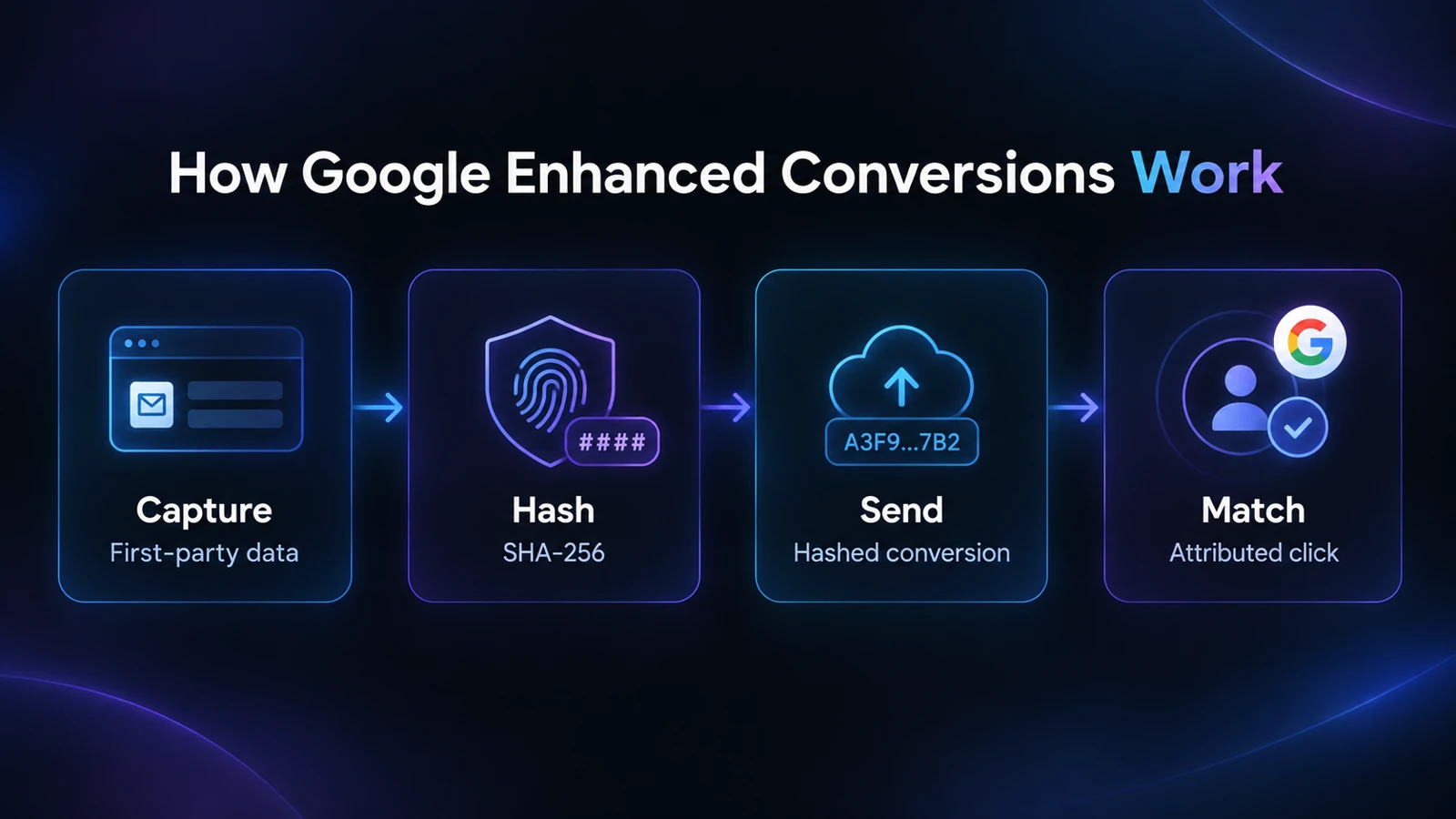
The process is simpler than it sounds, and privacy is built into it. Here is what happens when a conversion fires.
Capture. Your setup collects the first-party data the customer provided, usually an email address, sometimes a phone number or name.
Hash. That data is hashed using SHA-256 before it is sent. Hashing is one-way, so Google never receives a readable email address, only a scrambled fingerprint of one.
Send. The hashed data goes to Google along with the conversion event and its value.
Match. Google compares that fingerprint against the hashes of its signed-in users. If they line up, the conversion is attributed to the click that earned it.
Because the match no longer depends on a cookie surviving in the browser, Enhanced Conversions tends to recover a meaningful share of conversions that standard tracking simply never sees.This is the same server-side thinking behind the Conversion API on other platforms, which we break down in our full guide to the Facebook Conversion API.
What Changed With Google Enhanced Conversions in 2026
If you set up Enhanced Conversions a while ago, the 2026 changes matter, because the interface you remember is gone. Google consolidated the feature in two phases.
From April 2026: Google Ads began accepting user-provided data from website tags, Data Manager, and API connections at the same time, and deduplicates the signals so nothing is double-counted. Advertisers are no longer forced to pick a single implementation method.
From June 2026: The two separate products, Enhanced Conversions for Web and Enhanced Conversions for Leads, were merged into a single on/off setting. Offline conversion imports and leads uploads also moved onto the Data Manager API.
Google framed this as a simplification, and it is one. The catch is that the change removed the visible reminder that Enhanced Conversions is a live system with moving parts.As a result, a lot of accounts now show the toggle switched on while sending little or no usable data underneath. You can read Google's own note on the change in its enhanced conversions settings update.The good news, if you route conversions through ClickFlare, is that this migration required no changes on your side, which we will get to below.
Enhanced Conversions vs. Offline Import vs. the Google Tag
These three terms get mixed up constantly, and the difference decides which one you actually need. Here is how they compare.
Method
How It Matches
Best For
Google tag (client-side)
A cookie and GCLID stored in the browser
Basic on-site conversions when signals are intact
Enhanced Conversions
Hashed user-provided data (email, phone) matched to signed-in accounts
Recovering conversions lost to cookie and GCLID gaps
Offline conversion import
A stored click ID (GCLID, wbraid, gbraid) uploaded from your records
CRM sales, calls, and conversions that finish off-site
Here is where ClickFlare fits. It sends your conversions to Google server-side and attaches the user-provided data for enhanced matching in the same push, so you get the durability of a server-side upload and the accuracy of Enhanced Conversions together, without maintaining any of it by hand.
How to Set Up Google Enhanced Conversions With ClickFlare
ClickFlare calls this its Conversion API integration for Google, and it delivers exactly what Google labels Enhanced Conversions: your conversions, sent server-side, enriched with the customer data Google needs to match them.You map each Google Ads parameter to a ClickFlare token once, and the platform handles the rest on every conversion. Let us walk through it.
Step 1: Map the Core Conversion Data
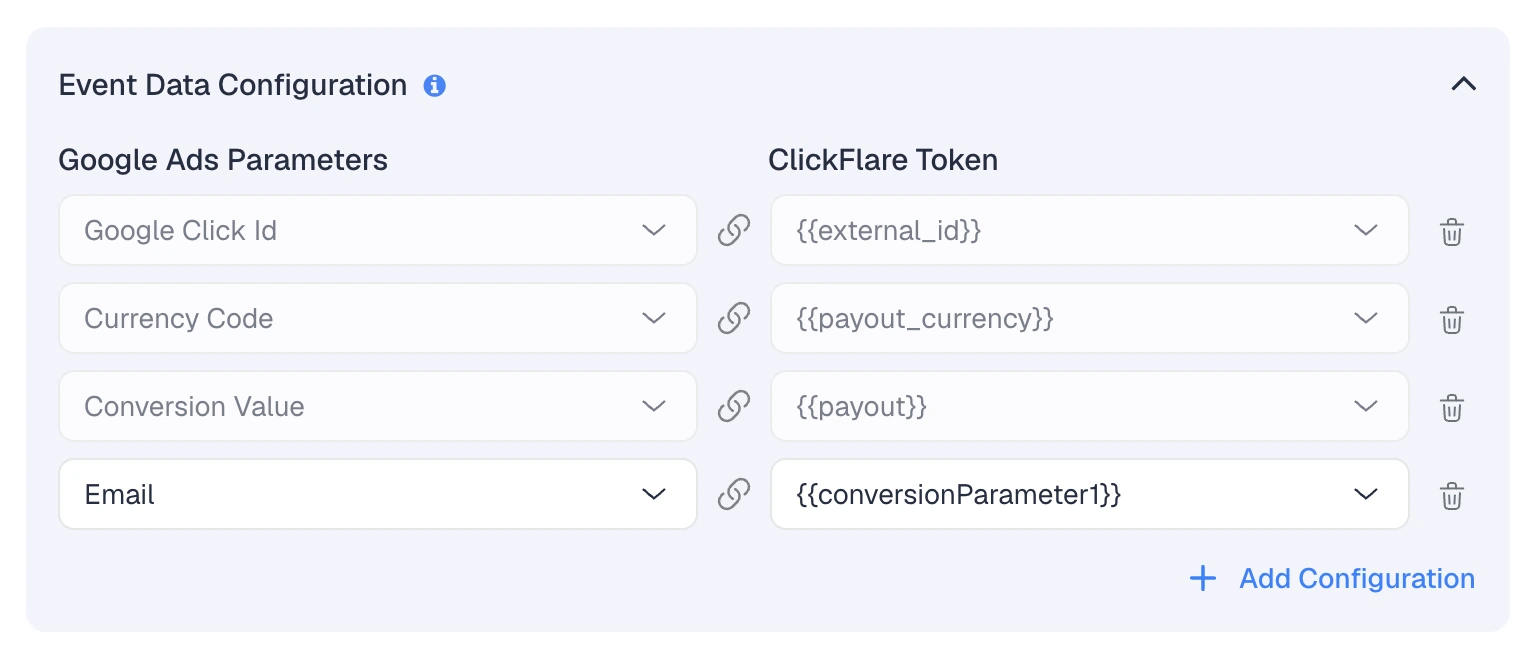
In the Event Data Configuration screen, you line up each Google Ads parameter on the left with the ClickFlare token that fills it on the right. The four that form the backbone of an Enhanced Conversions setup are the click ID, the currency, the conversion value, and the email.
In the example above, the mapping reads like this:
Google Click Id maps to {{external_id}}, the click identifier ClickFlare captured when the visitor arrived.
Currency Code maps to {{payout_currency}}, so revenue is reported in the right currency.
Conversion Value maps to {{payout}}, the value ClickFlare recorded for that conversion.
Email maps to {{conversionParameter1}}, the user-provided identifier that powers enhanced matching.
That email row is the heart of Enhanced Conversions. It is the first-party signal Google hashes and matches against its signed-in users, which is how a conversion still gets credited when the cookie or click ID falls short.
Step 2: Add More Data for Better Matching
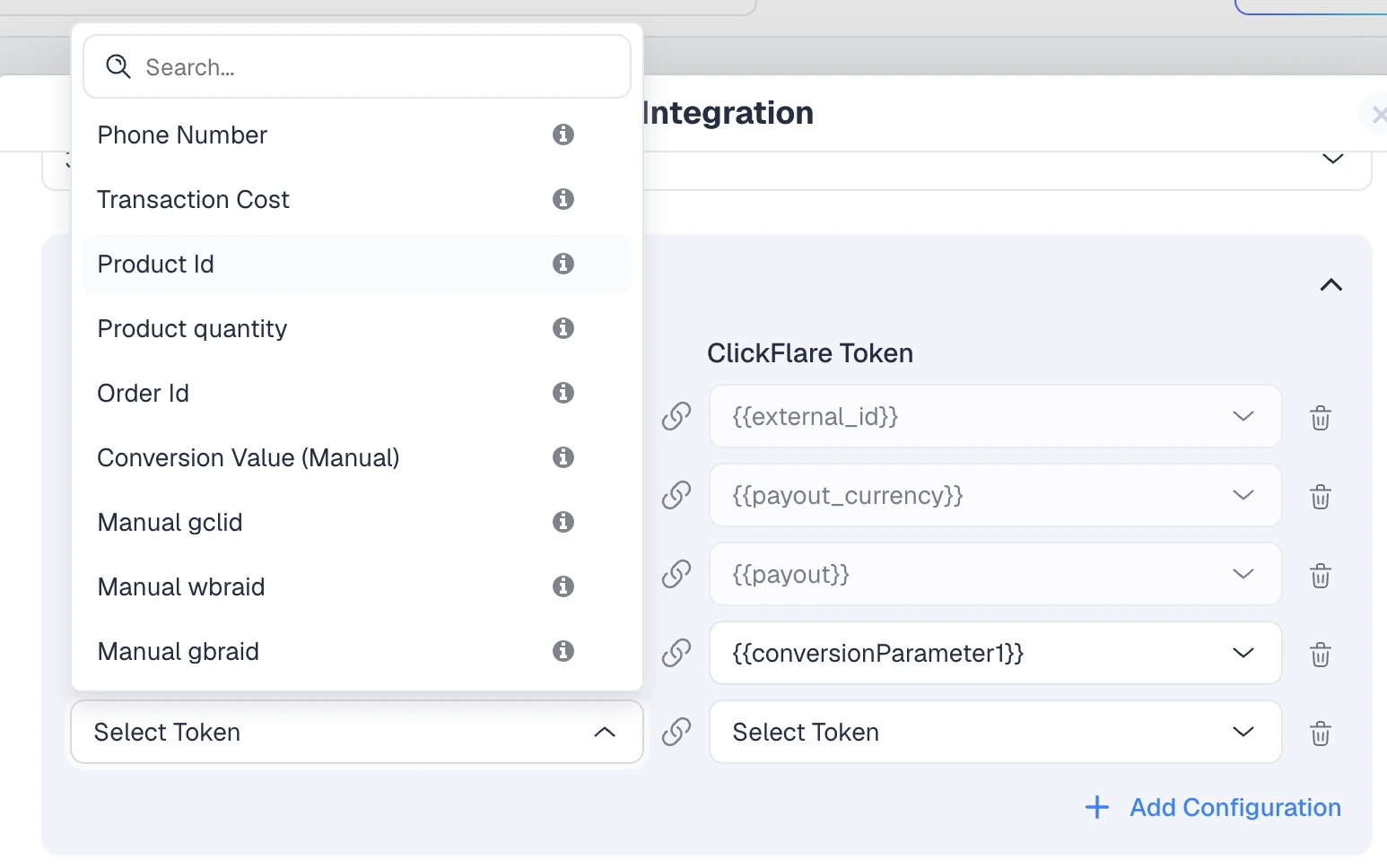
Email is the starting point, not the ceiling. Clicking Add Configuration opens a dropdown of every additional Google Ads parameter you can send, and each one you add gives Google more to work with.
The options fall into three useful groups:
More matching data. Phone Number sits right alongside email. It is a second user-provided identifier Google can match on, and adding it typically lifts your match rate.
Richer conversion detail. Transaction Cost, Product Id, Product quantity, Order Id, and Conversion Value (Manual) describe the sale itself. Order Id is especially worth mapping, since Google uses it to deduplicate conversions and to tie any later value adjustments back to the right order.
Extra click identifiers. Manual gclid, Manual wbraid, and Manual gbraid cover the click IDs Google uses when a standard GCLID is not available. The wbraid and gbraid identifiers carry attribution for iOS and app traffic, so mapping them recovers conversions a GCLID-only setup would miss.
Because ClickFlare sends all of this server-side through its API integration, the Google 2026 update changed nothing about this setup. The unification simplified Google's settings screen, but ClickFlare was already sending user-provided data through the API path Google now standardizes on, so there was no migration to do.If you want the background on how ClickFlare's Google integration handles batching and manager accounts, our guide on solving the Google Ads attribution issue covers it.
Controlling the Conversion Value You Send to Google
One quietly powerful part of this setup is that you decide what value reaches Google, not just whether a conversion happened. Because Conversion Value maps to a ClickFlare token, you control the number in that field.Map {{payout}} and Google receives the actual revenue ClickFlare recorded for that conversion, so Smart Bidding optimizes toward real value rather than a flat, one-size-fits-all number.Prefer to send a fixed figure instead? The Conversion Value (Manual) option lets you set a specific value. Either way, the value Google bids on reflects what the conversion is genuinely worth to you, which is the difference between bidding on volume and bidding on profit.
How to Check Your Google Enhanced Conversions Are Working
A setup that looks active is not the same as a setup that is sending data. Before you trust the numbers, run these checks:
Fire a test conversion. Push a test event through and confirm it arrives in Google Ads with the value and currency you expect.
Check the diagnostics in Google Ads. The conversion action should report that it is receiving enhanced conversions data, not just that the toggle is on.
Confirm the email is populating. If your {{conversionParameter1}} token is empty, no user data is reaching Google, and enhanced matching cannot happen.
Watch for timezone and currency mismatches. If ClickFlare and Google Ads disagree on either, your reporting will look off even when the connection is fine.
Mismatched numbers across platforms are common and usually explainable. If your counts never quite line up, our breakdown of why conversions don't match across platforms walks through the usual culprits.
Final Thoughts on Google Enhanced Conversions
Google Enhanced Conversions is no longer a nice-to-have. As cookies and click IDs keep degrading, matching on durable first-party data is what keeps your reporting honest and your bidding fed with real signals.The concept is straightforward, hash, send, and match, but the setup is where most accounts quietly leak data. Routing your conversions through ClickFlare's Conversion API integration gives you Enhanced Conversions server-side, with the user-provided data mapped once and maintained automatically, and it sailed through Google's 2026 changes without a single edit on your side. That is the easy way to get Google Enhanced Conversions right and keep them right.
Frequently Asked Questions
What are Google Enhanced Conversions?
Google Enhanced Conversions is a Google Ads feature that improves conversion accuracy by using hashed first-party customer data, such as an email or phone number, to match conversions to signed-in Google accounts. This recovers sales and leads that standard cookie-based tracking would otherwise miss.
Are Google Enhanced Conversions safe for user privacy?
Yes. Customer data is hashed with SHA-256 before it is sent, and hashing only works one way. Google receives a scrambled fingerprint rather than a readable email or phone number, then matches that fingerprint against its own hashed account data.
What changed with Google Enhanced Conversions in 2026?
In 2026, Google merged Enhanced Conversions for Web and for Leads into a single on/off setting and began accepting data from website tags, Data Manager, and the API at the same time. Many older setups now show as active while sending no usable data.
Do I need a developer to set up Google Enhanced Conversions?
Not with a tracker like ClickFlare. You map each Google Ads parameter to a ClickFlare token once inside the Conversion API integration, and conversions are then sent server-side automatically. There is no code to write and no website tags to edit by hand.
What is the difference between Enhanced Conversions and offline conversion import?
Offline import uploads conversions using a stored click ID like GCLID. Enhanced Conversions matches on hashed user-provided data such as email. ClickFlare combines both, sending conversions server-side with user data attached, so matching holds up even when a click ID is lost.
Need a hand with Google Enhanced Conversions?
Try out ClickFlare for free and book a call with one of our tracking specialists who will guide you through the entire setup.