

Black Friday came early. Early-access prices until Nov 8.Black Friday: early-access prices until Nov 8.Early-access price ends in0d00h00m00sClaim the deal



Quick summary
If you promote products from Digistore24, the numbers in your ad account and the numbers in your Digistore24 dashboard rarely tell the same story on their own. Digistore24 affiliate tracking fixes that by tying every sale back to the exact click, campaign, and traffic source that produced it, so you know which ads actually make money.
The reliable way to do this is a server-to-server postback between Digistore24 and your tracker. In this guide, we'll walk through exactly how to set up Digistore24 affiliate tracking in ClickFlare, step by step, including the postback parameters that matter, how to handle upsells and refunds, and how to confirm everything works before you scale.
Digistore24 affiliate tracking is the process of recording which of your clicks turn into sales on Digistore24, and attributing each sale to the campaign and traffic source that generated it. It connects the click you paid for to the commission you earned, so your reporting reflects real profit instead of guesswork.
Digistore24 is a marketplace and payment platform where affiliates promote digital and physical products. On its own, it tells you that a sale happened, but not which Facebook ad, native placement, or email actually drove it. A dedicated tracker fills that gap by logging the click first, then matching the sale back to it when Digistore24 confirms the payment.
At its core, Digistore24 affiliate tracking follows a simple handshake between two servers. Your tracker logs the click and stores a unique click ID, then hands that ID off to Digistore24. When the buyer pays, Digistore24 sends the ID back along with your commission and a transaction ID.
Here is the flow in plain terms:
Because the conversion travels server to server, it doesn't depend on a cookie surviving in the buyer's browser. That matters a lot now that browsers block third-party cookies and buyers often purchase on a different device than the one they clicked on. If you want the full background on the mechanism, our guide on what a postback URL is breaks it down from scratch, and our postback tracking guide for affiliates covers how server-to-server tracking works end to end.
A clean setup depends on getting two things in place first. Skipping either one is the most common reason tracking breaks later.
The full setup takes nine steps. Work through them in order, because each one depends on the last. For the complete reference with screenshots, see the Digistore24 integration guide in the ClickFlare docs.
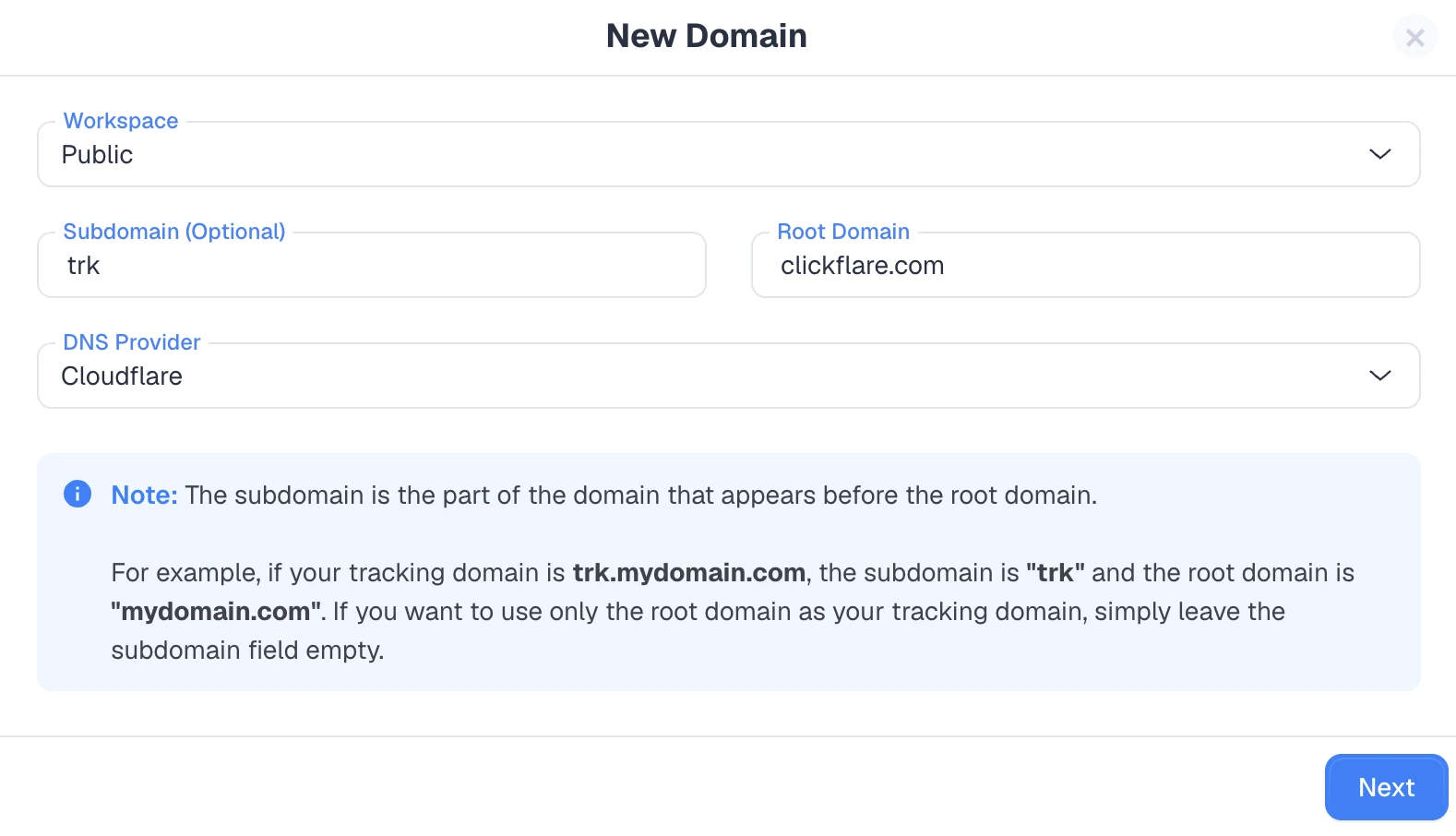
Add your custom tracking domain in ClickFlare before anything else. The postback URL you'll hand to Digistore24 is built on this domain, so locking it in now saves you from redoing the postback later.
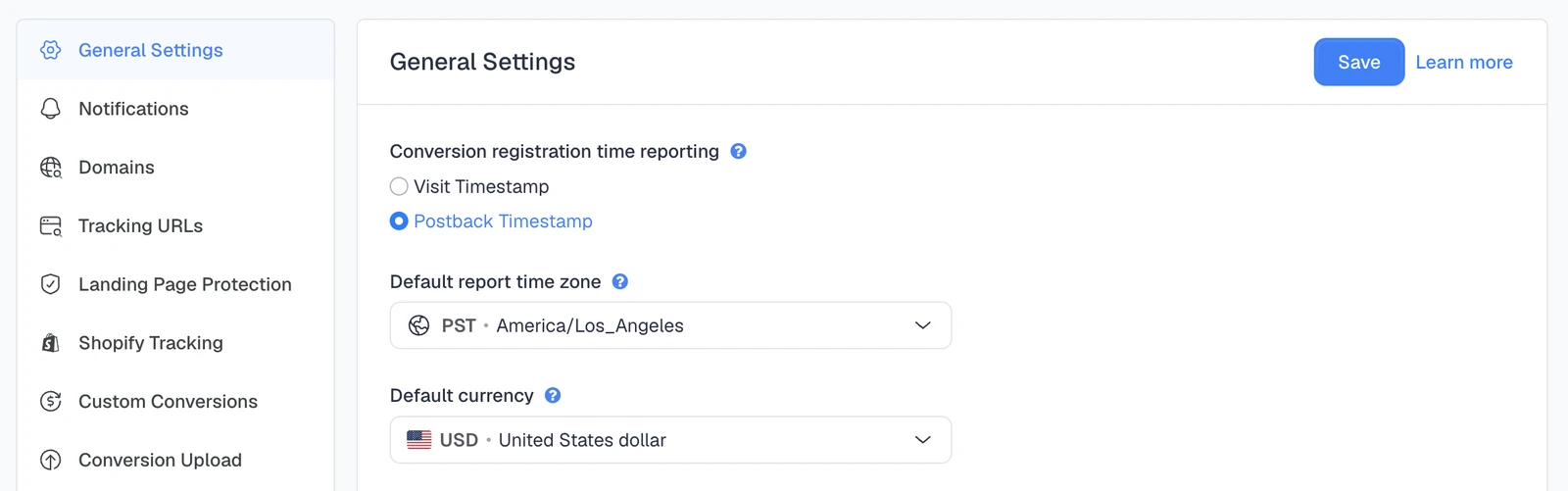
Go to Settings → General Settings and set Conversion registration time reporting to Postback Timestamp. This is an account-wide setting. With the default Visit Timestamp, rebills get reported on the original click date instead of the actual payment date, which skews your reporting for subscription products.
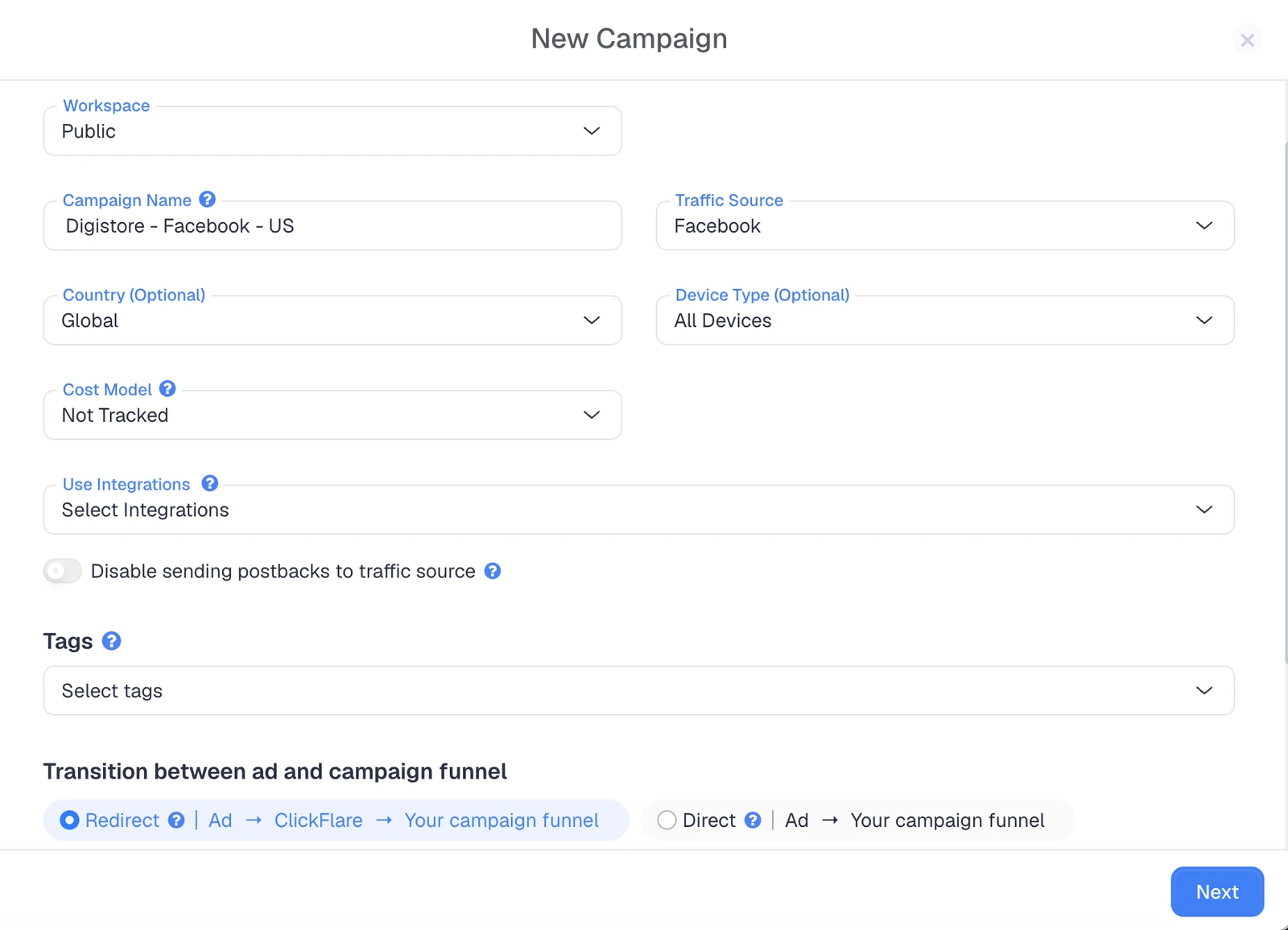
Go to Campaigns → New Campaign and choose Redirect tracking. Then select your traffic source and the tracking domain you set up in step one.
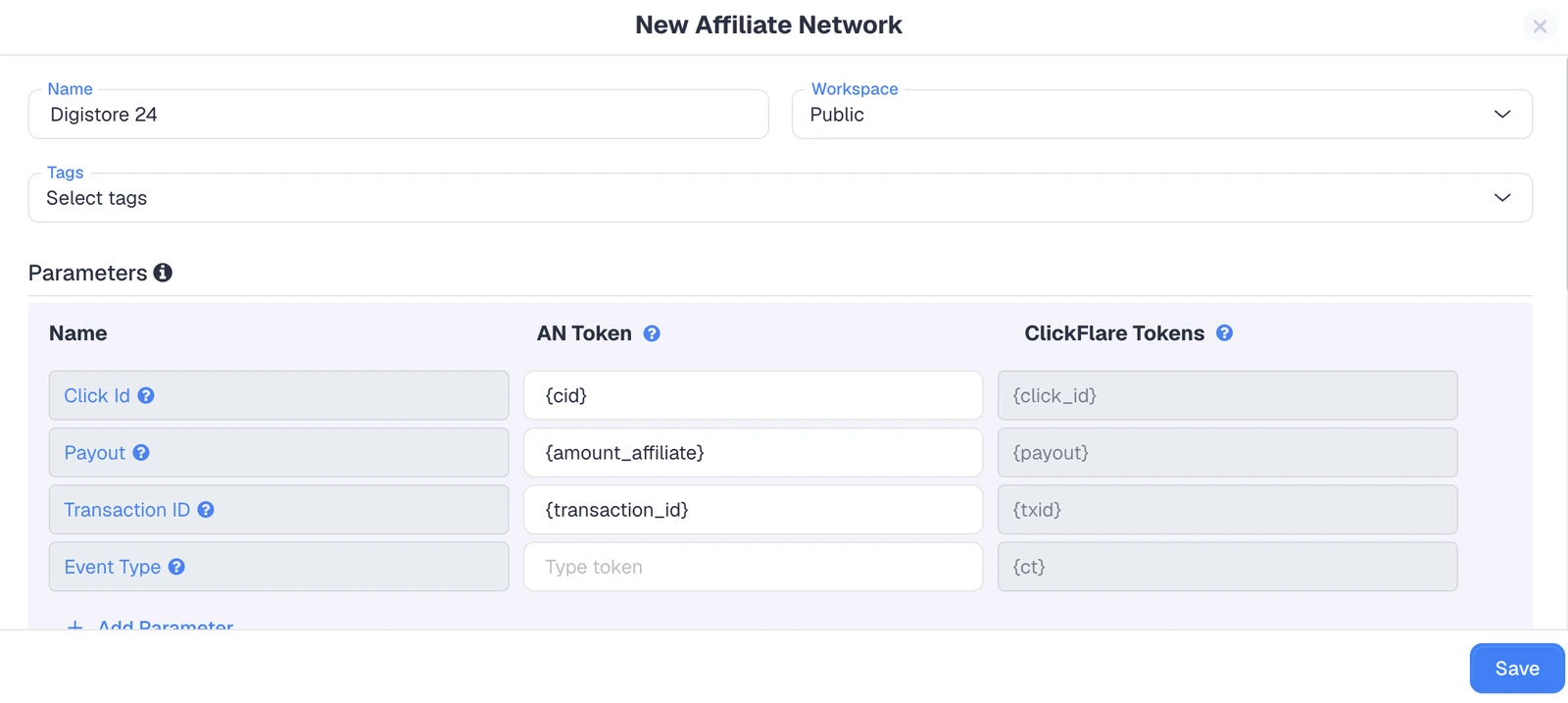
In the offer form's Affiliate Network field, or under Affiliate Networks → + New, select the Digistore24 template. Then confirm the defaults:
Leave Event Type empty for now. Under Conversion tracking, choose your tracking domain and keep S2S Postback URL as the method. Set Payout currency to match the currency you'll select in Digistore24, then copy the generated postback URL and save it. You'll need it in step seven.
In Digistore24, open the Marketplace, select the product, and click Promote now. Your promolink will look like this:
https://www.checkout-ds24.com/redir/[product ID]/[affiliate name]/
The optional campaign key in Digistore24 is for a fixed campaign name, not for per-click data, so don't rely on it to carry your click ID.
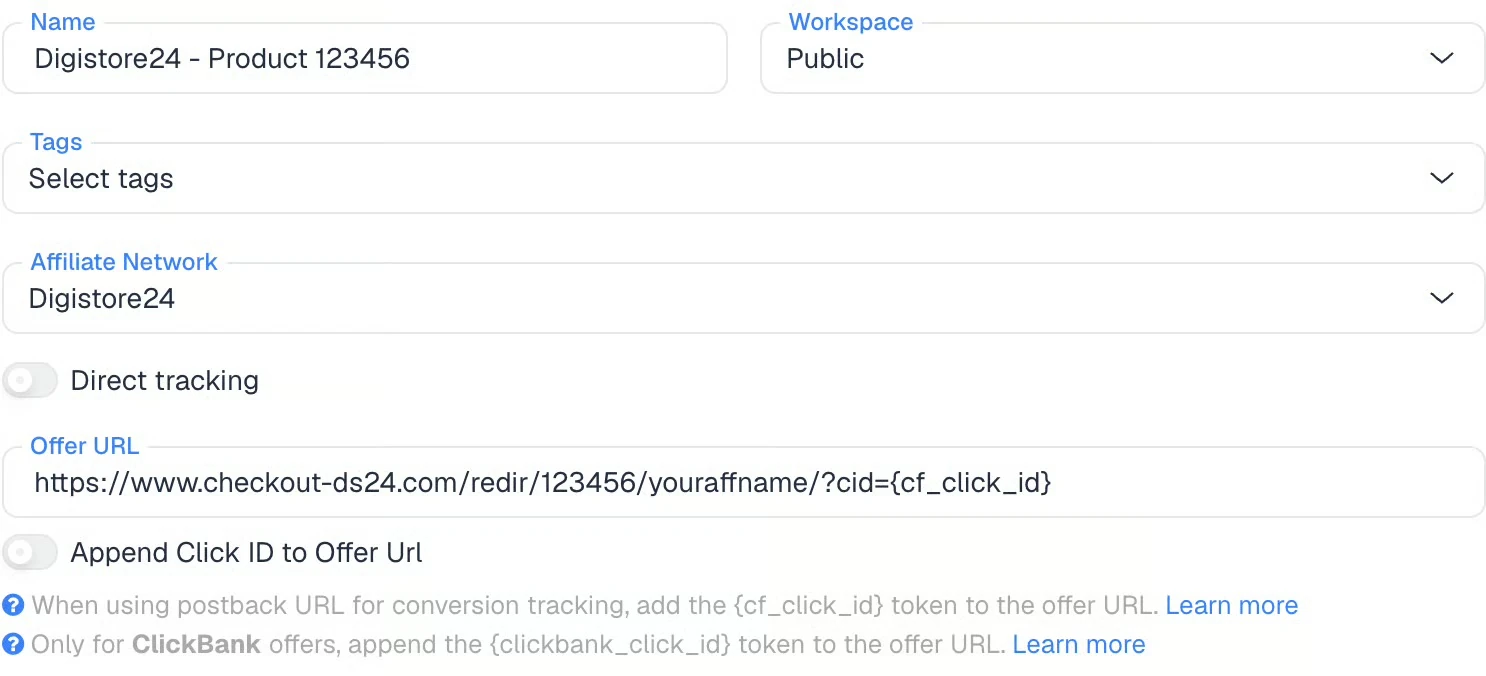
In the ClickFlare offer form, select the Digistore24 affiliate network you just created. Paste your promolink into the Offer URL field and append the click ID parameter:
Set the payout to Auto so ClickFlare uses the real payout value from the postback instead of a fixed number.
In Digistore24, go to Sales & partners → Integrations, select Add new connection, and choose S2S postback. Configure it like this:
If you run a landing page before the offer, make sure its call-to-action links to the ClickFlare click URL, not directly to the promolink. Linking straight to the promolink skips the click log and breaks attribution.
Save the campaign, copy its URL from the Tracking tab, and verify the setup before you spend on traffic. We'll cover the exact checks in a moment.
Once everything is connected, two URLs do the heavy lifting. The offer URL carries the click ID into Digistore24, and the postback URL carries the sale back to ClickFlare.
Offer URL (set in ClickFlare):
https://www.checkout-ds24.com/redir/123456/youraffname/?cid={cf_click_id}
Postback URL (added in Digistore24, generated by ClickFlare):
https://trk.yourdomain.com/cf/cv?click_id={cid}&payout={amount_affiliate}&txid={transaction_id}

Here's what each placeholder does:
| Digistore24 placeholder | ClickFlare parameter | Purpose |
|---|---|---|
| {cid} | click_id | Returns the click ID stored from the offer URL |
| {amount_affiliate} | payout | Your commission, as a decimal with a dot (e.g., 21.85) |
| {transaction_id} | txid | Unique ID per payment, refund, or chargeback |
Always use {amount_affiliate} for your payout. The other amount placeholders report different figures: {amount_brutto} and {amount_netto} report gross and net order values, and {amount_vendor} reports the vendor's share as your revenue, which will badly inflate your numbers.
By default, ClickFlare keeps one conversion per click ID. Without a unique transaction ID, repeated postbacks on the same click overwrite each other, and you lose upsells and rebills.
Use {transaction_id}, which is unique per payment. Avoid {order_id}, because it's shared across the main sale, upsells, and rebills, so those get merged into one. And avoid {random}, which counts resent postbacks twice and quietly inflates conversions.
Digistore24 sends one postback per transaction, so each upsell and each rebill arrives as its own conversion. That's exactly what you want, as long as your transaction ID is set correctly.
Refunds and chargebacks are also separate transactions. If your sales connection fires on them, ClickFlare records them as new conversions rather than reversals, which overstates your performance. To keep your sales data clean, select only the payment event on your main connection.
If you want to track more than just sales:
Custom conversions have to exist before the postback arrives, and the ct value must match the conversion name character for character, or the event gets dropped.
Never trust a tracking setup until you've seen a test conversion land. Run through these four checks before putting money behind the campaign:
Most tracking problems come down to a handful of recurring errors. Here's what to watch for and how to fix each one:
Digistore24 affiliate tracking comes down to one reliable mechanism: a server-to-server postback that passes your click ID out with the offer URL and returns it with the sale. Get the tracking domain, the cid parameter, and the transaction ID right, match your currencies, and run a test purchase, and you'll have clean, accurate attribution across sales, upsells, rebills, and refunds.
From there, the same setup pattern applies to almost any network you work with. If you promote offers beyond Digistore24, our roundup of the best affiliate networks in 2026 walks through how to track each one. For the official Digistore24 side of things, their tracking as an affiliate documentation is a useful reference.
Digistore24 stores a click ID that you pass into the promolink, then sends a server-to-server postback to your tracker when a payment completes. The postback includes the click ID, your commission, and a transaction ID, which lets your tracker match the sale to the original click.
The postback URL is generated by your tracker and pasted into Digistore24's S2S postback connection. In ClickFlare, it uses the {cid}, {amount_affiliate}, and {transaction_id} placeholders to return the click ID, payout, and a unique transaction ID for each sale.
The most common causes are a missing cid in the offer URL, the product not being selected in the postback connection, an inactive connection, or missing curly braces around the click ID parameter. Check the Digistore24 integration log to see whether the postback fired at all.
Set your transaction ID to {transaction_id} rather than {order_id}. Because Digistore24 sends one postback per transaction, a unique transaction ID keeps each upsell and rebill as its own conversion instead of overwriting the original sale.
Yes. Create a separate S2S connection that fires only on refund events, append &ct=refund to its postback URL, and create a matching custom conversion for refunds. Keep refund events off your main sales connection so they don't inflate your conversion count.
Need a hand with Digistore24 tracking?
Try out ClickFlare for free and book a call with one of our tracking specialists who will guide you through the entire postback setup.


