Black Friday came early.Early-access pricesuntil Nov 8.Black Friday: early-access prices until Nov 8.Early-access price ends in0d00h00m00sClaim the deal
WooCommerce Conversion Tracking Made Easy in 9 Steps
Learn how WooCommerce conversion tracking works, which events to track, and how to set it up with ClickFlare in 9 simple steps for accurate, full-funnel data.
Running ads to a WooCommerce store without solid tracking means guessing which campaigns actually pay for themselves. WooCommerce conversion tracking fixes that by connecting every checkout, sale, and refund back to the ad, campaign, and traffic source that drove it.The problem is that most stores rely on a patchwork of pixels and plugins that each report different numbers. In this guide, we'll cover what WooCommerce conversion tracking is, which events matter, the common setup methods, and how to track your full funnel with ClickFlare step by step.
Quick Summary
WooCommerce conversion tracking ties store events (checkouts, sales, upsells, refunds) back to the ad click that started the journey.
Platform pixels and single-channel plugins only see their own traffic, so their numbers rarely agree.
Tracking refunds, cancellations, and product-level revenue gives you real profit, not just gross sales.
With ClickFlare, you create your conversion events, set up a campaign per traffic source, then install and configure the ClickFlare WooCommerce plugin.
Use redirect tracking where you can, and direct tracking for Google Ads, Bing, SEO, and direct-to-store traffic.
What Is WooCommerce Conversion Tracking?
WooCommerce conversion tracking is the process of recording valuable actions in your WooCommerce store and attributing each one to the marketing source that caused it.A "conversion" is usually a purchase, but it doesn't have to be. Started checkouts, upsells, order bumps, subscription renewals, and even refunds are all events worth tracking.The tracking part works by giving each ad click a unique identifier.When that visitor later places an order, the conversion is matched to the original click, so you know which campaign, ad, and traffic source generated the revenue.WooCommerce is only one piece of a broader setup. If you want the bigger picture across store platforms, our ecommerce conversion tracking setup guide covers the fundamentals.
Why WooCommerce Conversion Tracking Matters
WooCommerce gives you orders and revenue, but it doesn't tell you which ad brought each buyer in.Ad platforms, on the other hand, only see the conversions their own pixel picks up.Proper WooCommerce conversion tracking closes that gap. Here's what it gives you:
True ROI per campaign. You see cost and revenue side by side for every campaign, ad set, and ad.
Smarter budget decisions. You can cut losing campaigns early and scale the ones that are actually profitable.
Better ad platform optimization. Sending accurate purchase data back to Meta, Google, or TikTok helps their algorithms find more buyers.
Net revenue, not just gross. When refunds and cancellations are tracked, your reports reflect what you actually kept.
Product-level insight. You learn which products and offers sell best from each traffic source.
Key Events to Include in WooCommerce Conversion Tracking
A sale is the obvious event, but tracking only the final purchase hides a lot.The table below lists the WooCommerce events ClickFlare can track, along with the event parameter used for each one.
Event
Parameter
What It Tells You
Checkout
checkout_created
How many visitors reach checkout, so you can spot drop-off before payment
Sale
sale
The main purchase and its order value
Product Sale
product_sale
Item-level revenue for each product in the order
Upsell / Product Upsell
upsell / product_upsell
Extra revenue from post-purchase offers
Order Bump
order_bump
How often buyers add the checkout add-on
Subscription
subscription
Recurring payments tied back to the original click
Cancellation
order_cancelled
Orders that never turned into revenue
Refund / Partial Refund
refund / partial_refund
Revenue you gave back, by campaign and source
Tax / Shipping
tax / shipping
Amounts to separate from product revenue for cleaner margins
You don't need all of them. Create only the events your store actually generates.A simple store might track checkouts, sales, and refunds, while a funnel with upsells and subscriptions will want more.
Common WooCommerce Conversion Tracking Methods
There are several ways to track conversions in WooCommerce. Most stores end up combining a few of them.
Method
How It Works
Main Limitation
Ad platform plugins
Official or third-party plugins add a platform's tag or pixel to your store
Each one only reports on its own channel
Google Tag Manager
Tags fire on store events through a data layer
Technical setup, still browser-based
Conversion APIs
Purchase events are sent from a server to the ad platform
Usually set up one platform at a time
Dedicated ad tracker
Tracks clicks from every source and attributes store events in one dashboard
Requires initial campaign setup
Ad Platform Plugins
This is where most stores start. For example, Google's own WooCommerce setup instructions walk you through installing the Google for WooCommerce extension to track sales in Google Ads.These plugins are quick to install.The downside is that each one lives in its own silo, so Meta, Google, and TikTok will all claim credit for overlapping sales.
Google Tag Manager
GTM gives you more control over which tags fire and when.It's flexible, but it takes technical work to set up a reliable ecommerce data layer, and it still depends on scripts loading in the visitor's browser.
Conversion APIs
A Conversion API sends purchase data from a server straight to the ad platform. That makes it less exposed to ad blockers and browser restrictions than a pixel alone.If you're weighing the two, our comparison of Conversions API vs. Meta Pixel explains the differences.
Dedicated Ad Trackers
An ad tracker like ClickFlare sits between your traffic sources and your store.It records every click, receives your WooCommerce events, and shows cost, revenue, and profit for all channels in one place. It can then pass conversions back to the ad platforms.
Where Standard WooCommerce Conversion Tracking Falls Short
Plugin-only setups work fine for a single channel.Once you're running traffic from several sources, a few problems show up fast.
Missing events. Browser-based pixels can be blocked or fail to load, which leaves gaps in your data.
Gross revenue only. Most pixels report the purchase but never hear about the refund or cancellation that follows.
No cost data. WooCommerce doesn't know what you spent on ads, so you can't see profit per campaign without spreadsheets.
Payment timing. Some payment methods leave orders pending or on hold before payment is confirmed, as WooCommerce's order status documentation explains. If your tracking fires too early, you count sales that never get paid.
Moving more of your tracking server-side helps with several of these. Our server-side tracking guide goes deeper on why.
How to Set Up WooCommerce Conversion Tracking with ClickFlare
ClickFlare tracks the full WooCommerce funnel, whether visitors land directly on your store, go straight to a product page, or pass through a lander, quiz, or advertorial first.Here's the setup, step by step.
Step 1: Create Your Custom Conversion Events
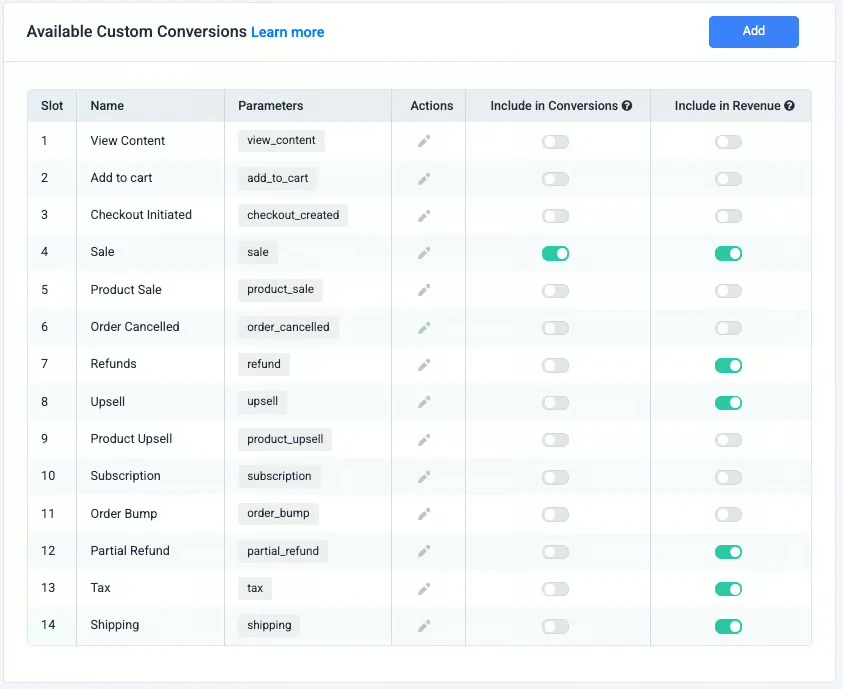
In ClickFlare, go to Settings → Custom Conversions and create the events you want to track. Use the exact parameters from the table above, such as sale, checkout_created, and refund.Only create the events your store will generate. You can add more later.
Step 2: Add Your Traffic Source
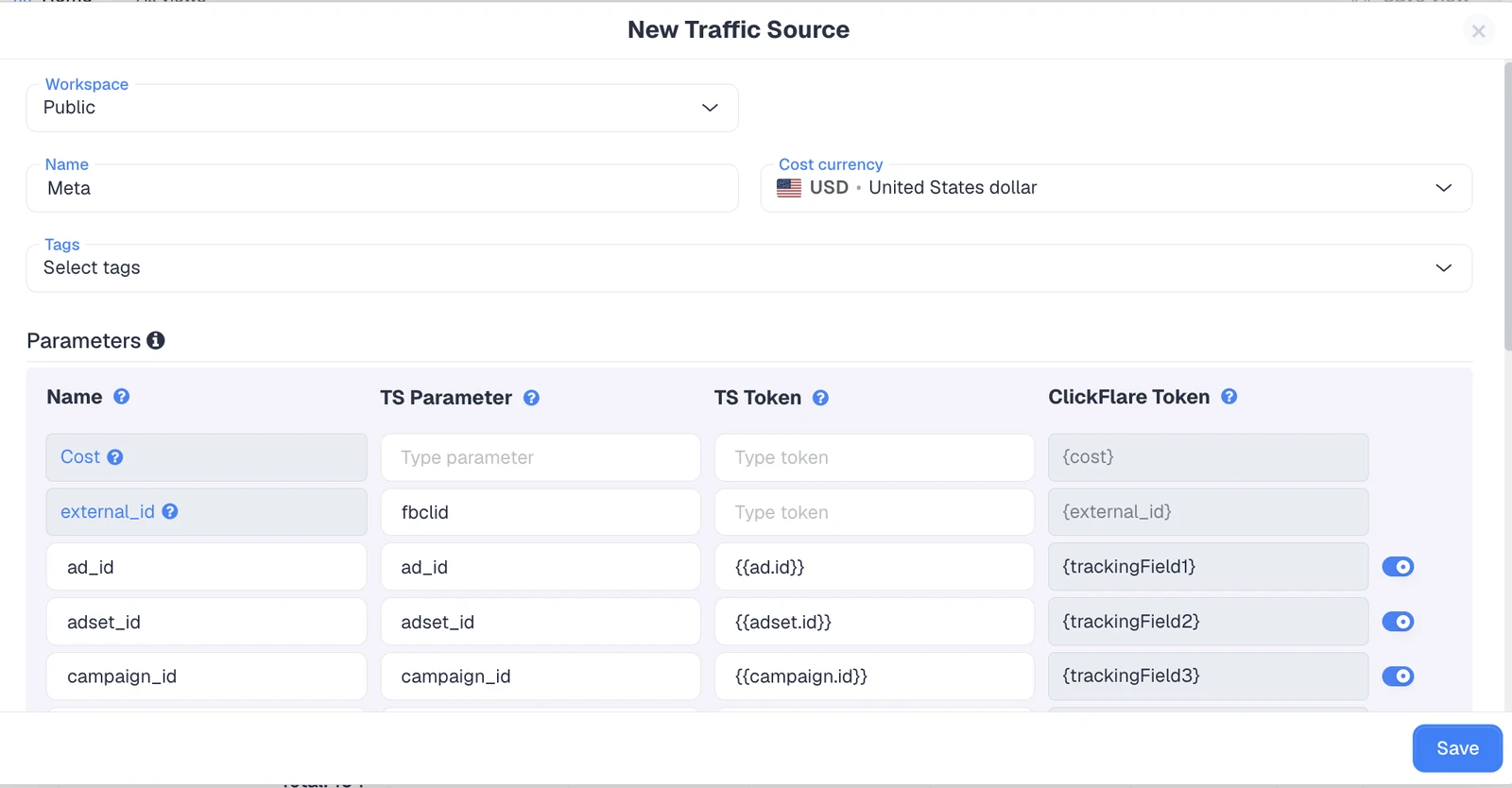
Open Traffic Sources and click + New. Pick a template such as Meta, Google Ads, or TikTok, then set the name, workspace, reporting currency, and cost integration.Templates fill in the click ID macros for you, and you can adjust them if needed.
Step 3: Add a Lander (Optional)
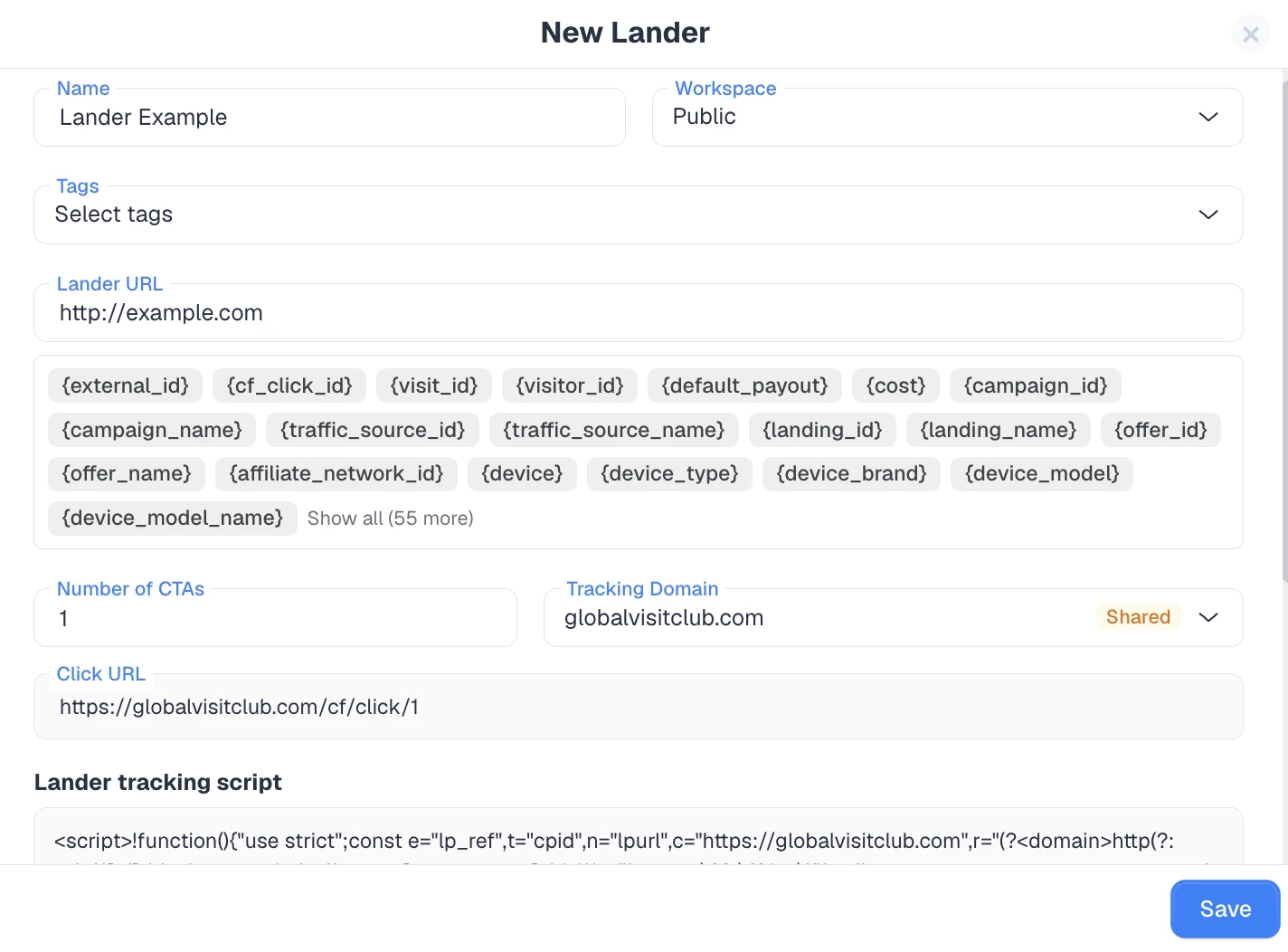
If you send traffic to a pre-sell page first, go to Landers → New Lander, enter the URL, and save it to get a ClickFlare click URL. Use that click URL on your lander's CTA buttons.The Advanced Flow builder supports up to 3 landers before the store, and you can rotate between landers or stores to split test.
Step 4: Create an Offer for Your Store
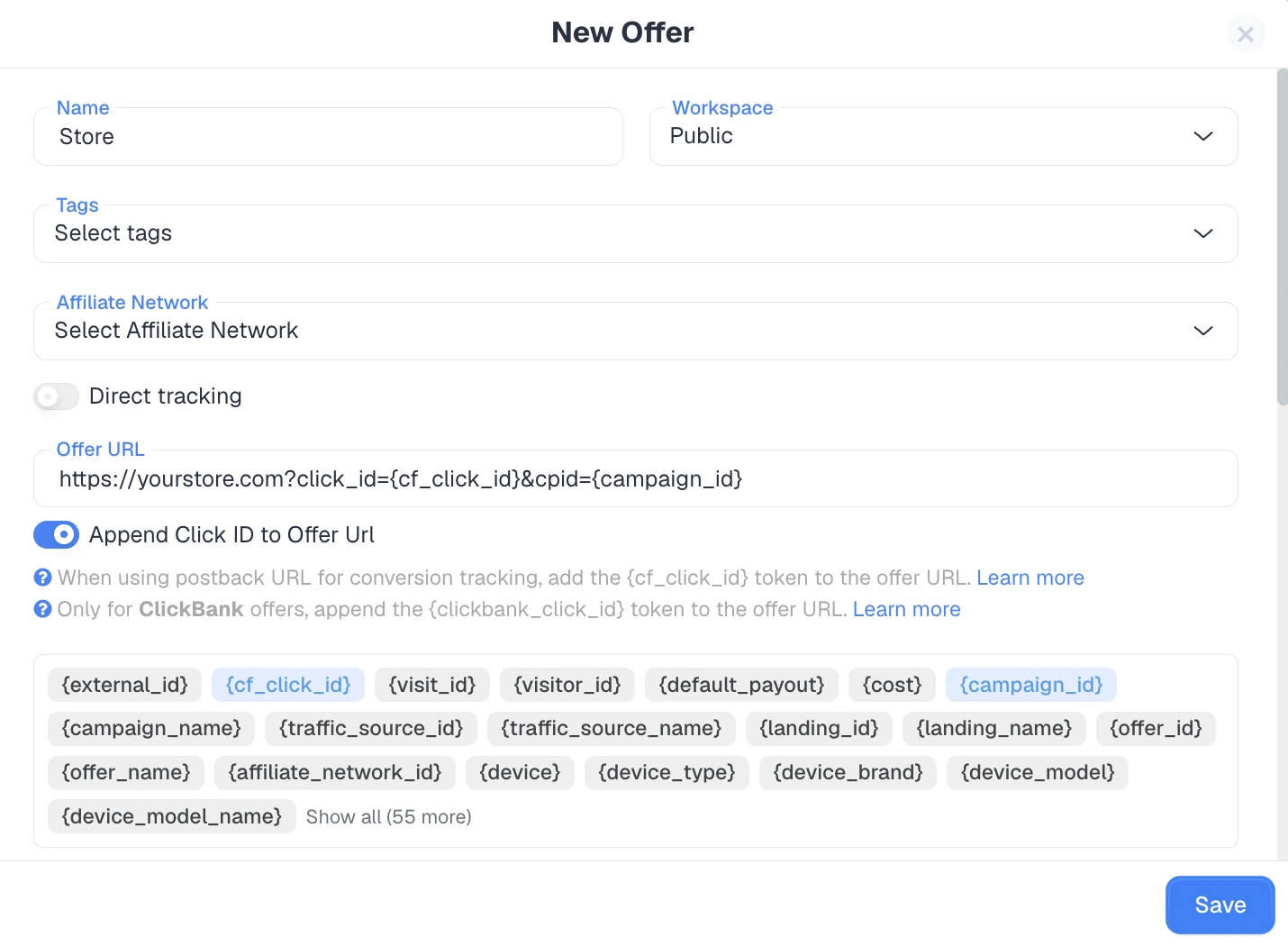
Go to Offers → New Offer and enter your store URL. Append the click ID and campaign ID parameters so they follow the visitor into WooCommerce.This is what lets ClickFlare match an order back to the original click.Running more than one store? Create a separate offer for each.
Step 5: Create a Campaign for Each Traffic Source
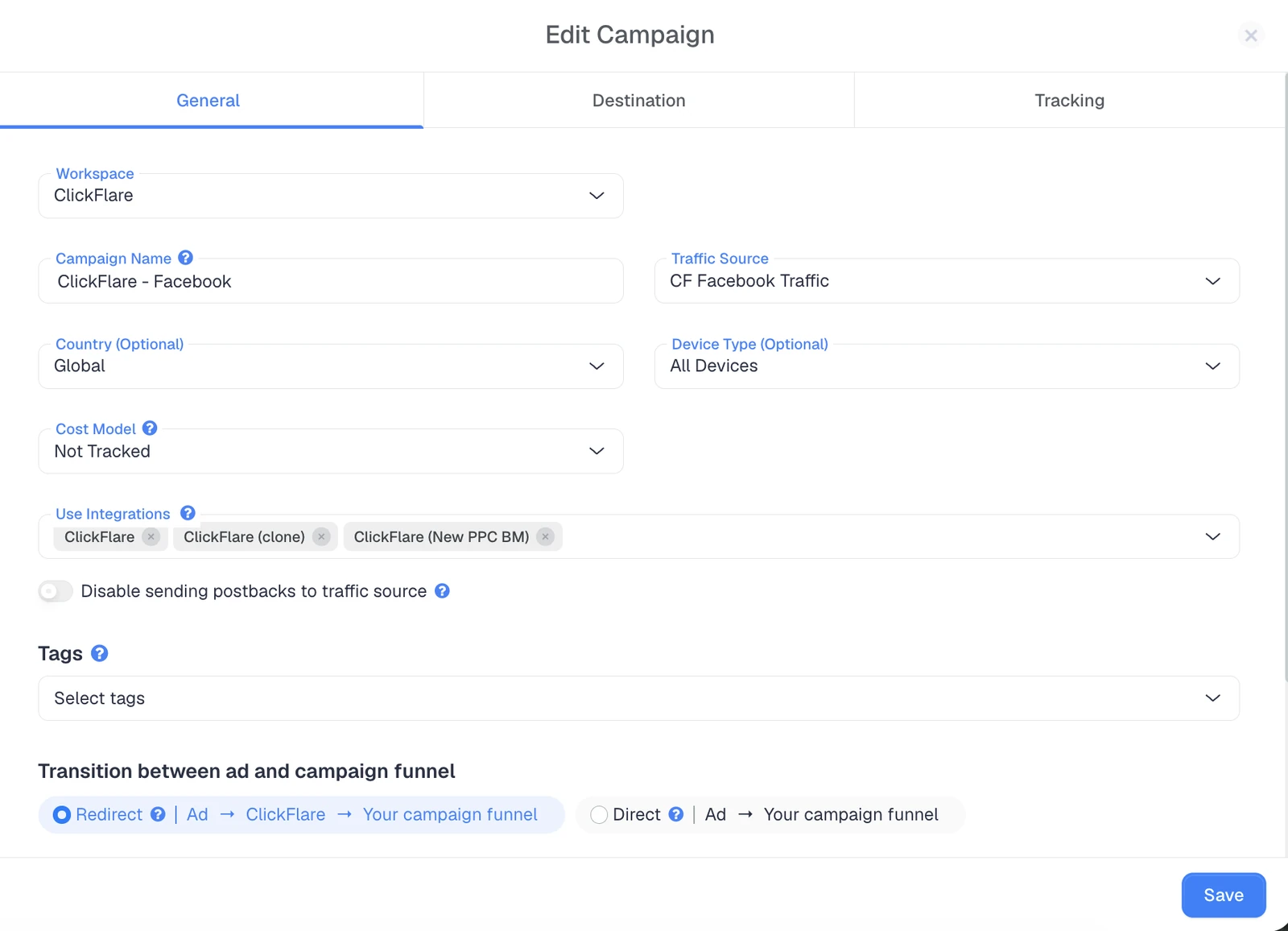
Go to Campaigns → New Campaign and choose your tracking method:
Redirect Tracking if your traffic source allows redirects.
Direct Tracking for Google Ads, Bing, SEO, and direct-to-store flows. This requires the Direct Tracking Script in the plugin.
Set the campaign name, traffic source, optional lander, and offer. Then copy the Campaign URL from the Tracking tab and use it in your ad platform.Stick to one campaign per traffic source.
Step 6: Set Up an Organic Campaign (Optional)
Without an organic campaign, sales from unpaid visitors may go unattributed.To set one up, duplicate an existing campaign, create a traffic source called "Organic," and assign the same offer.Then add the direct tracking script with the organic campaign ID to your store's header or footer (you'll find the script in Step 8).If you only run paid direct tracking campaigns and don't want organic tracked, remove the organic campaign ID parameter from the script.
Step 7: Install the ClickFlare WooCommerce Plugin
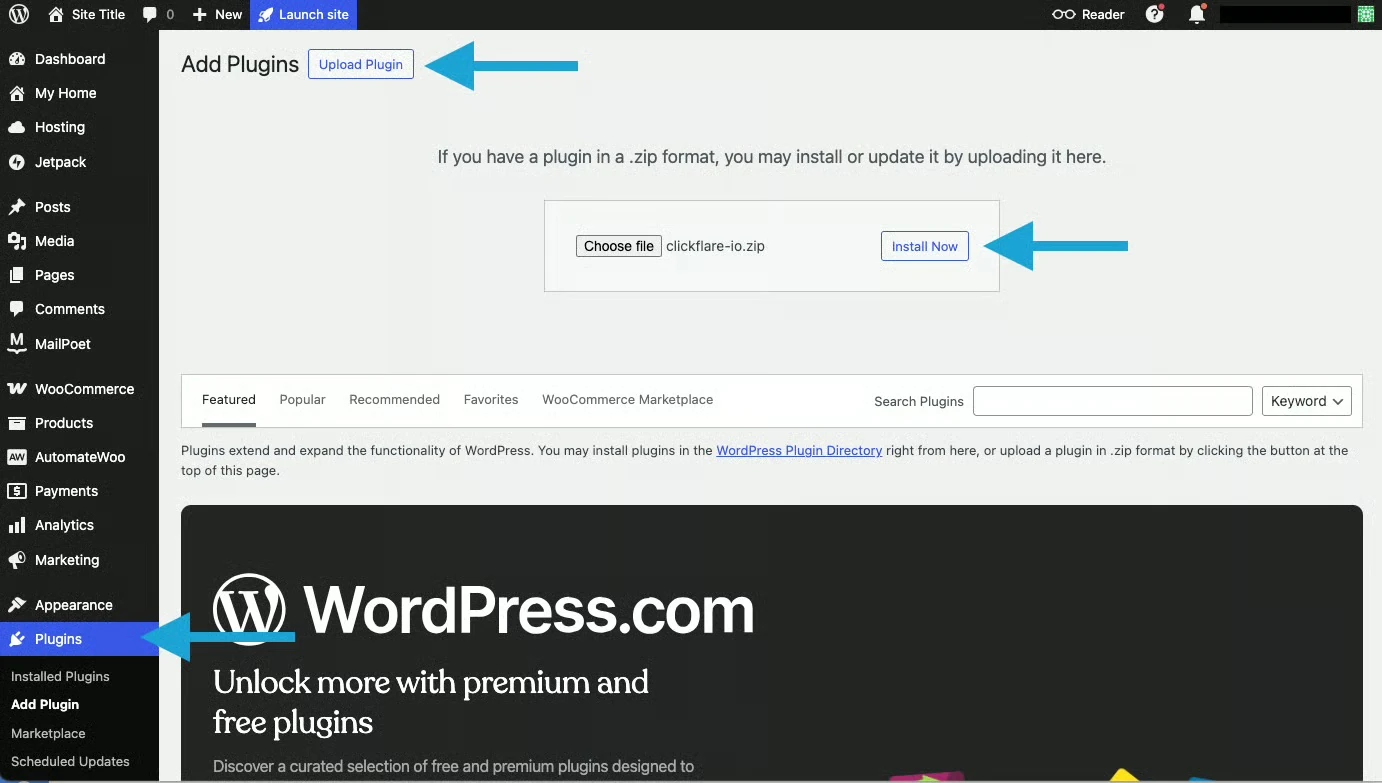
In WordPress, go to Plugins → Add New → Upload Plugin. Upload the ClickFlare plugin ZIP (the download link is in the WooCommerce tracking guide) and click Install Now.
Step 8: Configure the Plugin Settings
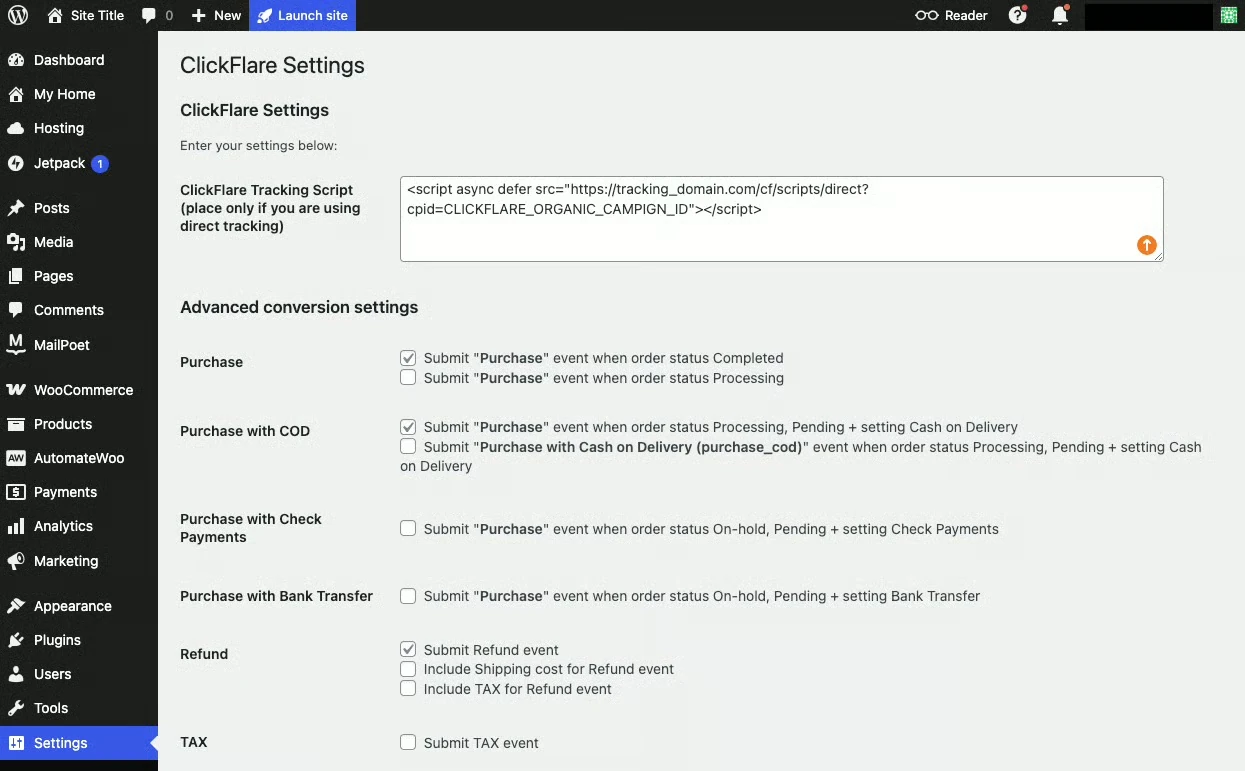
Go to Plugins → Installed Plugins, find ClickFlare, and click Settings. This is where you control:
Purchase event logic, such as which order statuses or payment methods trigger a purchase event.
Event toggles for refunds, partial refunds, tax, shipping, order bumps, and payment-method-specific purchases.
The Direct Tracking Script field, used only for direct tracking, organic, Google Ads, Bing, or direct-to-store flows.
If you're using direct tracking, paste the ClickFlare script into that field:
Replace tracking_domain.com with your ClickFlare tracking domain and the campaign ID placeholder with your organic campaign ID.Redirect campaigns only need the plugin. Direct tracking campaigns need both the plugin and the ClickFlare script.
Step 9: Test Your Setup
Before you scale spend, run a quick test:
Click a real ClickFlare campaign link.
Place a test order using a test gateway or a low-priced product.
Open Reports → Conversions, filter by event (for example, sale or checkout_created) and by your test campaign.
Check that the conversion is attributed to the right campaign, the event types are correct, revenue values match the order, and product-level data comes through.Once it's working, you can send conversions back to ad platforms through ClickFlare's Conversion API integrations with platforms such as Meta, Google Ads, and TikTok.
Redirect vs. Direct Tracking for WooCommerce Conversion Tracking
Picking the right tracking method is one of the most common sticking points. Here's how they compare.
Redirect Tracking
Direct Tracking
When to use it
Whenever your traffic source allows redirects
When redirects aren't allowed (Google Ads, Bing, SEO, direct-to-store)
What you need
ClickFlare WooCommerce plugin
Plugin plus the Direct Tracking Script
Main advantage
More control and routing options, including lander rotation
Works with platforms that require the ad to link straight to your site
As a rule, use redirect tracking whenever possible, and switch to direct tracking only where you have to.
Common WooCommerce Conversion Tracking Mistakes to Avoid
Forgetting the click ID on the offer URL. Without it, redirect campaigns can't link orders to the original click.
Firing purchases on the wrong order status. Counting unpaid or on-hold orders inflates your numbers. Set your purchase event logic carefully.
Ignoring refunds and cancellations. A campaign that looks profitable on gross sales can lose money once refunds come in.
Mixing traffic sources in one campaign. One campaign per traffic source keeps attribution and cost data clean.
Skipping the organic campaign. Unpaid sales end up unattributed, which can make paid campaigns look better or worse than they are.
Not testing before launch. A single test order catches most setup issues before they cost you real ad spend.
WooCommerce conversion tracking is what turns ad spend into decisions you can trust.Track more than the final sale, include refunds and cancellations, and keep one campaign per traffic source.Ad platform plugins are a fine start, but once you're running several channels, a dedicated tracker gives you one consistent view of cost, revenue, and profit.With ClickFlare, that comes down to a few campaign settings and a single WooCommerce plugin.
Frequently Asked Questions
What Is WooCommerce Conversion Tracking?
WooCommerce conversion tracking records actions in your store, like checkouts, purchases, upsells, and refunds, and attributes each one to the ad, campaign, or traffic source that drove it. It shows which marketing efforts actually generate revenue, so you can put your budget where it performs best.
Does WooCommerce Have Built-In Conversion Tracking?
WooCommerce records orders and revenue, but it doesn't attribute sales to ad campaigns on its own. You need a plugin, a tag manager setup, or a dedicated tracker to connect each order to the click that produced it and see performance by traffic source.
How Do I Track Google Ads Conversions in WooCommerce?
You can use Google's free Google for WooCommerce extension to track sales in Google Ads. With ClickFlare, you create a direct tracking campaign for Google Ads and add the Direct Tracking Script in the ClickFlare WooCommerce plugin, so conversions are tracked without a redirect.
Can I Track Refunds and Cancellations in WooCommerce?
Yes. With ClickFlare, you create refund, partial refund, and cancellation events, then enable them in the WooCommerce plugin settings. Those events are tied back to the original campaign, so your reports show net revenue instead of gross sales.
Do I Need a Landing Page for WooCommerce Conversion Tracking?
No. You can send traffic straight to your store or product pages. Landers are optional, but they're useful for split testing angles or warming up cold traffic. ClickFlare supports up to 3 landers before the store in a single flow.
Can I Track Multiple WooCommerce Stores in ClickFlare?
Yes. Create a separate offer for each store in ClickFlare, then assign each offer to the correct campaign. Every store's conversions are then attributed to their own campaigns and traffic sources, while you still report on everything from one dashboard.
Need a hand with WooCommerce conversion tracking?
Try out ClickFlare for free and book a call with one of our tracking specialists who will guide you through the entire process.